
Groups of products, specifications and equipment
On this page
Groups in Bimp are hierarchical directories for organizing products, specifications and equipment. To create a group, open "Directories", choose the section ("Product groups", "Specification groups" or "Equipment groups"), click "Create", enter a name, select a parent group if needed and save.
Why you need groups
Groups combine products and services with similar characteristics into logical categories. This gives you two benefits: analytics by category (for example, the profitability of “Footwear” and “Clothing”) and faster search of items in orders and stock counts.
Bimp has three separate group directories. All of them work the same way:
| Directory | What it groups | Where it is used |
|---|---|---|
| “Product groups” | Products and services | The “Group” field in the product or service card |
| “Specification groups” | Specifications, the “recipes” of finished goods | Specification cards |
| “Equipment groups” | Equipment: production machinery, vehicles, warehouse equipment (fixed assets) | Equipment accounting |
Example. A furniture store had a list of 500 items. It created a parent group “Home furniture” with the subgroups “Sofas”, “Tables” and “Chairs”. Now, during a stock count, it is enough to select the “Tables” group.
How to create a group
A group of products, specifications or equipment is created the same way.
- Open Directories and go to the tab of the directory you need: “Product groups”, “Specification groups” or “Equipment groups”.
- Click Create.
- Enter the group “Name” at the top of the card.
- If needed, fill in “Comment (optional)”, for example which items belong to the group.
- In the “Parent group” field, select the group the new one is nested in. For a top-level group, leave the field empty.
- Click Save.
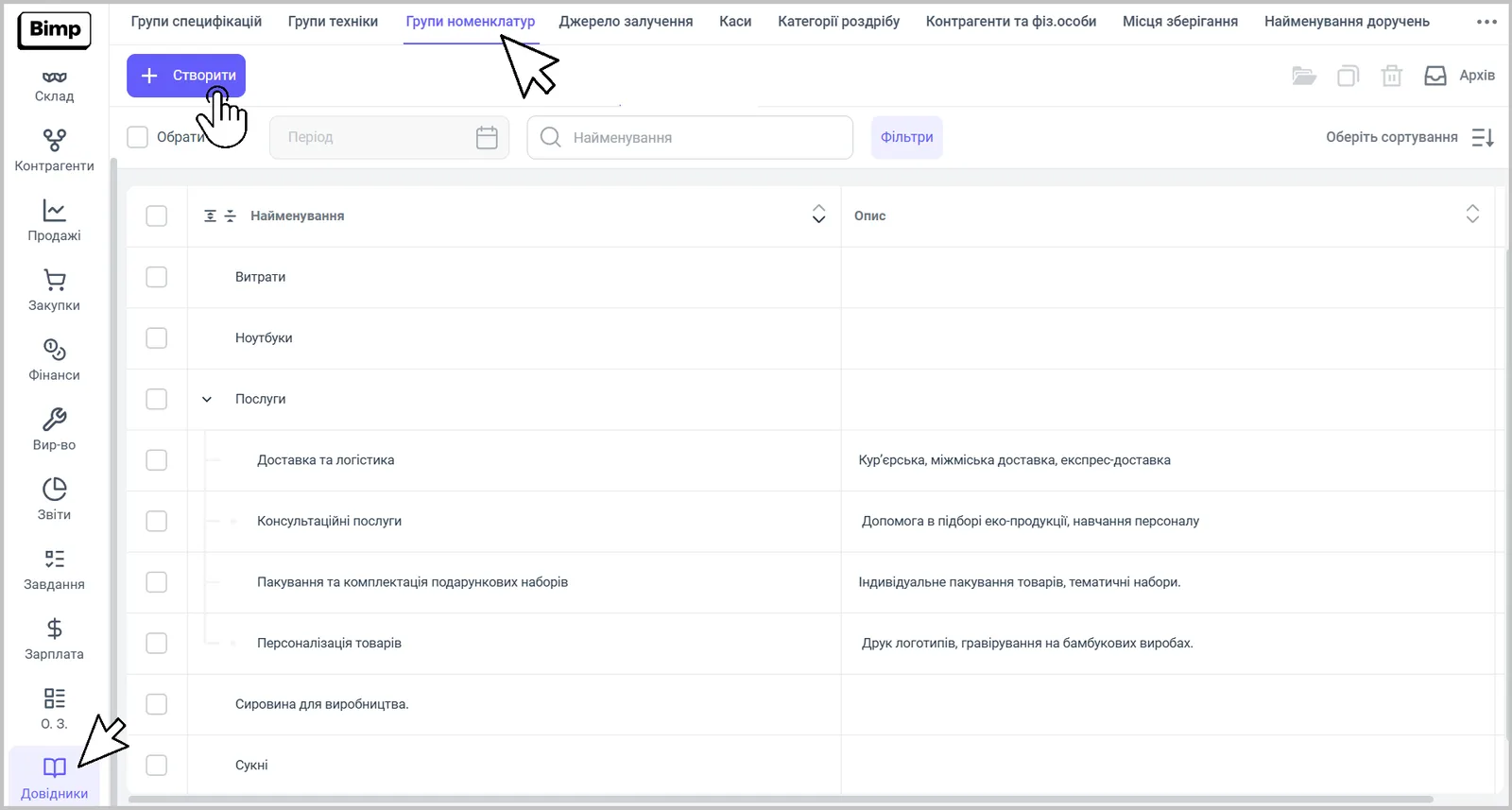
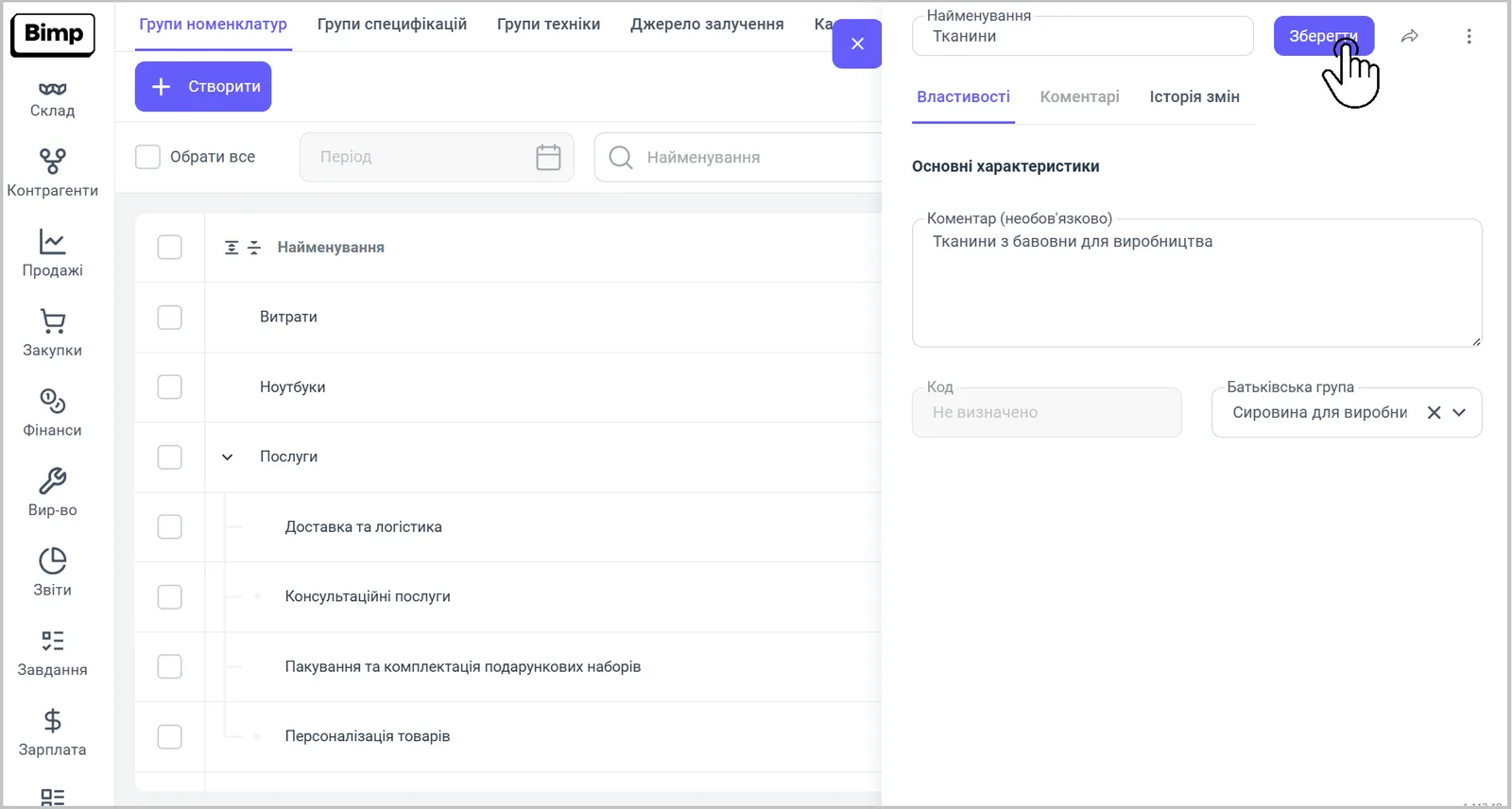
After saving, the group is immediately available for selection in the cards of the relevant directories.
Why you cannot choose a group as a parent
A group cannot be chosen as a parent if it directly contains products: the system will not let you save the change, because parent groups (folders) must have no stock movements. To use such a group as a parent, first move its products to another group, and then save again.
How to transfer a structure from another system
You can enter the group structure manually or import it from another accounting system; contact Bimp support to do this. Importing the products themselves, including the “Group” column, is described in Importing products and stock balances.
FAQ
Why can't I make a group a parent group?
A group chosen as a parent cannot contain products: folders must have no stock movements. First move the products from this group to another one.
Is the "Parent group" field required?
Only for a subgroup. For a top-level group (a root folder), leave the field empty.
Can I load a group structure from another accounting system?
Yes, the structure can be imported. Contact Bimp support to do it.