
Specifications: stages, operations, materials and planned cost price
On this page
A specification in Bimp is a product's costing sheet: materials, stages, operations and planned cost price. A production order uses it to pull in materials automatically, reserve them and calculate cost price. To create one, open "Production → Specifications", click "Create", fill in the header, add stages with operations and link materials to the stages.
What a specification is
A specification (process card) in Bimp defines what a product is made of and how: materials and their quantities, the sequence of stages and operations, time norms and the cost of work. Production documents use it to pull in materials automatically, write them off and calculate cost price. The two ways to organise production are compared in the production overview.
Stages and operations let you:
- write off materials and charge the cost of work at a specific stage rather than for the whole product;
- see how ready the product is at each step and where a delay occurred;
- plan the load of workshops, equipment and employees;
- keep work-in-progress accounting: value accumulates by stage.
Before you start
- In the “Production stages” catalog, create the stages you will use in the specification.
- For operations by your own employees, create accrual types. See Accrual types. For contractor operations you need a service in the products catalog.
- If you want to group specifications, create groups in the “Specification groups” catalog.
- Materials and the finished product must exist in the products catalog. See Products and services.
How to create a specification
-
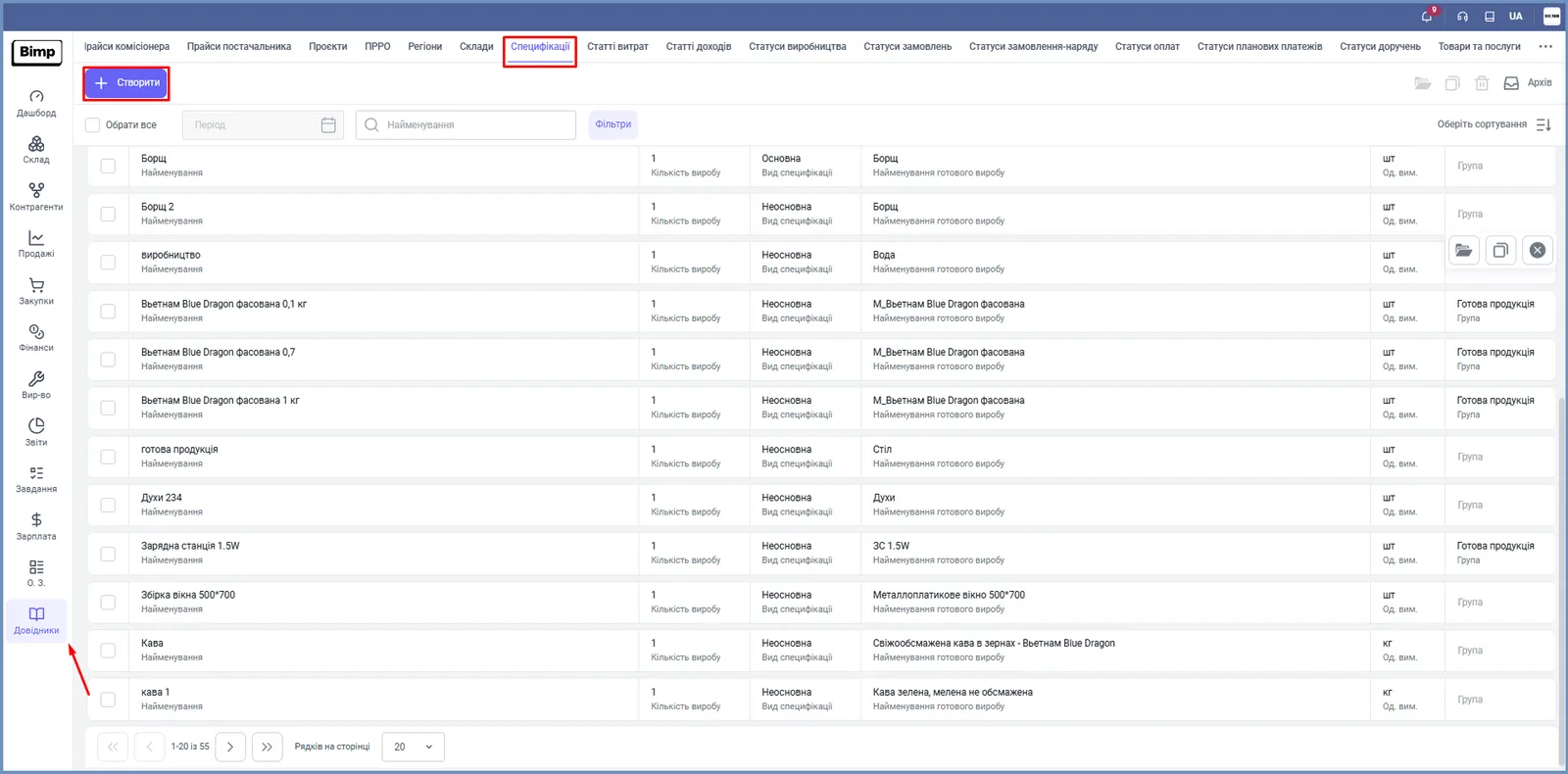
Open Production → Specifications (or Catalogs → Specifications) and click Create.
-
Fill in the left panel:
Field What to enter “Name” The specification name “Finished product name” The product from the catalog “Finished product quantity (pcs)” The base quantity the specification is calculated for (usually 1) “Version” The version, if you keep versions “Group” A specification group (must exist in the catalog) “Currency” The currency for the planned cost price calculation at the internal rate “Type” Product or Service “Specification kind” Main (default) or Non-main “Use stages and operations” Turn on if you need stages and operations: tabs for the process chain appear on the right “Use as template” Turn on for a standard specification you will copy new ones from 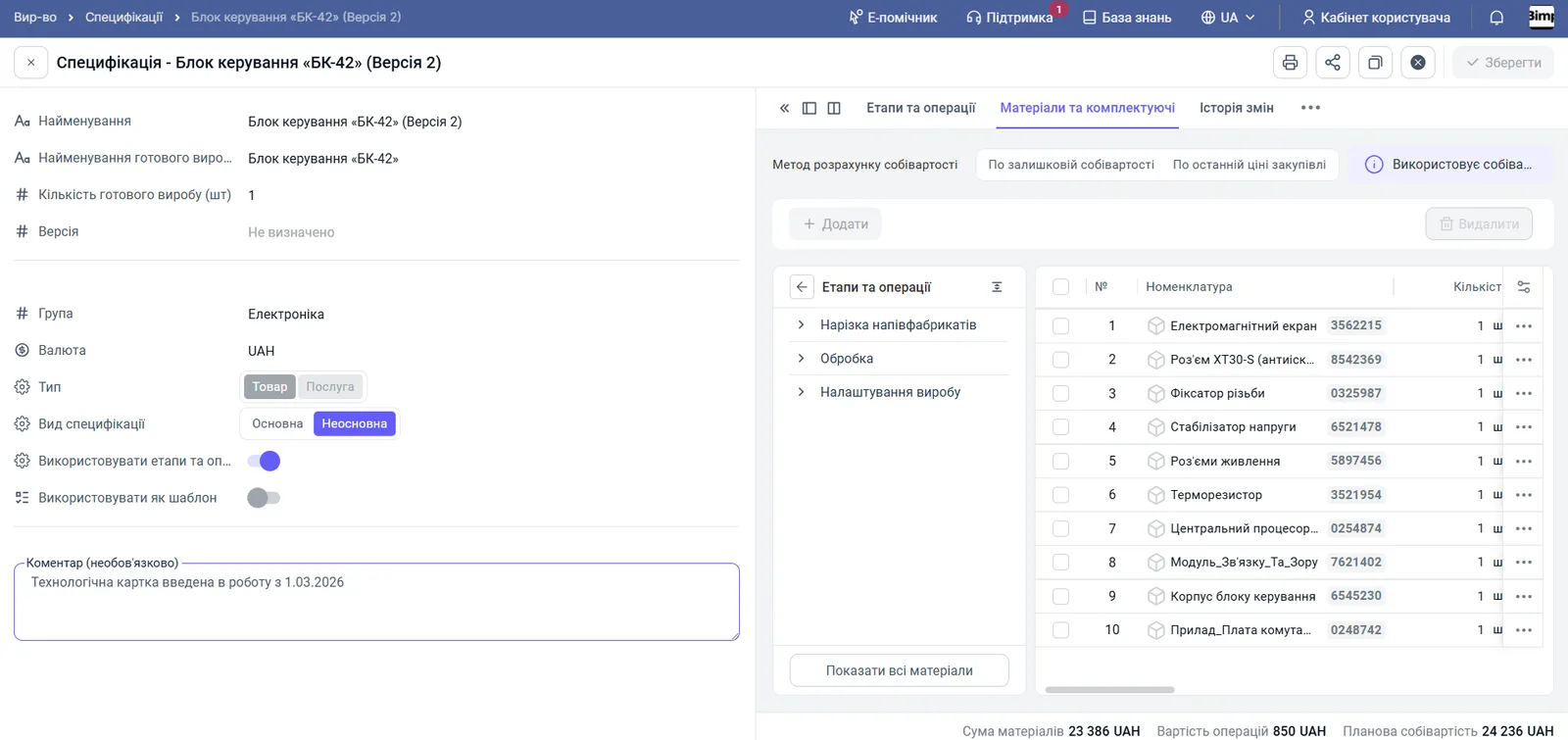
-
To create a specification from a ready template, click Use template in the top right corner of the form and choose a template.
How to add stages and operations
A stage is a step of the process chain; an operation is a piece of work within a stage.
-
Open the “Stages and operations” tab and click + Stage. Choose a stage from the “Production stages” catalog. Add the stages in the order of manufacturing.
-
To add an operation, click + to the right of the stage name and choose the type:
- Service: the operation is performed by an outside organization (outsourcing);
- Accrual types: the operation is performed by your own employees.
-
Fill in the operation columns:
Column What it means “Quantity” How many operations are needed per product unit (1 by default) “Execution time” Time norm in hours “Priority” Sequence number: the smaller the number, the earlier the stage starts “Dependency” Whether the start of the operation depends on the previous one finishing “Performer” An employee (own work) or a counterparty (contractor) “Contract” The contract with the contractor “Cost” The price of performing the operation in the specification currency “Amount” Quantity × cost, calculated automatically 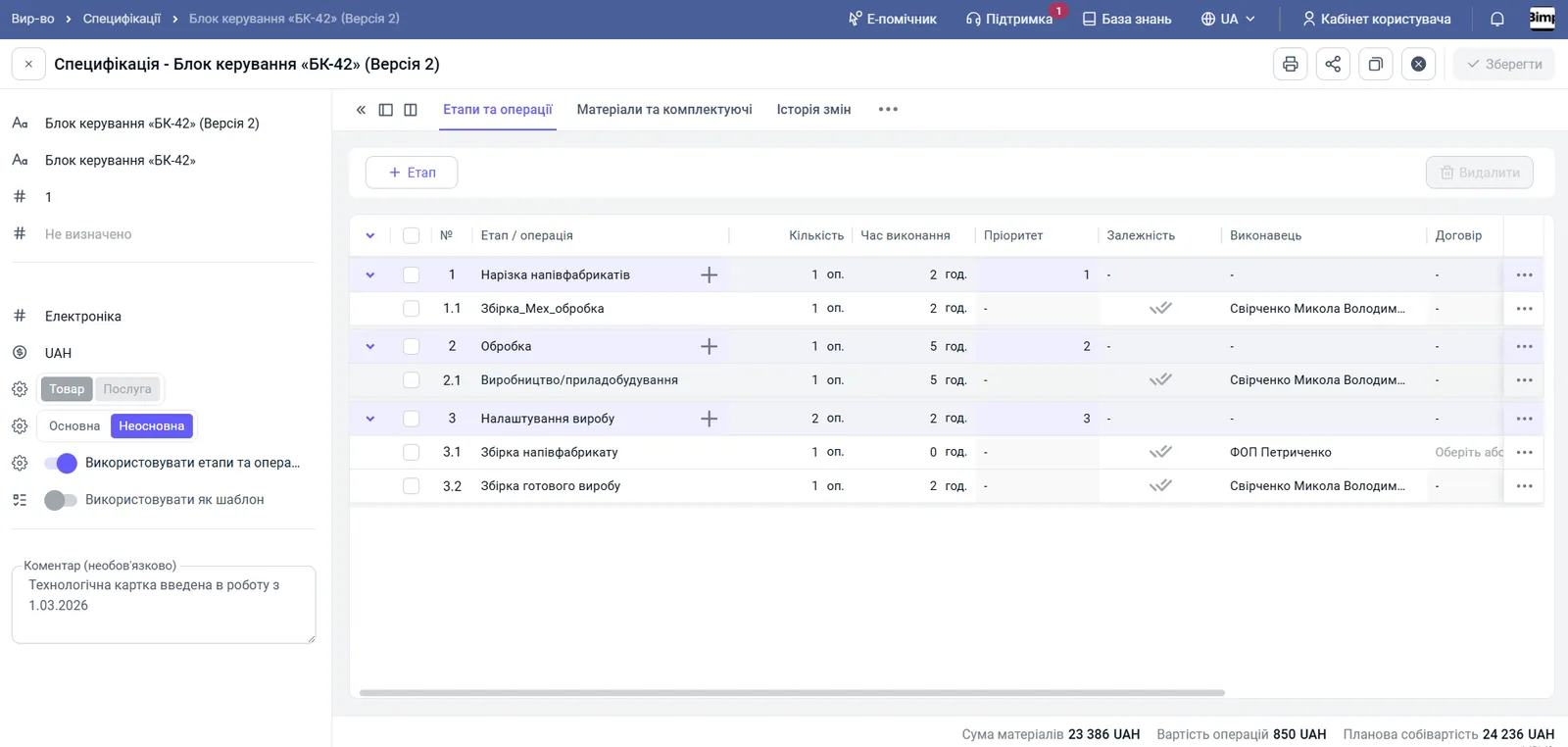
How to add materials and components
-
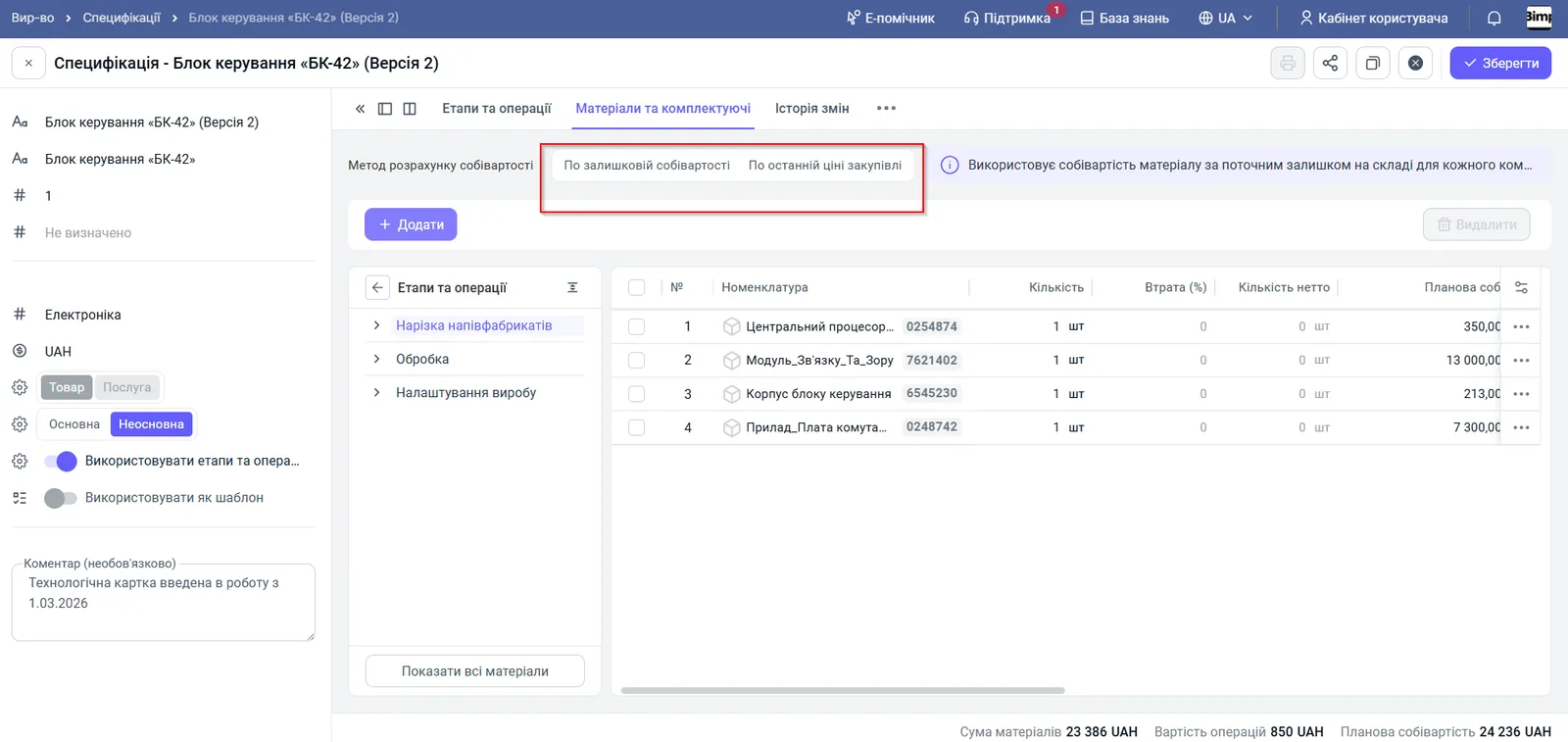
Open the “Materials and components” tab and choose the cost price calculation method:
- By remaining cost price: based on the current stock balance in the warehouse; the most accurate actual accounting;
- By last purchase price: more convenient for operational budget planning.
-
On the left choose a stage, click + Add and select the materials consumed at this stage.
-
Fill in the columns:
Column What it means “Quantity” Planned quantity of the component for the stated product quantity “Loss (%)” By what percent the net quantity is lower than the total: technological losses “Quantity net” The actual quantity used in the product “Planned cost price” Calculated automatically from system data “Amount” Planned cost price × quantity “Cost share” The part of the product’s value that falls on the component. Used only in disassembly; the sum of the column must equal 1 (100%) “Specification” For a semi-finished product: the specification it is made by “Analogues” Material replacement rules “Not used in production” Turn on if the material is needed only for costing or is written off by other documents -
To see all materials across all stages, click Show all materials under the stage list.
How to set up analogues
An analogue replaces a material that is out of stock. Fill in the “Analogues” table in the product card (see Product analogues) and choose the “Write off by” rule:
- Priority: the analogue with the smallest number in the “Priority” column is written off;
- Availability: the analogue that is in stock at the moment the document is posted;
- Stock balance: the analogue with the largest available balance.
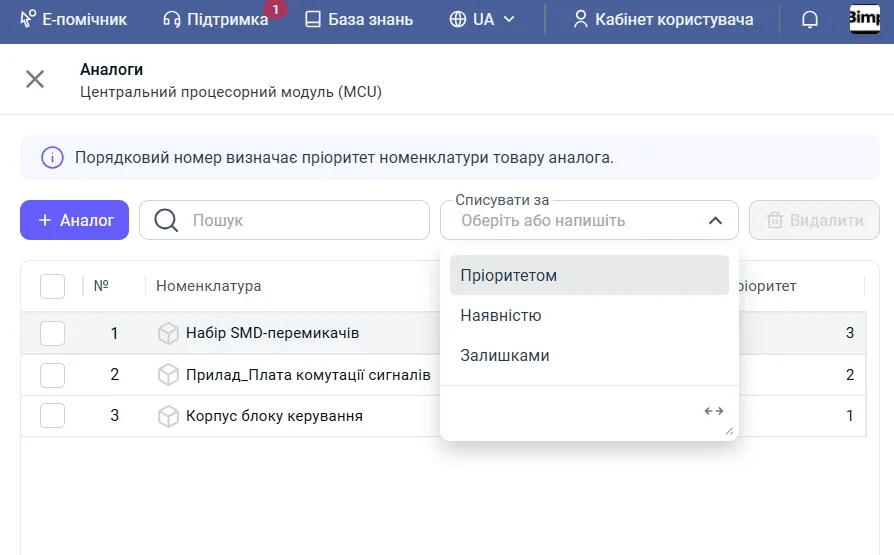
The replacement is performed in the production order manually or automatically.
Saving and further use
Check all tabs and click Save. The specification becomes available in production documents: the production order pulls materials and operations from it, and the stages form work in progress. To control overuse, you can add a minimum and maximum quantity of materials. See Material consumption limits. The “Specifications” catalog has a filter by product: it shows which specifications use a given material, and the card has a “Print” button.
To create many specifications at once, use import specifications from Excel. A specification for a service is described in Service specification.
FAQ
What is a specification for?
It defines the product composition, the quantity of materials, stages and operations. The system uses it to write off materials automatically, reserve them and calculate the cost price of the finished product.
Why are components not reserved even though a specification exists?
The material is not linked to a stage or has no quantity. Without this the system cannot correctly calculate the cost price and reserve components when production starts.
How do I replace a material that is out of stock?
Fill in the analogues in the product card and choose a replacement rule: by priority, by availability or by stock balance. Replacement works in the production order and assembly.
What is "Cost share" in a specification?
The part of the product's value that falls on a component. It is used only in the Disassembly document; the sum of the shares must equal 1.
More about this in Bimp: Production management software