
Additional fields for products and counterparties
On this page
Additional fields store data for which the product or counterparty card has no standard field: processor, operating system, brand, warranty. Create the field in the company settings (the "Additional fields" tab), and then fill in its value on the card using "Add characteristic".
Why you need additional fields
Additional fields let you store in the card of a product, service or counterparty any information that has no standard field. This helps you adapt your records to your business: for electronics it is the processor or graphics card type, for a supplier it is the brand or warranty.
Created product fields are available for all items in the company. Counterparty fields are available for all counterparties.
How to create an additional field
To create an additional field, open the company settings, the “Additional fields” tab, and add the field names. Fields are created separately for products and for counterparties.
- Click the account icon in the top right corner and choose Settings.
- Open the Additional fields tab.
- In the “Products” or “Counterparty” block, click Add field.
- In the “Field name” field enter a name, for example “Processor”, “Operating system” or “Warranty”. Repeat the step for several fields.
- Click Save changes.
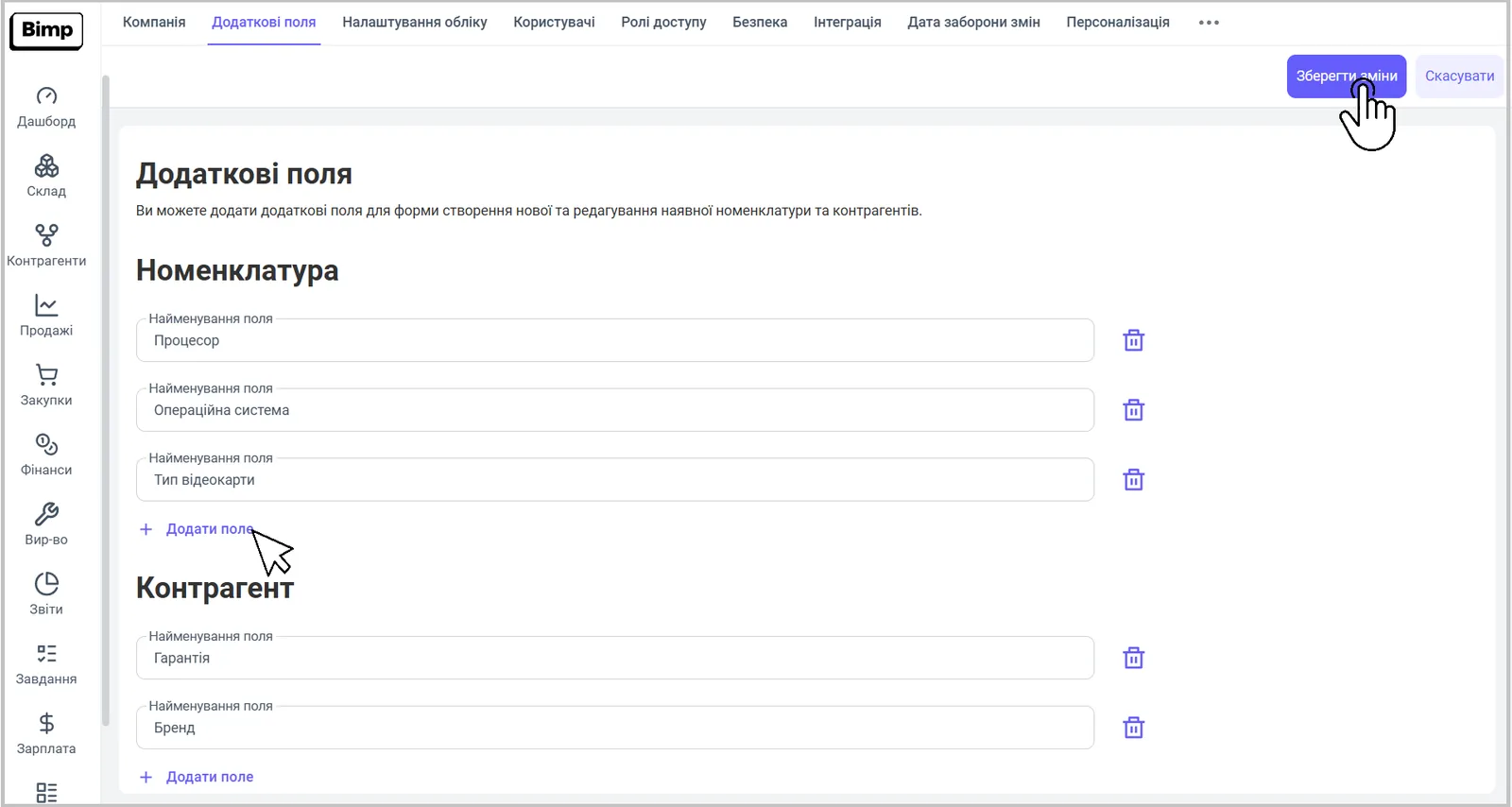
You can delete a field with the trash icon next to it.
How to fill in additional fields on the product card
The values of additional fields are entered on the product card with the “Additional” button. The field is filled in separately for each product.
- Open the product card: in the Warehouse section or in Directories → Products and services.
- Scroll the left panel of the card to the end and click Additional.
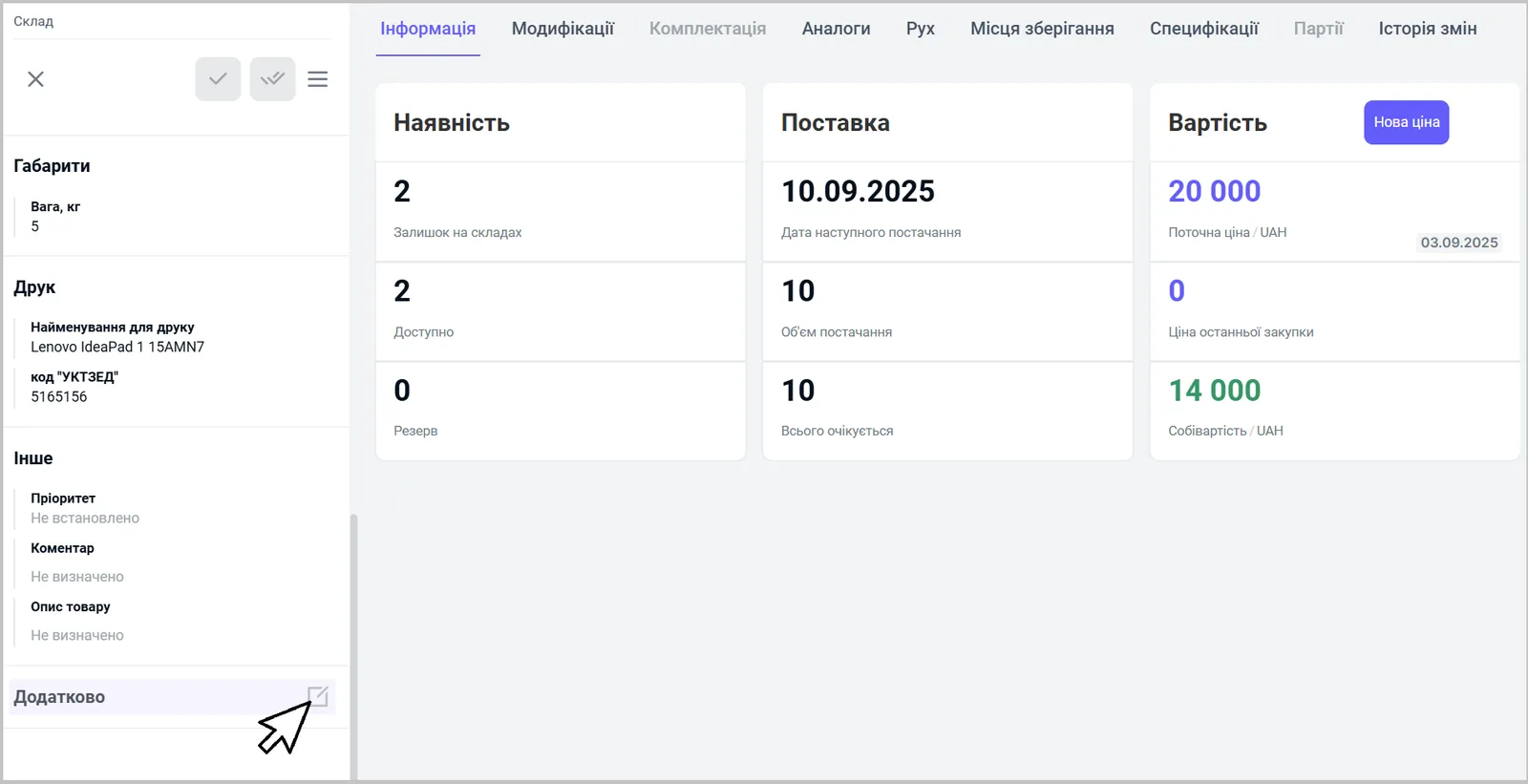
- In the “Additional” form, click Add characteristic.
- In the “Properties” field choose the created additional field from the list, and in the “Value” field enter the data manually, for example “Windows 11 Home”.
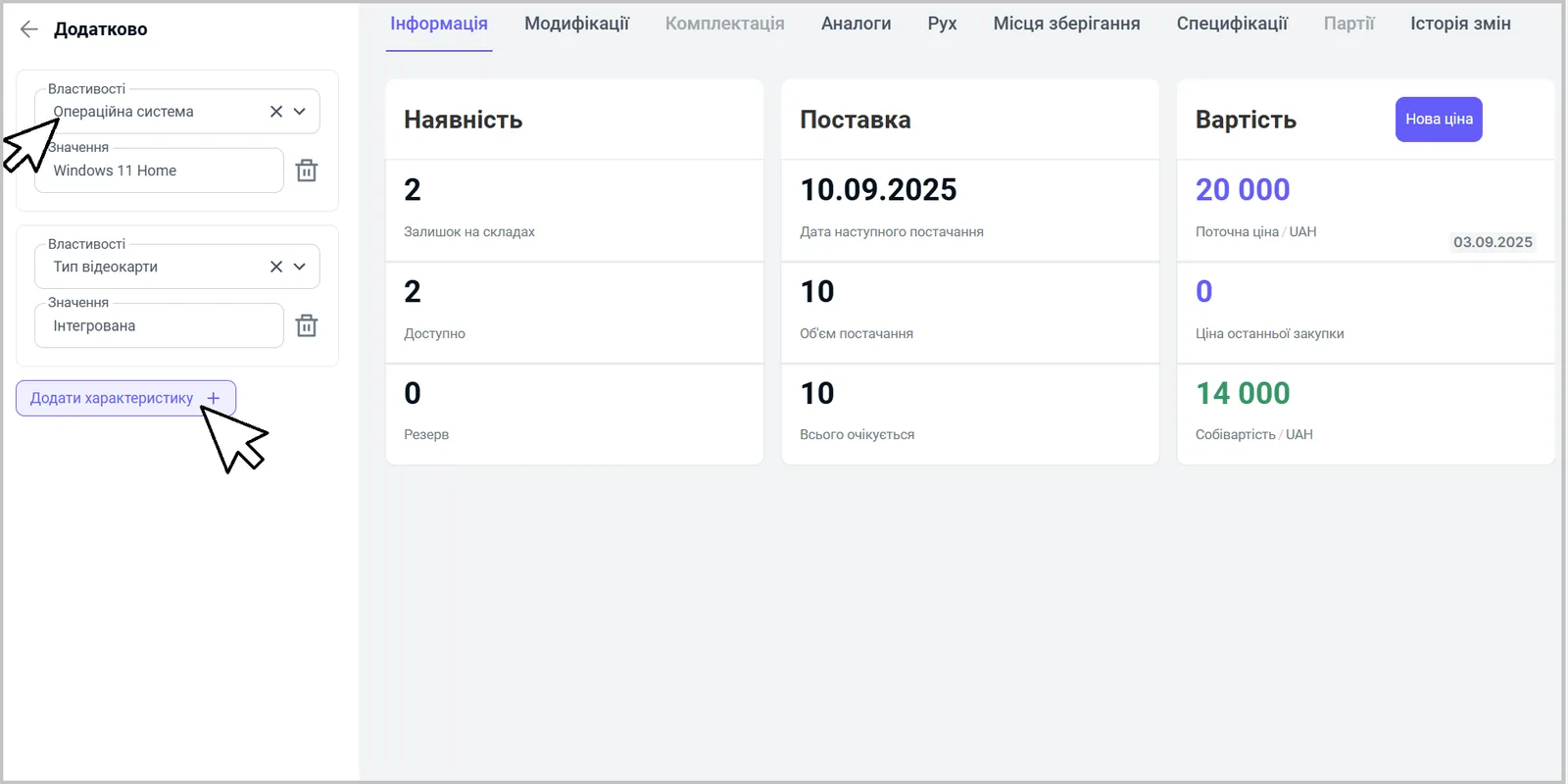
- Save the card with the Save button.
One product can have several characteristics: add them by clicking “Add characteristic” again. The trash icon next to a “Properties” and “Value” pair removes the characteristic.
How to fill in additional fields on the counterparty card
The values of counterparty additional fields are entered in the “Additional characteristics” block on the counterparty card.
- Open the counterparty card: in the Counterparties section or in Directories → Counterparties and individuals.
- Scroll the card down to the Additional characteristics block and click Add characteristic.
- In the “Properties” field choose the field you need from the list, and in the “Value” field enter the data, for example “Brand” — “Lenovo”, “Warranty” — “12 months”.
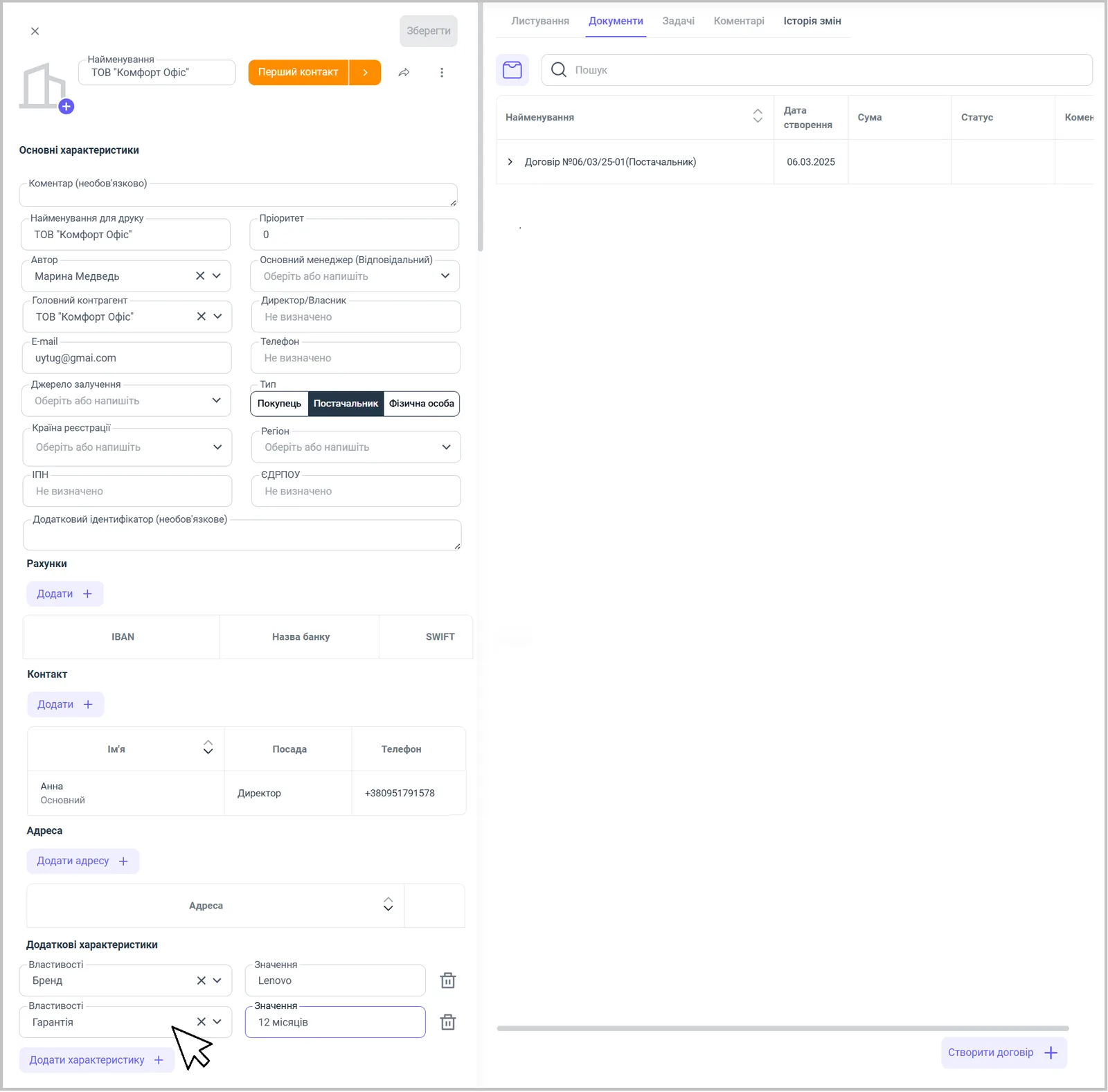
- Save the card with the Save button.
For more about the card, see Counterparty card and addresses.
Common problems
The field you need is not in the “Properties” list. Cause: the field was not created on the “Additional fields” tab of the settings, or it was created for another object (for products instead of counterparties). Solution: add the field in the right block and click “Save changes”.
The characteristic value was not saved. Cause: the card was not saved after entering the values. Solution: click Save on the card.
FAQ
Where do I create an additional field for a product?
Click the account icon in the top right corner, choose "Settings", open the "Additional fields" tab and click "Add field" in the "Products" block.
Can I add my own fields for a counterparty?
Yes. The same "Additional fields" tab has a separate "Counterparty" block. The values are entered on the counterparty card in the "Additional characteristics" block.
Does an additional field apply to all products?
Yes. A created product field can be applied to any item in the company, but the values are entered separately for each product.