
Bulk price update for a group of products without Excel
On this page
To quickly change prices for a group of products, open "Sales → Prices", select the products and click "Change prices". Choose the price list, change type and rule (+X, +X%, *X, /X), enter the value and the "Effective from" date, apply the change and click "Save".
When you need a bulk price update
A bulk price update is needed when the prices of a group of products must change at the same time: the exchange rate went up, logistics became more expensive, or a sale is starting. See the separate article on price rounding and how the write-off amount is calculated.
Example. A supplier raised the price of cotton. The shop has 20 kinds of cotton fabric. The manager opens the “Prices” section, filters the list by the word “Cotton”, selects all the products found and applies the rule ”+ X%” with the value 15. Only the fabric prices change.
How to change the prices of selected products
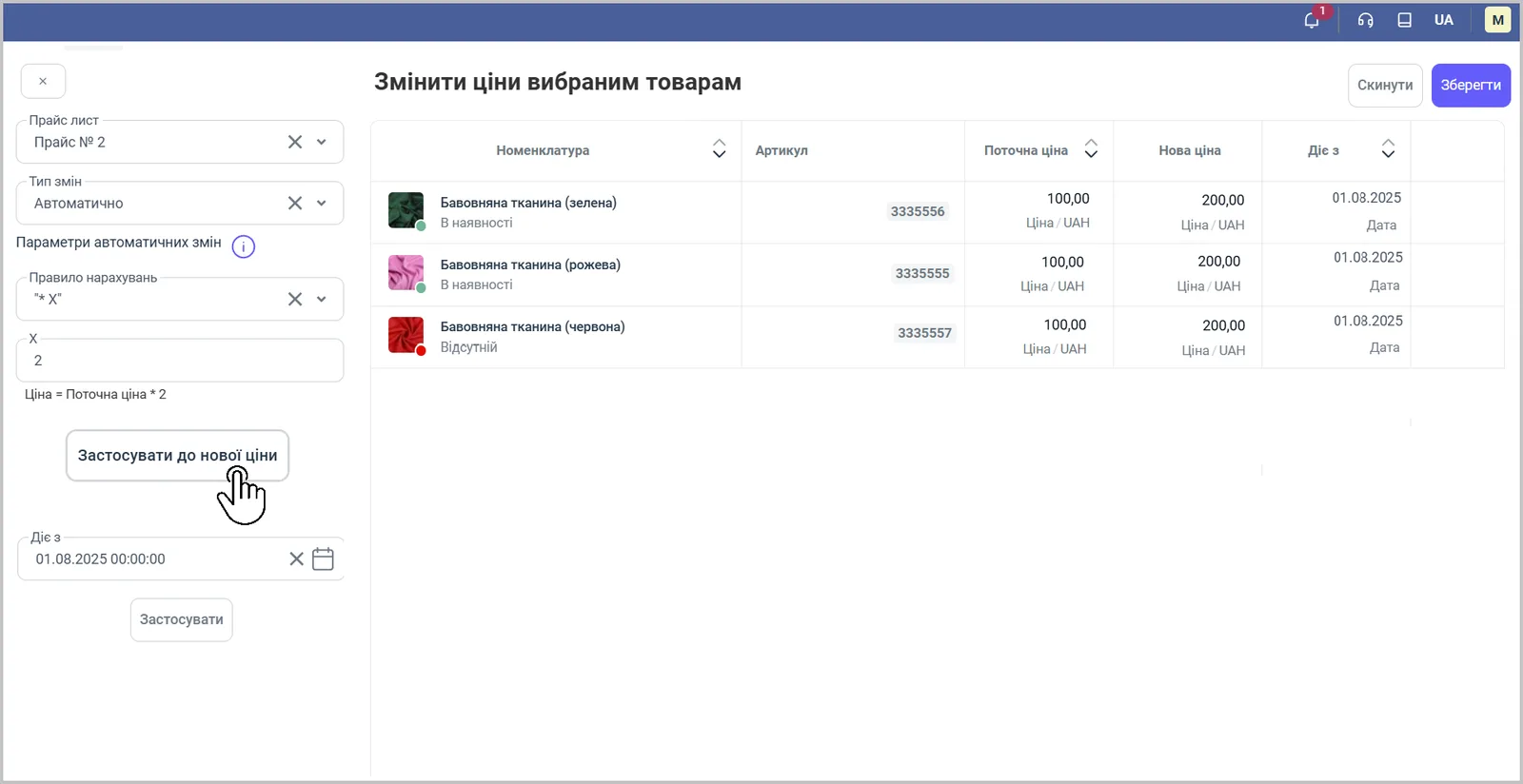
Prices are changed in the “Change prices for selected products” window.
-
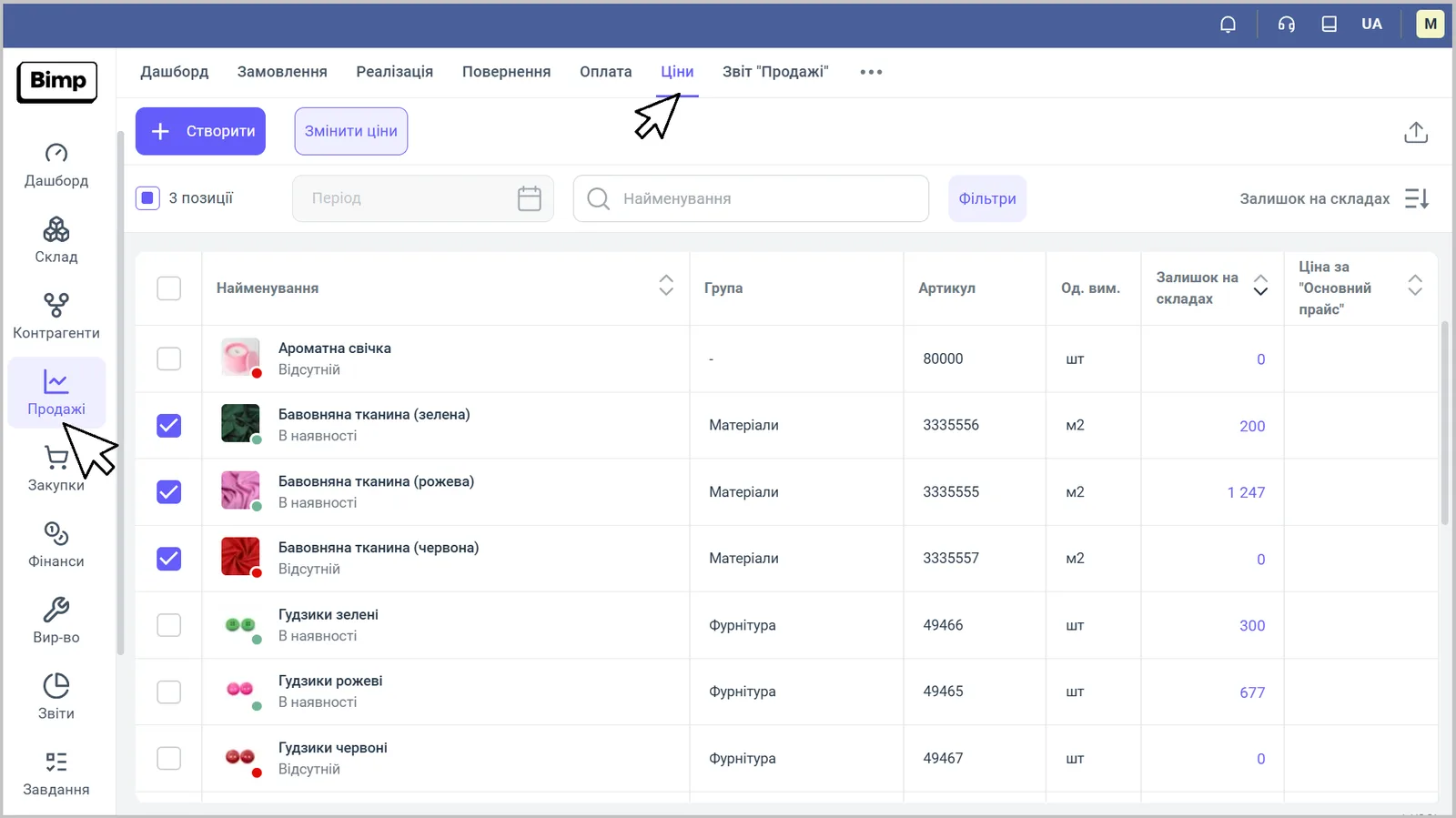
Open Sales → Prices and select with checkboxes the products whose prices you want to change.
-
Click the Change prices button above the list. The “Change prices for selected products” form opens.
-
In the “Price list” field, choose the price list you want to update.
-
In the “Change type” field, choose the method, for example “Automatic”. The “Automatic change parameters” block appears.
-
In the “Calculation rule” field, choose a formula (see the table below) and enter a value in the “X” field.
-
Click Apply to new price. The calculated values appear in the “New price” table next to “Current price”.
-
In the “Effective from” field, specify the date and time from which the new price takes effect, and click Apply.
-
Check the table and click Save in the top right corner.
Calculation rules
The rule determines how the new price is calculated from the current one.
| Rule | What it does | Example (current price 100 UAH) |
|---|---|---|
| ”+ X” / ”− X” | adds or subtracts a fixed amount in the product’s currency | + 50 → 150 UAH |
| ”+ X%” / ”− X%” | changes the price by a percentage | + 15% → 115 UAH |
| ”* X” / ”/ X” | increases or decreases the price by a factor of X | * 2 → 200 UAH |
How the “Effective from” date works
The new price takes effect from the date and time in the “Effective from” field, and the old one stays in the price list history. If you specify a future date, the product is sold at the old price until then, and then the new price activates automatically. To see the change history, open the price list and go to the “Prices by product” tab — see Price lists.
FAQ
Why did some selected products disappear in the price change window?
After you choose a price list, only the products that are in that price list remain in the table. Products that are not there will not be in the list, and their price is not changed.
Which price change rules are available?
+X and −X (by an amount), +X% and −X% (by a percentage), *X and /X (by a factor of X).
Can I schedule a price increase for tomorrow?
Yes. In the "Effective from" field enter a future date: the old price applies until then, and the new one activates automatically.