
Comparing prices and stock across different price lists
On this page
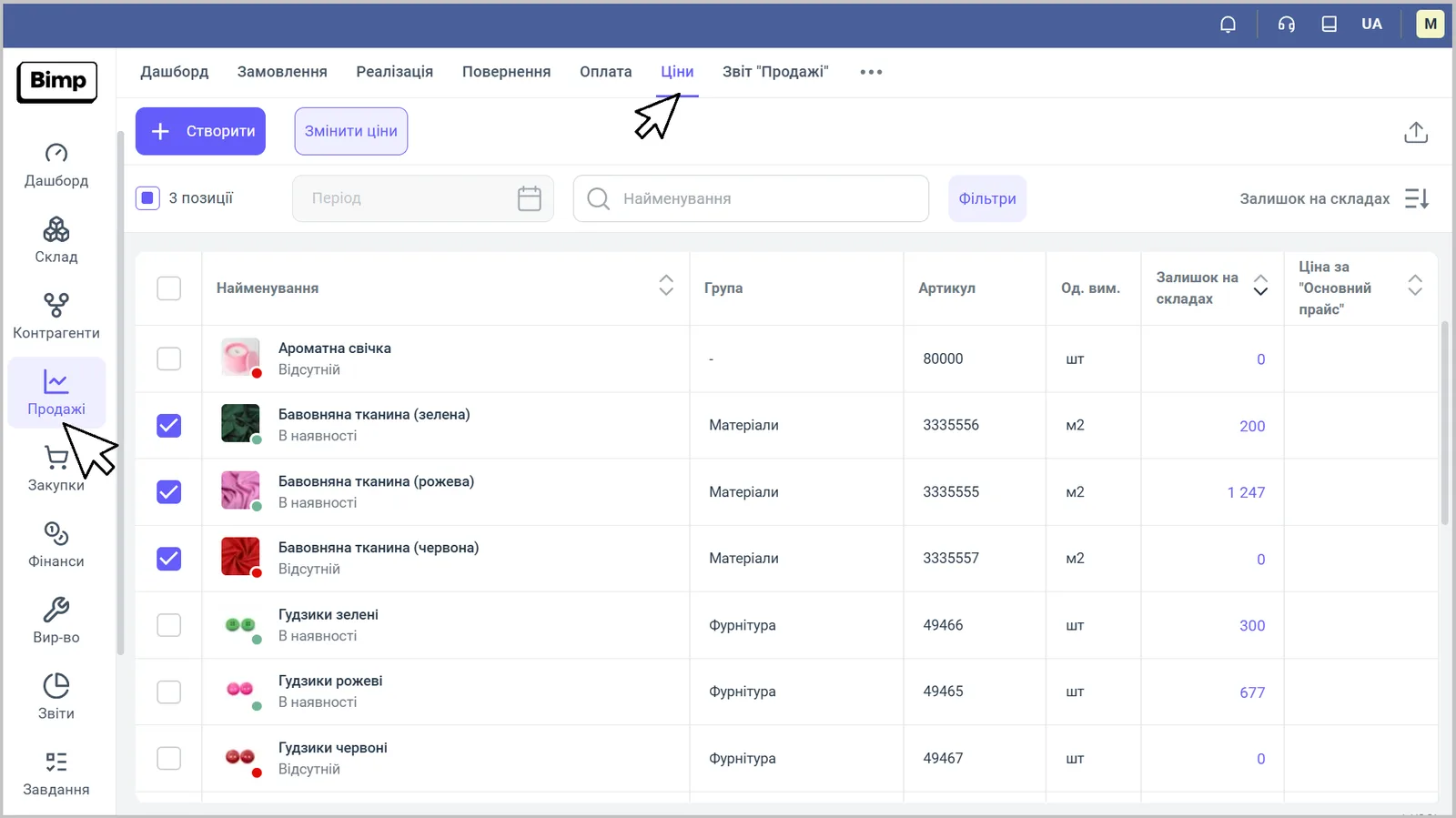
The "Sales → Prices" section shows a list of products with stock in warehouses and the price of the chosen price list. To compare price lists, open "Filters" and choose one or more price lists in the "Price list" field: the prices appear in separate columns. The "Availability" filter keeps only the products in stock.
What the “Prices” section is for
The “Sales → Prices” section works as a single window: a list of products, stock in warehouses and prices. A manager can quickly answer a customer’s question about availability and price, and a head of sales can check how price lists differ (for example, “Wholesale” and “Retail”).
Example. A customer asks for pipes and fasteners that are in stock right now, at the wholesale price. The manager opens “Prices”, chooses “Wholesale price list” and the “In stock” status in the filter, and sees only the available products with wholesale prices.
Which columns the price list shows
For each product, the list shows the stock and the price. The main columns:
| Column | What it means |
|---|---|
| “Name”, “Group”, “SKU”, “Unit” | product identification |
| “Stock in warehouses” | total number of units across all warehouses (or in the chosen warehouse) |
| “Price for …” | the product’s price in a price list; the header contains the price list name, for example “Main price list” |
Click the header of the “Stock in warehouses” or “Price” column to sort the list, for example from the most expensive to the cheapest.
How to compare prices across price lists
Use the filters above the list for comparison.
- Open Sales → Prices and click Filters.
- In the “Price list” field, choose a price list, for example “Dealer” instead of “Retail”. The prices in the table update. If you choose several price lists, the prices of each appear in separate columns.
- If needed, narrow down the list:
- “SKU”, “Product”, “Group” — find a product or category;
- “Warehouse” — show stock for a single warehouse only;
- “Availability” — the value “In stock” hides products with zero stock.
How to use the result
After filtering, you see the real stock and the current price for the chosen type of customer. This lets you decide right away whether the goods can be shipped and what the deal will cost, and then create a Customer order. If prices need correcting, select the products and use bulk price update.
FAQ
How do I compare the prices of two price lists for the same products?
In "Sales → Prices" open "Filters" and choose both price lists in the "Price list" field. The prices of each appear in a separate column.
How do I show only the products that are in stock?
In the filters, choose the value "In stock" in the "Availability" field: products with zero stock are hidden.
Can I see stock for a single warehouse?
Yes, choose "Warehouse" in the filters. By default, "Stock in warehouses" is the total across all warehouses.