
Price lists: creating them and prices in different currencies
On this page
A price list in Bimp is a set of prices for products and services for a specific group of customers (retail, wholesale, promotion). To create one, open "Directories → Customer price lists", click "Create", enter a name and currency, save, and then add prices with the "New price" button. The main price list is filled into documents automatically.
Why you need several price lists
A price list lets you sell the same product to different customers at different prices. The manager only has to pick the price list in a document, and Bimp fills in the prices itself. How price rounding and the write-off amount are calculated is described separately. All articles in this section are listed on the “Prices and price lists” page.
Example. The company “Coffee World” sells coffee beans: visitors get the “Retail” price list (500 UAH/kg), offices get “Wholesale” (450 UAH/kg). The owner creates two price lists and sets the type “Main” for “Retail”, so it is filled in automatically. The manager picks the “Wholesale” price list manually in an office’s order.
How to create a price list
A price list is created in the “Customer price lists” directory.
- Open Directories → Customer price lists and click Create.
- In the “Main” block, fill in the fields:
- “Name” — a clear name, for example “Retail” or “Wholesale”;
- “Price list currency” — the currency in which you will enter prices (UAH, USD, EUR). This is the key setting: it determines the units Bimp expects for prices on the product tabs;
- “Price list type” — Main (filled into documents by default) or Non-main (for promotions and special offers).
- If prices are tied to a foreign currency, turn on the “Use supplier recommended prices” switch — see Prices by exchange rate.
- Click Save. After saving, the tabs “Prices by date”, “Prices by product”, “Import” and “Change history” appear on the right.
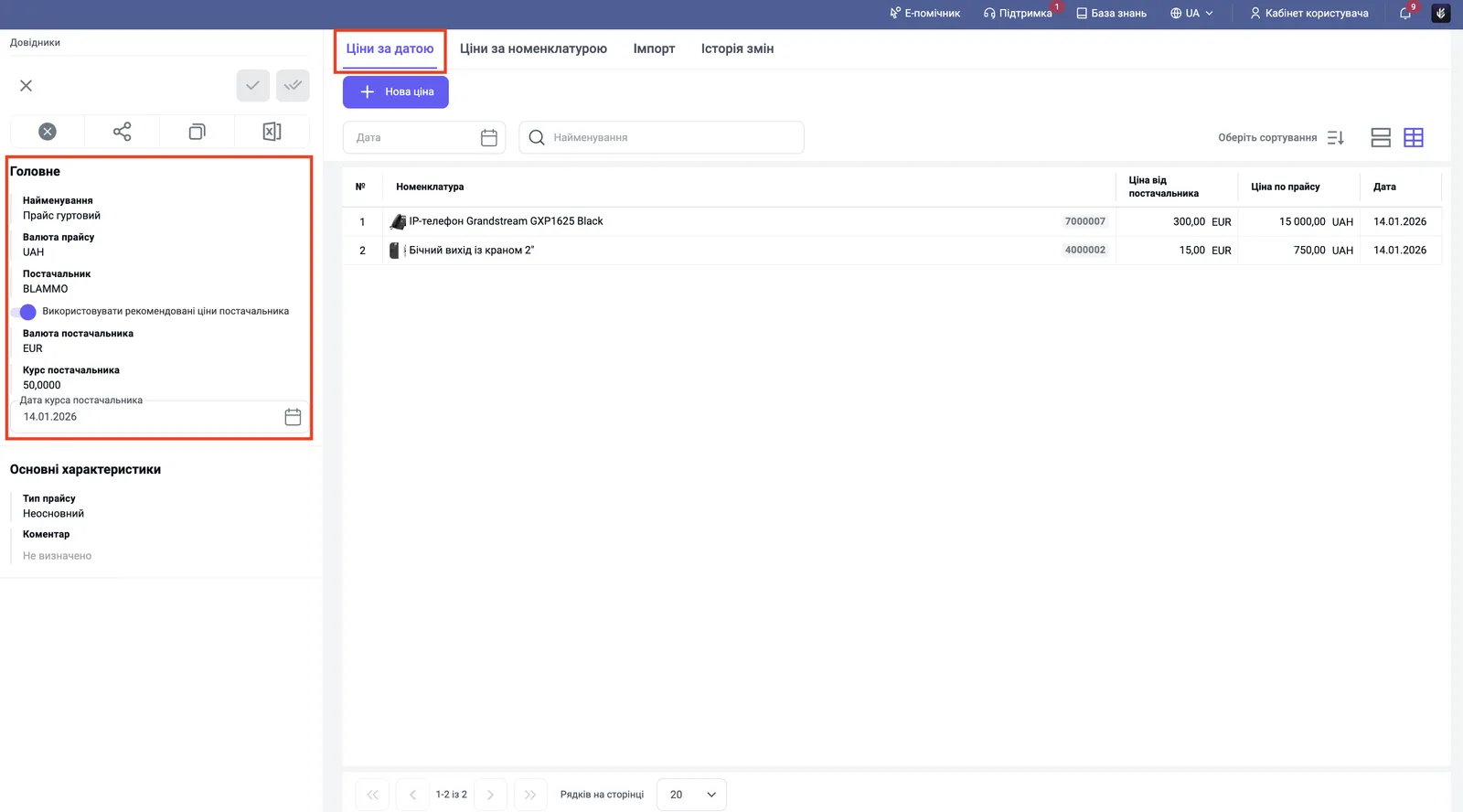
How to enter prices manually
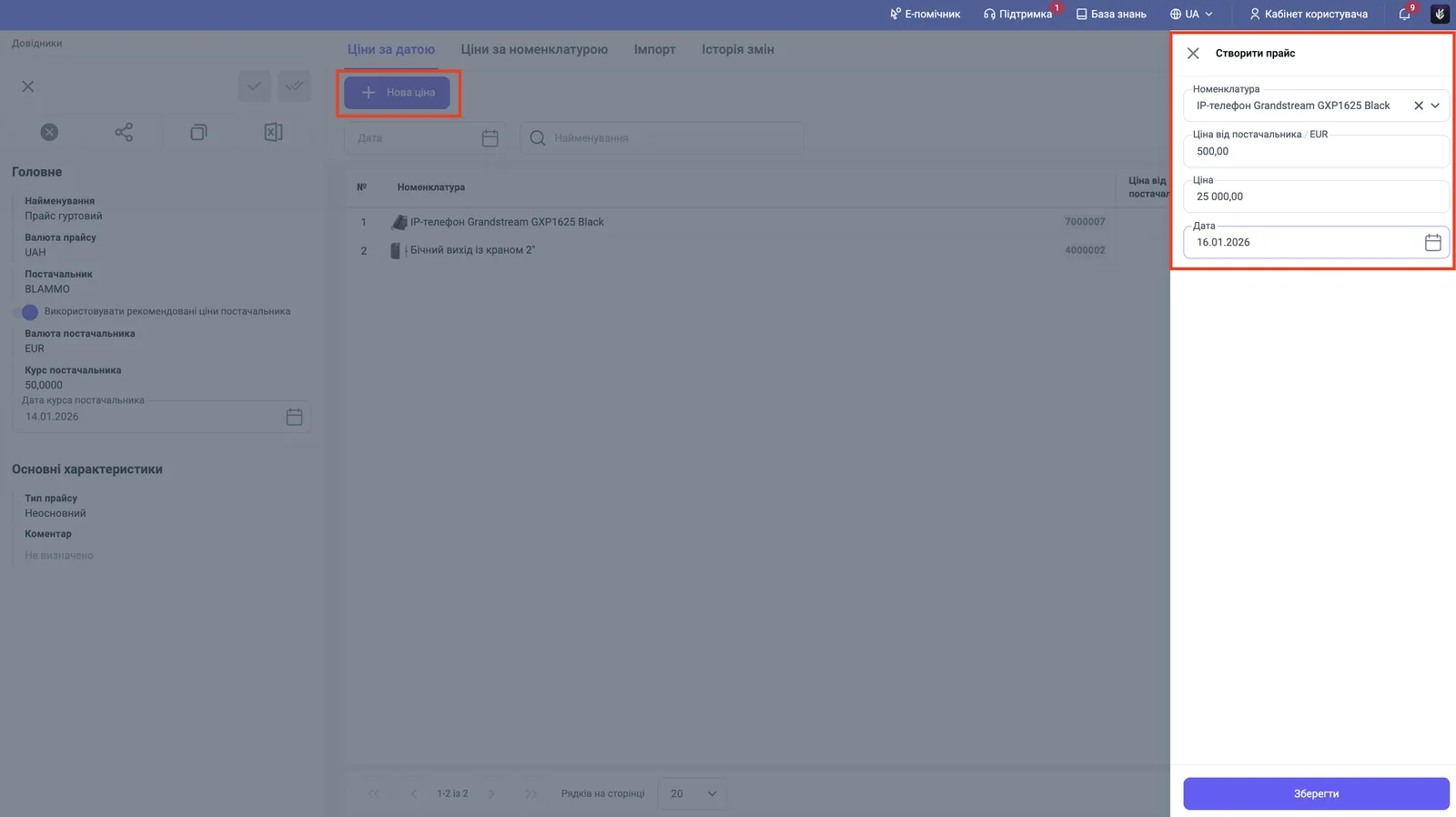
Prices are entered on the “Prices by date” or “Prices by product” tab with the New price button.
- Open the saved price list and click New price. The “Create price” panel opens on the right.
- Choose the “Product” — a product or service.
- Fill in the price:
- in a regular price list, enter the “Price” — it is in the price list currency;
- in a currency price list (with the switch turned on), enter the “Supplier price” in the currency, and Bimp calculates the “Price” in hryvnia at the rate.
- Specify the “Date” — the date from which the price is in effect.
- Click Save.
How the “Prices by date” and “Prices by product” tabs differ
The “Prices by date” tab shows only the prices in effect at the current moment, while “Prices by product” shows the full price history: current, future and past. On the second tab, each product expands with an arrow, and all its records with start dates are visible underneath.
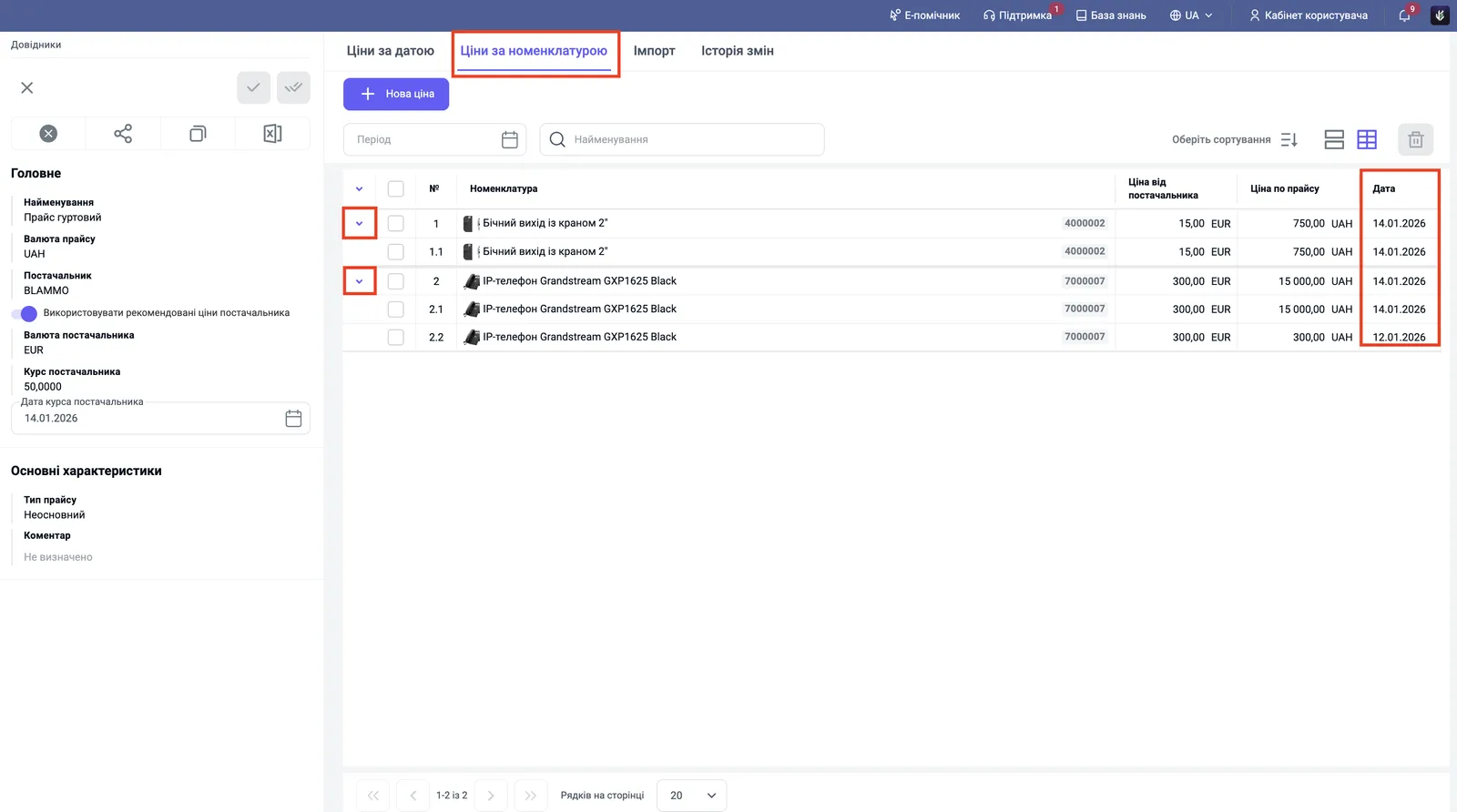
How to change or delete a price
- Open the “Prices by product” tab.
- Click a product row to open the record and correct the price, or select the row with the checkbox and click the trash icon above the table to remove the item from the price list.
Old prices do not disappear when you change a price: a new price with a different date is added alongside, and the history stays. To change prices in bulk, use bulk price update or import price lists from Excel.
FAQ
How is the main price list different from a non-main one?
The main price list is filled into documents by default. A manager picks non-main price lists (promotional, dealer) manually, for example in a Customer order.
In which currency should I enter prices in a price list?
In the one you chose in the "Price list currency" field. If USD is selected, prices on the products tab are entered in dollars.
How is the "Prices by date" tab different from "Prices by product"?
"Prices by date" shows the prices that are in effect now. "Prices by product" shows the full history: current, past and future prices.
How do I remove a product from a price list?
Open the "Prices by product" tab, select the row and click the trash icon.