
Restricting sign-in by IP address
On this page
To allow sign-in only from certain networks, open "User account → Users → Access settings → IP access", click "+ Add" and enter an IPv4 address or a subnet (CIDR). As soon as the list contains at least one address, sign-in from other addresses is blocked. The restriction does not apply to the company owner or the administrator.
When you need this
An IP restriction lets employees sign in to Bimp only from trusted networks, for example from the office. Even if a manager’s password leaks, an intruder cannot sign in from another address.
Examples.
- A sales manager is allowed only the office IP: they work freely from their work computer, while sign-in from home is rejected.
- An analyst works remotely from different cities: their address list is empty, so there are no restrictions.
How to set up allowed IP addresses
Addresses are set for each user separately.
- Open User account → Users and find the employee.
- Click Access settings.
- Open the IP access tab (it comes after the “Warehouses”, “Project”, “Accounts and cash desks” and “Lines of business” tabs).
- Click + Add.
- In the “IP address / Mask” field enter the allowed address, and in the “Comment / Description” field enter a location label, for example “Head office Kyiv”.
- Click Save.
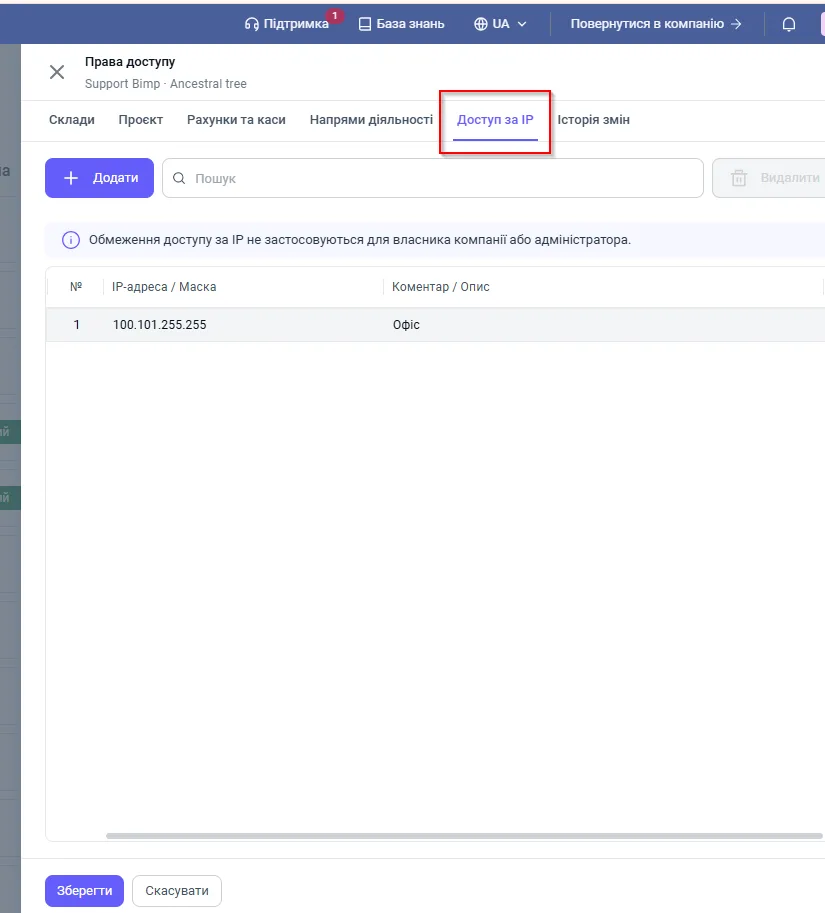
To find your current public address, search for “my IP” in a browser or use the 2ip.ua website. Test the settings on a test user first.
Which address formats are supported
| Format | Example | What it allows |
|---|---|---|
| Single IPv4 address | 192.168.1.10 | sign-in from one device or router |
| Subnet (CIDR) | 192.168.1.0/24 | sign-in from the whole address range of the network |
While the list is empty, there are no restrictions: the tab shows a hint that the user has full access from any address. As soon as at least one address is added, sign-in from all other networks is blocked; the user sees the message “Access from your IP address (…) is restricted by the administrator”.
The restrictions do not apply to the “Company owner” and “Administrator” roles.
How to change or remove the restriction
- On the “IP access” tab, find the entry using the “Search” field (by address or comment).
- Select the checkboxes next to the rows you need and click Delete.
- To remove the restriction completely, delete all entries: the user can sign in from any address again.
FAQ
What happens if an employee tries to sign in from home?
If the employee has allowed IP addresses in their list and the home address is not among them, sign-in is blocked with the message "Access from your IP address (…) is restricted by the administrator".
Does the IP restriction apply to the owner and the administrator?
No. The restrictions are ignored for the "Company owner" and "Administrator" roles, so management always has access, even on a business trip.
How do I allow an employee to sign in from anywhere?
Leave the IP address list empty or delete all entries, and there will be no restrictions.
Why can't employees sign in after we changed internet provider?
Most home and mobile providers issue dynamic IP addresses. For the office, order a "Static IP address" service from your provider or update the list of allowed addresses.