
Lock date: how to close a past period
On this page
To close a past period, open "Company settings → Lock date", in the "Lock period" field select "End of last month", "quarter", "year", "Previous day" or "Custom date" and save. For specific document types, you can set the date separately using "Enable personal settings".
When you need this
The lock date blocks creating, editing and deleting documents for past periods. It protects against accidental changes to a document from last month, which would throw off warehouse balances and financial totals, and ensures that reports for a closed year or quarter do not change.
Examples.
- A company has submitted its reports for last year. The manager sets the lock period “End of last year”, and changes to documents of last year are blocked.
- Piecework pay for last month is finished by the 5th, and the balance reconciliation by the 10th. For the “Piecework pay” document the lock date is set from the 5th, while for “Stock posting” the period is left open until the stock count is finished.
How to close a period for the whole company
- Open the company settings and go to the Lock date tab.
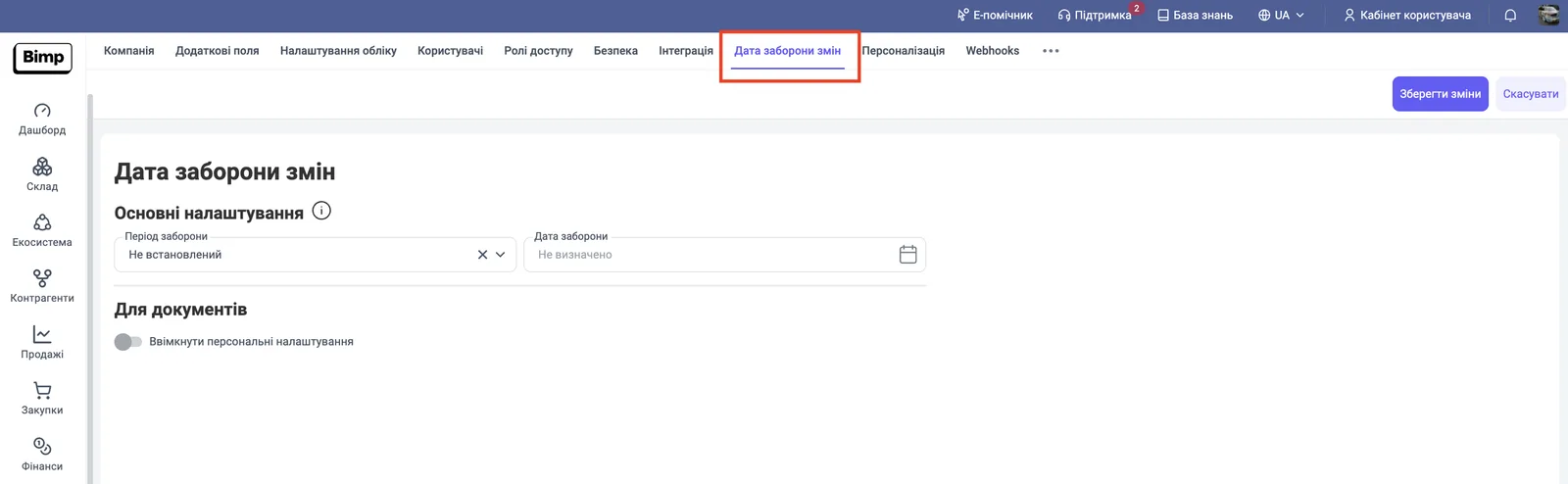
- In the “Basic settings” block, open the “Lock period” list and choose: “End of last year”, “End of last quarter”, “End of last month”, “Previous day” or “Custom date”.
- If you chose “Custom date”, enter a date in the “Lock date” field: changes before that date are not possible.
- Click Save changes.
How to set a lock for specific documents
An individual lock is needed when you do not want to close the general period but do need to block certain operations.
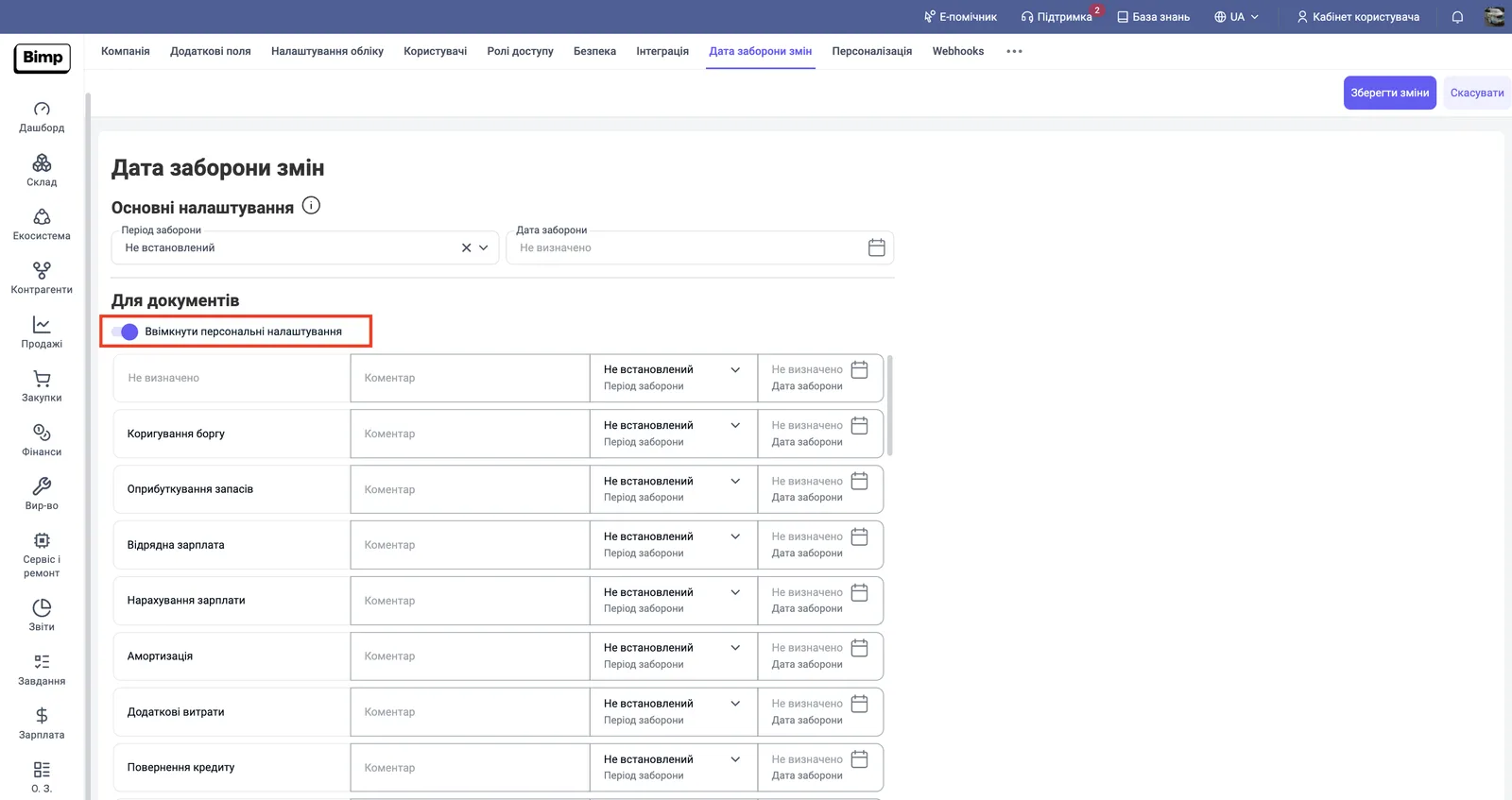
- On the “Lock date” tab, scroll down to the “For documents” block.
- Turn on the Enable personal settings switch.
- In the table of document types (for example “Debt adjustment”, “Stock posting”, “Piecework pay”, “Payroll accrual”, “Depreciation”, “Additional costs”, “Loan repayment”), set the “Lock period” or “Lock date” for the row you need.
- If needed, add a text comment for your team in the “Comment” column.
- Click Save changes.
FAQ
Who can change the lock date?
Only users with the appropriate access rights, for example the owner or the administrator.
Do I need to change the date manually every month?
No, if you choose a dynamic period, for example "End of last month": the system moves the lock date by itself when a new month begins.
Can I close the period for only some documents?
Yes. Turn on "Enable personal settings" in the "For documents" block and set a period or date for the document types you need, for example "Piecework pay" or "Depreciation".