
Access roles: how to separate employee permissions
On this page
An access role in Bimp is a group of users with a set of permissions for documents, directories, reports and statuses. Create it in "Company settings → Access roles" with the "Add new group" button, tick the allowed actions and save. You can then narrow access per user: by warehouses, accounts and cash desks, lines of business, projects and IP addresses.
What an access role is
An access role in Bimp is a group of users with the same set of permissions. The role defines what exactly an employee sees and can do in each section. It saves time: you set up the permissions once and assign them to all employees in the same position.
The system has ready-made groups “Administrator” and “Guest”; you create the rest (“Managers”, “Warehouse”, “Accountant”) yourself.
Example. A company has 5 managers and 2 storekeepers. The storekeepers get the “Warehouse” role with access to the “Warehouse” section, the managers get the “Managers” role without access to “Finance”. The owner stays an “Administrator” with full access.
How to create an access role
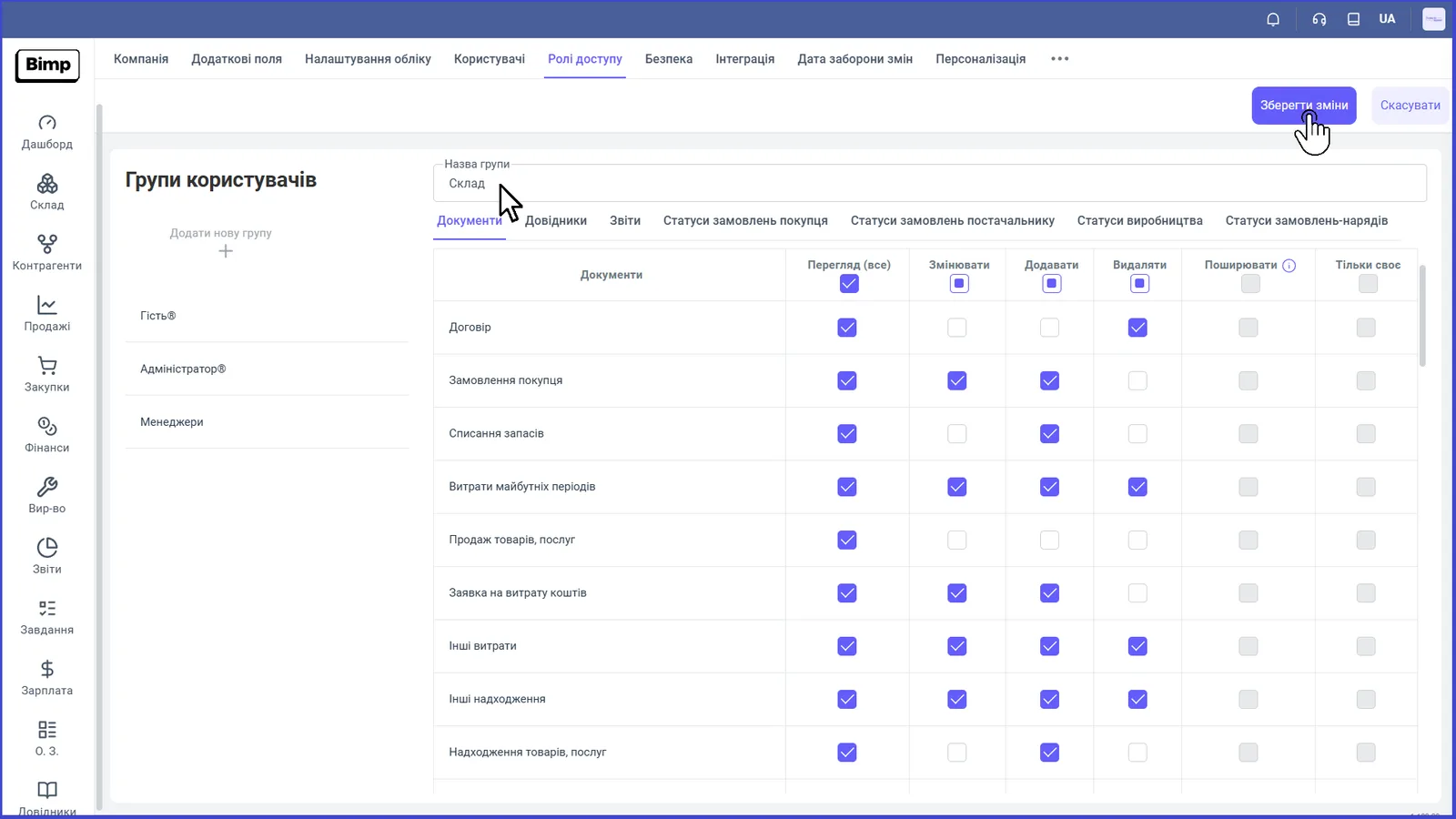
To create a role, add a new user group and tick the allowed actions.
- Open Company settings → Access roles and click Add new group.
- In the “Group name” field enter a name, for example “Warehouse”.
- Tick the permissions on the “Documents”, “Directories”, “Reports” tabs and the status tabs (see the table below).
- Click Save changes.
After creating the role, assign it to a user; see Users.
Which permissions you can set
Permissions are set separately for each document, directory and report.
| Tab | What is configured |
|---|---|
| “Documents” | for each document type (Customer order, Write-off, Goods receipt, and so on): “View (all)”, “Edit”, “Add”, “Delete”, “Share”, “Own only” |
| “Directories” | access to directories |
| “Reports” | which reports the role sees |
| “Customer order statuses”, “Supplier order statuses”, “Production statuses”, “Work order statuses” | permission to work with documents in certain statuses |
| “Other” | special permissions; currently “Product cost price” is available; see How to hide cost price |
The access level for documents created based on an order automatically matches the user’s permissions on the order itself, taking its status into account.
Personal user restrictions
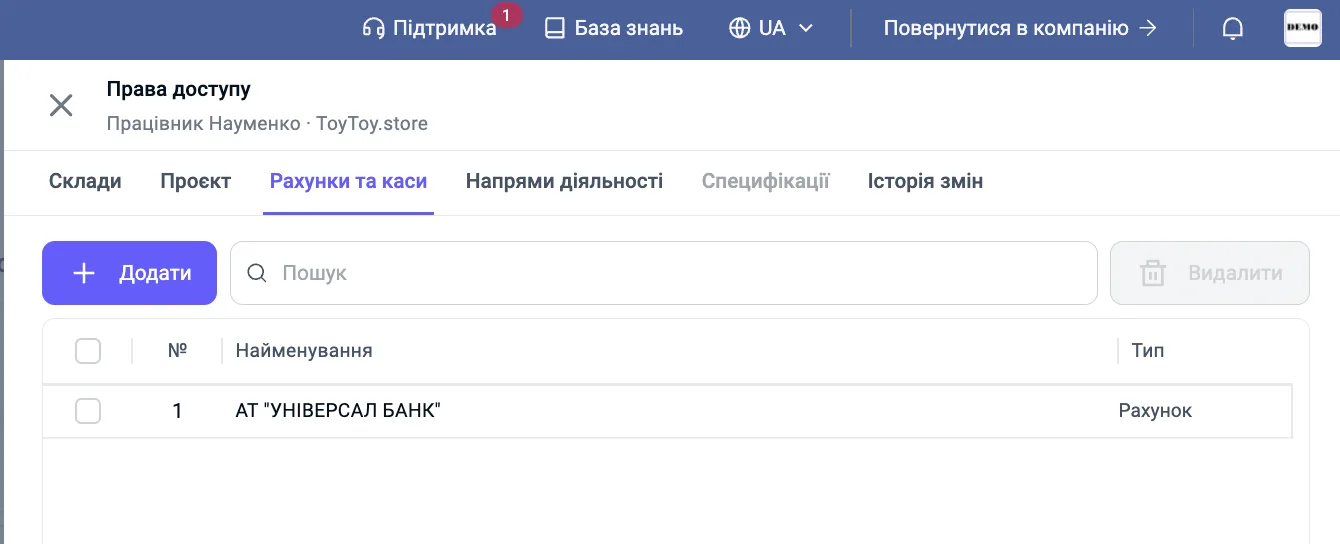
Besides the role, you can narrow access for a specific employee: in User account → Users click Access settings in the user’s row. The “Access rights” side panel has these tabs:
| Tab | What it restricts | More details |
|---|---|---|
| “Warehouses” | warehouses the user works with | Warehouse access |
| “Project” | data by projects | below |
| “Accounts and cash desks” | bank accounts and cash desks | below |
| “Lines of business” | data by lines of business | below |
| “IP access” | IP addresses from which sign-in is allowed | IP restriction |
| “Change history” | log of changes to access rights |
For the “Warehouses”, “Accounts and cash desks”, “Lines of business” and “Project” tabs a strict restriction principle applies: while the list is empty, the user sees everything; as soon as at least one value is added, everything else is hidden throughout the system: in documents, directories, filters, reports and analytics.
- Accounts and cash desks. The user sees only the documents and directories linked to the allowed accounts and cash desks.
- Lines of business. A restricted user sees only the data of their own lines, including in production documents.
- Projects. Access is granted for each selected project separately: adding a parent project does not open its subprojects, each subproject is added separately.
Common questions
An employee does not see a section or a button. Check their role in Company settings → Users, the permissions of that role for the document, directory or report in question, and also the personal restrictions by warehouses, accounts, lines of business and projects.
FAQ
Who can configure access rights in Bimp?
Only users in the "Administrator" group (and the account owner). Administrators have all functionality open by default, other roles are restricted. There can be several administrators.
How many roles can I create?
The number of roles is not limited. Create as many groups as you need for the positions in your team.
Can I forbid only editing documents but leave viewing?
Yes. In the permissions table, "View (all)", "Edit", "Add" and "Delete" are turned on separately for each document type. For example, a storekeeper can be allowed to view balances and forbidden to change stock transfers and stock counts.
How do I change the role of an employee who changed position?
Change the role in the users list. You do not need to create a new account, and the changes apply immediately.