
Counterparties with subsidiaries and branches
On this page
To work with a group of companies as one customer, create a parent counterparty card and in the cards of subsidiaries specify it in the "Parent counterparty" field. Documents are issued to each subsidiary separately, and the total debt is shown in the "Settlements" report grouped by parent counterparty.
Why you need a parent counterparty
The “Parent counterparty” field combines several legal entities, branches or sole proprietors (FOP) that belong to one customer. You need it when you know the partner under one brand, but invoices and shipments are issued to different legal entities. Without grouping, the debt is scattered across several cards, and a payment received from one sole proprietor is hard to apply against another’s debt.
Example. The “Lviv Coffee” chain buys through “FOP Gazda” and “FOP Karpets”. You create the counterparty “Lviv Coffee” as the parent and link both sole proprietors to it.
How to set up a parent counterparty and subsidiary cards
First create the group card, then the subsidiary cards that refer to it.
- Open Counterparties and click Create.
- In the “Name” field, enter the name of the group or brand (for example, “Lviv Coffee”) and save. EDRPOU and Tax ID are optional here if no documents are issued to this card.
- Create the subsidiary card: specify the official “Name” (for example, “FOP Gazda”).
- In the “Parent counterparty” field, select the group card you created.
- Fill in the subsidiary’s details: “EDRPOU”, “Tax ID”, “Director / Owner”, “Phone” and others.
- Save the card. Repeat steps 3-6 for each subsidiary.
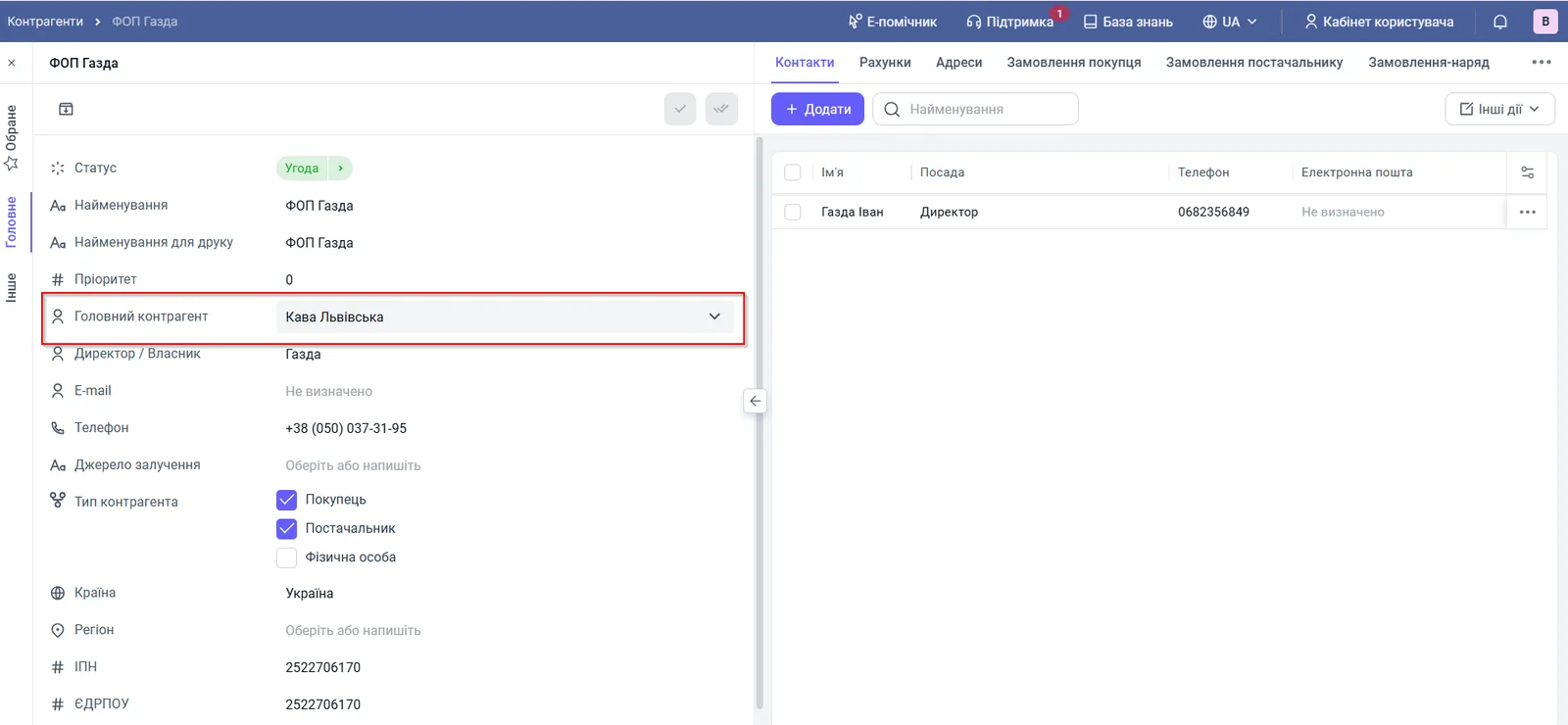
After that, issue orders, certificates and payments to the specific subsidiary cards as usual. You can also specify the parent counterparty in a contract, see Customer contract.
How to see the group’s total debt
The group’s total debt is shown by the “Settlements” report grouped by parent counterparty.
- Open Reports and select “Settlements with counterparties” (or with customers or suppliers).
- In the “Group by” field, select “Parent counterparties”.
- Click Generate report.
The report shows a group row with the total columns “Opening balance”, “Debt increase”, “Debt decrease” and “Closing balance”. Expand it to see the breakdown by the subsidiaries’ documents. An advance from one subsidiary reduces the group’s total balance.
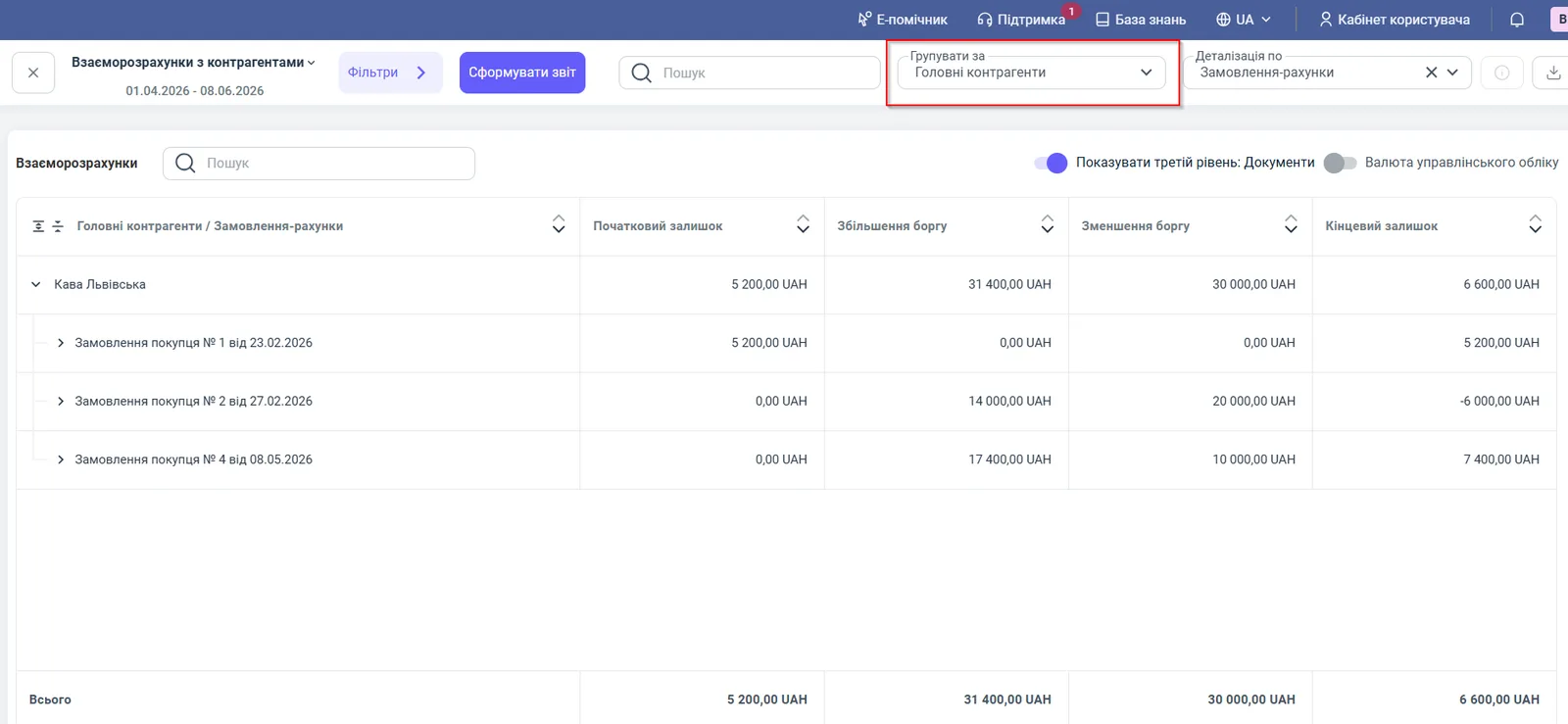
For general information about reports, see Reports overview.
How to make a reconciliation statement for a subsidiary
A reconciliation statement is created separately for each subsidiary: open the “Reconciliation statement” tab in its card and add a statement. For details, see Reconciliation statement with a counterparty.
FAQ
Do I need to fill in the EDRPOU in the parent counterparty card?
No, if no documents are issued to this card. It can be a purely analytical grouping of subsidiaries.
Who should I invoice: the parent counterparty or a subsidiary?
A specific subsidiary (LLC, sole proprietor). Payments are also linked to the payer. The parent counterparty is needed for consolidated analytics.
How do I see the total debt of a group of companies?
In the "Settlements with counterparties" report, select the "Parent counterparties" grouping and click "Generate report": the parent counterparty's row shows the total balance.