
Reserving materials for a customer order
On this page
To reserve components for a product made to order, open a Customer order with a specification, click "Create based on" and choose "Stock reservation (materials)". Bimp calculates materials by the specification; check the warehouse, quantities and batches, and save the document.
When to reserve materials
Materials are reserved for a Customer order for a product that is made to order. Without a reservation, the raw material needed for one product may be shipped under another deal, and the workshop will stop. A reservation ties the materials to a specific order: they cannot be accidentally written off, moved or sold to another customer. If materials are short, production sees the exact shortage. The two ways to organise production are compared in the production overview.
Example: a customer orders 5 quadcopters. According to the specification, one drone needs a battery, a camera and a speed controller. The manager creates a Customer order, specifies the specification and immediately creates a materials reservation: all components for 5 products become reserved.
Before you start
- Create the product’s specification with a list of materials.
- Make sure the materials are in the warehouse: a reservation is possible only within the balance.
- General reservation rules are in Reserving goods.
How to reserve materials
-
Open Sales → Customer orders and choose an order (or create a new one, see Customer order).
-
On the “Goods, services” tab make sure the “Specification” is set for the product being made. Fill in the product quantity and save the order.
-
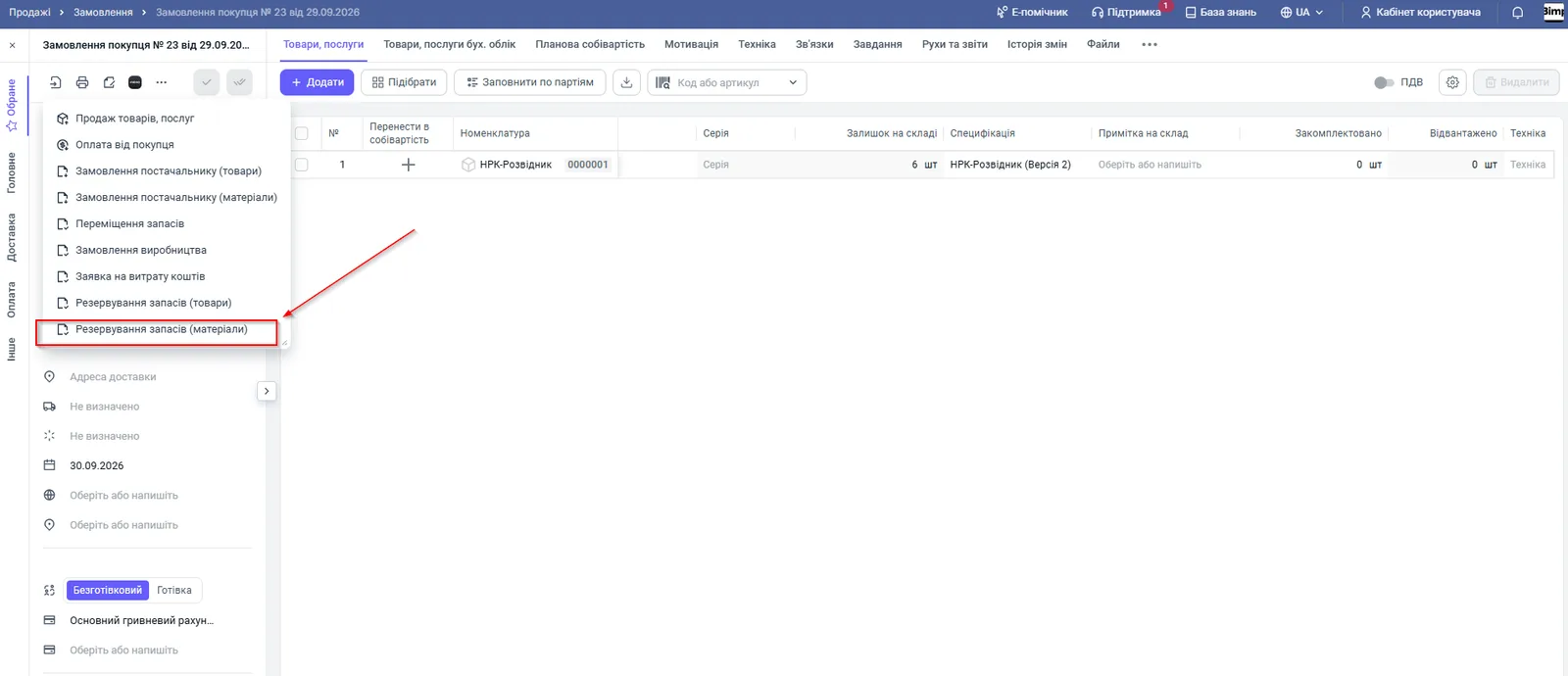
In the order header open the actions menu (Create based on) and choose Stock reservation (materials).
-
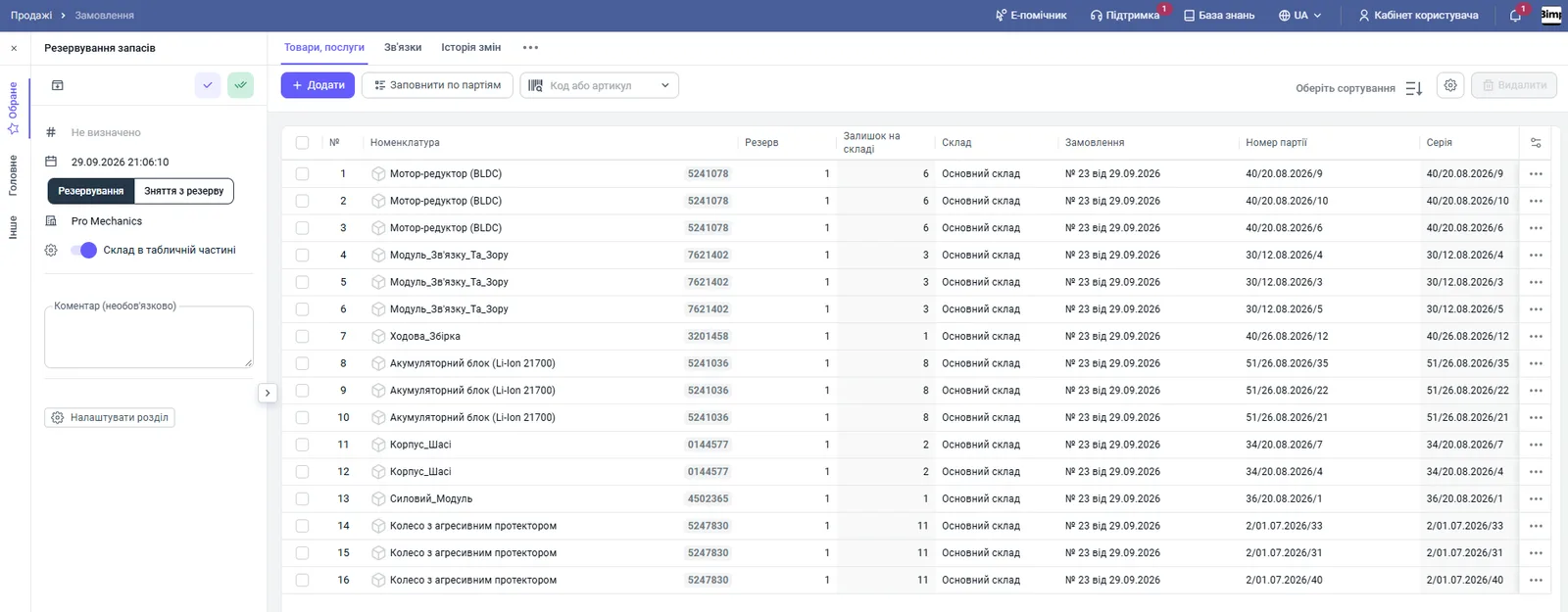
In the “Stock reservation” document, check the list of materials, their quantity and the warehouse you reserve from. The document has the type “Reservation” (the opposite is “Release from reservation”). For batch-tracked materials you can click Fill by batches.
-
Click Save.
What happens after saving
The materials from the specification are tied to the Customer order and are removed from the free balance. The source document and quantities are filled in automatically from the free balance in the warehouse. You can also set a materials reservation directly in the production order, on the “Materials” tab. After that, production is started with assembly documents or production tasks.
FAQ
How does reserving materials differ from reserving goods?
Reserving goods blocks a finished product for a Customer order. Reserving materials blocks raw materials and components from the specification of the product that has to be made.
Where else can I reserve materials besides a Customer order?
In a production order: the "Reserve" column on the "Materials" tab or a Stock reservation document based on the production order.
What should I do if there are not enough materials?
The document will show the available balances and the shortage. Purchase the materials or replace them with analogues in the production order.
More about this in Bimp: Production management software