
Loading products into a production order from Excel
On this page
Importing from Excel adds many products to a production order at once, and the system pulls in materials by specifications. In the created order, on the "Products" tab click "Import" and choose a file with the columns "Product", "Specification", "Modification", "Quantity" and "Unit". The names in the file must match the names in Bimp exactly.
When you need to import products
Importing products from Excel saves time when you need to add dozens of items with specifications to a production order. The manager does not pick every part manually: Bimp pulls the product composition from the specification and calculates materials for the given quantity. For example, the product “Bracelet” with the specification “Classic” in a quantity of 100 pcs is broken down into gold, clasps and stones automatically.
Before you start
- All products (finished products and components) must be created in Bimp.
- The specifications of these products must be set up. See Specifications.
How to prepare the file
| Column | What to enter |
|---|---|
| “Product” | The full name of the finished product |
| “Specification” | The name of the product’s specification. If left empty, only the product is loaded, without components |
| “Modification” | Fill in if the product has variants (color, size) |
| “Quantity” | How many units to make |
| “Unit” | Must match the units in the system (pcs, kg, m) |

How to load the file
-
Open Production → Production orders and click Create.
-
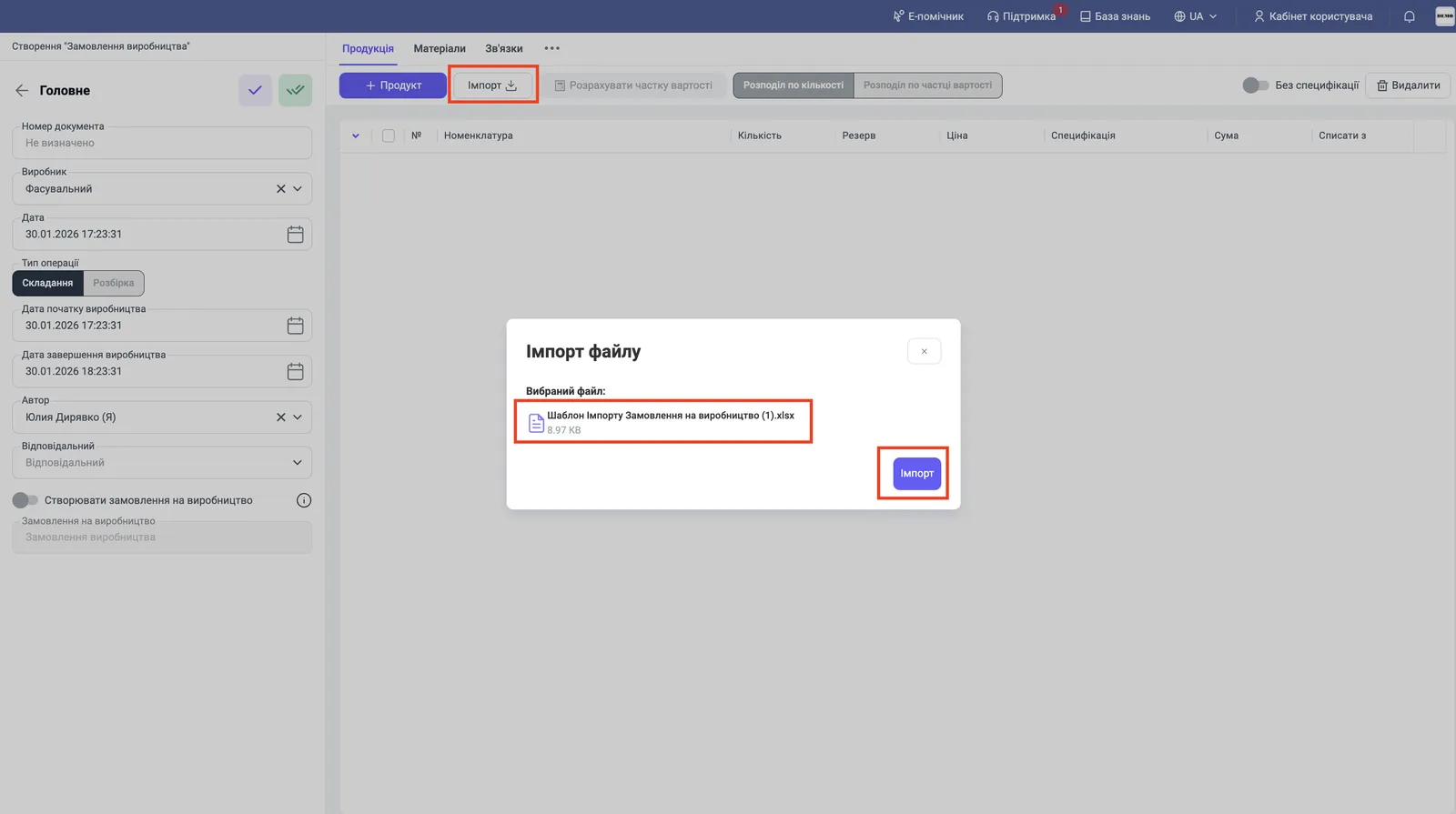
On the “Products” tab click Import.
-
In the “Import file” window choose the file and click Import.
-
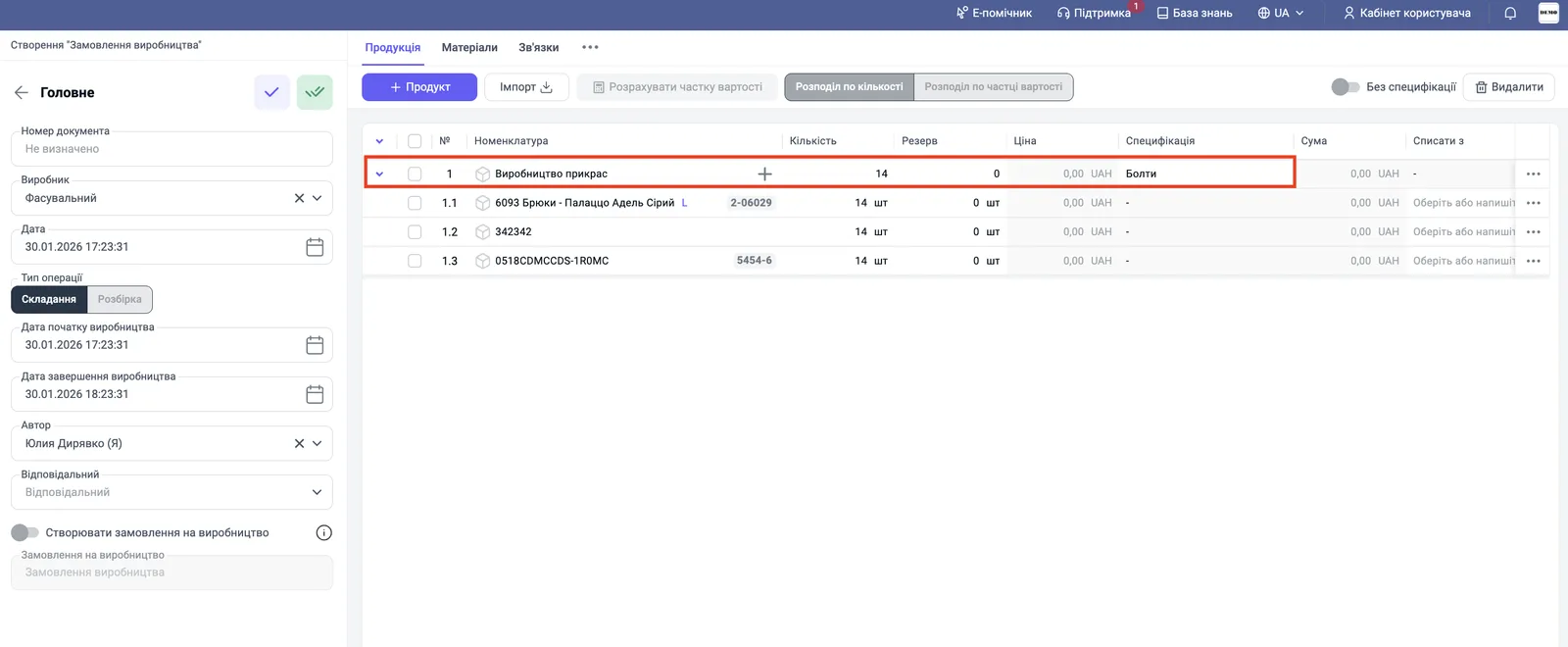
Check the result: the “Products” tab is filled in, and the list of its materials is expanded under the product.
Then save the order and continue as described in Production order: check the materials, reserve them and create an assembly.
FAQ
Why did the import not load the products?
Most often the product or specification names in the file do not match the names in Bimp: an extra space or a typo in a letter is enough. Compare the names with the catalogs.
What happens if I do not enter a specification in the file?
The system loads only the name of the finished product without its list of components.
Where do I get the file template?
During the import, in the "Import file" window, use the template "Production order import template".
More about this in Bimp: Production management software