
Production tasks: making products stage by stage
On this page
A production task (PT) is issued for one product with one series and leads it through the specification stages. Depending on the stage status, Bimp records the start, accrues piecework pay and creates assembly of a semi-finished or finished product. PTs are created from a production order with the "Create based on" button after "Create batches".
What a production task is
A production task (PT) is a document for one product with one specific series that governs its manufacturing by the specification stages. For each stage you assign a responsible person and a status. Assembly only records the final result, while a PT shows the whole process: where the product is, who is working on it, where there are idle times and why. The production overview gives the big picture of production documents.
Typical scenarios:
- Multi-stage production. A control panel goes through board soldering, assembly, setup and packing, a different employee works at each stage; piecework pay is accrued to whoever performed their part.
- Material shortage. Three modules, but only two antennas were purchased: the third PT gets the status “Waiting for materials”, and the reason for the idle time is obvious.
- Semi-finished products. After soldering, the board becomes a separate accounting unit with its own cost price and is posted to the warehouse for further assembly.
- Production for a customer order. PTs are grouped in the journal by Customer order.
What to set up in advance
| What to set up | Where | Why |
|---|---|---|
| Production stages | Catalogs → Production stages | They form the stages in the specification |
| Production statuses | Catalogs → Production statuses | Stage statuses and automatic actions |
| Accrual types | Catalogs → Accrual types | The rate per operation, for example “Board soldering” 250 UAH/pc. See Accrual types |
| Employees | Payroll → Employees, “Payroll accruals” tab | Linking the employee to an accrual type; be sure to specify the rate and currency |
| Specification with stages | Production → Specifications | Turn on “Use stages and operations” and “Use semi-finished products” |
| Batches and series in the product card | Warehouse → Products and services, “Accounting” section | The rule “one PT = one series” |
| Reservation for production | Company settings → Accounting settings | Materials are carried into the PT with the batch and series preserved |
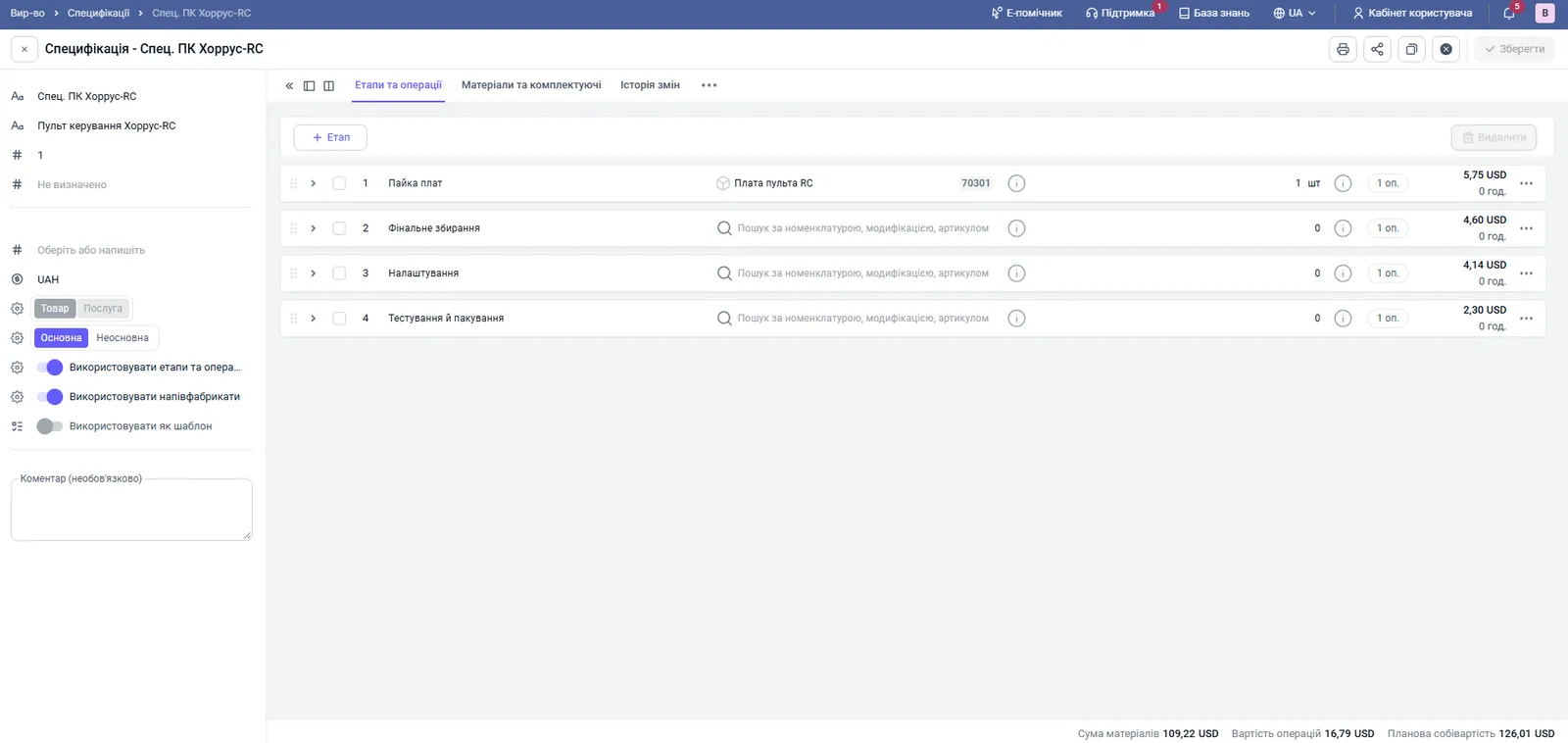
In the specification, list the stages in order, and for each specify the operation and, if needed, a semi-finished product; on the “Materials and components” tab link materials to the stages. See Specifications. Set the operation as an accrual type, not as a service: Bimp takes the rate and the list of available employees from it. A material linked to a stage with a semi-finished product is included in the cost price of that semi-finished product.
Production statuses
A stage status triggers automatic actions:
| Status | What the system does |
|---|---|
| “Waiting” | The initial status when the PT is created; no actions |
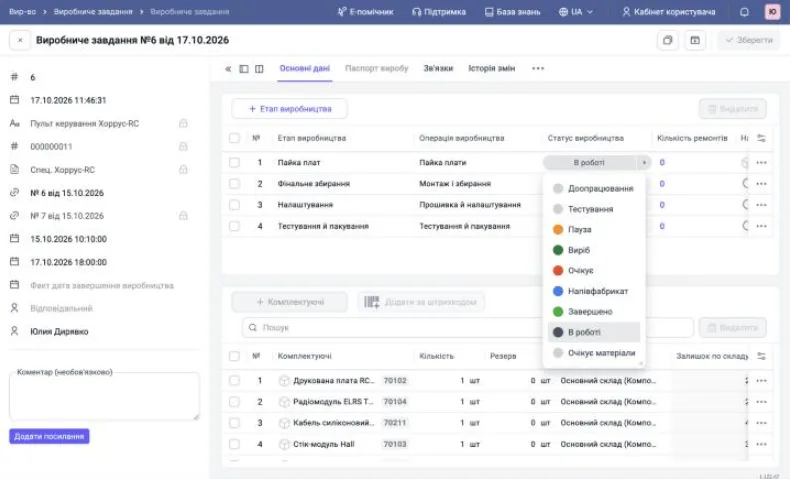
| “In progress” | Records the date and time in the “Stage start” field |
| “Paused” | Stops execution; materials remain reserved |
| “Completed” | Completes the stage, writes off materials, accrues piecework pay to the responsible person (no semi-finished product is created) |
| “Semi-finished” | Completes the stage and creates an “Assembly” of the semi-finished product |
| “Product” | Completes the last stage, creates an “Assembly” of the finished product and records the “Actual production completion date” |
Besides these, you can create your own statuses in the catalog, for example “Waiting for materials”. The status card has switches: “Use for the Production task document”, “Stage start status” (writes the time to “Stage start”), “Stage completion status” (writes “Stage finish”), as well as automatic creation of assembly of a semi-finished product or finished goods. One status cannot be both the start and the finish of a stage.
How to create production tasks
-
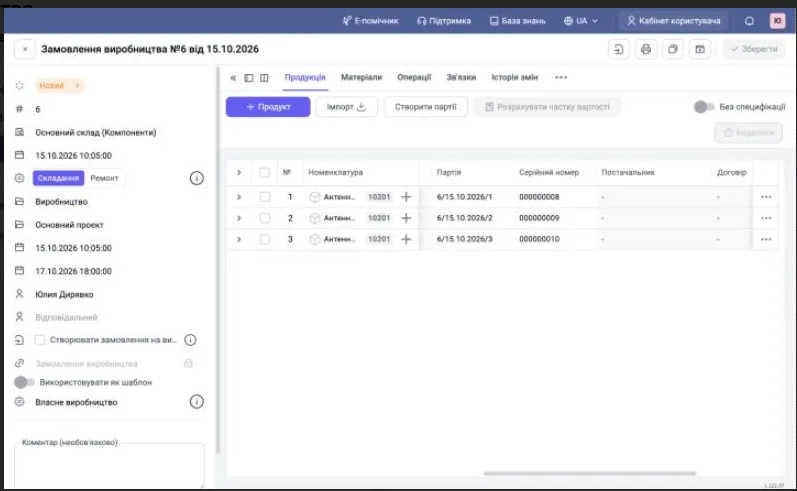
Open Production → Production orders and create a document. On the “Products” tab add the product and quantity.
-
Click Create batches: the products are split into rows of 1 pc, each with its own batch and series.
-
On the “Materials” tab check the reservation and click Fill by batches. Save the document.
-
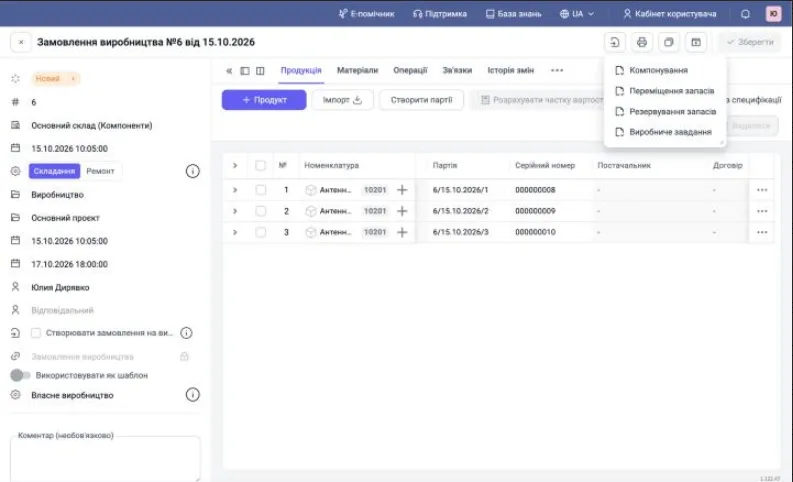
To create PTs for all products, leave the rows unselected; for part of the products, select the needed rows.
-
Click Create based on → Production task.
Production task journal
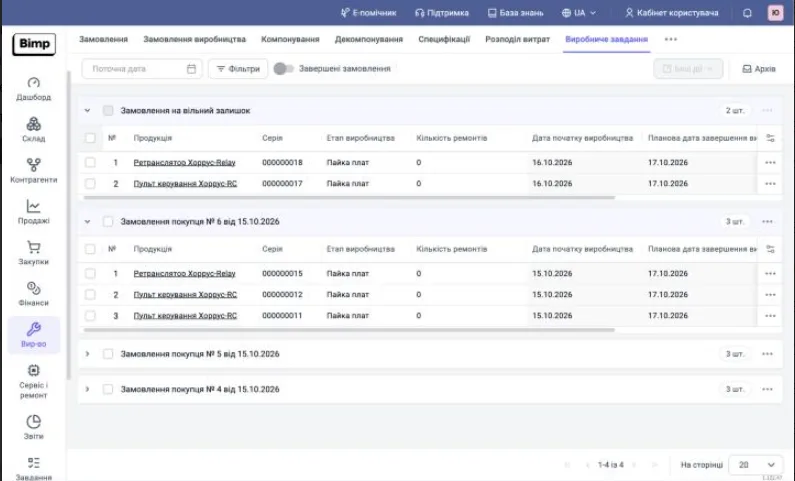
The journal opens in Production → Production task. All PTs are grouped by source documents: “Order for free stock” (without a customer) and “Customer order No. …” (with the number, priority and the number of series in progress). There are search and filters by dates, statuses, stages, responsible persons and orders. Completed tasks are hidden: show them with the “Completed orders” switch.
The Customer order has a “Priority” field (High, Medium, Low), which is passed to production to determine the order of work.
Production task card
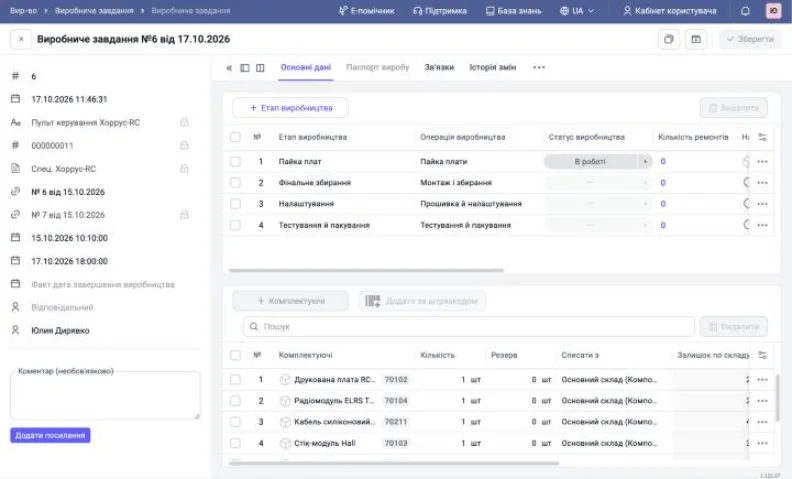
The card has three zones:
- Left panel: number, date, specification, series, Customer order and production order, planned and actual dates, responsible person;
- Stages table: stages, operations, statuses, start and finish, responsible persons, number of repairs;
- Components: materials with write-off warehouses, reservations, batches and serial numbers. A mark next to a stage leaves only the materials of that stage in the table.
You can link a PT to a Customer order later with the “Order” field: after saving it moves to that customer’s group. The history of status changes with time and author is on the “Change history” tab.
How to run the stages
-
In the “Responsible” column choose an employee (the list contains only employees with the matching accrual type).
-
Move the stages between statuses as the work progresses and save the document.
-
To complete a stage, make sure a responsible person is specified and set “Completed”, “Semi-finished” or (at the last stage) “Product”.
-
Save the PT.
After a stage is completed, the following are created:
- Piecework pay (Payroll → Piecework pay) for the responsible person at the operation rate. See Piecework pay;
- Assembly (Production → Assembly), which posts the product or semi-finished product at the cost of materials and the piecework pay of all stages. See Assembly. If a Customer order is linked to the product, the finished product is automatically reserved for it.
Notes:
- Piecework pay per product is the sum of the specification operations. Example: control panel 250 + 200 + 180 + 100 = 730 UAH.
- Piecework pay does not enter the cost price of a semi-finished product: it accumulates on the PT and passes entirely into the cost price of the finished product. The board after soldering costs only the stage materials, without the 250 UAH for soldering.
- The batch of the finished product changes: when assembly is created, the batch number is overwritten according to the mask, and the order date in the number is replaced by the assembly date (6/15.10.2026/1 becomes a number from 17.10.2026). This is normal, search for the product by series.
- Saving the PT again in the same status does not create new assemblies or piecework pay.
Semi-finished product at a stage
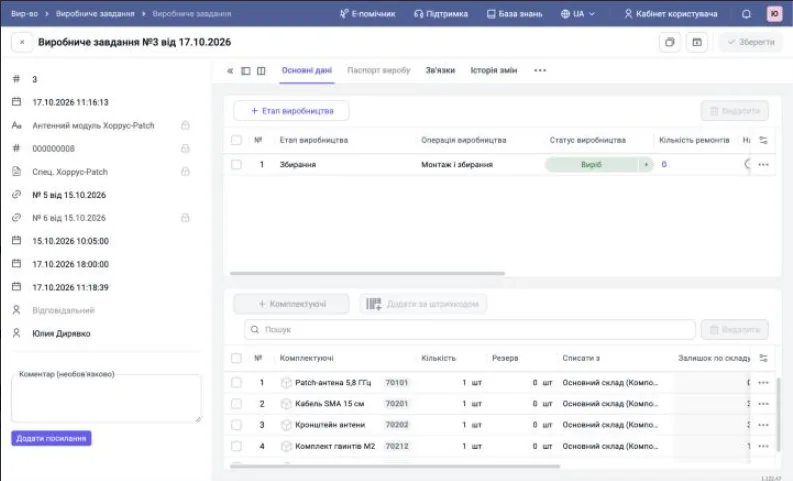
Set the status “Semi-finished” at the stage after which an intermediate product remains, for example an assembled board after soldering.
- Responsible person first. Without one the PT will not be saved: the message “Specify the responsible person for the completed production stage …” appears. The same applies to the status “Completed”.
- What is created. An “Assembly” of the semi-finished product: the “Semi-finished product” column of the stage shows its name, “Semi-finished quantity” is 1. The batch number of the semi-finished product is the product series with a suffix (for example, 000000011/1).
- Stage materials are written off to the semi-finished product and disappear from the “Components” list; the materials of the following stages remain.
- Where the semi-finished product is. In the producer warehouse of the production order, not in a separate semi-finished products warehouse. Check in the “Goods movement” report. You can also find it in the “Assembly” journal.
- Piecework pay is accrued to the responsible person but does not go into the cost price of the semi-finished product. In the “Accumulated cost” report it sits on the Customer order as an unallocated balance until the last stage gets the status “Product”.
- The next stage: after “Semi-finished” move it to “In progress”. The start of the next stage cannot be earlier than the finish of the previous one: enter dates in ascending order.
Common problems
The PT is not created, the message says “skipped”. A PT already exists for this series: one series, one PT.
One PT was created instead of several. “Create batches” was not clicked in the production order.
The PT is not saved with the status “Completed” or “Semi-finished”. No responsible person is specified at the stage.
The needed employee is not in the list of responsible persons. Their card has no accrual type for this stage’s operation.
The needed status is not in the list. The status is inactive or not marked for the “Production task” document.
Replacing a defective component during production is described in Replacing a component in a production task.
FAQ
Why is a PT not created and the message says "skipped"?
A PT already exists for this series. One series, one PT.
Why does one row for several products in the production order produce only one PT?
"Create batches" was not clicked. Without it the products are not split into series of one unit each.
Why is the needed employee missing in the "Responsible" field?
The employee's card has no accrual type that matches the operation of this stage.
How do I delete an unnecessary production task?
It cannot be deleted, only canceled. So before creating, tick only the product rows you need.
Why is the PT not saved with the status "Completed" or "Semi-finished"?
No responsible person is specified at the stage. Choose an employee in the "Responsible" column of this stage and save again.
Why does the product batch number in the assembly differ from the number in the production order?
When the assembly of the finished product is created, the batch is overwritten according to the mask: the order date is replaced by the assembly date. Search for the product by series.
More about this in Bimp: Production management software