
Production order: output plan, materials and operations
On this page
A production order in Bimp is the plan for manufacturing or repair: what to make, from which materials and with which operations. Create it in "Production → Production orders" or from a Customer order, choose the operation type, add products with a specification and check the materials and operations. Materials are written off only when an assembly is posted.
When you need a production order
A production order is created to plan manufacturing or repair. It defines materials and operations, lets you reserve components and prepares data for assembly. In Bimp this document is needed to start production when you create an assembly “based on” it or production tasks. How the two production methods relate is described in the production overview.
There are two operation types:
- Assembling: manufacturing a new product. Cost price is made up of materials and performed operations. For example, a company assembles a batch of drones: after assembly the motors, frames and batteries are written off, and the finished product is posted.
- Repair: no new product is created, the cost of spare parts and the technician’s work is added to the cost price of an existing product. For example, a company refurbishes purchased laptops: they get a new cost price that matches the real costs.
Before you start
- Create the product’s specification (if you produce by specification).
- To reserve materials, turn on the “Product reservation (Production order)” switch in Company settings → Accounting settings; otherwise the “Reserve” column is filled in manually.
How to create a production order
-
Create the document in one of these ways:
- Production → Production orders → Create;
- from a Customer order: hover over the order in the Sales section and choose “Production order” (or click “Create based on”). The products and related data are carried over automatically.
-
Fill in the left panel:
Field What to enter “Status” The current state of the document (for example, “New”) “Document number” Assigned automatically after saving “Producer” The warehouse components will be written off from “Date” The document date “Operation type” Assembling or Repair “Line of business”, “Project” For financial accounting and analytics “Production start / end date” The planned period “Author”, “Responsible” Who created it and who is responsible for execution “Create production orders” For cascade production: automatically creates subordinate orders for semi-finished products “Use as template” For a document that will be repeated often 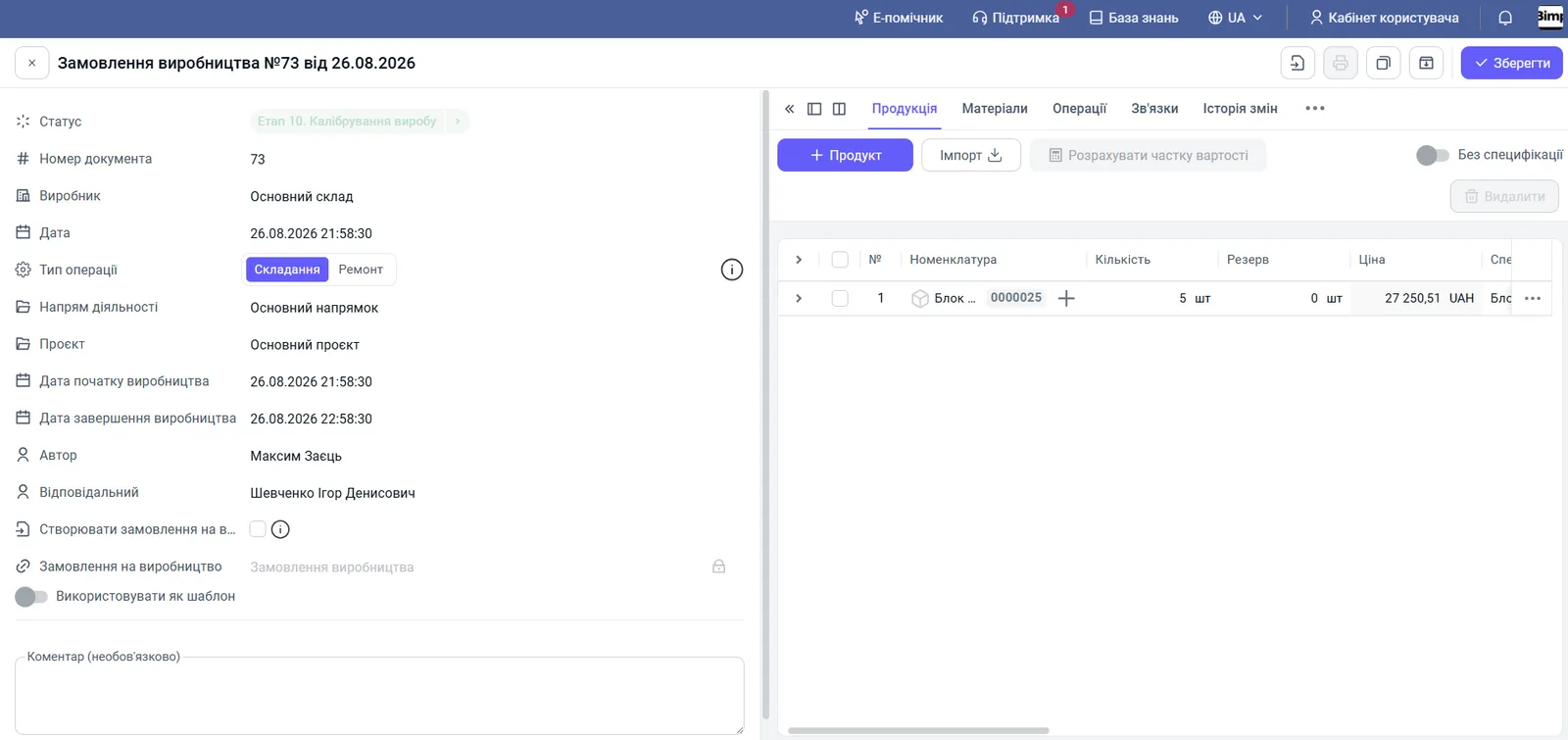
-
To fill in data from a template, click Use template in the top right corner of the form.
How to add products
- On the “Products” tab click + Product and choose the product (for repair, the product you are repairing; for “Repair” only products in stock are available, and you must specify the batch and serial number).
- Enter the “Quantity” and the “Specification”: the system will add the materials and operations from the specification.
- The “Price” and “Amount” columns are filled in automatically. For “Assembling” the unit price is the sum of the cost price of materials and operations; for “Repair” it also includes the cost price of the item being repaired.
- To produce without a specification, turn on “Without specification” and add the products and materials manually.
You can load products from Excel. See Loading products from Excel.
Materials
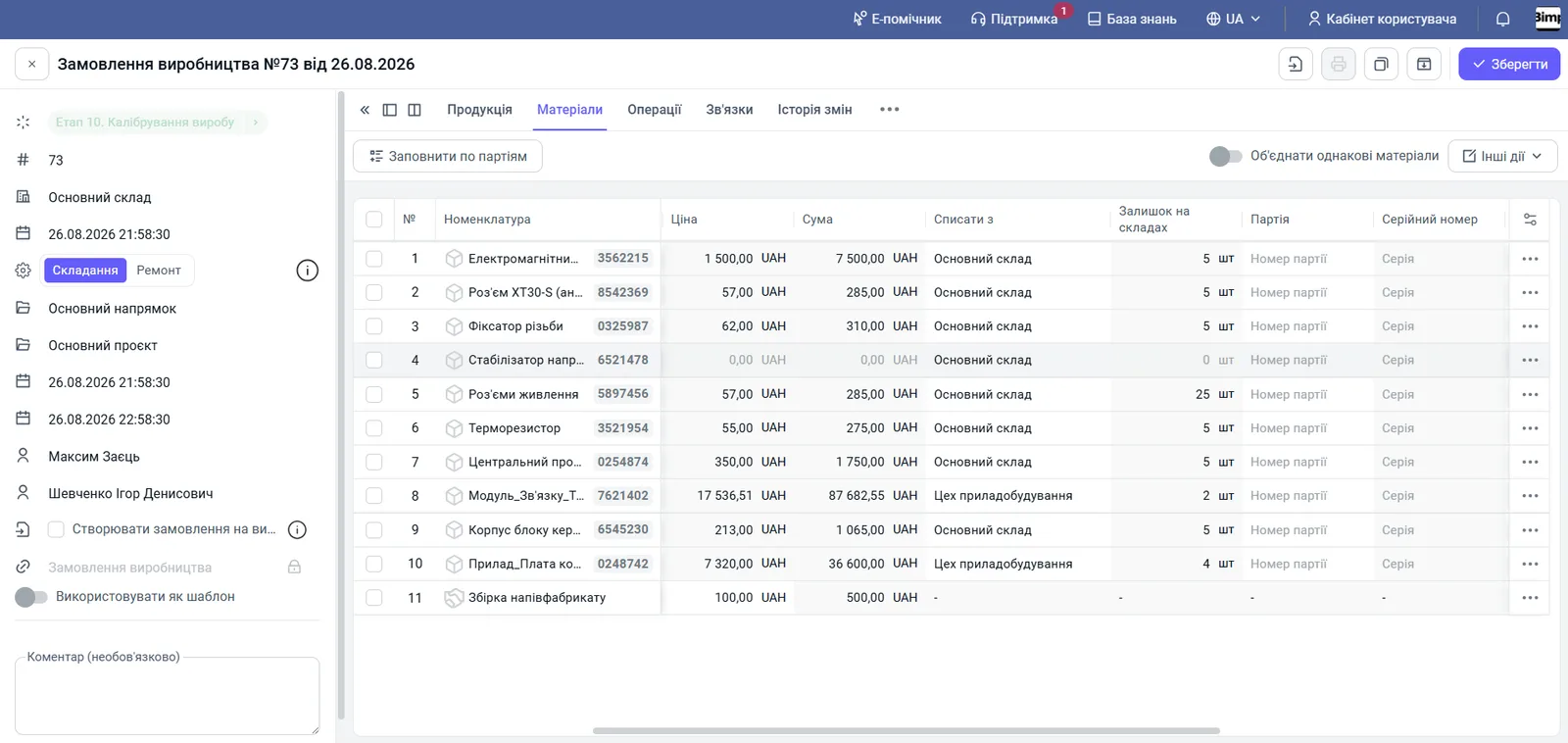
On the “Materials” tab check the list of components.
-
Reserve. Fill in the “Reserve” column manually or automatically (see “Before you start”). The system allows write-off from different warehouses. A reservation is impossible if there is no suitable batch or the required quantity in stock.
-
Batches. Click Fill by batches so the system selects available batches; you can also choose a batch manually.
-
Analogues. If a material is not in stock, replace it with an analogue from the specification. The “Analogue” column opens a side panel with the permitted replacements, priorities and balances; there you can change the write-off rule or priority. For automatic replacement, select the rows and click Other actions → Replace with analogues; for one row use the “three dots” menu. If the material is reserved by batches, the system warns that the reservation must be released or new batches chosen.
-
Supplier / Contract. Fill in if the operation is performed by an outside contractor.
-
Operation dependency. In the material’s context menu you can specify after which operation its write-off is allowed.
Rows of one material from different batches or warehouses can be collapsed with the “Merge identical materials” switch.
Operations
The “Operations” tab shows all work on the order.
| Column | What it means |
|---|---|
| “Performer” | An employee or a contractor |
| “Operation” | The name of the work, for example “Finished product assembly” |
| “Product” | The product or semi-finished product the operation belongs to |
| “Stage” | The stage from the specification |
| “Execution time” | The time norm |
| “Quantity” | The number of operations in the order |
| “Cost” | The cost of an operation unit or an hour |
| “Amount” | Quantity × cost |
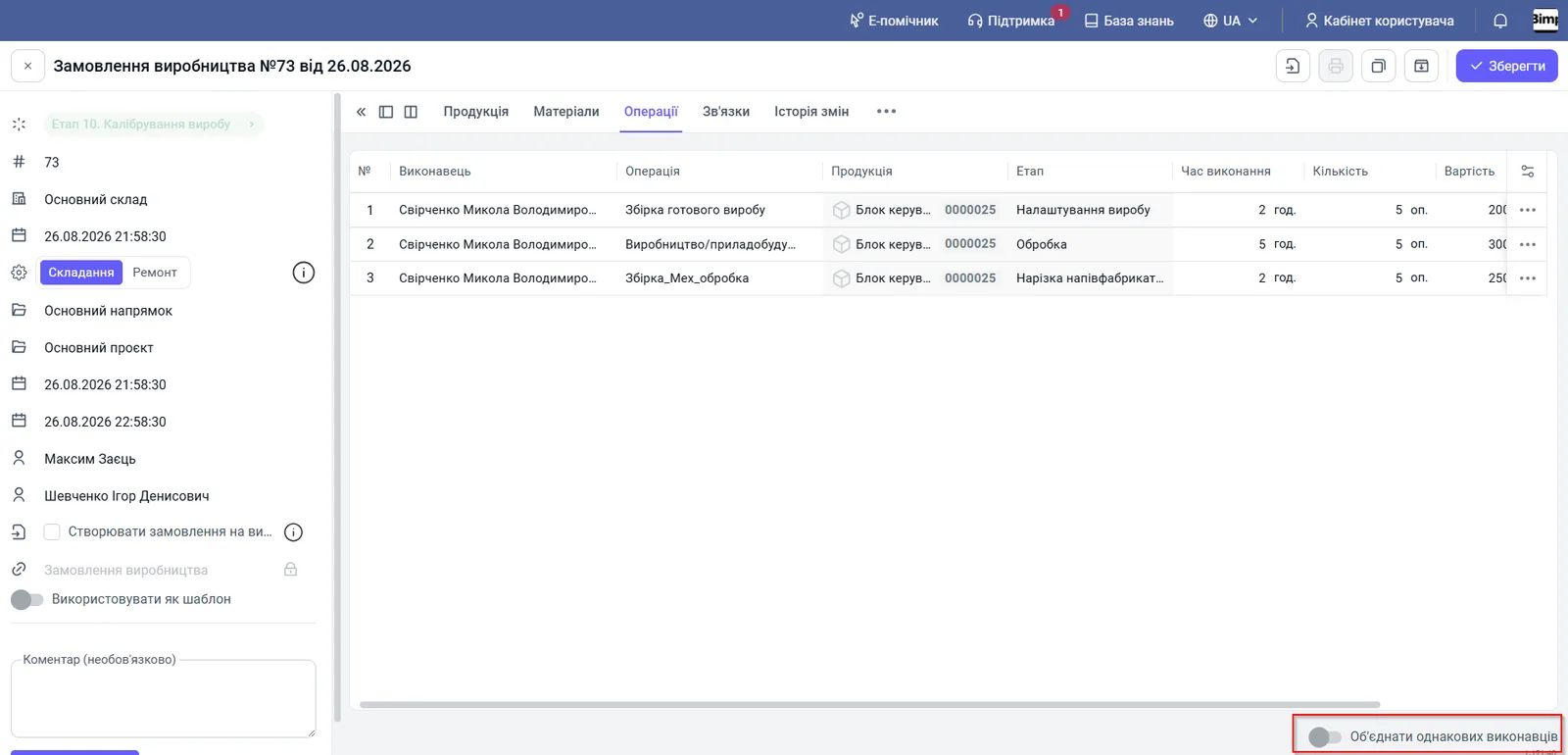
To change stages and operations, on the “Products” tab click the “three dots” in the product row and choose “Stages and operations”. The “Dependency” column sets the sequence of operations. The “Merge identical performers” switch groups identical work of one employee: this shows the total time, volume and amount payable.
A product at an intermediate stage is accounted for as work in progress: current costs are recorded until full output.
Transferring materials to the workshop
You can transfer materials from the warehouse to the workshop in one click: save the order, click Create based on and choose “Stock transfer”. Bimp creates a document in which:
- “Operation type” is “To warehouse”;
- “From warehouse” is the materials warehouse from the order (or the default warehouse from the user settings);
- “To warehouse” is the producer warehouse from the order, that is, the workshop;
- the “Goods” tab is filled in with the materials from the “Materials” tab.
The quantity to transfer is the difference “planned in the order minus already transferred earlier”, so a repeated transfer does not duplicate issued materials. You can change the quantity if you issue materials in parts. The link to the transfer appears on the order’s “Links” tab. For more about the document, see Stock transfer.
Example: the workshop “Sweet Dream” makes 100 cakes; the order has 50 kg of flour and 20 kg of sugar. The manager creates a transfer from the “Main warehouse” to the “Pastry workshop”, and the storekeeper only has to issue the goods.
What’s next
Save the order with the Save button. Then click Create based on and choose:
- “Assembly”: record the output and write off materials;
- “Stock reservation”: reserve materials;
- “Production task”: run manufacturing by stages (see Production tasks).
The order list has a filter “Materials reserved” (“Yes” means the reserve is greater than zero; “No” means there is no reserve). The “Material consumption control” tab shows deviations from norms. See Consumption limits. A separate print form is available for the production order.
FAQ
How does the "Repair" operation type differ from "Assembling"?
With "Assembling" a new product is created, and its cost price is made up of materials and operations. With "Repair" no new product is created: the cost of materials and work is added to the cost price of an existing product, for which the batch and serial number are specified.
Does the production order write off materials from the warehouse?
No. The production order plans output and can reserve materials. Writing off materials and posting the product happen when the "Assembly" document is posted.
Why can't I set a material reservation?
A reservation is impossible if there is no suitable batch for the product or the required quantity is not in stock.
How do I produce without a specification?
On the "Products" tab turn on the "Without specification" switch and add the products and materials manually.
More about this in Bimp: Production management software