
Replacing a component in a production task: repair, stock, cost price
On this page
A defective part in a production task is replaced in the "Component" side panel without a separate "Repair" document: the new part is written off from stock, the old one returns to stock at its original cost price, and the cost of work is added to the product's cost price. Open the "Replacements count" column in the components table, click "Repair" and save the task.
When you need to replace a component
A replacement is made when a part that has already been installed in a product turns out to be defective. In a production task (PT) this is a repair with replacement. All actions are done in the PT card, in the “Component” side panel:
- the new part is written off from stock;
- the defective part returns to stock at its original cost price (reversal);
- the cost of repair work is added to the product’s cost price.
Before you start
- Batch tracking. If batch tracking is used for the defective component, a batch must be selected in its row of the “Components” table, otherwise the error “Select batch number” appears.
- Stock balance. The new part must be in the warehouse in the required quantity.
- Responsible person. For the repair status “Completed”, a responsible employee must be specified.
How to replace a component
-
Open Production → Production task and the needed document. In the lower “Components” table scroll right to the “Replacements count” column and click the number in the part’s row. The “Component” panel opens on the right. The number in the “Repairs count” column of the upper “Production stages” table opens the same panel for a given stage.
-
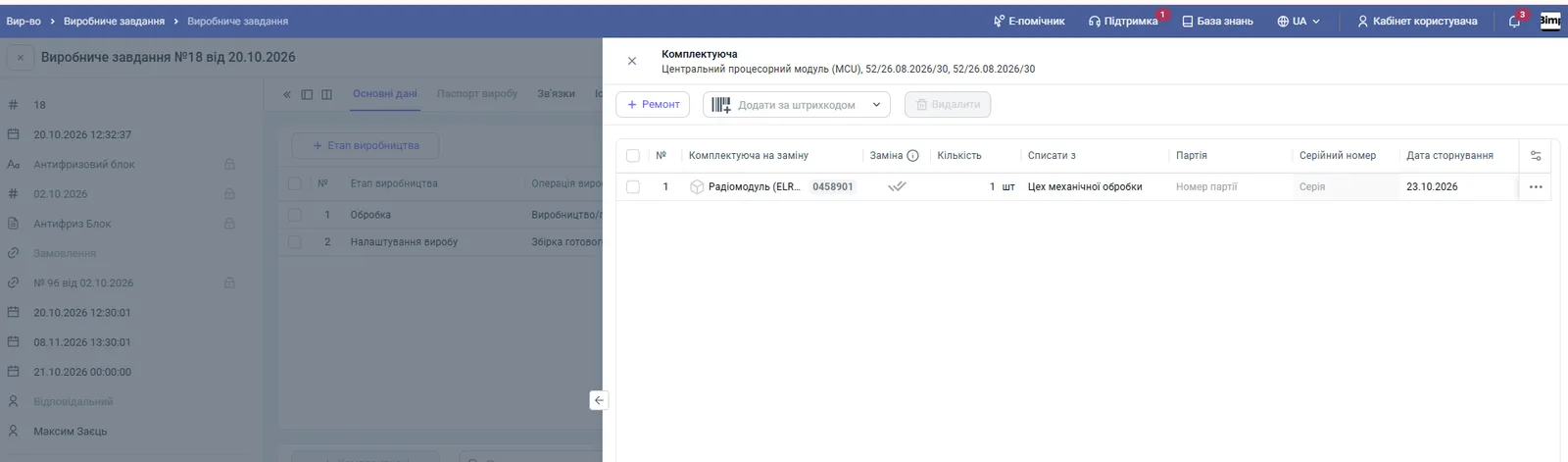
Click Repair to add a row and fill it in:
- “Replacement component”: choose the part (the list shows the article number, name and balance; if needed create a new one with the Create button);
- “Quantity”: 1 by default;
- “Batch number”: the batch of the new part (with serial tracking, “Serial number” is filled in automatically);
- “Reversal date”: the date on which the new part is written off and the old one is posted;
- “Write off from”: the warehouse is taken from the PT header.
-
Scroll the panel table and fill in the repair parameters:
Field What to enter “Repair status” “Waiting”, “In progress”, “Completed” or “Paused” “Repair start” Date and time (filled in when moving to “In progress”) “Repair end” Date and time (filled in automatically on “Completed”) “Repair responsible” The employee who performs it; required for “Completed” “Repair comment” The cause of the defect and a description of the work “Repair cost” The actual cost of work in UAH (0.01 by default) 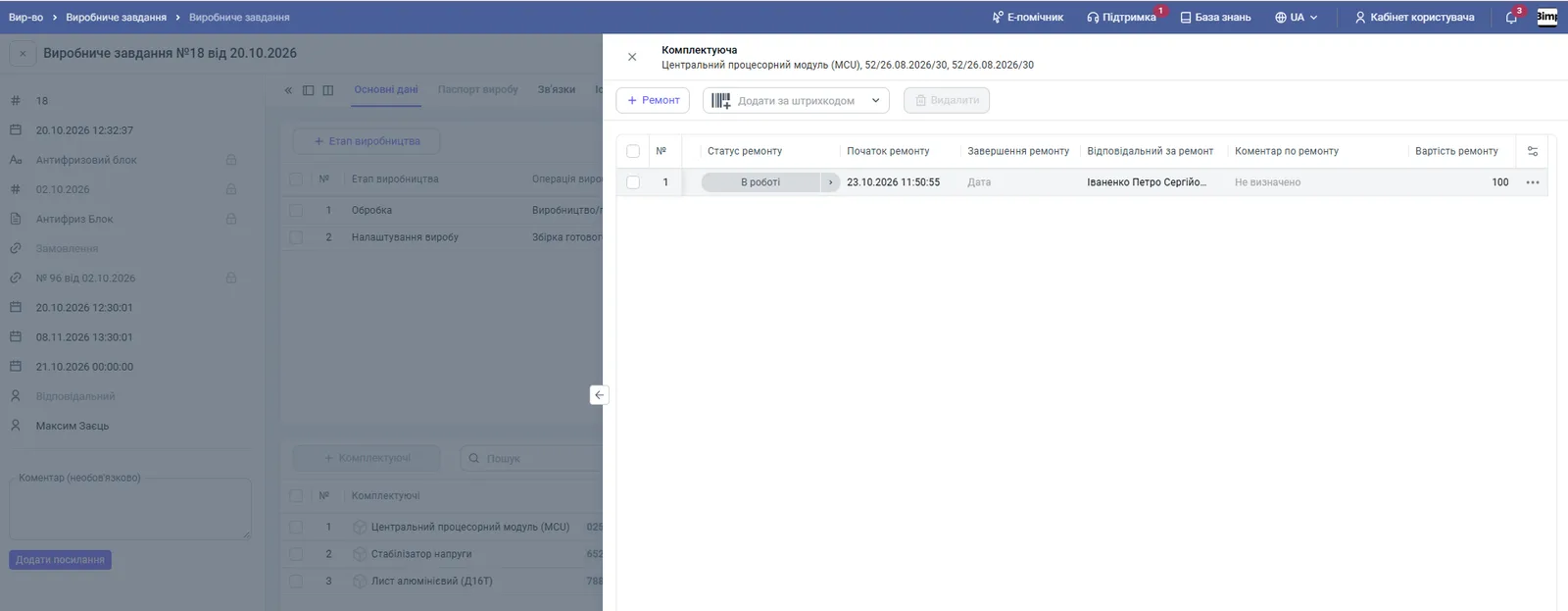
-
Close the panel with the cross and click Save in the PT header.
What happens after saving
After saving a PT with a completed repair, Bimp automatically:
- creates a Piecework pay document for the person responsible for the repair for the amount of the “Repair cost” field (marked “Repair”);
- writes off the new part from stock and posts the old one at its original cost (reversal);
- adds to the finished product’s cost price the materials taking the replacement into account and the cost of repair work.
Where to see the result in reports
| Report | What is shown |
|---|---|
| “Piecework pay” | A document for the amount of the completed repair |
| Accumulated cost | Accumulation for both parts; in the “Allocated” column, the reversal of the defective part’s cost |
| Cost of produced goods | Among the materials, only the new part actually used remains |
| Gross profit | The cost price of the sold product includes the cost of repair |
Example
In a PT for assembling a charging station, a defective 12 V power supply (650 UAH) was replaced with a set of signal cables (80 UAH). The cost of repair work is 10 UAH.
- By specification: materials 63.14 USD, operations 8.14 USD.
- Actual: materials 49.89 USD (without the power supply), operations 8.14 USD, repair 0.23 USD. Total cost price 58.26 USD.
- In the “Accumulated cost” report: accumulated 65.01 USD, allocated 15.12 USD (reversal of the power supply).
The power supply returned to stock at its original cost and did not enter the station’s cost price.
For general work with PTs, see Production tasks.
FAQ
Is there a separate "Repair" document for replacing a part in production?
No. The replacement is done in the side panel of the production task card and is saved together with it.
What happens to the old part?
It returns to stock at its original cost price through a reversal and does not enter the cost price of the finished product.
Why does the error "Select batch number" appear?
Batch tracking is used for the defective component, and no batch is selected in its row of the "Components" table.
What happens if I close the task without saving?
The repair panel data is not saved separately, so unsaved repair data will be lost.
More about this in Bimp: Production management software