
Payment calendar: planning receipts and payments
On this page
The payment calendar in "Finance → Payment calendar" shows planned receipts (green days) and expenses (yellow) and the balance of funds on accounts for each day. Data is pulled automatically from customer and supplier orders; you can add payments manually and delete one by entering an amount of 0.
What the payment calendar shows
The payment calendar is a tool for planning cash receipts and payments, and it helps you see whether there will be enough funds for payments planned on a specific day. It shows planned receipts from customers (from customer orders) and expenses for paying suppliers (from supplier orders), as well as additional costs and other payments with a current or future date.
How to use the calendar
- Open Finance → Payment calendar. The current month is shown by default.
- Click a day to see all payments planned for that date.
- Use the Income and Expenses filter buttons above the calendar to show only receipts or only expenses.
- For another period, use the “Current month” button and the year and month selector, or the “Previous period” / “Next period” arrows.
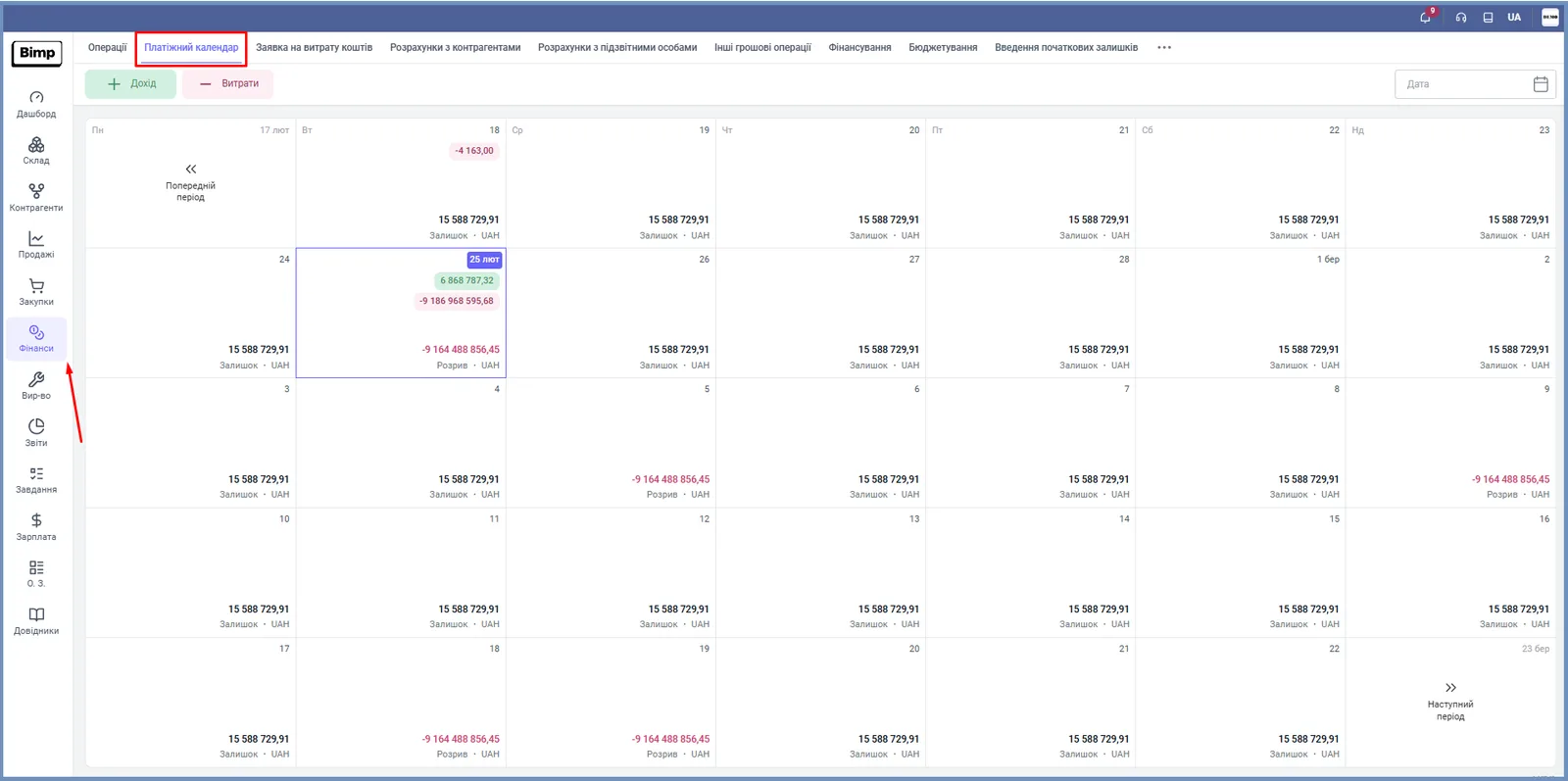
At the bottom of each day you can see the balance of funds on the company’s accounts and cash desks, and if planned expenses exceed the balance, a negative “Gap” amount. This helps you notice a cash gap in advance.
What data gets into the calendar automatically
Income and expense data automatically appears in the calendar from “Customer order” and “Supplier order” documents. The “Fund receipt date” and the amount are taken directly from the rows of these documents. For a customer order to appear in the calendar, select “Add to payment calendar” in its “Payment” block: see Customer order.
How to add a payment manually
- Open the needed day in the calendar and click Add (or the “Income” or “Expenses” button at the top).
- Check the “Date” (the current date by default; you can change it).
- Select the counterparty, currency and the amount of the receipt or expense. The “Comment” field is optional.
- Click Save.
How to delete a payment from the calendar
To remove a planned expense or receipt, set the amount in the corresponding row to 0 and click Save: the entry disappears from the calendar.
FAQ
Where does the data in the payment calendar come from?
Automatically from customer orders and supplier orders: the date of fund receipt and the amount are taken from the corresponding document rows. You can also add payments manually.
How do I delete an entry from the payment calendar?
Set the amount to 0 in the corresponding row and click "Save": the entry disappears from the calendar.
What do the day colors mean?
Days with planned expenses are yellow, days with receipts are green. If a day has both expenses and receipts, both are shown.
How do I add an order to the payment calendar?
In the "Payment" block of a customer order, select "Add to payment calendar".
More about this in Bimp: Finance in Bimp