
Piecework pay: the document, operation types and cost allocation
On this page
"Piecework pay" is a Bimp document for accruing pay for a completed volume of work while including that amount in the cost price of products, goods or an order. It is created automatically when an "Assembly" is posted or manually in "Payroll → Piecework pay". There are four operation types: "Production", "Sale", "Purchase" and "Work order".
What the Piecework pay document is
“Piecework pay” is a Bimp calculation and accounting document that accrues pay for the actual volume of work, services or process operations performed. After posting, it records the debt to employees and includes the cost of the work in the cost price of the selected accounting object.
The document solves these tasks:
- accurate cost price: labor costs (assembly, welding, unloading) go directly to a specific product, goods item or order without manual allocation;
- fewer manual errors: when an “Assembly” with a filled-in “Operations” tab is posted, the document is created automatically;
- transparent calculations: you can see how many operations each employee performed;
- protected analytics: the system does not allow posting a document with the allocation “By products” without a product specified.
Practical scenarios are covered in the article Piecework pay: production, sales bonus, goods receiving.
Which operation types exist
The operation type determines which process the payroll costs are linked to.
| Operation type | When to use | Example |
|---|---|---|
| “Production” | pay for producing goods or assembly | a foreman assembles a UAV frame, 3,000 UAH |
| “Sale” | pay for work related to sales | a manager’s bonus, packing and delivery to the customer |
| “Purchase” | pay for work when receiving goods | unloading raw materials |
| “Work order” | pay for service or repair work | piecework pay for an auto service mechanic |
Example. When an “Assembly” of the product “Horrus-Agro” is posted with the operations “Frame assembly” (3,000 UAH, foreman Ivanenko) and “Calibration” (1,000 UAH, foreman Petrenko), Bimp creates piecework pay in which 4,000 UAH goes to the cost price of the product.
Which fields the document has
The document has a left panel with parameters and a right part with two tabs: “Products, services” and “Accruals”.
Left panel
| Field | What it means |
|---|---|
| “Document number”, “Creation date” | the system number, the date and time of the accrual |
| “Accrual month” | the period in which payroll costs are recorded |
| “Document in table” | a switch: accrue for several base documents at once |
| “Employee in table” | a switch: accrue to several employees at once |
| “Project”, “Line of business” | analytics for cost allocation |
| “Operations” | the operation type (see above) |
| “Base document” | the document the costs relate to; the list depends on the operation type |
| “Currency”, “Organization”, “Responsible” | the settlement currency, the legal entity or sole proprietor (FOP), the responsible employee |
| “Comment” | free-form notes (“Other” block) |
In the “Payment” block you set the payout deferral: “No deferral” (payout on the accrual day), “Full” (the whole amount on the planned day), “Partial” (in several payments). This data can be added to the payment calendar.
The “Products, services” tab
The tab determines which items the costs are allocated to. The Add button adds an empty row, Fill loads items from the base document. The “Allocate” switch has three modes:
- “By amount”: in proportion to the value of the items;
- “By quantity”: in proportion to the number of units;
- “By products”: to specific finished products.
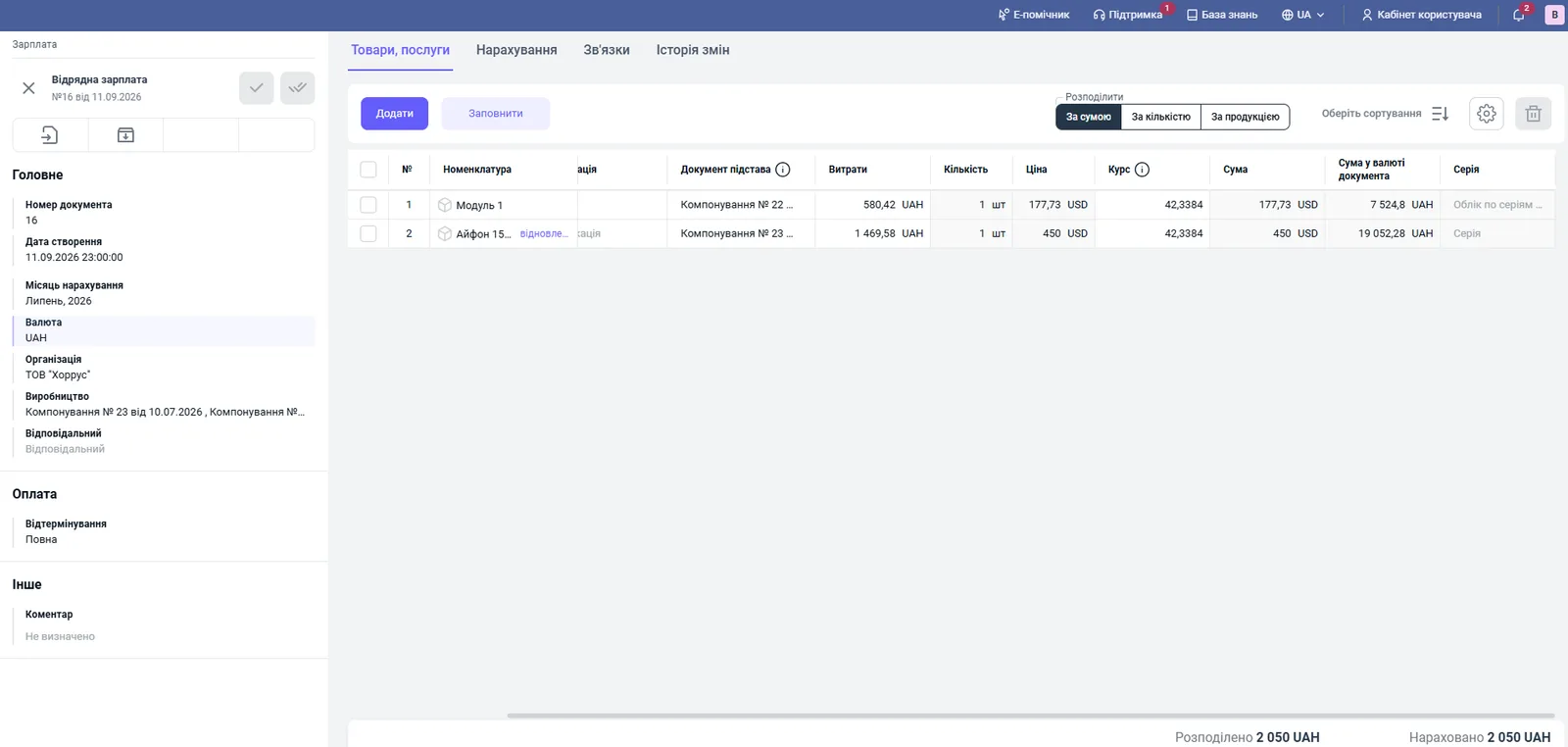
Table columns: “Product”, “Batch number”, “Base document”, “Costs” (the share of payroll for the row), “Quantity”, “Price”, “Rate”, “Amount”, “Amount in document currency”, “Series”. With batch accounting and serial number accounting, “Batch number” and “Series” are required.
The “Accruals” tab
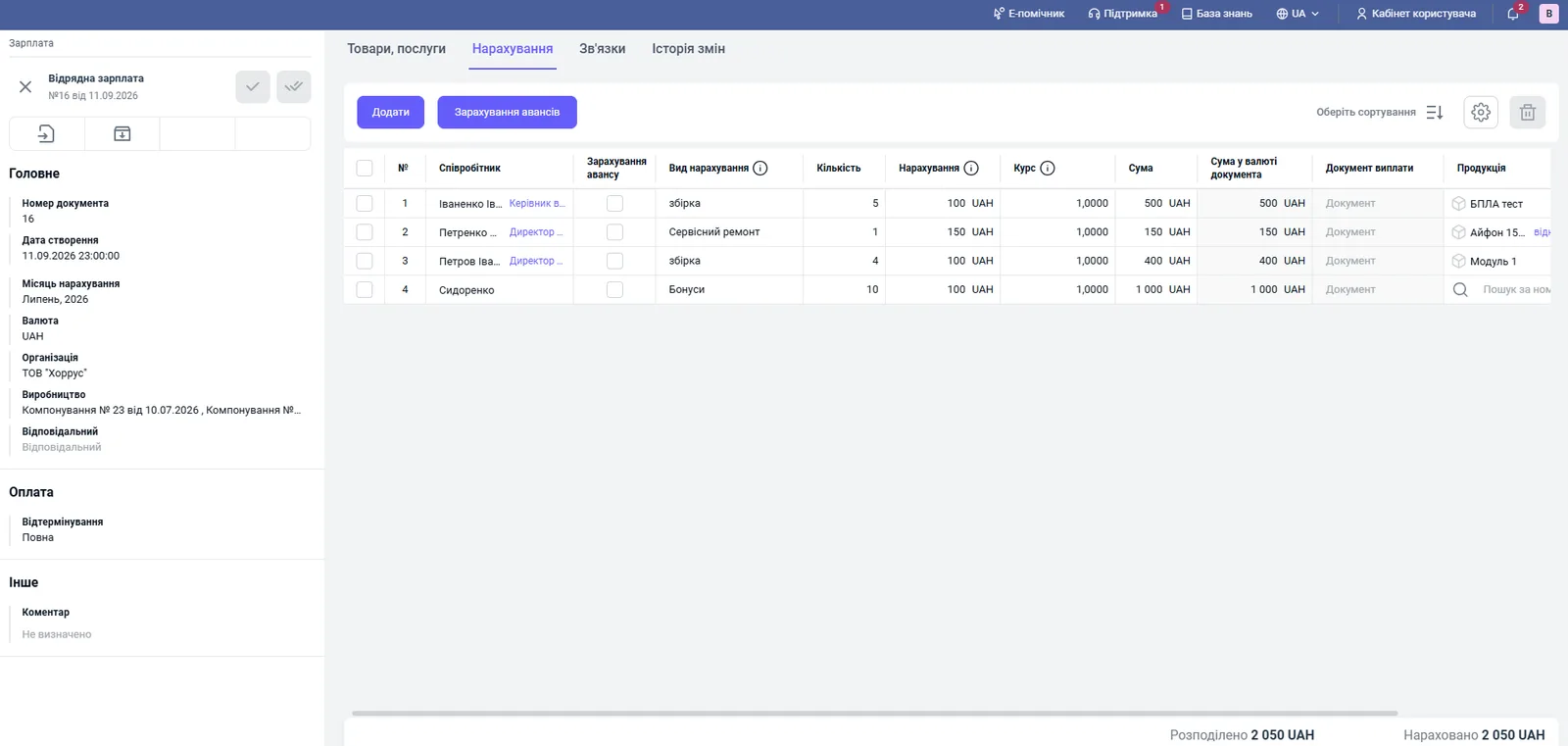
This is where pay is calculated per employee.
| Column | What it means |
|---|---|
| “Employee” | the performer’s full name and position |
| “Offset advance” | a switch: the payment is made as an advance at the time of posting |
| “Accrual type” | a type from the Accrual types directory |
| “Quantity” | the number of operations performed |
| “Accrual” | the rate; taken from the employee card or from the types directory |
| “Rate” | the exchange rate of the document currency to the base currency |
| “Amount” | Quantity x Accrual in the accounting currency |
| “Amount in document currency” | the calculated amount in the document currency |
| “Payout document” | a link to the payout (filled in after the payout) |
| “Products” | the finished product; required for the “Production” operation |
| “Exchange rate difference” | filled in for foreign currency settlements and advance payouts |
How to create piecework pay automatically through an Assembly
The automatic way is recommended for production.
- Open Production and create or open a Production order.
- Select the product and the specification. Bimp fills in the materials and operations from the specification.
- Go to the “Operations” tab: check the list and, if needed, select the performer, the operation name, the quantity, the rate and the product.
- Save the Production order.
- Based on it, create an “Assembly” document (see Assembly).
- Post the “Assembly” with the green check mark.
Bimp automatically creates and posts “Piecework pay” with the “Production” operation type. It uses the allocation method “By products”, and the product is loaded into the “Products” column.
How to create piecework pay manually
- Open Payroll → Piecework pay and click Create.
- In the “Operations” field, select the type: “Production”, “Sale”, “Purchase” or “Work order”.
- Check the “Organization”, the “Accrual month” and the “Currency”. The “Creation date” and the “Accrual month” must fall in the same month.
- On the “Products, services” tab, click Add (or Fill) and select the items the costs are allocated to. Select the allocation mode.
- On the “Accruals” tab, click Add, select the employee and the accrual type, and enter the quantity. For the “Production” operation, be sure to select the product in the “Products” column.
- Make sure the “Allocated” and “Accrued” totals at the bottom of the screen match.
- Post the document with the green check mark.
The payout for piecework pay is created based on it — see Salary payout.
FAQ
What is the difference between "Piecework pay" and "Salary accrual"?
"Salary accrual" writes payroll off to period expenses. "Piecework pay" accrues pay for completed work and adds it to the cost price of specific products, goods sold, a goods receipt or a work order.
Why does Bimp not let me post piecework pay with the "Production" operation type?
For the allocation "By products", an item must be specified in the "Products" column of the "Accruals" tab. Otherwise the message "Products are not filled in for this allocation in the accrual" appears.
How do I create piecework pay automatically?
Fill in the "Operations" tab in the Production order, create an "Assembly" based on it and post it. Bimp itself creates and posts a "Piecework pay" document with the "Production" operation type.