
Salary payout: manually and based on an accrual
On this page
Salary is paid in Bimp with the "Salary payout" document. The fastest way is to create it based on an accrual with the "Create based on" button: the list of employees and the amounts fill in automatically. For a free-form payout, open "Payroll → Salary payout", click "Create" and "Fill": Bimp offers to pay the remaining debt after the offset advances.
How to pay salary based on an accrual
The fastest way is to create a “Salary payout” from the accrual document: Bimp automatically carries over the employees and the amounts to pay and links the payout to the accrual. This is convenient right after the accrual or on the scheduled payout day.
Example. On January 31 the accountant accrued the sales department’s salary (document No. 5). On February 5, the payout day, they open accrual No. 5, press one button, and Bimp creates a ready payment document.
-
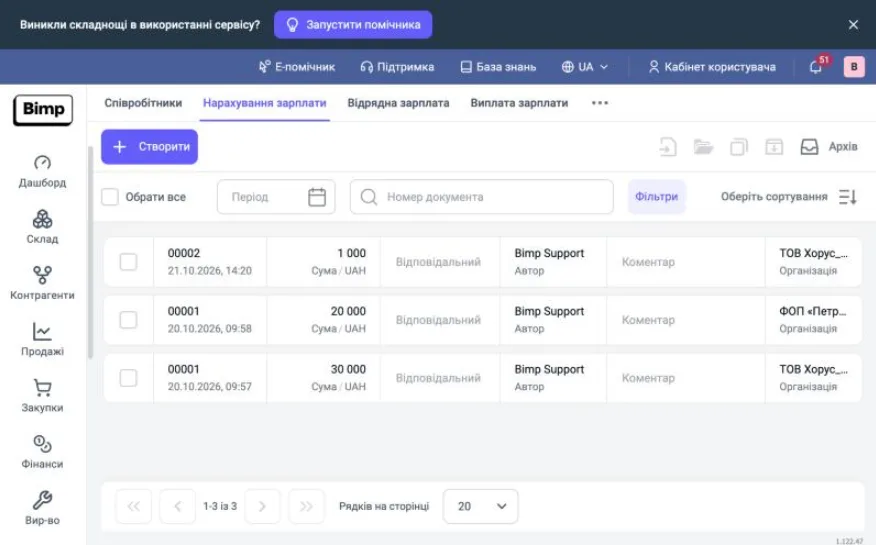
Open Payroll → Salary accrual (or Piecework pay) and find the document by date or number.
-
Open the document and on the top bar click Create based on → Salary payout.
-
Check the auto-filled data: employees, “Debt amount”, “Payment amount”.
-
In the “Payment” block, select the “Settlement type” (cash or non-cash) and the cash desk or bank account.
-
Check the total amount and click Save and close.
If the accrual contains only advances that have already been paid, or a full payout was made for it, Bimp shows the message “Cannot create a payout: the document amount is already fully paid”.
The closing of the accrual is visible on the document’s Links tab, which shows the tree of related documents.
How to pay salary manually with auto-fill
You create a payout manually when you need to pay the remainder (the “tail”) after the accrual and the offset advances.
Example. A manager is accrued 20,000 UAH, and a 5,000 UAH advance has been offset. The debt is 15,000 UAH. You create a payout, click Fill, and Bimp offers to pay 15,000 UAH. After posting, the debt equals 0.
-
Open Payroll → Salary payout and click Create.
-
In the left “Main” panel, fill in:
- “Payroll month”: the month you are closing the salary for;
- “Expense item”: the item for the cash flow report (does not affect P&L);
- “Organization”: the legal entity whose accounts the money will come from;
- “Responsible”;
- “Currency”: the payout currency;
- “Accounting rate”: the rate between the management accounting currency and the document currency (important for foreign currency salaries).
-
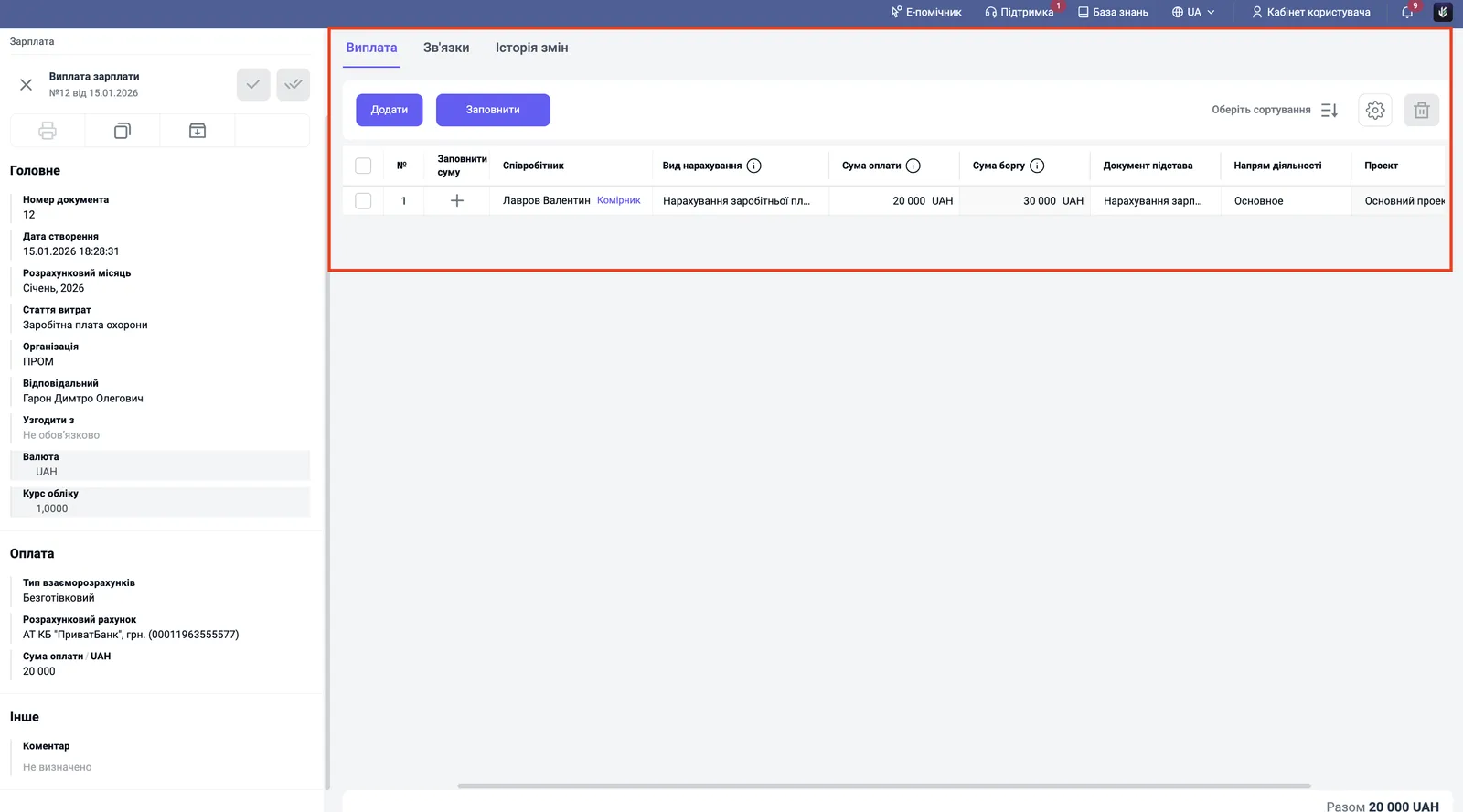
On the “Payout” tab, click Fill. Bimp analyzes the accruals and the advances issued for the month and lists the employees the company still owes.
-
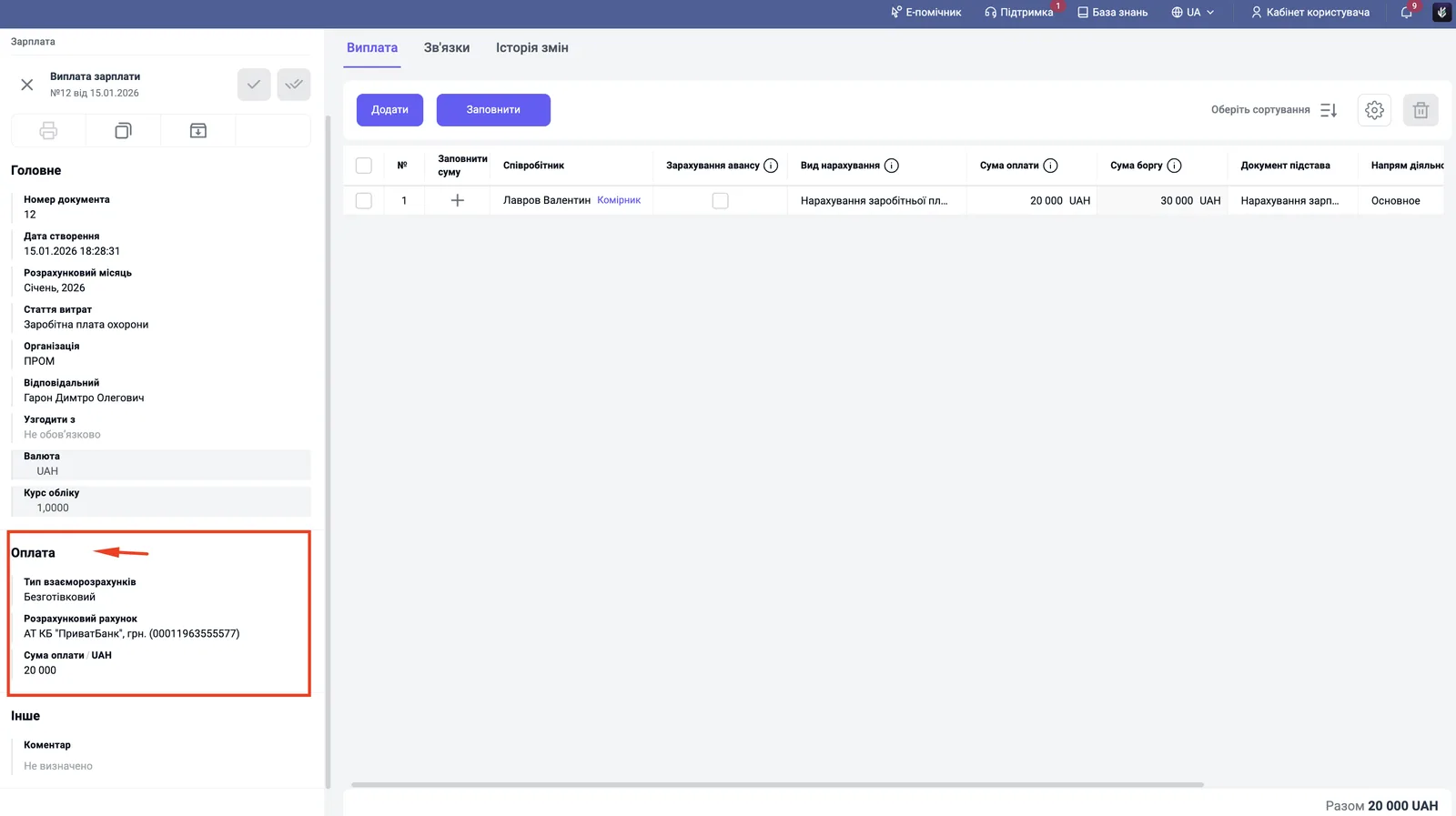
In the “Payment” block, select the “Settlement type” and the cash desk or bank account.
-
Click Save and close. The money is paid out and the debt for the month is closed.
What the columns of the Salary payout document mean
| Column | What it means |
|---|---|
| “Debt amount” | the remaining unpaid salary on the selected date: Accrued - Advances paid |
| “Payment amount” | the amount you are paying now; automatically equals the debt, can be changed manually |
| “Accrual type” | the type of salary from the directory, for example “Base salary” |
| “Offset advance” | a flag for paying an advance, see Advances |
| “Exchange rate difference” | the difference between the rate on the accrual date and the payout date, if the salary currency differs from the accounting currency; not shown in advance rows |
For foreign currency payouts and exchange rate differences, read the article Salary in foreign currency.
Where to check the payout result
- “Cash flow”: a write-off for the amount from the “Payment” block, linked to the selected expense item.
- “Salary accrued and paid”: the employee’s debt decreased by the payout amount; with a full payout the balance is zero.
- The Links tab in the accrual: shows that the accrual is closed by a payout.
FAQ
Why does Bimp not let me create a payout: "the document amount is already fully paid"?
The accrual contains only advances that have already been paid, or a full payout has already been posted for this document. Bimp tracks the debt and does not allow double payment.
How do I pay the remainder of the salary after an advance?
Create a "Salary payout", select the payroll month and click "Fill". Bimp calculates the debt as the difference between the accrued amount and the paid advances and offers to pay it.
Does the payout document affect P&L expenses?
No. The "Expense item" in the payout is needed for the cash flow report. Expenses are created by the accrual document.