
Organizations in Bimp: how to add a legal entity or sole proprietor
On this page
An organization in Bimp is a legal entity or sole proprietor (FOP) on whose behalf you sell, buy, and print documents. To add one, open "Directories → Organizations", click "Create", fill in the details and accounts, and save. An organization with the type "Main" is filled into all new documents automatically.
What an organization is in Bimp
An organization is a legally registered business (LLC, sole proprietor) on whose behalf you work in Bimp. Its data goes into printed document forms (invoice, waybill, certificate) and is used for synchronization with other programs. When a company is created, Bimp automatically adds an organization with the same name to the directory. For the general picture of modules and interface, read the Bimp overview.
You need several organizations if you run a business through several legal entities or combine an LLC and a sole proprietor.
How to create an organization
- Open Directories → Organizations and click Create. The card opens to the right of the list.
- In the top row “Name”, enter the name of the organization, for example “FOP Oleksiienko I.I.”. With the + button next to the icon in the top left, upload a logo.
- On the “Properties” tab, fill in the “Main characteristics” block (the fields are described in the table below).
- In the “Accounts” block, click Add and enter the organization’s bank accounts.
- In the “Address” block, enter the legal address.
- In the “Stamp” block, upload an image of the stamp.
- Click Save.
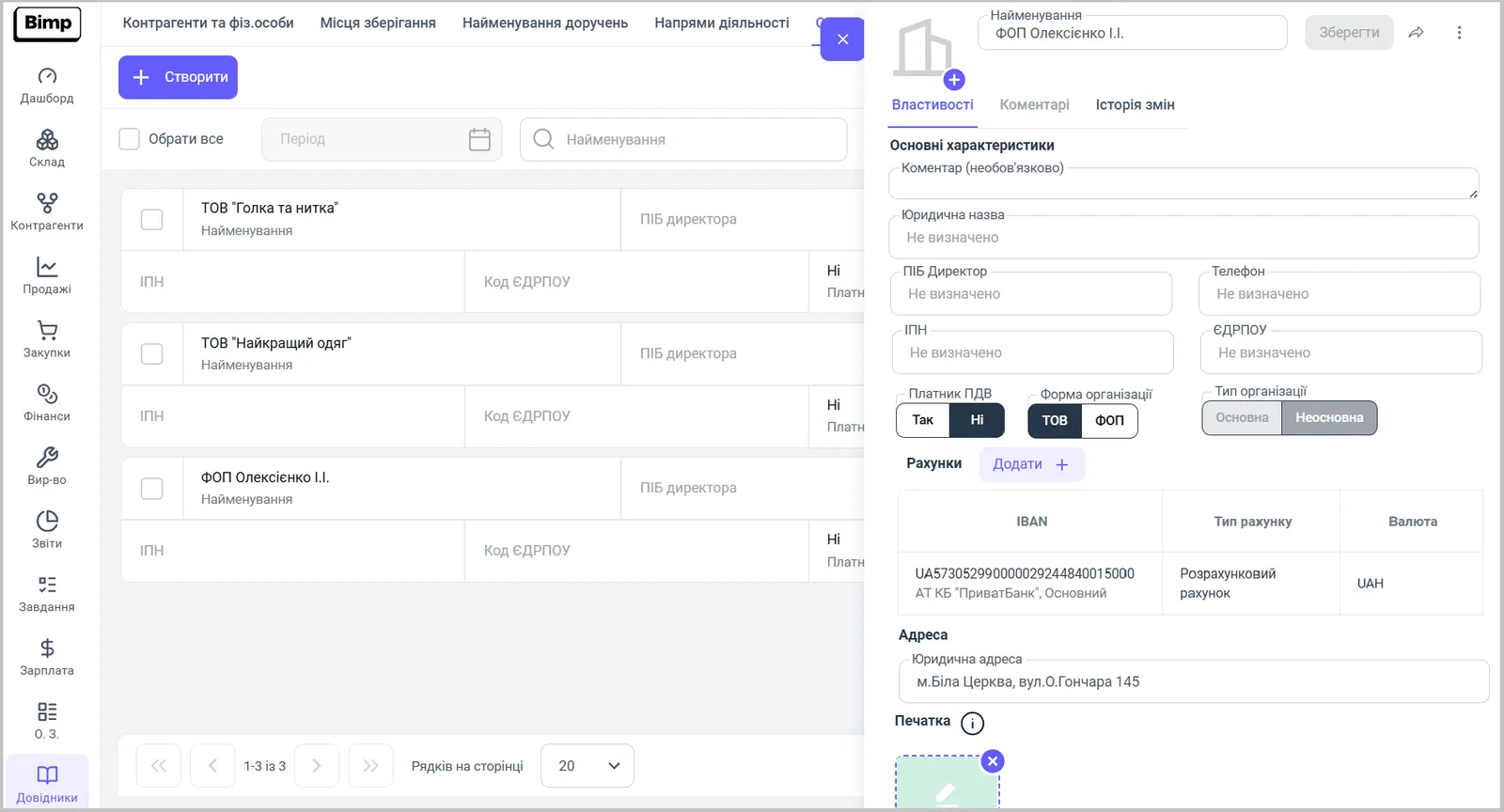
Which fields are filled in the organization card
The organization card contains the following fields.
| Field | What to enter |
|---|---|
| “Name” | Working name in the directory |
| “Comment” | Any note (optional) |
| “Legal name” | Full name for printed document forms |
| “Director full name” | Last name, first name, and patronymic of the head |
| “Phone” | Contact number of the organization |
| “Tax ID (IPN)” | Taxpayer identification number |
| “EDRPOU” | Organization code |
| “VAT payer” | Yes or No |
| “Organization form” | LLC or FOP |
| “Organization type” | Main or Non-main |
| “Accounts” | A table with the columns “IBAN”, “Account type”, “Currency” |
| “Legal address” | Address for printed forms |
| “Stamp” | Image of the stamp for documents |
How the main organization works
An organization with the type “Main” is filled into all new documents automatically. If Bimp has several organizations, make the one you work on behalf of most often the main one. In a specific document it can be changed in the “Organization” field: choose another one from the list.
Where to add the organization’s bank accounts
Accounts entered in the “Accounts” block of the organization card automatically appear in the “Banks/Bank accounts” directory after saving. The account fields and adding them manually are described in Bank accounts and cash desks.
FAQ
How many organizations can I create in one Bimp company?
As many as you need: add every legal entity and every sole proprietor (FOP) on whose behalf you keep records. In a document you choose on whose behalf the operation is performed.
Which organization is filled into documents by default?
The one with the type "Main". In a specific document it can be replaced with another organization from the list.
Where do I enter the organization's bank accounts?
In the "Accounts" block of the organization card, with the "Add" button. After saving, they also appear in the "Banks/Bank accounts" directory.