
Piecework pay: production, sales bonus, goods receiving
On this page
Piecework pay in Bimp is created based on a source document: "Assembly" for production, "Sales of goods and services" for a manager's bonus and "Goods receipt" for payment for unloading. The accrued amount increases the cost price of products, goods sold or warehouse stock, rather than simply reducing the period's profit.
How to choose a piecework pay scenario
The scenario type depends on what you pay for and what the cost of the work should be assigned to. The document is always the same, Piecework pay; what changes is the operation type and the base document.
| Scenario | Base document | Operation type | Where the amount goes |
|---|---|---|---|
| Production | “Assembly” | “Production” | the cost price of the produced goods |
| Sales bonus | “Sales of goods and services” | “Sale” | the cost price of the goods sold |
| Goods receiving | “Goods receipt” | “Purchase” | the value of stock in the warehouse |
General rules for all scenarios:
- Create the document from the base document with Create based on → Piecework pay. Alternative: Payroll → Piecework pay → Create.
- The “Creation date” and the “Accrual month” must fall in the same calendar month.
- The “Document in table” switch lets you accrue for several base documents in one document, and “Employee in table” lets you accrue to several employees.
- The rate comes from the employee card, and if it is not there, from the “Accrual types” directory. A foreign currency rate is converted at the rate on the document date.
- In the “Payment” block, set the deferral and add the payout to the payment calendar.
How to accrue piecework pay for production
To pay for produced goods, create piecework pay based on a posted “Assembly”: the cost of the work is automatically added to the cost price of the product.
Example. A furniture workshop made 10 tables. The rate for assembling one table is 500 UAH. The foreman is accrued 5,000 UAH (10 x 500), and the cost price of the batch grew by 5,000 UAH on top of the cost of materials.
-
Open a posted “Assembly” document (Production).
-
Click the Create based on icon in the top menu and select Piecework pay.
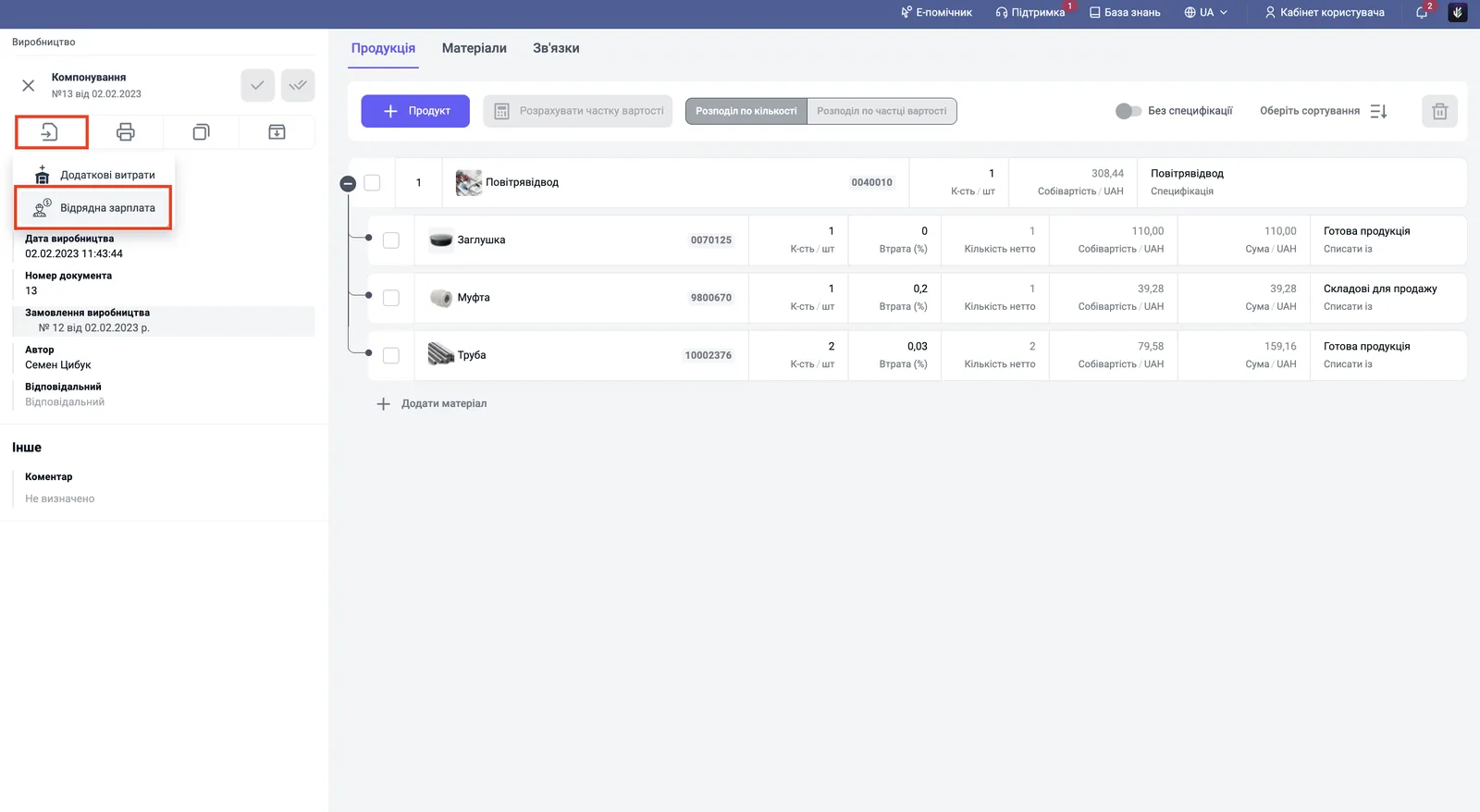
-
In the left panel, check the fields: “Operations” is “Production”, the base document is “Assembly”, the accrual type is the kind of work (“Assembly”, “Sewing”).
-
On the “Accruals” tab, check the employees, the quantity and the rate. “Products” must be filled in for every row.
-
On the “Products, services” tab, the cost allocation for production is set to “By products”.
-
Set up the “Payment” block and click Save and close.
If a team worked on the products, turn on “Employee in table” and add all performers. For a combined weekly accrual across several “Assemblies”, turn on “Document in table”.
Where to check the result. In the “Salary accrued and paid” report the debt to the employee grows by the amount of work. In the “Cost of produced goods” report, labor cost is visible in the cost structure of the product.
How to accrue a sales bonus to a manager
For a manager’s bonus, create piecework pay based on a posted “Sales of goods and services” document: the bonus increases the cost price of the goods sold, and the gross profit on the deal decreases.
Example. A manager sold 10 air conditioners, with a bonus of 200 UAH per unit. They are accrued 2,000 UAH, and the cost price of this batch grew by 2,000 UAH.
-
Open a posted “Sales of goods and services” document (see Shipment).
-
Click Create based on and select Piecework pay.
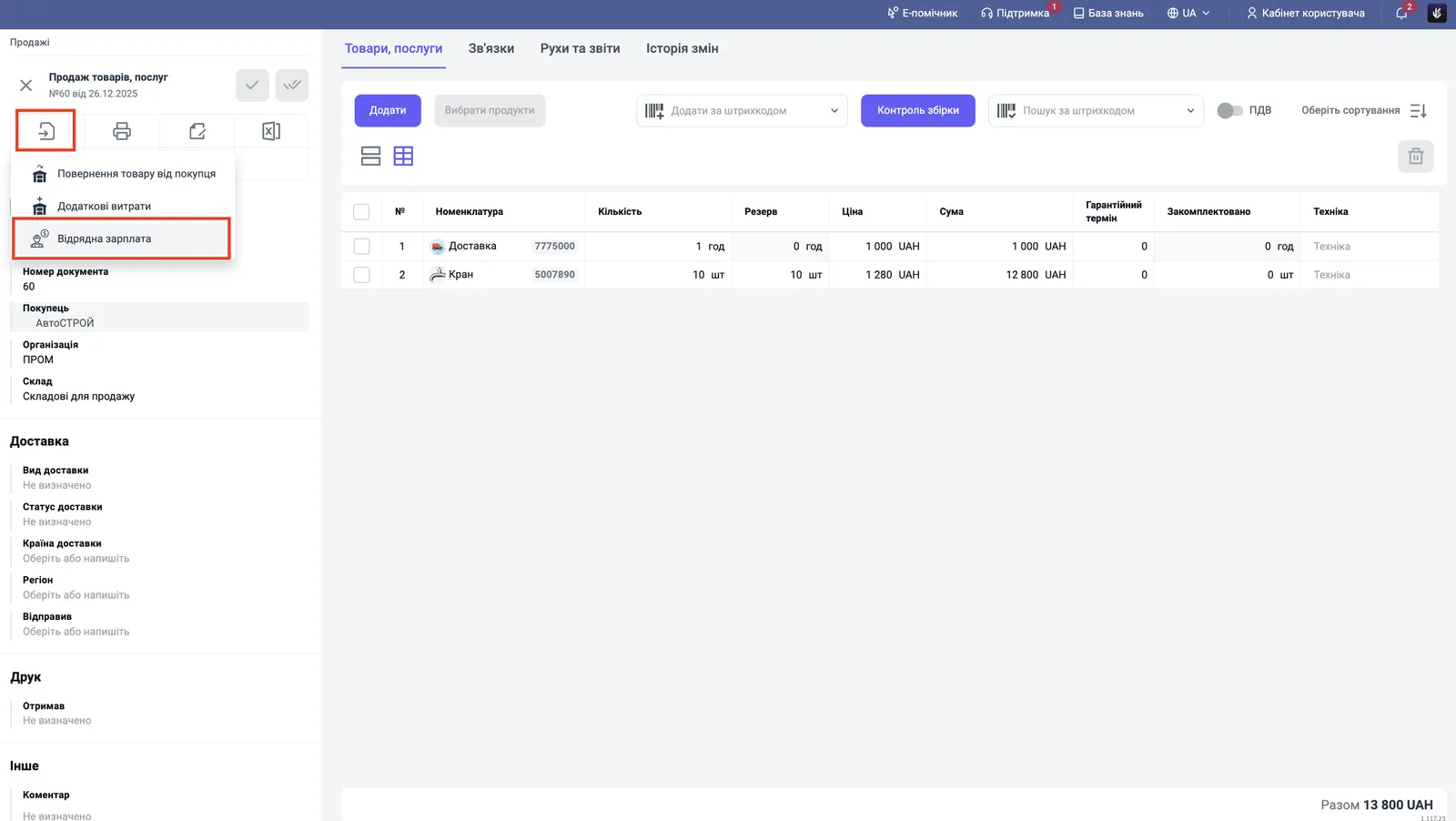
-
Check “Operations”: “Sale”; the base document is filled in automatically.
-
On the “Accruals” tab, select the manager and the accrual type (“Sales bonus”). The quantity comes from the sales document, and the rate from the employee card or the directory.
-
To allocate costs on the “Products, services” tab, select “By amount” (a larger part of the bonus goes to more expensive goods) or “By quantity” (equally to each unit).
-
Save the document.
If several managers handled the deal, turn on “Employee in table” and split the bonus, for example 70% and 30%. For a combined weekly bonus, turn on “Document in table”.
Where to check the result:
- “Salary accrued and paid”: the debt to the manager;
- “Gross profit”: the bonus is included in the “Cost price” column, so the gross profit on the deal is smaller;
- “Income and expenses (P&L)”: the amount increases the cost price of goods sold.
How to pay for goods receiving work
To pay for unloading, sorting or labeling, create piecework pay based on a posted “Goods receipt”: the cost of the work goes into the value of stock in the warehouse.
Example. A truck arrived with 1,000 bags of cement. Loaders unloaded it by hand at a rate of 5 UAH per bag. They are accrued 5,000 UAH, and the value of the batch in the warehouse grew by 5,000 UAH. Likewise, bricks at 10 UAH plus 1 UAH for unloading go onto the balance at 11 UAH.
-
Open a posted “Goods receipt” document (see Goods receipt).
-
Click Create based on and select Piecework pay.
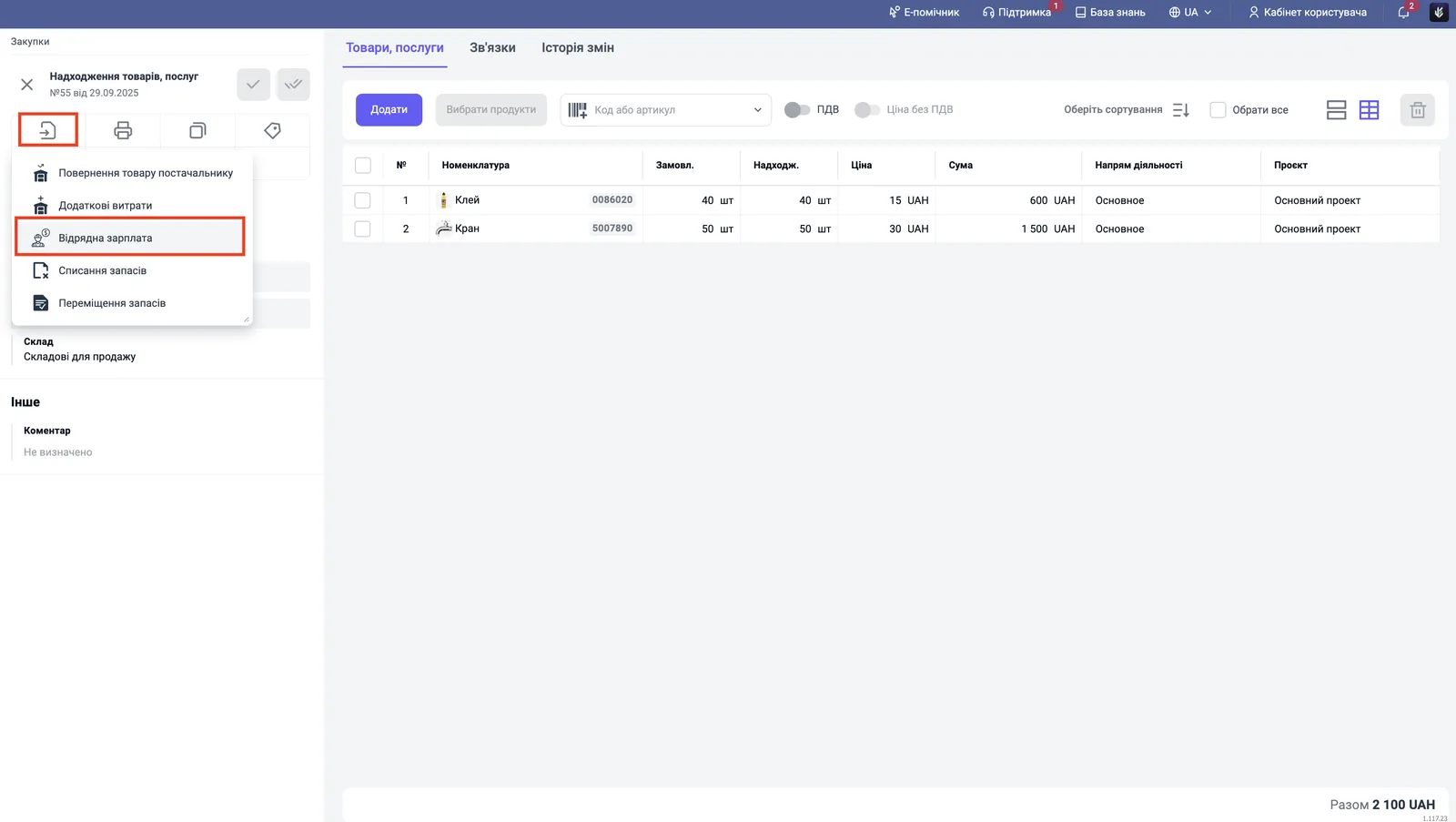
-
Check “Operations”: “Purchase”; the base document is “Goods receipt”.
-
Select the employee (storekeeper, loader) and the accrual type (“Unloading”, “Goods receiving”).
-
Select the cost allocation on the “Products, services” tab:
- “By quantity”: equally to each unit; suitable for goods of one kind;
- “By amount”: in proportion to value; suitable if the delivery has items with very different prices (nails and power tools).
-
Save the document.
To unload several trucks in one document, turn on “Document in table”, and for a team of loaders, “Employee in table”.
Where to check the result. The “Salary accrued and paid” report shows the debt to the employee. In warehouse reports (for example, “Stock movement”) the cost price of the batch has grown.
The payout for any of these documents is created based on it — see Salary payout.
FAQ
Where does Bimp get the rate in piecework pay?
First from the employee card, if a personal rate is set there. If not, from the general rate in the "Accrual types" directory. If the rate is in a foreign currency and the payout is in hryvnias, the amount is converted at the rate on the document date.
How do I accrue a bonus to several managers in one document?
Turn on the "Employee in table" switch: on the "Accruals" tab you can add several employees and split the amount between them, for example 70% and 30%.
Does piecework pay for goods receiving affect profit right away?
No. The amount is capitalized in the value of stock and becomes an expense (cost of goods sold) only when that product is sold.