
Salary accrued and paid report: debt to employees
On this page
The Salary accrued and paid report shows, for the selected date, for each employee and settlement month, how much was accrued, how much was paid, and what the company's debt is. Open "Reports → Salary accrued and paid", set the date, and click "Generate report". By default, only debts are visible.
What the report is for
The Salary accrued and paid report shows how much salary was accrued to employees, how much has already been paid, and how much the company still owes on the selected date. It is useful when salary is paid in parts (advance, piecework, main part, bonuses): you can see who was paid twice and who was forgotten.
Accruals are created by Salary accrual documents, and payments by Salary payout documents and advances. General report mechanics are described in the article Reports in Bimp.
How to generate the report
To get the report, specify the date of the settlement state and generate it.
- Open Reports → Salary accrued and paid.
- Open the left Filters panel and in the “Date” field enter a day, for example 31.05.2026.
- If needed, select “Employees”, “Project”, or “Lines of business”.
- Set “Group by” and “Detail by”.
- Click Generate report.
By default, the report contains only salary debt. To see movements for closed accruals and payments, turn on the “Show closed months” checkbox.
Report figures
The table shows three amounts for each employee.
| Column | What it means |
|---|---|
| “Employees / Settlement month” | The employee’s full name; when expanded, the months for which money was accrued |
| “Accrued” | The amount of salary and bonuses approved by accrual documents |
| “Paid” | What the employee actually received on a card or at the cash desk |
| “Debt” | The unpaid balance: a positive amount means the company owes the employee |
| “Total” (bottom row) | The total payroll fund, payments, and liabilities for the whole staff |
Debt equals accrued minus paid.
Filters and grouping
Filters determine who gets into the report, and grouping determines how the table expands.
| Element | What it does |
|---|---|
| “Date” | The day for which you need the state of settlements |
| “Employees” | One employee |
| “Project” | Accruals for the project only |
| “Lines of business” | Accruals for a line of business |
| “Show closed months” | Adds closed accruals and payments (off by default) |
| “Group by” | “Employees” (a list of people) or “Settlement month” (by period) |
| “Detail by” | “Settlement month”: expands an employee’s card by months |
| “Show third level: Documents” | Shows the payroll sheets and orders by which money was paid out |
| “Management accounting currency” | Shows amounts in the single system currency (for currency bonuses or foreign branches) |
| “Search” above the table | Finds an employee by last name, for example “Ivanenko” |
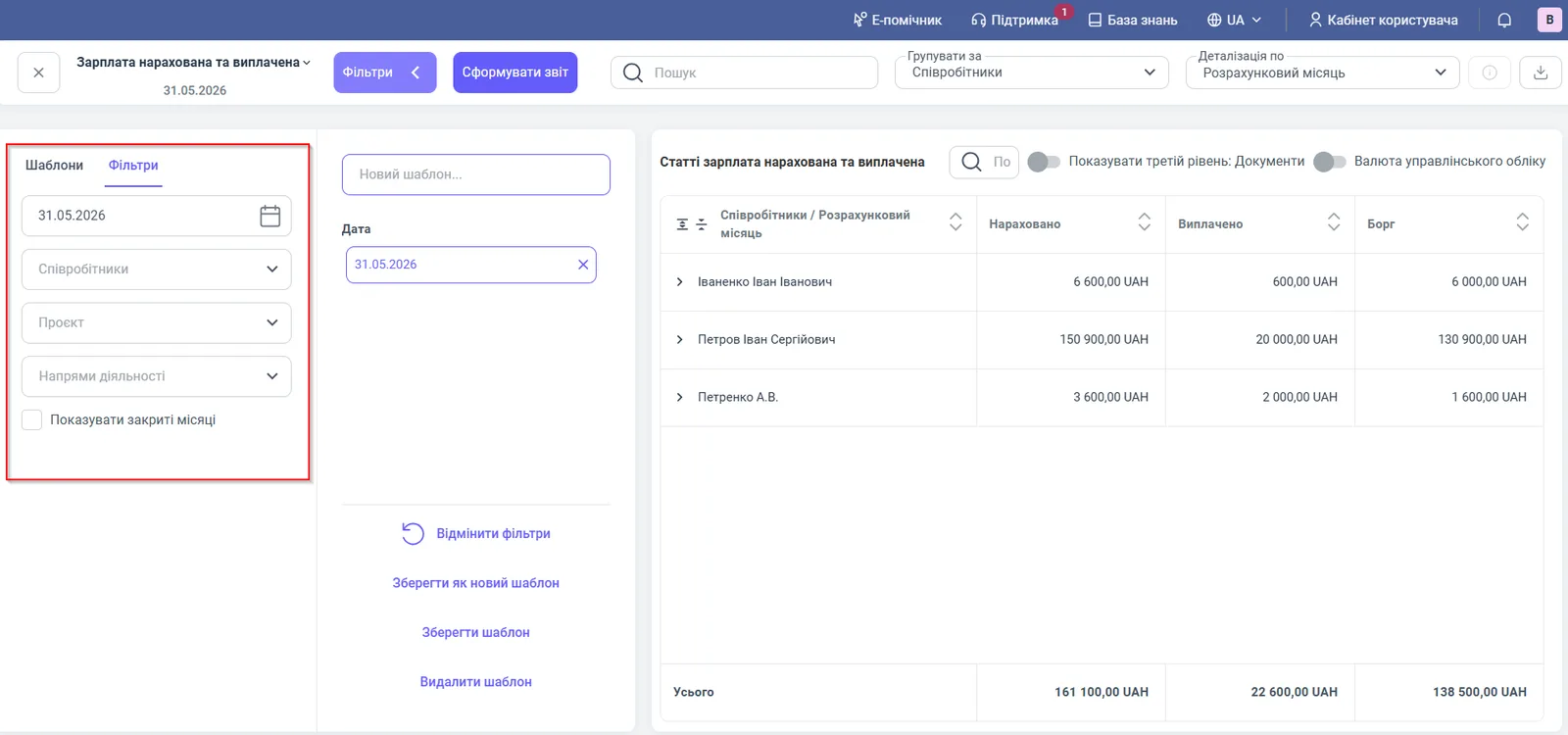
Usage example
A financial director checks the salary debt as of 31.05.2026.
| Employee | Accrued | Paid | Debt |
|---|---|---|---|
| Ivanenko Ivan Ivanovych | 6,600.00 | 600.00 | 6,000.00 |
| Petrov Ivan Serhiyovych | 150,900.00 | 20,000.00 | 130,900.00 |
| Petrenko A.V. | 3,600.00 | 2,000.00 | 1,600.00 |
| Total | 161,100.00 | 22,600.00 | 138,500.00 |
The company owes employees 138,500.00 UAH, of which 130,900.00 UAH is owed to Petrov (a high bonus). It is worth adding this amount to the payment calendar. Petrenko must be paid exactly 1,600.00 UAH so as not to overpay.
Why the figures do not match
An employee is missing from the report. The debt is already closed: by default, only debt is visible. Turn on “Show closed months”.
The debt is larger than expected. A payment or advance is not linked to an accrual, or is not posted. Expand the report to documents (“Show third level: Documents”) and check the payments. For how advances are offset, see Advances.
The debt is negative. The employee was paid more than was accrued (for example, an advance without an accrual). Close the discrepancy with an accrual or a return.
The amount does not match the accounting on a date in another report. This report has a single “Date” field: the amount is taken for that day, not for a period. Check the date.
FAQ
How do I see the salary debt on a specific date?
Open the report, enter the day you need in the "Date" filter, and click "Generate report". The "Debt" column will show the unpaid balance for each employee.
Why are employees who have already been paid in full missing from the report?
By default, the report shows only debt. To see closed accruals and payments, turn on the "Show closed months" checkbox.
How do I find out for which month a debt arose?
Expand the employee: the "Settlement month" detail will show accruals, payments, and debt for each month separately.