
Income and expense items and expense groups: setup
On this page
Income and expense items classify every payment by origin or purpose. Without them the reports "Income and expenses" and "Cash flow" do not know where to put the money. Create an item in "Directories", choose a group (income or expense) and a type of activity (operating, investing, financing), and a parent item if needed.
Why income and expense items are needed
An income or expense item is a category by which Bimp classifies cash receipts and payments. It defines which line of the reports “Income and expenses” (P&L), “Expenses”, and “Cash flow” an operation goes to. Without a configured list of items, the system does not know how to classify payments.
Correct items let you:
- separate production expenses from office maintenance expenses;
- see which line of business brings the most money;
- build P&L and Cash Flow reports automatically.
Example. A company makes eco goods. Buying raw materials is “Cost price”, type of activity “Operating”. Office rent is “Administrative expenses”, also “Operating”. Loan interest is “Financial operations”, type of activity “Financing”: in the Cash Flow report it is grouped separately.
How to create an expense item
An expense item is created in the “Expense items” directory.
- Open Directories → Expense items and click Create.
- In the “Name” field, enter a name, for example “Marketing”.
- In the “Comment” field (optional, up to 1000 characters), describe what the item includes. This helps employees avoid mistakes when entering payments.
- In the “Expense group” field, choose a group from the list; it determines where the expense appears in reports.
- In the “Cash flow item” field, specify a name for the “Cash flow” report.
- In the “Type of activity” field, choose Operating, Investing, or Financing.
- To make the item a child of another, in the “Parent expense item” field choose the main one (for example, “Employee bonuses”). First make sure the right expense group is selected.
- Click Save.

Which expense groups there are
The expense group is the main “filter” that defines where an expense goes in the financial reports.
| Group | What it includes | Effect on reports | Example |
|---|---|---|---|
| Cost price | Direct costs of the product | Reduces gross profit in the P&L | Buying boards for tables |
| Administrative expenses | Maintaining the company as a structure | Operating expenses of the period | Office internet, accountant’s salary |
| Selling expenses | Selling and delivering to the customer | Affect operating profit | Facebook ads, Nova Poshta services |
| Production overhead | Indirect production costs | Affect operating profit | Workshop rent, electricity for machines |
| Financial operations | Work with money and capital | In Cash Flow, under financing activity if the matching type of activity is chosen | Bank fee, loan interest |
| Depreciation of non-current assets | Gradual wear of property | Reduces profit in the P&L but does not appear in Cash Flow | Wear of a company car |
| Other expenses | Rare expenses outside other categories | Affect overall net profit | Tax fine, charitable donation |
A correct split between cost price and administrative expenses lets you determine the margin of a product accurately.
How to create an income item
An income item is created the same way as an expense item, in the “Income items” directory.
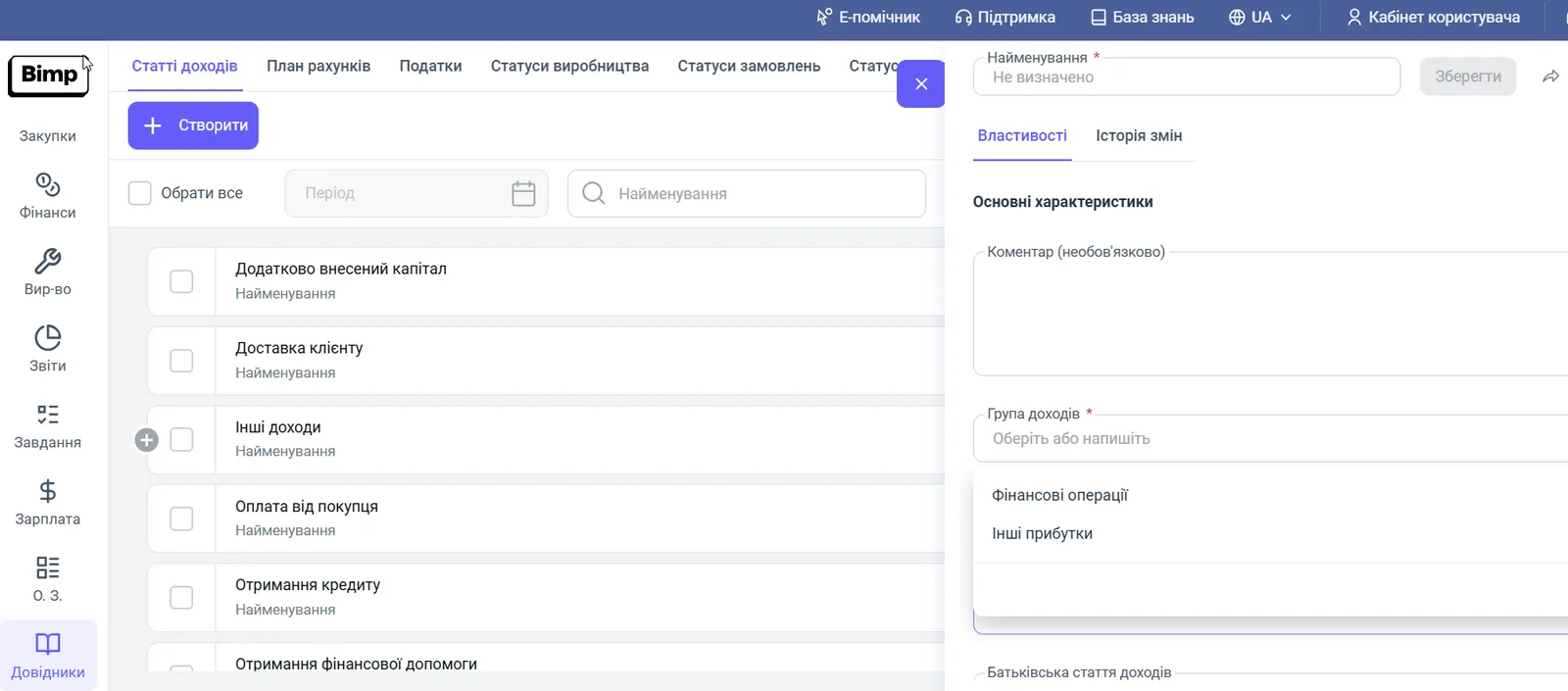
- Open Directories → Income items and click Create.
- In the “Name” field, enter a name, for example “Sales of goods” or “Installation services”.
- In the “Comment” field (optional), describe the item.
- In the “Income group” field, choose a group from the list (in the screenshot example, “Financial operations” and “Other income” are available, among others).
- In the “Cash flow item” field, specify a name for the “Cash flow” report.
- In the “Type of activity” field, choose Operating, Investing, or Financing.
- If needed, choose “Parent income item”.
- Click Save.
Example. A company sells wallpaper and provides wallpapering services. After creating the items “Sales of goods” and “Installation services”, the owner saw that services bring 10% of income but take 40% of staff time, and reviewed the price list.
How the type of activity affects Cash Flow
The “Type of activity” field defines where a money flow is shown in the Cash Flow report. Operating activity is the main business (sales, buying raw materials, rent, salaries). Investing is putting money into property and assets. Financing is loans, interest, dividends. Reports: Cash Flow by type of activity and the “Expenses” report.
FAQ
What is an expense item for in Bimp?
An item classifies a payment: Bimp uses it to assign the expense to the right group and build the reports "Expenses" and "Income and expenses". Without configured items, the financial results report (P&L) cannot be obtained correctly.
What should I specify in the "Type of activity" field?
Operating, investing, or financing. The field groups money flows in the Cash Flow report: operating receipts separately from financial obligations.
Why is depreciation not visible in the Cash Flow report?
Depreciation reduces profit in the P&L but is not a movement of money: funds are not physically spent, so it does not appear in Cash Flow.
How do I make a structured expense tree?
In the item card, fill in the "Parent expense item" (or "Parent income item") field; in reports, items are grouped under the main one.