
Work order: how to document a repair or service job
On this page
A Work order is a document of the "Service and repair" module that records a customer's order for repair work and the spare parts it needs. To create one, open "Service and repair → Work orders", click "Create", choose the customer, add services and products and save the document.
When you need a Work order
A Work order is created when a customer hands in equipment for repair or orders service work that requires spare parts. The document records the list of work and products, payment, deadlines and warranty, and also collects the repair costs so you can see its real profit. All articles in this section are listed on the “Service and repair” page.
How to create a Work order
To create a Work order, open Service and repair → Work orders and click Create. A form opens with a panel on the left (“Main”, “Payment”) and tabs on the right.
- Hover over the “Main” block and click the edit icon.
- The “Document number” and “Creation date” are filled in automatically; change them manually if needed.
- Choose the “Customer” — the field is required. The “Contract” is filled in from the customer’s main contract; you can choose another contract of the same customer.
- Check the “Line of business”, “Project” and “Price list”. They come from the contract, but you can change them.
- Choose the responsible manager and, if needed, the “Sales document” — the sale in which the customer bought the equipment.
- Specify the “Work completion time / days” and the “Warranty period / months”.
- If needed, fill in the “Comment” and specify the price list rate and the accounting rate.
- Save the document.
The “Warehouse in table section” switch determines where the warehouse is specified. If it is off, you choose the warehouse once in the left panel, and the products are reserved in it. If it is on, the “Warehouse” field disappears from the left panel and appears in the rows of the “Products” and “Services” tabs.
How to fill in the payment
The “Payment” block defines how the customer will pay for the repair. Hover over the block and click edit:
- Choose the “Settlement type” (non-cash or cash).
- For non-cash settlements, specify the company’s “Bank account” and the “Customer bank account”.
- If needed, turn on “Add to payment calendar” and choose the “Deferral”: none, full or partial — see Payment calendar.
How to add services
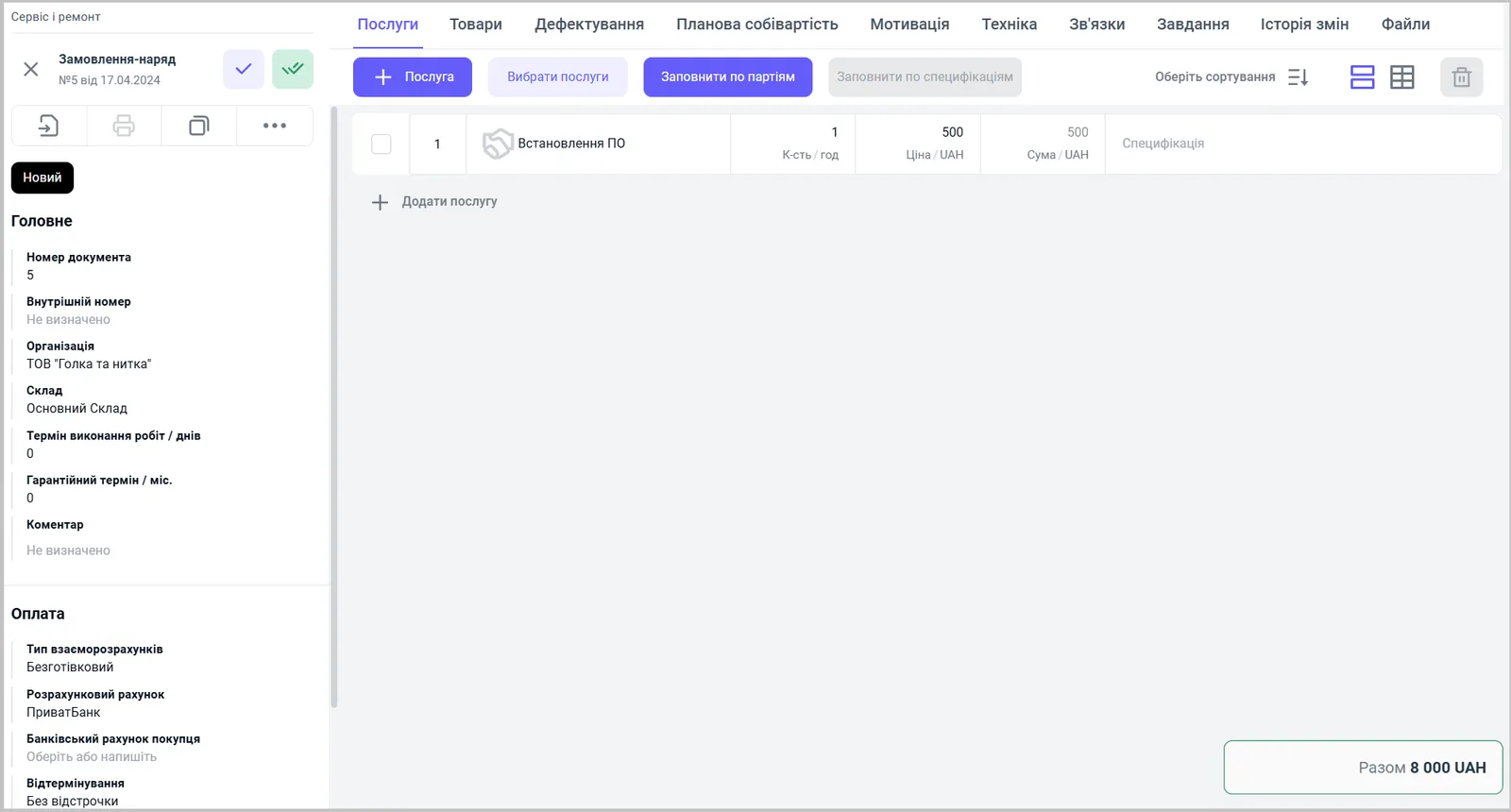
Services are added on the “Services” tab:
- the Service button adds a row: choose a service by name, modification or SKU, specify the quantity (for example, hours) and the price; the “Amount” is calculated automatically;
- the Select services button adds several services at once;
- the Fill by batches and Fill by specifications buttons fill in data by batches or by the service specification.
How to add spare parts and products
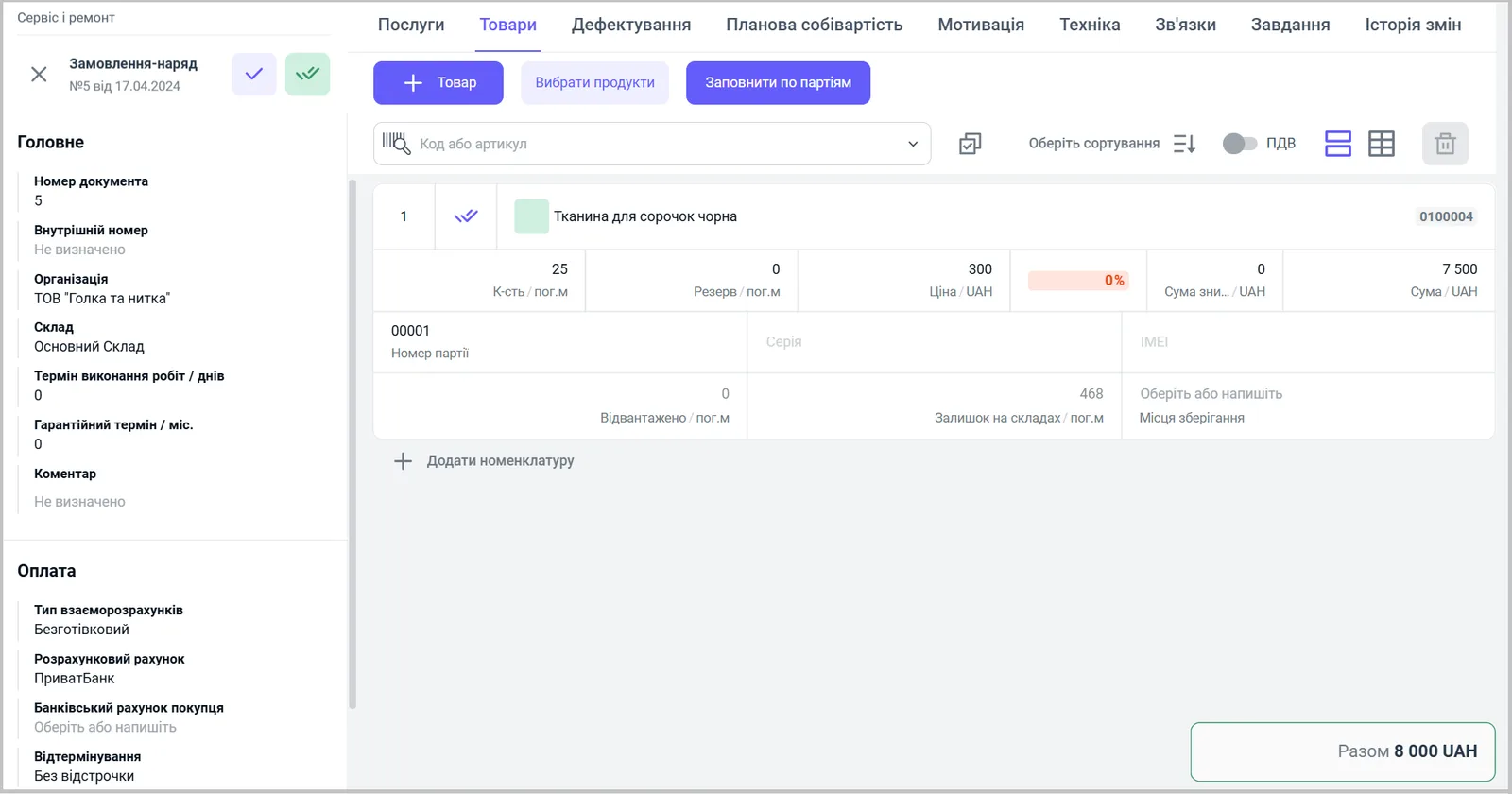
Spare parts are added on the “Products” tab with the Product or Select products button. Search works by name, modification, SKU or barcode (the “Code or SKU” field). In a row you specify:
| Field | What it means |
|---|---|
| “Qty” and “Reserve” | how much is needed and how much of it to reserve |
| “Price”, discount, “Amount” | price per unit, discount as a percentage or an amount, row total |
| “Batch number”, “Series”, “IMEI” | for products with batch or serial tracking |
| “Shipped”, “Stock in warehouses”, “Storage locations” | how much has already been shipped, current stock and storage location |
Additional tabs of the document
Besides services and products, a Work order has tabs for supporting the repair:
| Tab | What it is for |
|---|---|
| “Defect list” | the list of spare parts needed for the repair and control of their issue from the warehouse — see Warehouse defect list |
| “Planned cost price” | a preliminary calculation of costs for materials, work and services |
| “Motivation” | setting up pay for the employees who carry out the order |
| “Equipment” | the equipment or machinery the work is done on |
| “Links” | linked documents — see Links tab |
| “Tasks” | a list of jobs or stages with responsible people and deadlines |
| “Change history” | an edit log: who changed what and when |
What is created based on a Work order
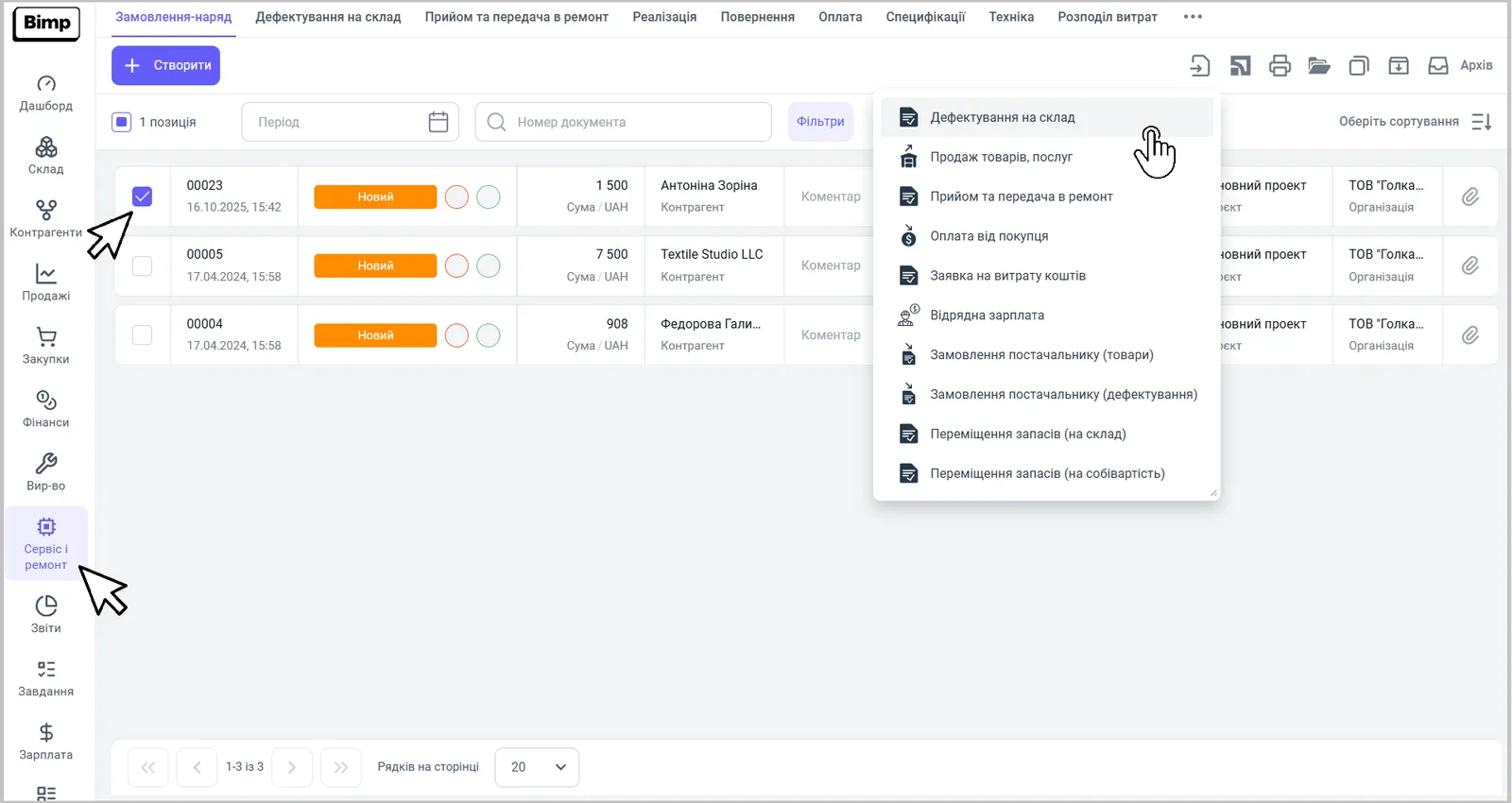
In the list of Work orders, choose a document and use the Create based on button — see Creating a document based on another. The available documents are:
- “Warehouse defect list”;
- “Sales of goods and services” — the final shipment, see Shipment;
- “Repair intake and handover”;
- “Customer payment” — see Customer payment;
- “Expense request” and “Piecework pay”;
- “Supplier order (products)” and “Supplier order (defect list)”;
- “Stock transfer (to warehouse)” and “Stock transfer (to cost price)”.
FAQ
How is a Work order different from a Customer order?
A Work order is meant for repair and service work: besides services and products, it has the tabs "Defect list", "Planned cost price", "Motivation", "Equipment" and "Tasks". A Customer order is for ordinary sales.
Why can't I change the Work order date to a later one?
If other documents (for example, Sales of goods and services) are already linked to the Work order, its date cannot be later than the date of those documents. First change or delete the linked documents.
How do I write off spare parts to the cost price of a specific repair?
Create a "Stock transfer (to cost price)" document based on the Work order. Details are in the article on the cost price of a service.