
Shipment: the Sales of goods and services document and writing off from the warehouse
On this page
A shipment in Bimp is recorded with the Sales of goods and services document (on the "Sales" tab). It writes goods off the warehouse, records income and the customer's debt, and gives you a delivery note. The fastest way is to create it from a customer order with the "Create based on" button, check the warehouse, quantity, and prices, and save the document.
What a shipment is in Bimp
A shipment in Bimp is the Sales of goods and services document, which records the handover of goods to the customer. In the menu it is at Sales → Sales. The document has two functions:
- Warehouse. It writes goods off the selected warehouse.
- Financial. It records revenue and the customer’s receivable. Without the document, the goods stay on the balance even if they have already been handed to the customer.
Example. A manager agreed to sell 10 bags of cement. He creates a Sales of goods and services document from the “Main” warehouse: after saving, 10 bags are written off the warehouse, and the customer owes the amount of the deal.
For services, the same document is used; see Providing services: the certificate of completed work. The full sales process from order to payment is covered in one article.
How to create a shipment based on an order
The fastest way is to create the document from a customer order: items, prices, contract, and customer are filled in automatically.
-
Open the customer order in Sales → Orders.
-
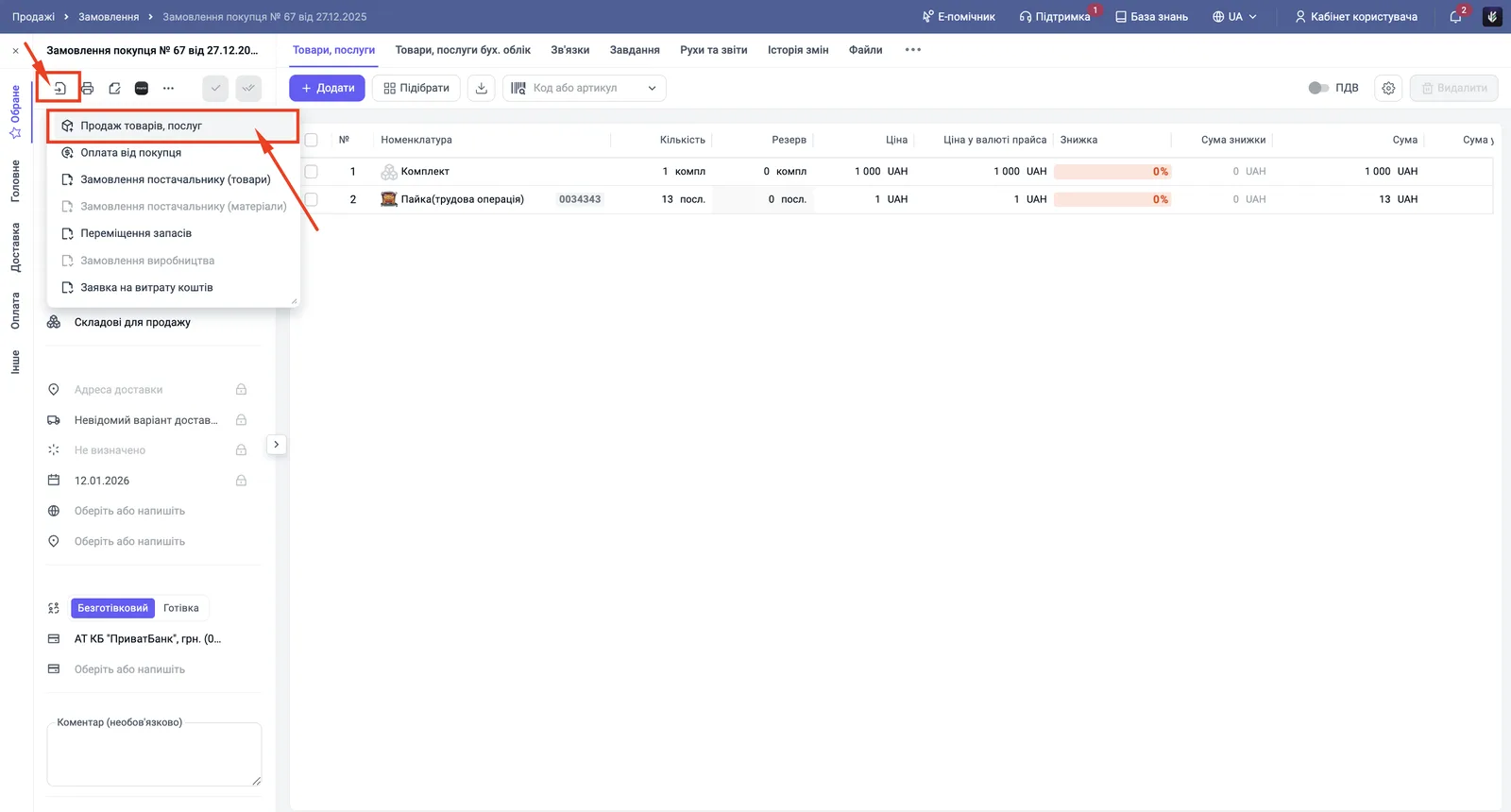
On the document header, click the Create based on icon (an arrow in a frame) and choose Sales of goods and services.
-
Check the filled-in fields (see the section below) and save the document.
The general principle of creating documents based on others is described in Creating a document based on another.
How to create a shipment without an order
You can create the document manually, for example for a walk-in sale without a prior invoice.
- Open Sales → Sales and click Create.
- Fill in the fields of the left panel.
- Add the goods on the “Products, services” tab (see below).
- Save the document.
Which fields to fill in
The left panel of the document consists of several blocks. In the “Main” block, fill in:
| Field | What to enter |
|---|---|
| “Document number” | Assigned automatically; change it manually if needed |
| “Creation date” | The actual date and time of shipment. A future date cannot be entered |
| “Customer” | A counterparty from the reference book |
| “Contract” | Filled in automatically; check the contract currency |
| “Project”, “Line of business” | For income and expense analytics |
| “Warehouse” | The warehouse the goods are physically written off from. This is the most important field |
| “Price list” | Determines the price type (retail, wholesale) |
At the bottom of the block there are the marks “Management accounting” and “Accounting”: they determine in which types of accounting the operation is shown.
In the “Delivery” block, enter the address, carrier, driver, and vehicle if this data is needed for the print forms. The fields for a 1-TN waybill are filled in the “Print” block; see Printing a goods and transport waybill. The “Other” block contains an internal comment that does not appear in the print form.
How to add goods to a shipment
You add goods on the “Products, services” tab in three ways:
- Manually. Click Add or Select products and choose items from the products reference book.
- By barcode. Use the “Add by barcode” field and scan the product.
- From an invoice. Click Select products and find the customer order: the system transfers all its items.
After adding, check the “Quantity” and “Price” columns. To ship part of an order, reduce the quantity in the relevant lines. To check packing with a scanner, use the Packing control button; see Packing an order with a scanner.
What happens after saving
After the Sales of goods and services document is saved:
- the goods in the quantity from the “Quantity” column are written off the selected warehouse;
- the customer’s receivable arises: it is visible in the “Settlements with customers” report and in customer payments;
- revenue goes into the “Sales” and “Gross profit” reports;
- on the “Links” tab the document is linked to the order; see Links tab.
Print forms (delivery note, certificate, waybill) are available with the printer icon; see Printing an invoice and a delivery note, and exporting to Excel. If the customer returned the goods, record a customer return.
Picking slip for the warehouse
A picking slip is an internal print form for the warehouse worker: a list of items, quantity, and storage location. It is printed from a customer order: open the order, click the printer icon, and choose Picking slip. The file opens as a PDF for printing or saving.
Before shipment, make sure the items are in stock: the balance is visible in the “Stock in warehouse” column of the order and in warehouse reports.
Common problems
You cannot enter a future date. A shipment document is not recorded in advance. Enter the actual shipment date.
The delivery note prints with empty details. Fill in the “Organizations” reference book (your details), “Counterparties” (the customer data), and the product cards (names, units of measure).
FAQ
How does Sales of goods and services differ from a customer order?
A customer order is an agreement and an invoice: it only reserves goods. The Sales of goods and services document is the fact of shipment: it writes goods off the warehouse and records revenue and the customer's debt.
Can I create a shipment with a future date?
No. The document date must be the actual date of shipment; Bimp does not allow recording a sale in advance.
Where is the delivery note in Bimp?
There is no separate document: a delivery note is a print form of the Sales of goods and services document. Open the document and click the printer icon.
How do I ship only part of an order?
In the Sales of goods and services document, leave in the "Quantity" column what you actually ship. You can ship the rest with a separate document later.
More about this in Bimp: Sales in Bimp