
Stock transfer between warehouses, in transit, and printing a waybill
On this page
Stock transfer is a document that moves goods between warehouses. Create it under **Warehouse → Stock transfer**, choose the operation kind ("To warehouse", "In transit" or "Cost price"), the warehouses "From warehouse" and "To warehouse" and add goods. You can print a waybill from the document after filling in the "Delivery" and "Print" sections.
When you need a Stock transfer
You create a Stock transfer when goods or materials are passed between warehouses inside the company: from the central warehouse to a store, from the materials warehouse to a workshop, to a partner’s consignment warehouse. The document keeps balances accurate for each warehouse. The other warehouse documents and settings are collected in the inventory overview.
How to create a Stock transfer
There are three ways to create it:
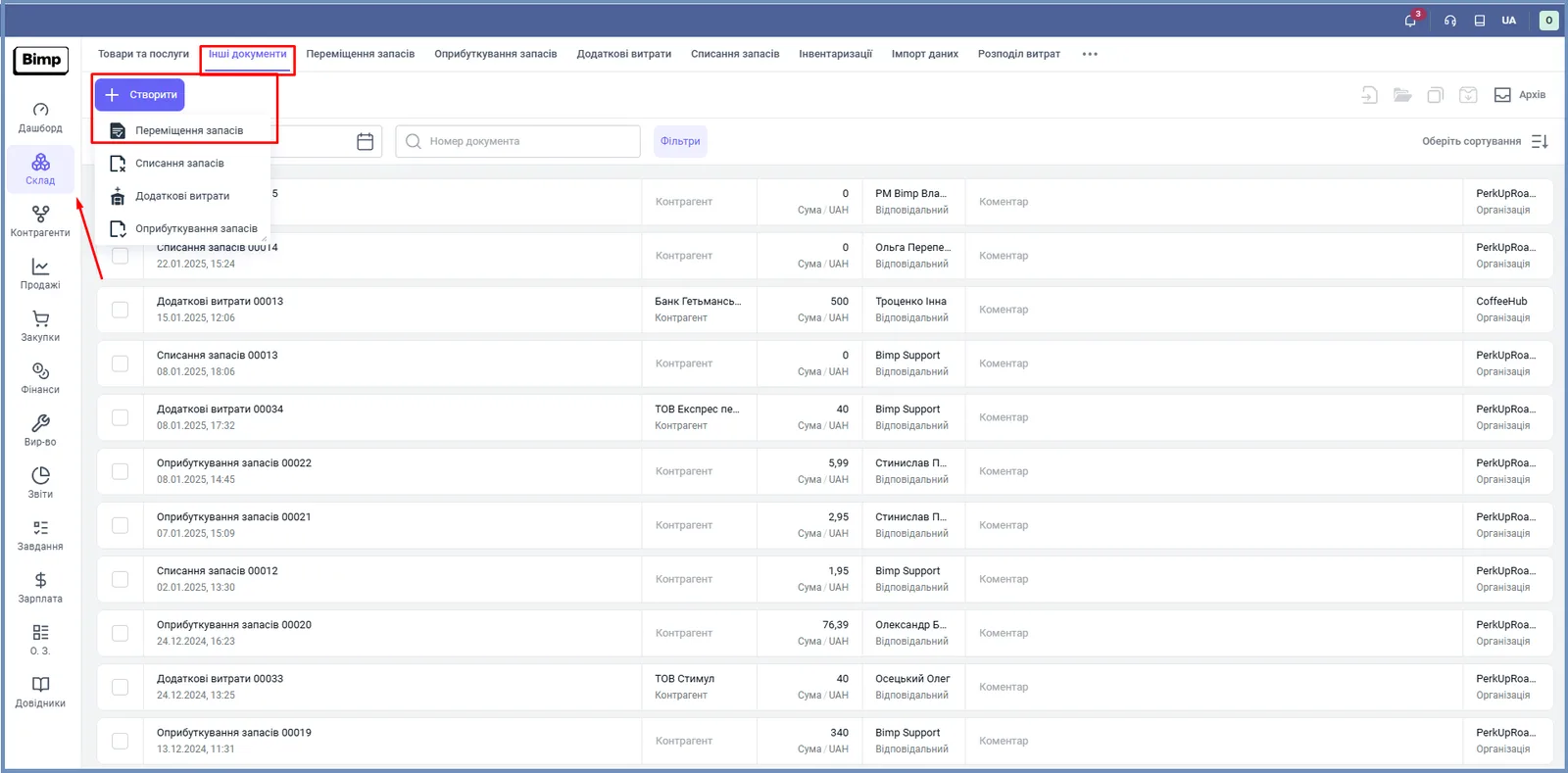
- Warehouse → Stock transfer → Create.
- Warehouse → Other documents → Create → Stock transfer.
- From a Customer order: in the Sales section hover over the order and in the context menu choose Stock transfer. The goods, quantity and counterparty are filled in automatically.
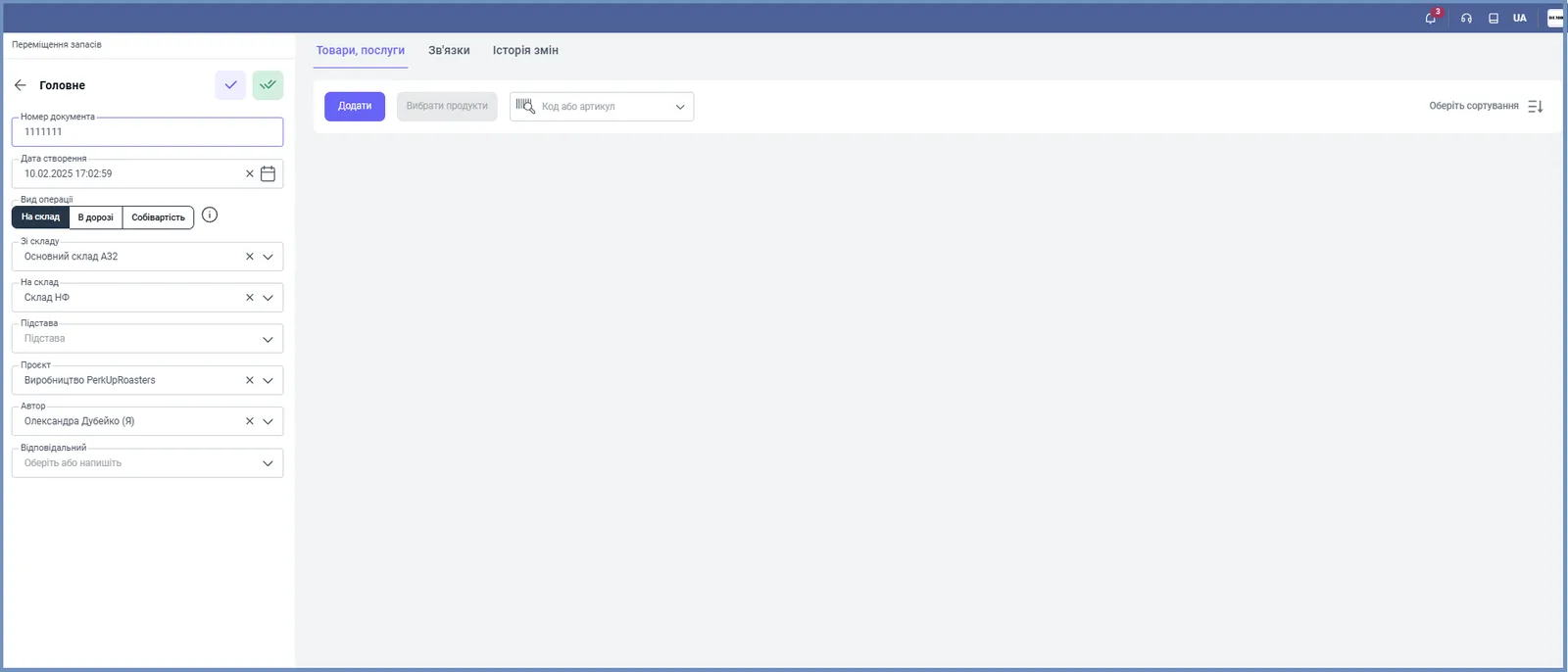
Which header fields to fill in
- “Document number”: leave empty for automatic numbering or enter it manually; “Creation date” is set automatically.
- In the “Operation kind” switch, choose the type (described below).
- “From warehouse” is the warehouse that goods are written off from; “To warehouse” is the receiving warehouse.
- “Base”: the document the transfer was created from (if any).
- “Project”, “Author” and “Responsible person”: the manager who controls execution.
- In the “Other” block you can add a comment (up to 1000 characters).
What operation kinds there are
| Operation kind | When to use | What happens |
|---|---|---|
| “To warehouse” | A regular transfer between warehouses | Instant write-off from “From warehouse” and receipt into “To warehouse” as of the document date |
| “In transit” | Transport takes time | Goods go from the main warehouse to the temporary warehouse “Transfer in transit”, then to the destination warehouse. The transfer is completed after you fill in “Arrival date”, “Responsible person received” and the quantity in the “Received” block. If less is received, the difference stays in the “In transit” warehouse |
| “Cost price” | Accumulating expenses | Goods are transferred to accumulate cost price, which is then allocated to services in a Work order with the “Cost allocation” document; see Cost accumulation |
How to add goods
- If the transfer was created from a Customer order, the system shows the goods that can be transferred.
- Otherwise click Add and choose a product; you can quickly find a product with the search field by item code.
- If you enter goods manually, fill in “Price”, for example for a delivery note for transferring goods on consignment.
- The “Number of places” column shows how many logistics places (boxes, pallets) the item takes up; it is turned on in the table settings (the “gear”). If you turn the column off, previously entered values are cleared.
The “Select products” button is active only for goods that have a product record added when the product was created. You cannot create a product record from this form.
How to fill in delivery and print a waybill
A Stock transfer has “Delivery” and “Print” sections, the same as in Sales of goods and services. Transport data (driver, vehicle, addresses) is stored in the document.
- Fill in the “Delivery” section.
- Fill in the “Print” section.
- Save the document with the check mark.
- In the top bar, open the Print menu and choose Waybill.
- Check the printed form and print it.
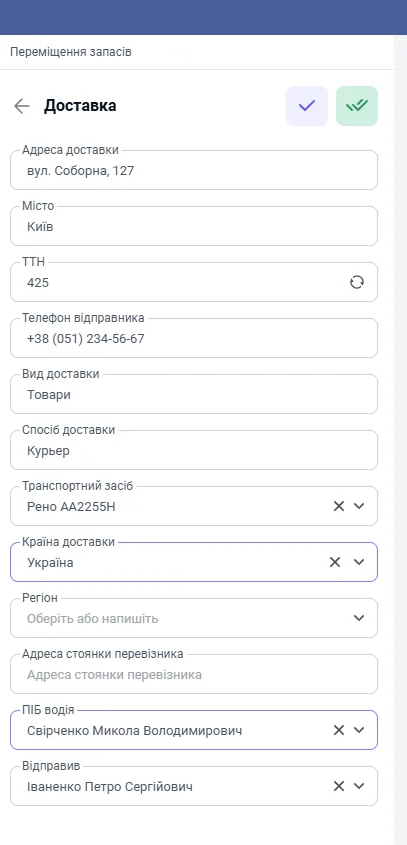
The “Delivery” section:
| Field | What to specify |
|---|---|
| “Delivery address”, “City” | the address and locality of unloading |
| “Waybill” | the internal or external registration number of the waybill |
| “Sender’s phone” | the phone of the contact person at the dispatch warehouse |
| “Delivery type”, “Delivery method” | the category of transport and the method or name of the service (own vehicle, courier, carrier) |
| “Vehicle” | a car from the list or the make and registration number |
| “Delivery country”, “Region” | the country (Ukraine by default) and the region |
| “Carrier’s parking address” | the address of the garage or vehicle fleet for the waybill form |
| “Driver’s full name”, “Sent by” | the driver from the employee directory and the responsible person handing over the cargo |
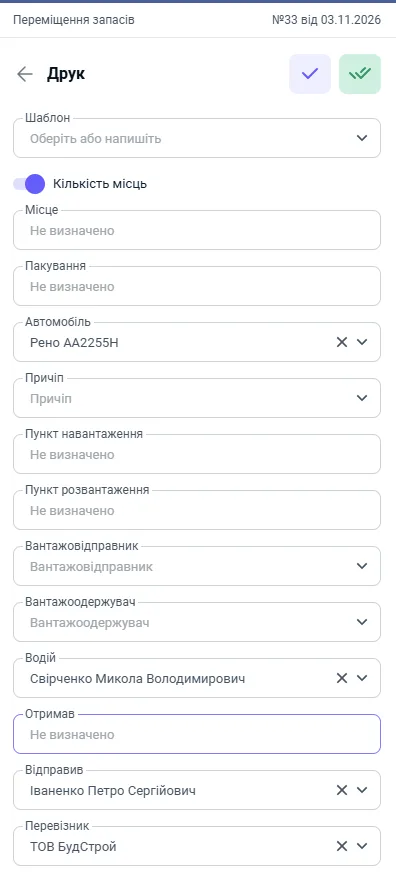
The “Print” section:
| Field | What to specify |
|---|---|
| “Template” | a saved set of parameters or a new template (shared with the “Sales of goods and services” document) |
| “Number of places” switch | the waybill uses the number of places instead of the number of units |
| “Place”, “Packaging” | the place where the waybill is drawn up and the type of packaging (pallets, boxes) |
| “Car”, “Trailer” | the car and, if any, the trailer with their numbers |
| “Loading point”, “Unloading point” | filled in from the addresses of the warehouses “From warehouse” and “To warehouse”; can be changed |
| “Consignor”, “Consignee” | the sending and receiving company or division |
| “Driver”, “Received by”, “Sent by” | the driver, the receiver and the releaser |
| “Carrier” | the carrier company, or your own company if you transport by your own means |
If “Number of places” has a value greater than 0, it is printed on the waybill; if the field is empty or 0, the “Quantity” column is used.
FAQ
How does the operation kind "To warehouse" differ from "In transit"?
"To warehouse" instantly writes goods off from one warehouse and posts them to another as of the document date. "In transit" moves goods to the temporary warehouse "Transfer in transit", and they reach the destination warehouse after the "Received" block is filled in.
What happens if less was received than was sent?
For the kind "In transit": if a smaller quantity is specified in the "Received" block, the difference stays in the temporary "In transit" warehouse.
Can I print a waybill from a transfer?
Yes. Fill in the "Delivery" and "Print" sections, save the document and in the "Print" menu choose "Waybill".
What is the operation kind "Cost price" for?
For internal expense accounting: goods are transferred to accumulate cost price, which is then allocated to services in a Work order with the "Cost allocation" document.
More about this in Bimp: Warehouse management in Bimp