
Serial number tracking: strict and informational modes
On this page
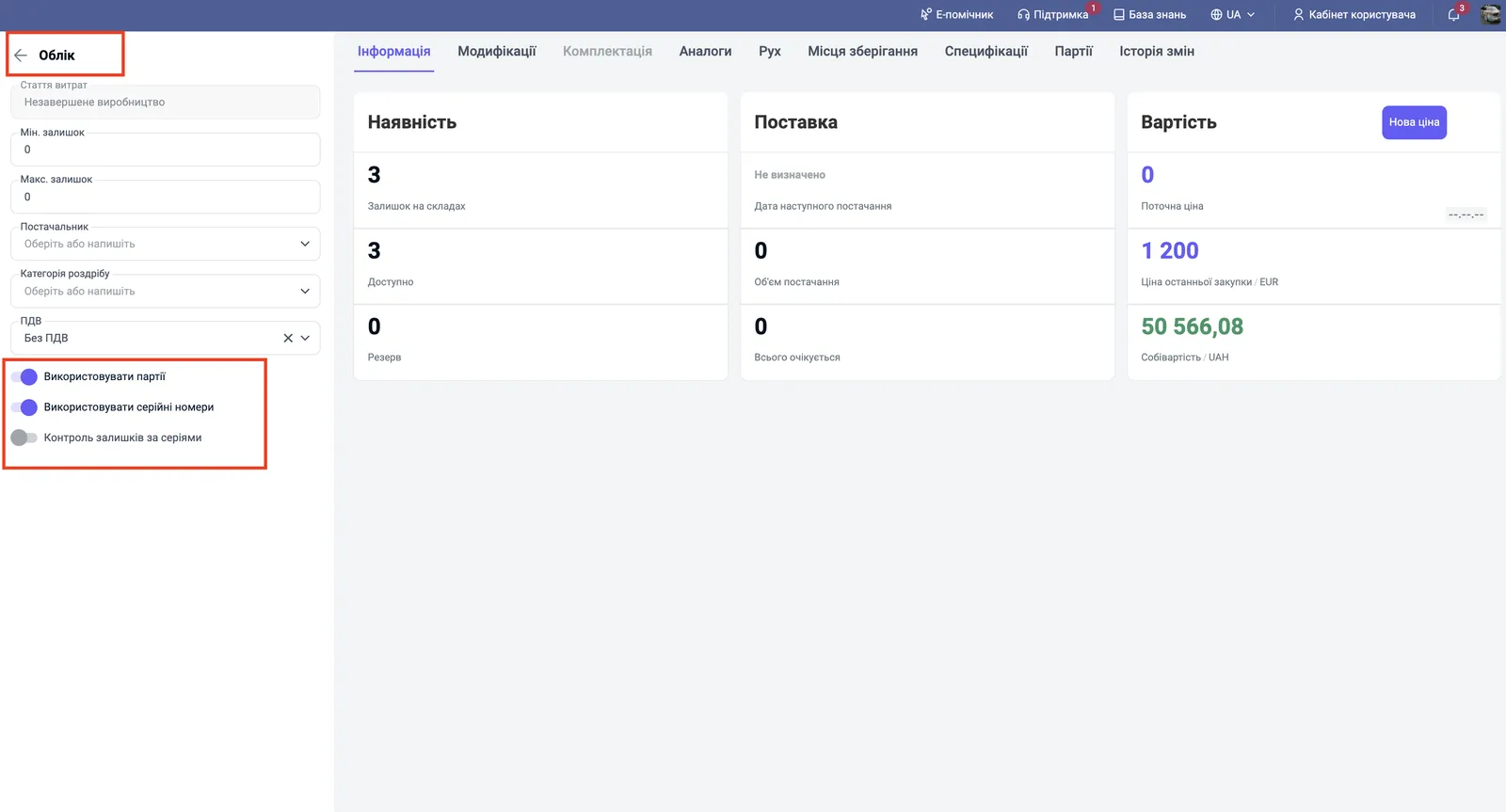
Series tracking in Bimp has two modes. In strict mode the system does not let you sell or write off goods without choosing a specific series. In informational mode series are only recorded in the batch and documents are not blocked. The mode is set with the switches "Use batches", "Use serial numbers" and "Series balance control" in the "Accounting" section of the product card.
Two series tracking modes
Serial tracking turns the total quantity of a product into a list of individual units, each with its own history. It is needed for electronics, household appliances, excise goods and anything covered by a warranty. The other warehouse documents and settings are collected in the inventory overview.
| Strict mode | Informational mode | |
|---|---|---|
| Essence | balance control for each series | series are recorded for reference in the batch |
| Sale or write-off without choosing a series | prohibited | allowed |
| Manager chooses a specific unit | yes, from the list of available ones | no |
| “Series balance control” switch in the product card | on | off |
| When to choose it | warranty service, high unit value | many cheap goods, fast shipping, series needed only for history |
Strict mode example. A company sells solar inverters. Each inverter is registered on receipt, and a manager cannot make a sale without choosing a specific series, so warranty service always knows who the device was sold to.
Informational mode example. An accessories wholesaler records serial numbers when receiving from a supplier, but managers do not choose a series when selling, to avoid queues in the warehouse.
How to turn on series tracking
- Open Settings (through the logo in the top right corner) and the Accounting settings tab.
- In the “Accounting” block, turn on “Keep product records by batches” and “Keep product records by serial numbers”.
- Click Save changes.
- Open the product card (Warehouse → Products and services) and the Accounting section in the left panel.
- Turn on “Use batches” and “Use serial numbers”.
- For strict mode, also turn on “Series balance control”. For informational mode, leave this switch off.
- Save the card.
For correct scanner operation, also turn on “Barcode duplicate control” in the accounting settings. The switch “Automatically turn on batch and series tracking for new products” (“Accounting” block) applies batch and serial tracking to every new product automatically: then you only need to turn them on manually in the card for old products. The switch “Series duplicate check” decides whether to block the creation of identical serial numbers or to allow identical series names for different batches.
How to add series on receipt
Series are registered in the Goods receipt document (usually created based on a “Supplier order”).
- In the document table, click the “Series” field in the product row. You can also open the “three dots” menu next to the product and choose Scan barcodes. The “Create series” panel opens on the right.
- Add the numbers: scan them in the “Series barcode” field or enter them manually and press Enter. The series value automatically equals the barcode. The Create series button generates series automatically.
- Turn on “Show scanned series” to see the whole list, and check the marks next to the numbers.
- Click Transfer to document.
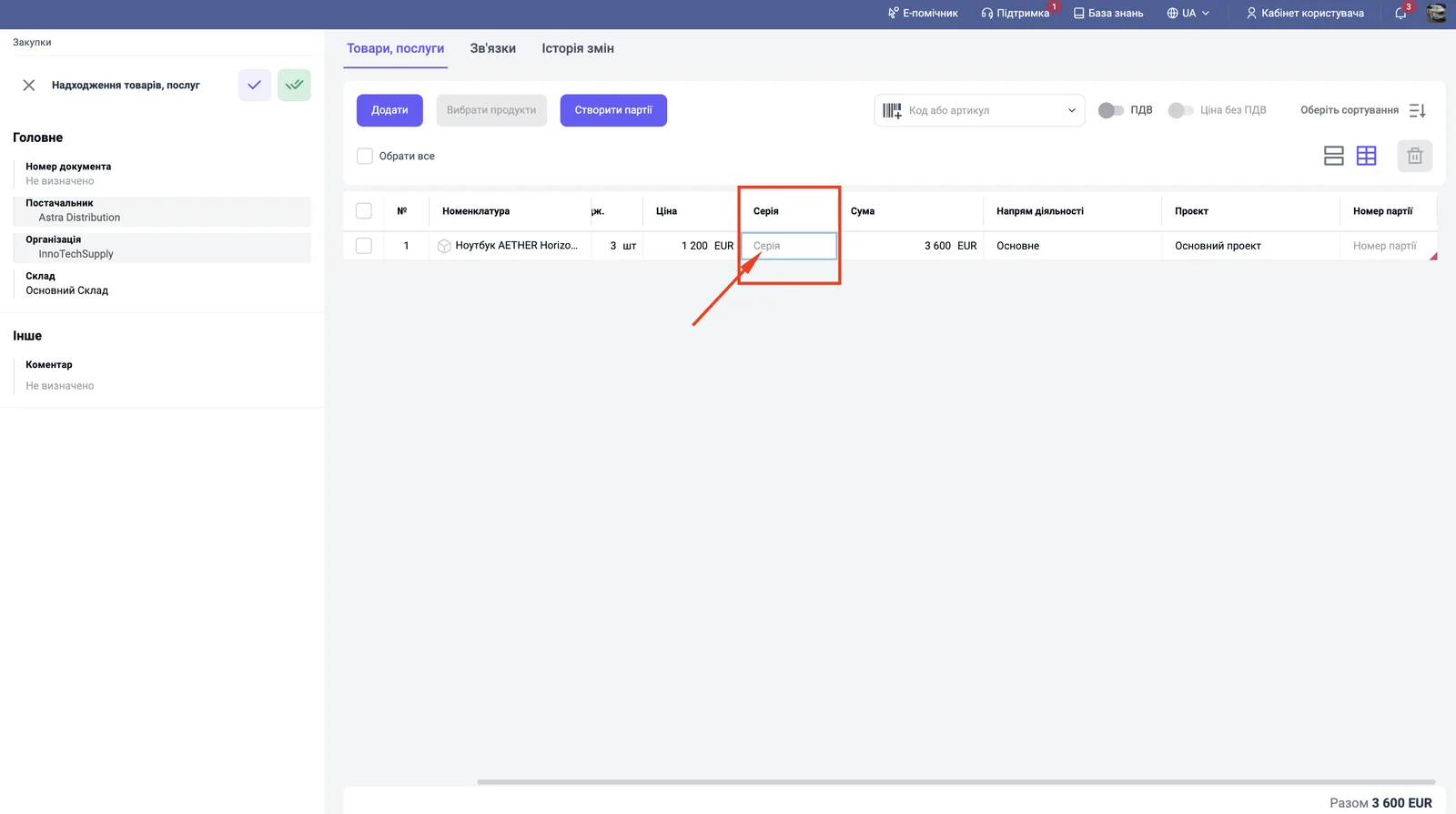
After the document is posted, a separate card is created for each series.
Batches, series and numbering masks
The Create batches button in a receipt checks products with batch or serial tracking turned on and creates batches and series for empty cells together with system barcodes. In the documents Supplier order, Goods receipt, Opening balances entry, Stock posting, Disassembly, as well as Production order and Assembly, batches and series are named by common templates (masks):
- “Create batches” creates batches and series by masks; “Overwrite batch names” renames them again by the current mask;
- series created by scanning are named by the “Series mask”;
- the switch “Set the same batch number” (for production, “Set the same batch number (Production)”) sets one batch number for all series of one product in the document;
- a Goods receipt created based on a Supplier order carries over the batches, series and barcodes from the order;
- values from an imported file take priority over masks; in a Supplier order, import does not create batches and series: they are created by the “Create batches” button;
- generated numbers can be edited manually in the table.
In Assembly, serial materials are distributed in whole units: one material series goes to one finished item, and if it cannot be divided into whole units, the system shows a message before saving. For producing goods with series, see Assembly.
Where to view series
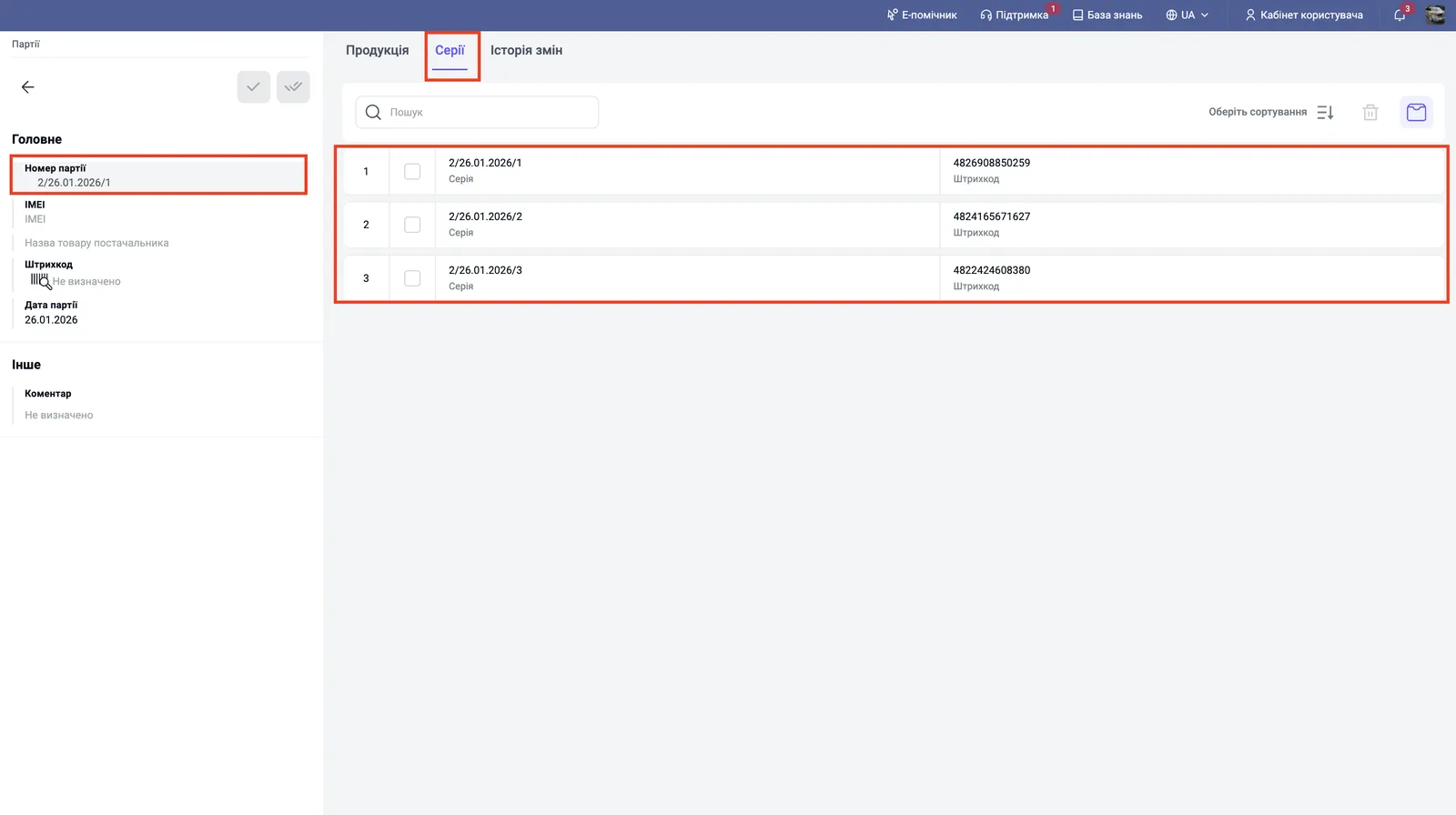
- Open the product card and the Batches tab. In the batch card you can see “Batch number”, “Batch date”, “Barcode” and IMEI. The “Reserve” column of the batch shows the reservation for this batch.
- Open the batch you need and go to the Series tab: it contains the list of serial numbers with barcodes.
If you cannot find a series, see Searching and scanning serial numbers.
FAQ
How does strict series tracking differ from informational tracking?
In strict mode, selling or writing off without choosing a specific series is impossible: the system controls the balance of each number. In informational mode, serial numbers are stored in the batch card for reference, and sales or write-off documents are not blocked even if no series is chosen.
Which switches are needed for strict tracking?
In the company accounting settings: "Keep product records by batches" and "Keep product records by serial numbers"; in the product card, in the "Accounting" section: "Use batches", "Use serial numbers" and "Series balance control".
Where can I view a product's serial numbers?
In the product card, open the "Batches" tab, then the batch you need and its nested "Series" tab.
How do I delete a series created by mistake?
Only from the card of that series in the directory.
More about this in Bimp: Warehouse management in Bimp