
Warehouses and stores: creation and hierarchy
On this page
You create a warehouse in Bimp under **Directories → Warehouses** with the **Create** button: enter the name, type ("Warehouse", "Store" or "Warehouse group"), kind ("Main" or "Non-main") and, if needed, a parent warehouse and a responsible person. The main warehouse is filled into new documents. For a store you also set the line of business, price list, cash desks and accounts.
What a warehouse is in Bimp
A warehouse in Bimp is a directory of places where stock is kept physically or logically: a warehouse, a workshop, a store, a partner’s consignment warehouse. By default the system has one “Main warehouse”, but for detailed records it is worth building your own structure. The inventory management overview gives the big picture of warehouse documents and settings.
Example structures for different businesses:
| Business | Structure | What it gives you |
|---|---|---|
| Manufacturing | Group “Production” → “Materials warehouse”, “Cutting workshop”, “Finished goods warehouse” | you can see how many materials are unused and how many are in progress |
| Retail chain | Groups “Stores Kyiv”, “Stores Lviv” → warehouses of individual points of sale | balances for each location and fast transfers between them |
| Consignment at a partner | A separate warehouse named after the partner, for example “Warehouse (Partner Shop)” | the goods stay on your balance, but you can see they are at the partner |
| Distribution | “Central Hub” → regional transit warehouses | you can see where goods run out and where to make an urgent transfer |
How to create a warehouse
-
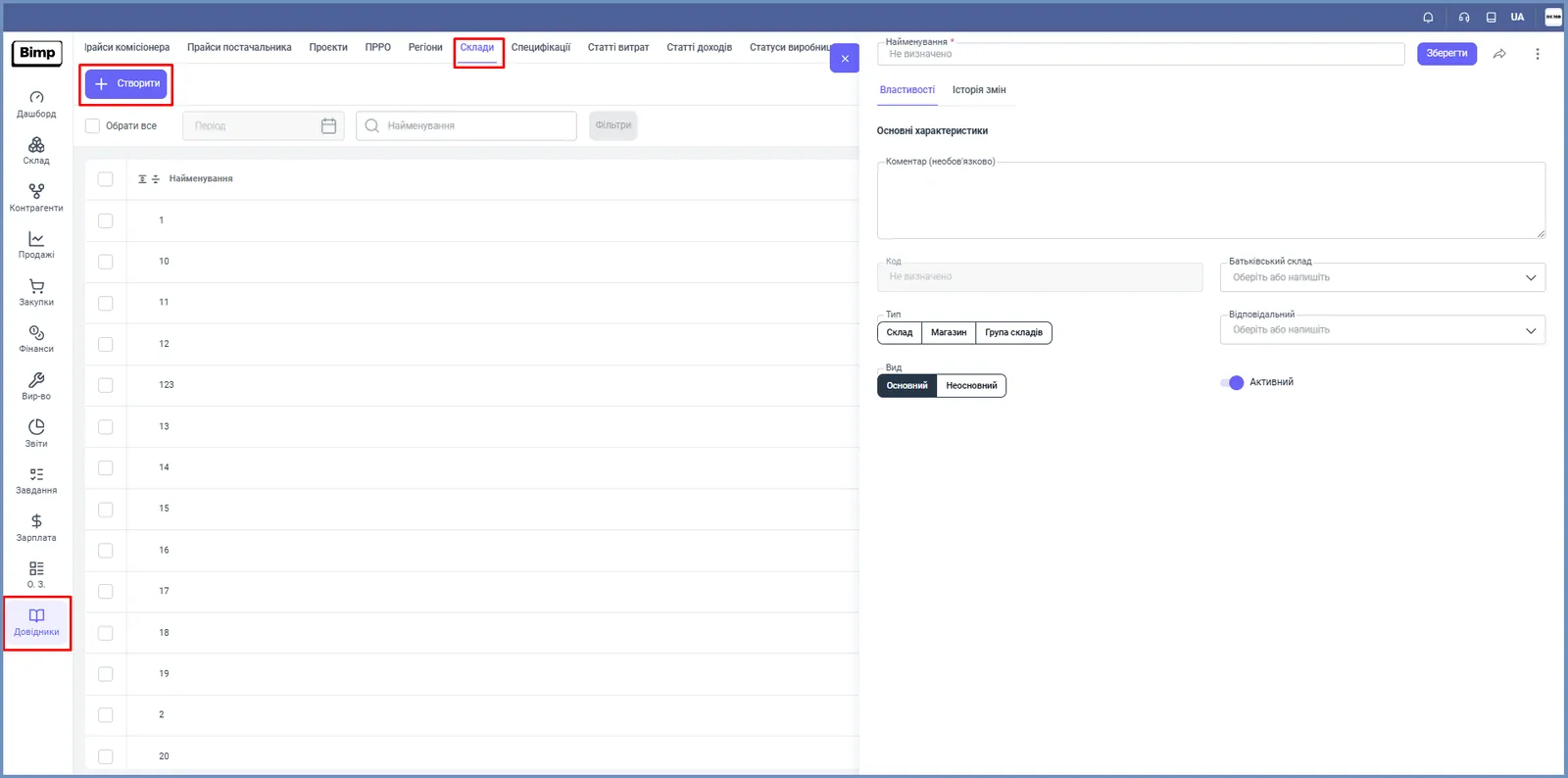
Open Directories → Warehouses and click Create.
-
Enter the “Name”, for example “Assembly shop No. 1” or “Odesa warehouse”.
-
Choose the “Type”: “Warehouse” for simple storage and balance tracking, “Store” for points with cash register equipment, “Warehouse group” for a folder that combines other warehouses.
-
Choose the “Kind”: “Main” or “Non-main”. The main warehouse is filled into new documents automatically; you can change it at any time.
-
If needed, choose the “Parent warehouse” (see below) and the “Responsible person”, the employee who is in charge of the warehouse.
-
Leave the “Active” switch on. You cannot write off goods from an inactive warehouse.
-
In the “Comment” field you can enter the warehouse address or the storekeeper’s contacts. The “Code” field is filled in by the system and cannot be edited.
-
Click Save.
How to build a warehouse hierarchy
You build the warehouse hierarchy with the “Parent warehouse” field: choose the warehouse group that the new warehouse belongs to, and you get a tree such as “Region → City warehouse”.
To create a group, add a new warehouse of the type “Warehouse group” (or a warehouse you will never post movements to) and specify it as the “Parent warehouse” for real warehouses.
How to set up a store
A store is a warehouse of the type “Store” with additional fields for a point of sale.
- In the warehouse form, choose the type Store.
- Choose the store’s “Lines of business”.
- In the “Price list” field, choose the price list used to calculate prices for products of this warehouse.
- In the “Cash desks”, “Bank cards” and “Bank accounts” blocks, click Add and choose the cash desks, cards and accounts that this warehouse’s financial operations go through.
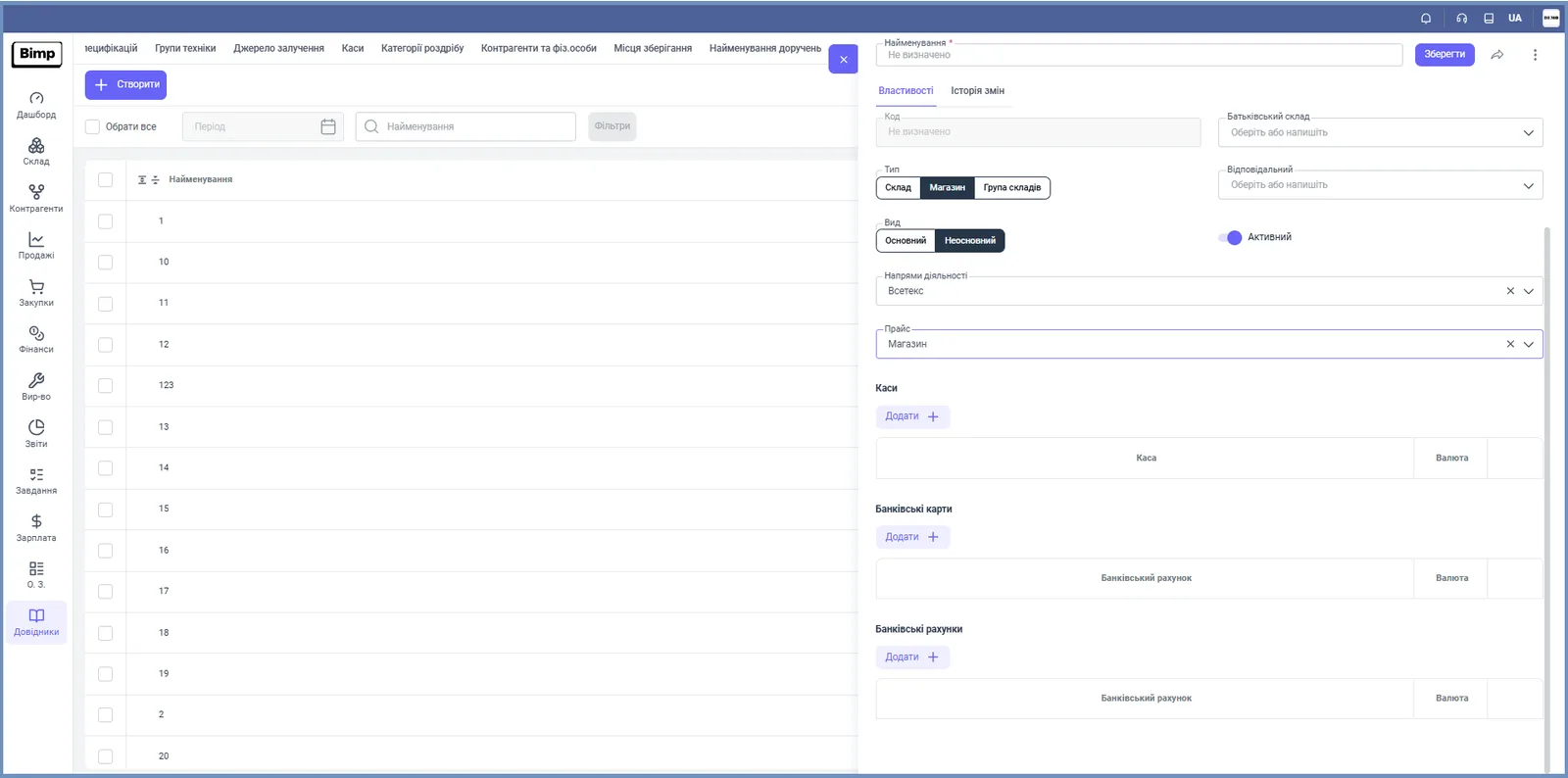
Values are chosen from lists taken from directories, so fill in the price lists and cash desks and accounts beforehand.
What to do next
- Storage locations: racks and bins inside a warehouse.
- Stock transfer: moving goods between warehouses.
- Employee access to warehouses: restricting rights by warehouse.
FAQ
Why can't I make a warehouse a parent?
A warehouse that already has product movements (receipts, issues, transfers) cannot be used as a parent: groups are only for grouping and have no inventory operations. Create a new warehouse group without movements and set it as the parent for real warehouses.
Why can't I write off goods from a warehouse?
The warehouse is probably inactive. You cannot write off goods from an inactive warehouse: turn on the "Active" switch in the warehouse card.
Which warehouse should I make "Main"?
The one you work with most often. The main warehouse is filled into new documents, and you can change it at any time.
More about this in Bimp: Warehouse management in Bimp