
What you can import into Bimp from Excel and where
On this page
Bimp loads products and stock, price lists, counterparties, bank statements, specifications, lines in supplier and production orders, and opening balances of assets from Excel. There is no single place for import: products and price lists are loaded in "Warehouse → Data import", counterparties in their directory, and the rest in the relevant document or section. This article is a map of all imports.
What data Bimp can import
Bimp imports from Excel products with stock, price lists, counterparties, bank statements, specifications, lines in documents and assets. Each import has its own place in the interface. For the general picture of modules and interface, read the Bimp overview.
| What you import | Where in Bimp | File | Details |
|---|---|---|---|
| Products, services, stock and cost price | Warehouse → Data import → Run data import | any Excel file, you map columns manually | Importing products and stock |
| Price lists (new or price update) | Warehouse → Data import, the “Customer price list” switch | any Excel file: SKU and price | Importing price lists |
| Counterparties (customers, suppliers, contacts) | Directories → Counterparties and individuals → Import | Bimp template | Importing counterparties |
| Bank statement | Finance → Transactions → Client-bank → From file | bank statement or universal template | Importing a bank statement |
| Product specifications | Production → Specifications → Import | Bimp template | Importing specifications |
| Products in a production order | Production → Production orders → Create → Load from file | columns “Product”, “Specification”, “Modification”, “Quantity”, “Unit of measure” | Loading products into a production order |
| Lines in a supplier order | the Import button in the Supplier order document | any Excel file, column mapping | Loading lines into a supplier order |
| Lines in a customer order | the Import button on the “Products, services” tab of the order | Excel | Customer order |
| Assets and non-current assets | Finance → Opening balances, the “Assets” tab → Import | Bimp template | Opening balances: assets |
What the two types of import are: an arbitrary file and a template
Bimp reads a file in two ways: with a configured column mapping or by a strict template.
An arbitrary file with mapping. This is how products, stock, price lists and lines in supplier documents work. You upload an Excel file, click the header of each column in the preview window (“Do not load”) and choose a Bimp field, for example Products → Name or Price list → Price. You specify the mapping every time, because files from different suppliers have different structures.
A strict template. This is how counterparties, specifications, assets and the universal bank statement work. Download the template, copy your data into it and do not change the column names or their order, otherwise Bimp will not recognize the file.
How the “Warehouse → Data import” window works
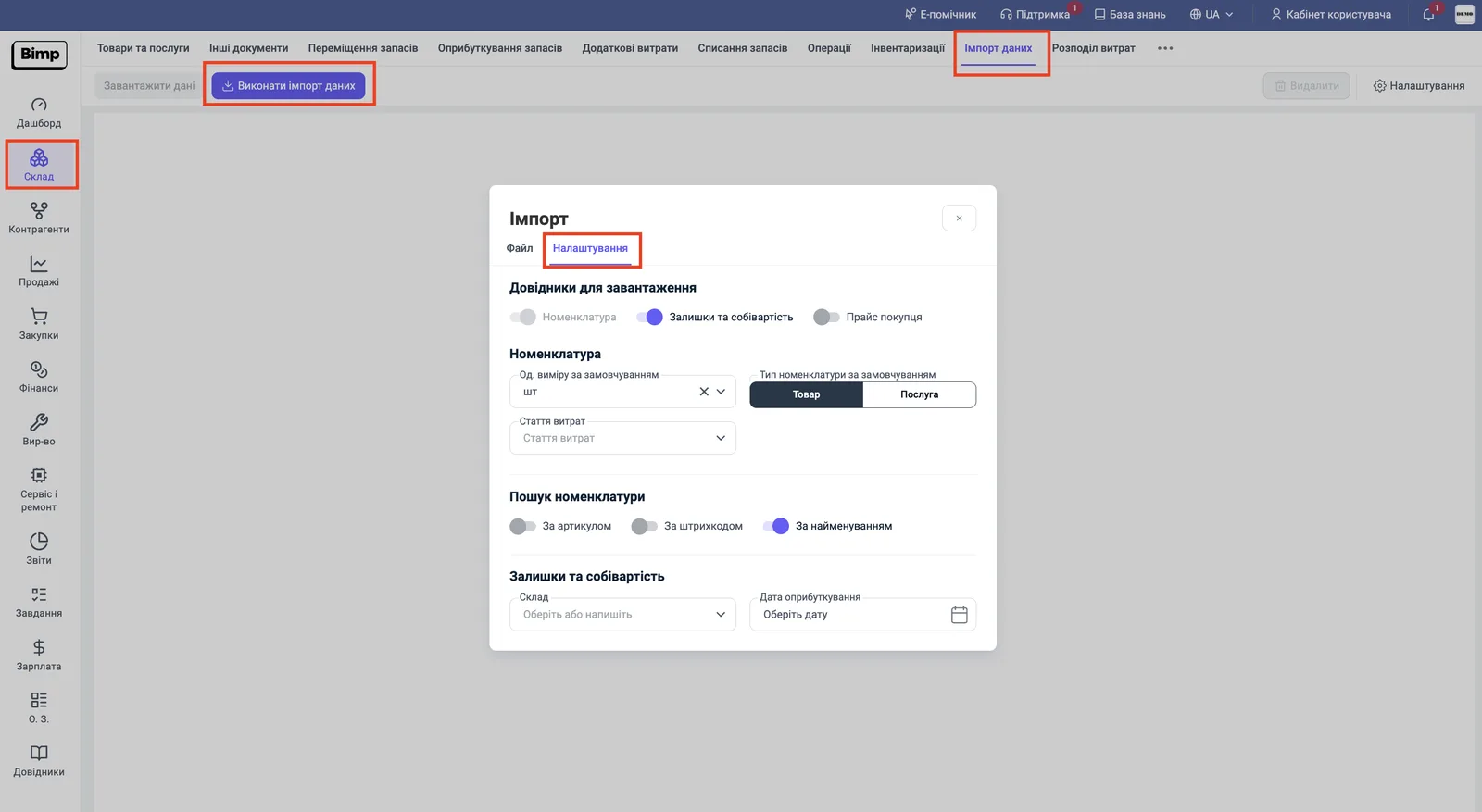
The import window for products and price lists has the tabs “Settings” and “File”. First set the logic on the “Settings” tab, then upload the file and map the columns.
- Open Warehouse → Data import and click Run data import.
- On the “Settings” tab, in the “Directories to load” block, turn on the switches you need: “Products”, “Stock and cost price”, “Customer price list”.
- In the “Product search” block, choose how Bimp will look for existing products so that it does not create duplicates: “By SKU” (the most accurate), “By barcode” or “By name”.
- On the “File” tab, upload the Excel file, click Next and map the columns.
- Click Load data. Bimp shows how many items were loaded.
Rules for products and stock:
- no more than 9000 products in one file;
- one import loads one product type, “Product” or “Service”; for both types, make two files;
- in the “Cost price” column enter the purchase price, and in “Price” the selling price: if you enter the selling price instead of the cost price, Bimp shows a zero margin.
How Bimp checks the file and shows errors
Bimp automatically finds errors in rows and does not load incorrect items. After mapping, rows without errors have a blue or purple exclamation mark, and problem rows have a yellow one; the reason is visible when you hover the cursor over it. The Confirm button loads only correct rows, so you do not have to delete the erroneous ones manually. You can mark extra rows and delete them with the Delete button before the import.
A typical reason why loaded products do not appear in “Products and services” is that batch accounting is enabled in the company. Add a column “Use batches” with the value “No” to the file, or a column “Batch” and map it to Bimp fields. Details are in the article Importing products and stock.
Where to start data migration
First load directories, then enter balances.
- Counterparties are needed for settlements with customers and suppliers.
- Products and stock and price lists.
- Opening balances for the other accounting areas: money, settlements, assets, payroll, taxes.
- Bank statements are for day-to-day work after the start.
The general Bimp setup order is in the launch checklist.
FAQ
Which Excel file is suitable for import?
It depends on the import. For products, stock and price lists the file can be arbitrary: what matters is that the first row has column headers that you map to Bimp fields. For counterparties, specifications and assets you need a Bimp template: you cannot change the names or order of its columns.
How many products can I load at once?
No more than 9000 items in one file in "Warehouse → Data import". Split a larger file into parts and load them one by one.
Does import add stock or replace it?
It adds. If the database already has 10 units of a product and the file has 5 more, the stock becomes 15: the import creates an "Opening balances" document, which is added to the existing stock.
Where do I get an import template?
The import window has a button for downloading a template (for example, "Templates" on the "Assets" tab of the "Opening balances" document). Templates for counterparties, bank statements and production orders are described in the relevant articles.