
Checkbox: connecting and fiscalizing customer orders
On this page
The Checkbox integration lets you fiscalize a customer order right from Bimp. Create the integration in "Settings → Integration", add a cashier (login and password from your Checkbox account) and a tax rate, open a shift in Checkbox and click "Fiscalize order" in the orders register. Bimp creates the Sales of goods and services and Customer payment documents itself.
What the Checkbox integration does
The integration with the Checkbox software fiscal register (RRO) lets you fiscalize a customer order directly in Bimp, without duplicating data in your Checkbox account. During fiscalization, Bimp automatically creates the Sales of goods and services document (writes goods off the warehouse) and the Customer payment document (records the receipt of funds), so inventory, financial and tax records stay consistent.
Before you start
Prepare the cashier’s login and password and the tax code from your Checkbox account. Add each cashier to Bimp as an employee: Payroll → Employees - see Employee card. The tax rate percentage in the integration must match the setting in “Accounting settings” - see Accounting settings.
How to connect Checkbox
-
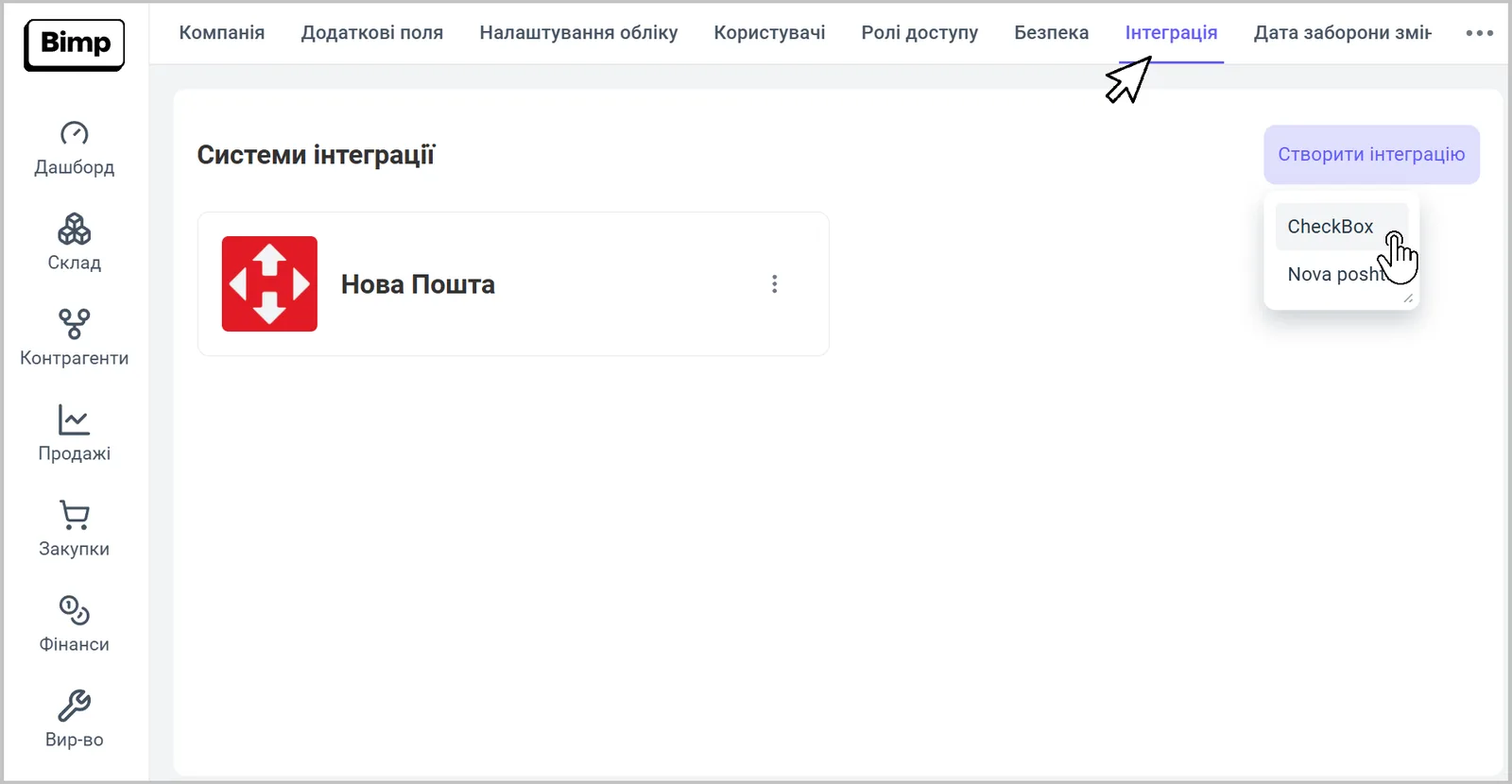
Click the account icon, open Settings and go to the “Integration” tab.
-
In the “Integration systems” block, click Create integration and choose CheckBox.
-
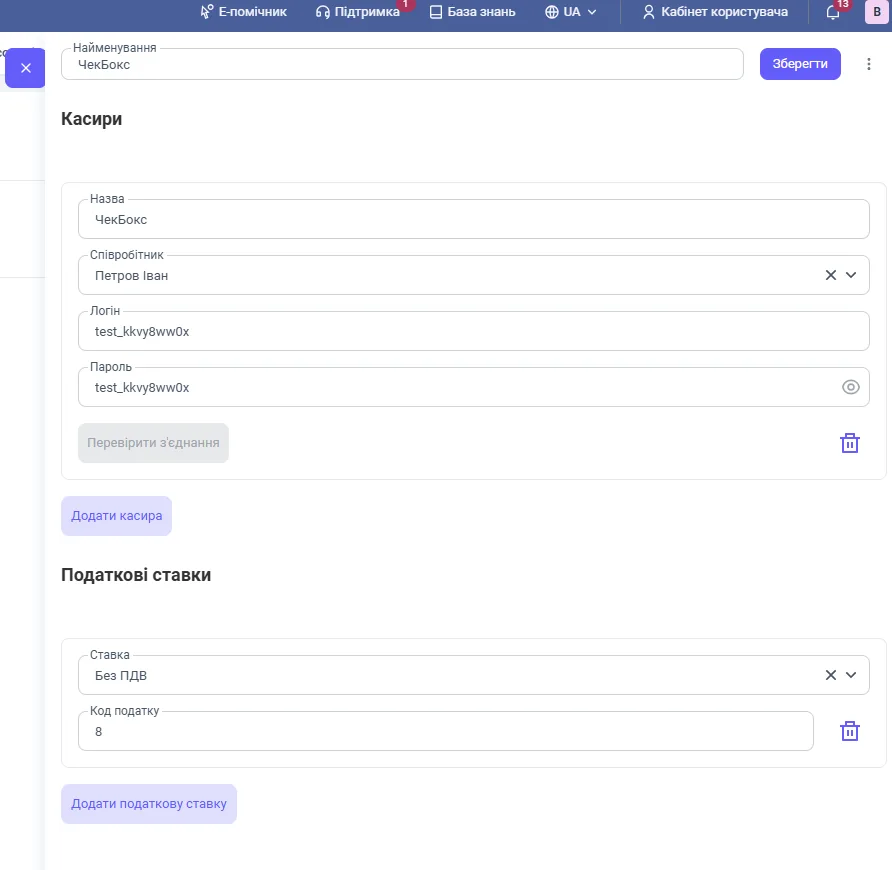
Enter the integration “Name” - the brand or legal entity name.
-
In the “Cashiers” block, click Add cashier and fill in the fields: “Name” (the cash desk or cashier identifier in Bimp), “Employee” (from the list of Bimp users), and the cashier’s “Login” and “Password” from your Checkbox account.
-
Click Check connection to make sure the data is correct. For several cashiers, click Add cashier again.
-
In the “Tax rates” block, click Add tax rate, choose the “Rate” and enter the “Tax code” from your Checkbox account.
-
Click Save.
How to fiscalize a customer order
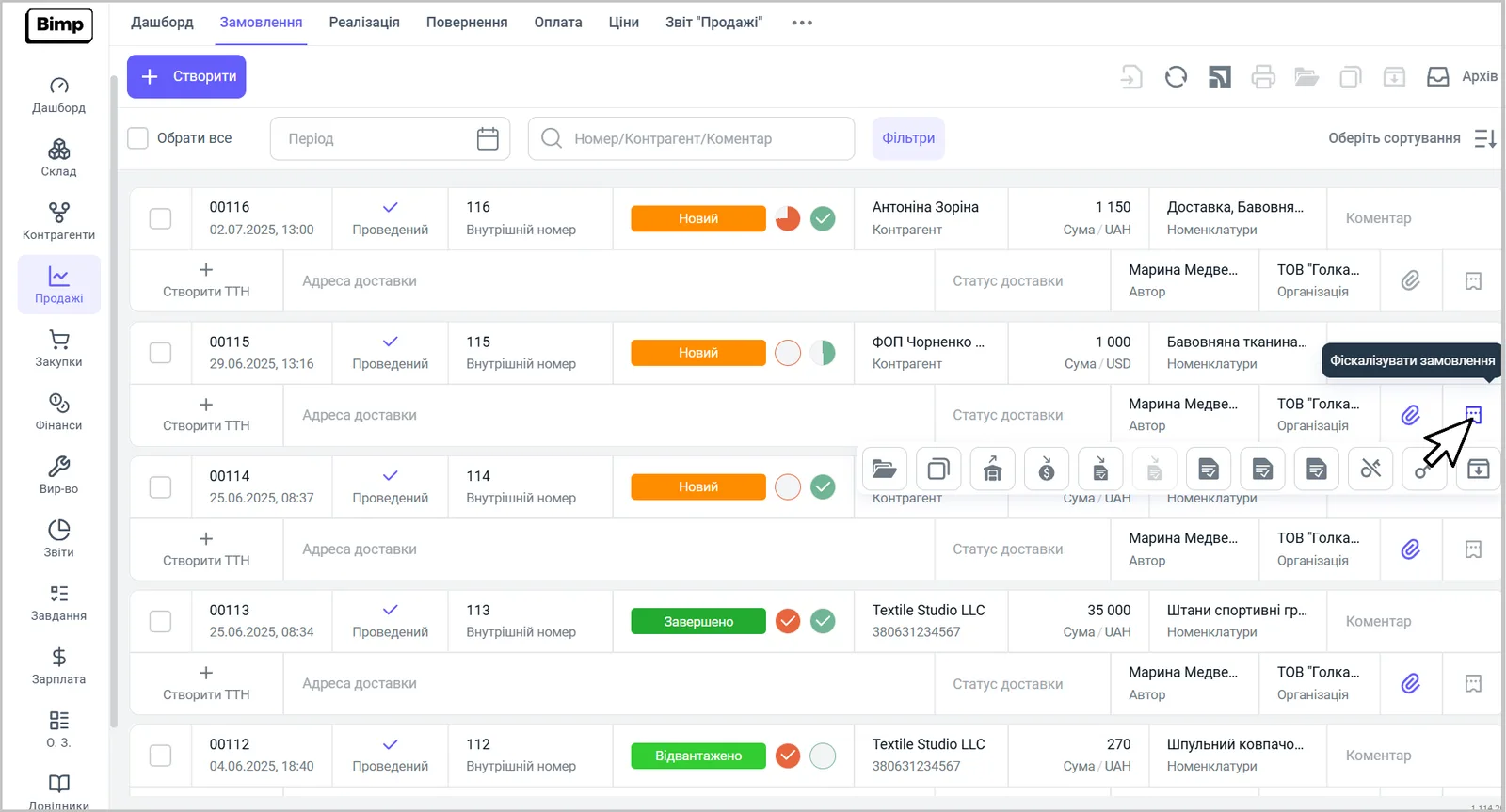
Fiscalization is done from the orders register with a button in the order row.
-
Open a shift in your Checkbox account. Opening and closing a shift, as well as depositing and withdrawing cash, are done only there.
-
Open Sales → Orders and click the Fiscalize order button in the right part of the row you need.
-
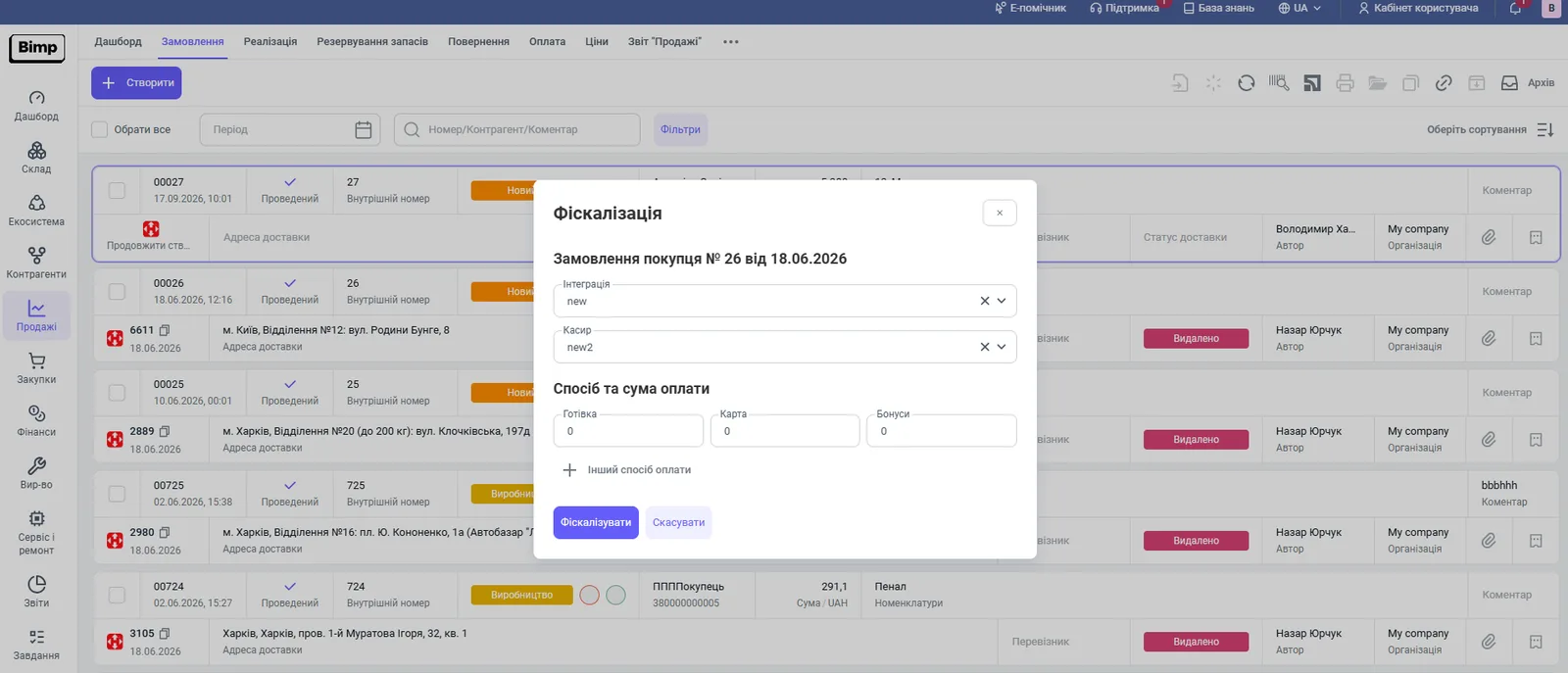
In the “Fiscalization” window, check the order, choose the “Integration” and “Cashier”, and check the “Payment method and amount” block (cash, card, bonuses or another method).
-
Click Fiscalize. The message “Order fiscalized” means success.
What happens after fiscalization
After successful fiscalization, Bimp automatically creates:
- a Sales of goods and services document - writes the products off the warehouse, see Shipment;
- a Customer payment - records the receipt of funds, see Customer payment.
If the Sales of goods and services or Customer payment document for the order already exists, it is not created again.
Common problems
The message “Shift is not open”. Cause: there is no open shift in Checkbox. Solution: open a shift in your Checkbox account and repeat the fiscalization.
The message “Shift has been open for more than 24 hours, close the current shift and open a new one to continue”. Cause: the shift has lasted more than a day. Solution: in Checkbox, close the current shift, open a new one and repeat the fiscalization.
The Check connection button does not confirm the data. Check the cashier’s login and password in your Checkbox account and that the cashier has been added to Bimp as an employee.
FAQ
What should I do if Checkbox says "Shift is not open"?
Open a shift in your Checkbox account and repeat the fiscalization in Bimp. Opening and closing a shift is done only through Checkbox.
What does "Shift has been open for more than 24 hours" mean?
The current shift has lasted more than a day. In Checkbox, close the current shift, open a new one and repeat the fiscalization.
Does fiscalization create documents in Bimp?
Yes. After successful fiscalization, Bimp automatically creates a Sales of goods and services document (write-off of goods from the warehouse) and a Customer payment (receipt of funds). If these documents already exist, no duplicates are created.
Can I process a return through the Checkbox integration?
No. Returns of goods and funds are not implemented in the integration: do them manually both in Bimp and in Checkbox.
Can I fiscalize an archived order?
No. An archived order cannot be fiscalized. If you archive an order that has already been fiscalized, it stays in Checkbox unchanged.