
Setting up the Bimp integration with KeyCRM
On this page
The KeyCRM integration automatically creates orders, payments and sales in Bimp from KeyCRM data and sends stock and prices back. To connect it, open "Sales → Orders → Integration connections", choose KeyCRM, enter a name, the store URL and the API key, then set up the "Orders", "Payment", "Sales", "Returns", "Stock" and "Prices" tabs.
When you need the KeyCRM integration
Set up the integration when orders are placed in KeyCRM, while accounting, warehouse and finance are handled in Bimp. It creates orders, payments, sales and returns in Bimp from KeyCRM data and sends stock and prices to KeyCRM. You set it up yourself, no programmers needed.
Other CRM and marketplace integrations are compared in the article Integrations catalog.
How to connect KeyCRM
-
Open Sales → Orders and click Integration connections.
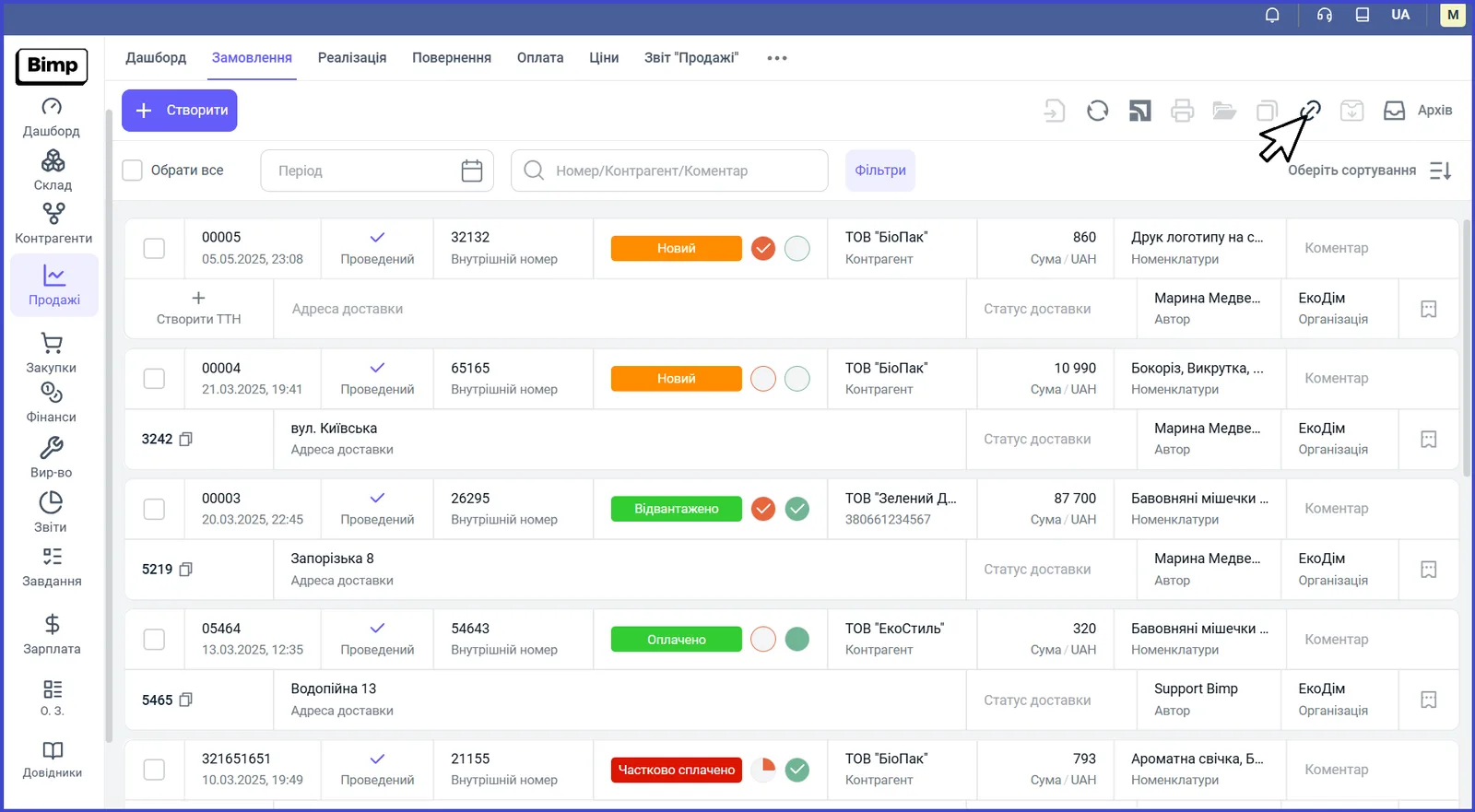
-
In the window, open the New integration tab, choose KeyCRM and click Connect.
-
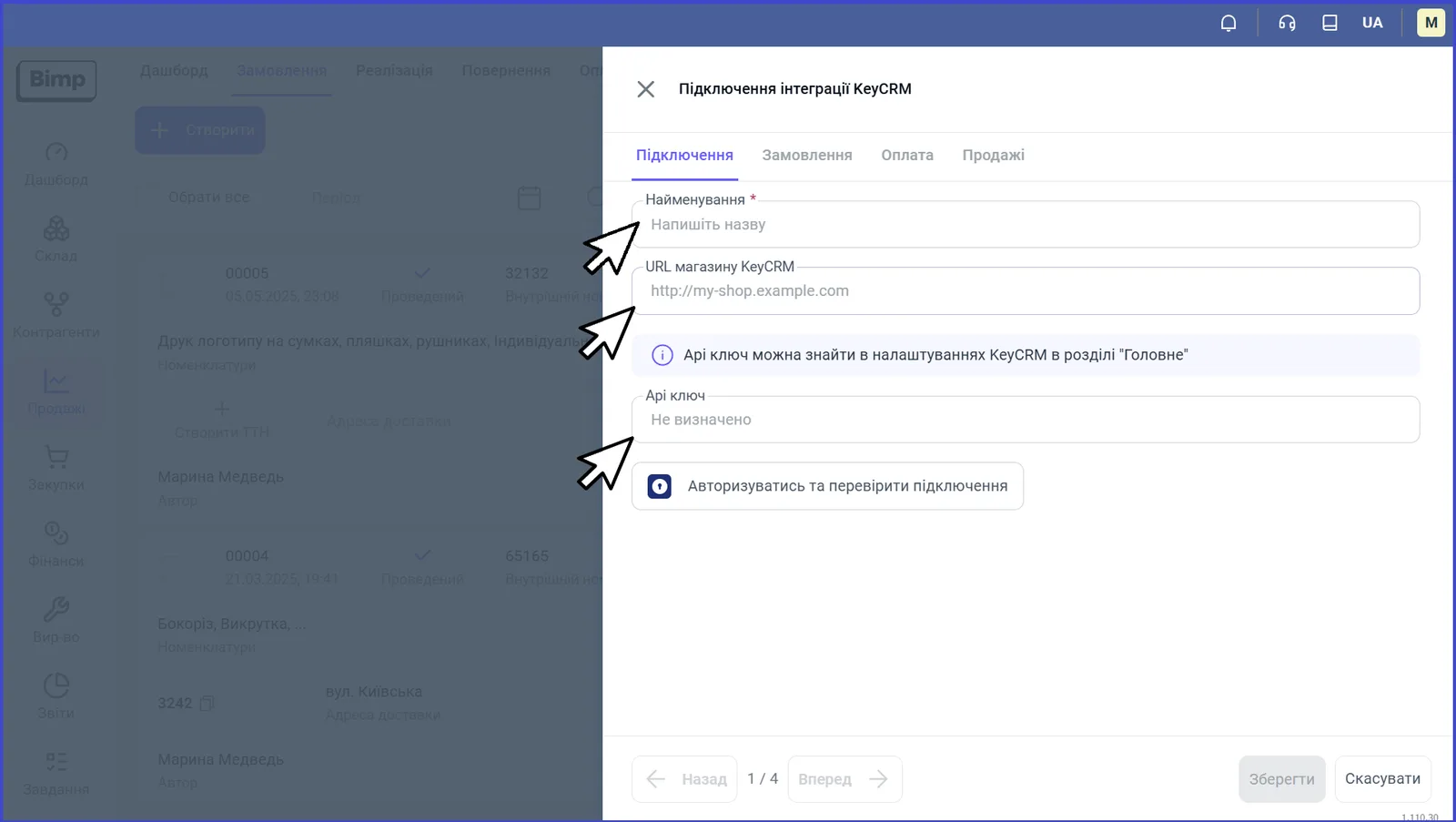
On the “Connection” tab, fill in the fields:
- “Name” - any name for the integration;
- “KeyCRM store URL” - the address of your KeyCRM;
- “API key” - the key from the KeyCRM settings, “General” section.
-
Click Authorize and check connection. If the connection is established, a success message appears.
-
Click Save. Most parameters already have default values, so this is enough to start.
After saving, the “Orders”, “Payment”, “Sales”, “Returns”, “Stock” and “Prices” tabs appear in the settings. Below is how to set up each of them.
The “Orders” tab: rules for creating orders
The “Orders” tab defines how KeyCRM orders arrive in Bimp. This is where you set the reservation, date, numbering, product and customer lookup, and status mapping.
Reservation and reloading
- “Reload documents”. If on, changes in an already created KeyCRM order (for example, a product was added) overwrite the order in Bimp on the next update.
- “Create reservation automatically” and “Only for available stock”. Define whether to reserve the goods from the order. Details, with typical errors: KeyCRM: reservations and order statuses.
Document creation date
Choose one of two values:
- Order creation date at the integrator - the order is dated the day it arrived in KeyCRM;
- Order creation date at the source - the date and time when the customer clicked “Order” on the website or marketplace are used.
Order numbering
Two switches control the order number in Bimp: “Create orders by source number” and “Create orders by KeyCRM source number”. For the Bimp order number to match the number in KeyCRM, both switches must be off.
Product lookup
- In the lookup method field, choose how Bimp will look up the product from the order: by ID, SKU, name, or by SKU and name.
- If needed, turn on “Allow creating products”. Then products that do not exist in Bimp are created automatically.
- Choose the group where new products will be created.
- Choose the delivery service and the warehouse from which stock will be loaded.
Important restrictions:
- Lookup by ID is not possible while “Allow creating products” is off.
- When creating a product, Bimp saves its name and description only once. Later changes to the name in KeyCRM are not passed on: the product “Blue chair” will stay as is even if it was renamed to “Blue chair (Sale)” in KeyCRM.
- If lookup by name and SKU is chosen and the SKU of the product found in Bimp does not match, the system treats this as an error: a new product is not created, and an order containing only that product is not loaded.
- If one SKU is used in several products, the order is not created either.
The “Product delivery” service
For delivery from KeyCRM to reach the order, create a service in the directory that you will then choose in the settings:
- Open the Products and services directory (the “Directories” section).
- Create an item named “Product delivery”.
- Specify the type “Service”, the expense item “Work in progress” and the unit “service”.
- Save the card.
Only after that does the item become available for choosing as the delivery service. For creating services, see Products and services.
Customer lookup and creation
The “Fill automatically for all orders” switch: if off, Bimp looks up the real customer or creates a new one; if on, all orders are linked to one common counterparty (for example, “Retail customer”), and personal cards are not created. Then the default “Customer” and “Contract” fields become active.
The “Allow creating customers” switch: if Bimp did not find the customer, it creates a new card. If off, orders from unknown customers are not loaded without manual intervention.
Customer lookup methods:
| Method | How it works | Risks and tips |
|---|---|---|
| By ID | The most reliable: ignores errors in the name or a changed phone number | For customers who were in Bimp before the integration, the ID is not recorded yet, so they will be created as new |
| By phone number | The most common; a matching number links the order to an existing customer | If the customer gave a different number, a new card is created and the history is split. If Bimp has several cards with the same number, a new customer is created when “Allow creating customers” is on, and the order is not loaded when it is off |
| By e-mail | Same logic as by phone; suitable for B2B and online stores | An error in the address creates a new customer |
| By name (full name) | Requires an exact full match of the name | “Oleksandr” and “Oleksandr ” (with a space) are different customers. Not recommended |
Order of reliability: ID, then phone, then e-mail. Lookup by name alone is not recommended.
Note. If you use lookup by name alone and change the customer’s name in KeyCRM after the order is placed, Bimp will not find the order by the new name. Automatic creation of a payment, sale or return for this order will then not happen.
The customer is stored in Bimp with the data as of the moment of creation. Later changes to their card in KeyCRM are not passed on. A KeyCRM manager is assigned as responsible in Bimp only if the full name exactly matches an employee’s name in Bimp; otherwise the order is created without a responsible person.
Autofill for new contracts
This block sets the values for the contract of a newly created customer and order:
| Field | What it sets |
|---|---|
| “Project” | which project to assign sales to |
| “Line of business” | additional analytics for income and expense reports |
| “Currency” | the default settlement currency |
| “Organization” | the legal entity on whose behalf documents are issued |
| “Settlement type” | “Non-cash” (through a bank account) or “Cash” |
| “Cash settlement type” | “Cash desk” or “Card” |
| “Cash desk” | the cash desk where the receipt from the order is recorded |
The “One line of business” switch: if on, all orders go to one line of business. If you turn it off, a table appears where KeyCRM sources are mapped to Bimp lines of business. “KeyCRM line of business name” is the source name in KeyCRM, “KeyCRM line of business ID” is the source ID.
For these directories, see Projects and lines of business.
Status mapping
The “Statuses” table maps Bimp statuses to KeyCRM statuses. When an order is loaded, it gets the Bimp status according to this table. Add rows with the Status button.
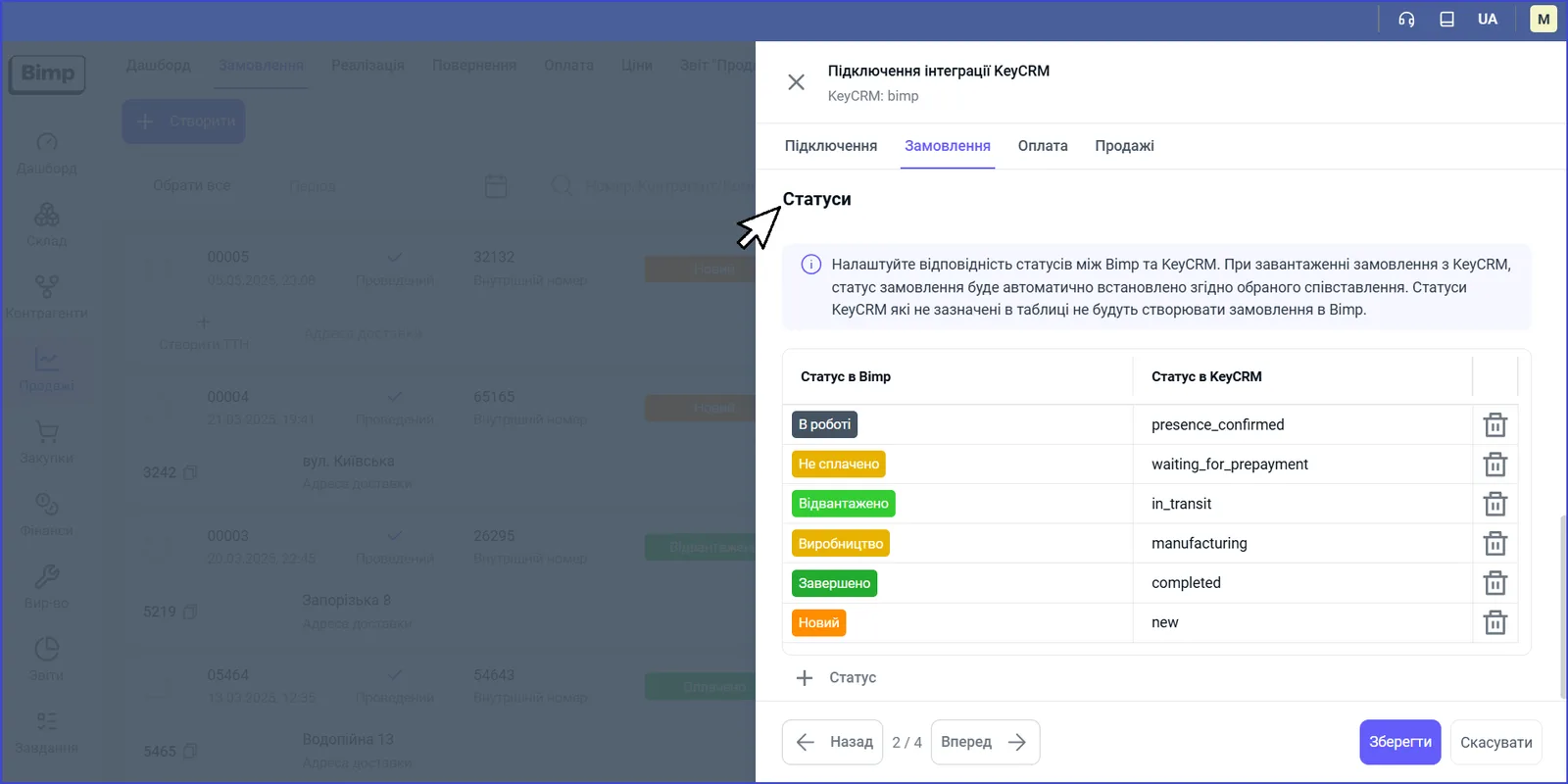
For how statuses affect reservation, see KeyCRM: reservations and order statuses. For Bimp order statuses: Order statuses.
The “Payment” tab: creating customer payments
The “Payment” tab controls the creation of Customer payment documents from KeyCRM payments.
- Turn on “Allow loading payments”.
- If needed, turn on “Reload documents”: changes in an existing KeyCRM document will overwrite the data in Bimp.
- In the “Payment types” table, map the KeyCRM payment type (for example, Bank transfer, Credit card, Cash) to a Bimp account, card or cash desk. Add a row with the Payment type button.
- In the “KeyCRM status for archiving a payment” field, choose a status (for example, “Refusal”, “Canceled”, “Return”), on moving to which the payment in Bimp becomes inactive.
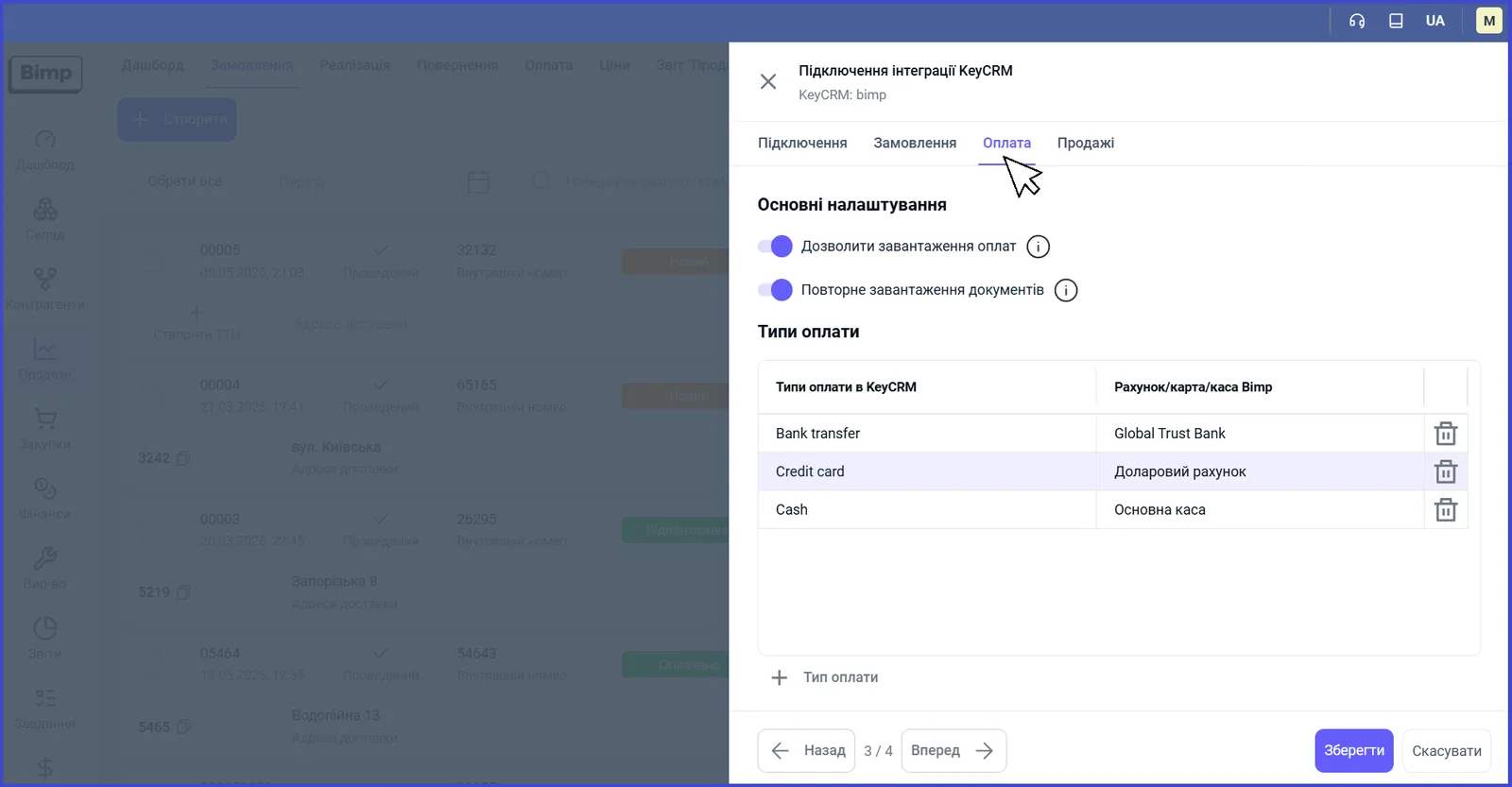
The payment date in Bimp equals the date the status was changed in KeyCRM, not the date of the actual payment. Example: the customer paid yesterday, and the manager changed the status to “Paid” today at 10:00 - in Bimp accounting the payment will be dated today, 10:00.
If a payment was canceled in KeyCRM and a new one was created, the original payment in Bimp is canceled automatically, and the new one is pulled from KeyCRM. For payments in Bimp: Customer payment.
The “Sales” tab: creating shipments
The “Sales” tab controls the automatic creation of Sales of goods and services documents (writing goods off the warehouse).
- Turn on “Allow loading sales”.
- If needed, turn on “Reload documents”.
- Choose the status for creating new sales: the KeyCRM status after which Bimp creates a sale.
- If you keep batch accounting, turn on “Fill in batches when selling goods”. Without this switch, the sales document will not be created.
- Choose the document creation date: “Order creation date”, “Shipment date” (from the “Shipping date” field in KeyCRM) or “Order closing date” (moving to the final status).
When “Shipment date” is chosen, Bimp compares the shipping date with the order creation date. If the dates are the same, the sale time equals the order creation time plus 10 seconds. If they differ, the sale time is 00:00:00 of the shipping date. If a sale is created with “yesterday’s” date, check exactly this setting.
Batches. KeyCRM has no batch accounting, so orders are passed without a link to a batch, and it is not possible to reserve goods for a specific batch. The batch in the sales document is filled in automatically by the FIFO method.
For the document itself, see Shipment.
The “Returns”, “Stock” and “Prices” tabs
These three tabs are described in separate articles:
- “Returns” - KeyCRM: returns of goods and funds;
- “Stock” and “Prices” - KeyCRM: what data is passed.
Will old orders be loaded after connecting
No, Bimp does not load the archive automatically. After connecting, only orders created or changed after the integration was turned on arrive in Bimp. This way the system avoids duplicating data and accidentally changing closed documents. Changing the status of an old KeyCRM order will not load it into Bimp.
To transfer orders for a past period, create a request to support and specify the exact import start date. Transferring orders for past months is an additional service, charged separately for each month.
Note. If you turned the integration off and then on again, orders that arrived in KeyCRM during the pause are not loaded automatically. Synchronization resumes only for events after the restart. Support transfers the data for the pause period on a separate request.
FAQ
Where do I get the KeyCRM API key?
In the KeyCRM settings, in the "General" section. Copy the key into the "API key" field in the connection window in Bimp. One key can be used in only one Bimp company.
Will old orders be loaded after the integration is turned on?
No. Bimp receives only orders created or changed after the connection. Support loads the history for past periods on a request with the exact start date.
Why does an order from KeyCRM not appear in Bimp?
Most often the KeyCRM order status is not in the status mapping table, or Bimp could not find or create the product or customer. Check the "Orders" tab in the integration settings.
What is the best way to look up customers?
By ID if the databases are synchronized; by phone number for most businesses; by e-mail for B2B. Lookup by name alone is not recommended: it creates duplicates and breaks automatic payments.