
KeyCRM: what data is passed - prices, stock, photos, delivery
On this page
- What data the KeyCRM integration passes
- Is the delivery city passed from KeyCRM to Bimp
- Are product photos passed
- Which stock is passed to KeyCRM: free or total
- How to set up stock transfer
- First run: why you should not turn on stock transfer when Bimp stock is zero
- Stock in KeyCRM does not become zero when the product runs out
- Stock does not update because of duplicate SKUs
- How to set up price transfer
- Why prices are not passed to KeyCRM or arrive as zero
- FAQ
The integration passes orders, customers, products (names, SKUs) and the delivery city from KeyCRM to Bimp, and stock and prices from Bimp to KeyCRM. Product photos are not passed. Which stock goes to KeyCRM is defined by the "By free stock" switch: on - free stock, off - total stock. Below are the "Stock" and "Prices" tab settings and typical problems.
What data the KeyCRM integration passes
The integration passes data in both directions. Which data depends on the direction.
| Direction | What is passed |
|---|---|
| KeyCRM → Bimp | orders, payments, sales, returns; customers; products (name, SKU); delivery city |
| Bimp → KeyCRM | product stock; prices from the price list; new products (with the corresponding options) |
| Not passed | product photos; later changes to the name of a product or the card of a customer created by the integration |
Connection and order settings are described in the article Setting up the KeyCRM integration.
Is the delivery city passed from KeyCRM to Bimp
Yes, the delivery city is passed. When an order is created or updated from KeyCRM, the locality is automatically placed in the field on the Delivery tab of the Customer order document in Bimp.
Are product photos passed
No, photos are not passed through the integration. Only text and numeric data is synchronized: names, SKUs, prices, stock. Add images directly in the product card in Bimp.
Which stock is passed to KeyCRM: free or total
The type of stock is defined by the “By free stock” switch on the “Stock” tab.
| Switch | What is passed to the KeyCRM stock field | Formula | When to choose |
|---|---|---|---|
| On | free stock | total quantity minus reserve | when the CRM should show only what can be sold right now |
| Off | total stock | the whole quantity in the warehouse, including the reserved part | when the full physical availability matters |
For reservations in Bimp, see Stock reservation.
How to set up stock transfer
The stock settings are on the “Stock” tab of the integration window.
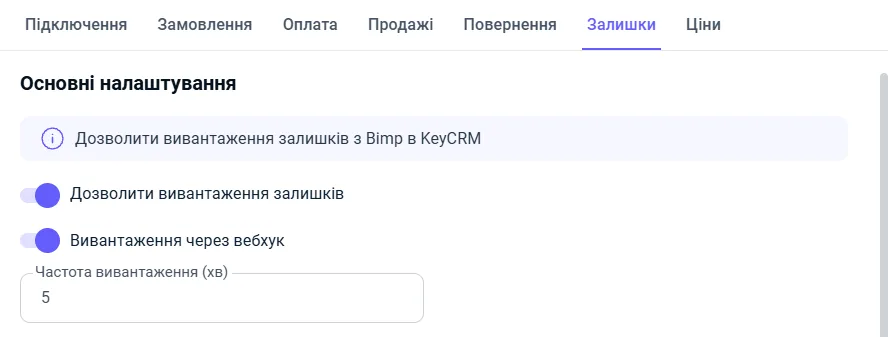
- Turn on “Allow stock export”.
- If needed, turn on “Export via webhook” so that stock is updated through a webhook.
- Specify “Export frequency (min)”. The default value is 15 minutes.
- In the “Warehouses (mapping)” table, enter the KeyCRM warehouse ID next to each Bimp warehouse. To find the ID, open Settings → Products → Warehouses in KeyCRM and hover over the info icon next to the warehouse name.
- Set up the additional options from the table below.
- Save the integration.
| Option | What it does |
|---|---|
| “Create products in KeyCRM” | allows creating products in KeyCRM that were not found there; if the product has a barcode in Bimp, it is created with the barcode |
| “Create only products in stock” | checks stock before export and creates in KeyCRM only the products that are in the warehouse |
| “Do not send empty stock” | does not send updates for products with zero stock (see below why this is risky) |
| “By free stock” | passes free stock instead of total stock |
| “Update stock for all warehouses” | forcibly sets 0 for warehouses where the product is not present |
First run: why you should not turn on stock transfer when Bimp stock is zero
If goods receipts have not yet been entered in Bimp (stock is 0) while KeyCRM shows current stock, do not turn on stock transfer. The accounting system has priority: Bimp will see 0 and send it to KeyCRM, so the real stock in the CRM will be overwritten with zeros.
The correct order:
- Leave “Allow stock export” off.
- Enter opening balances in Bimp: see Entering opening balances: inventory.
- When the stock in Bimp matches reality, turn on stock transfer.
Stock in KeyCRM does not become zero when the product runs out
The cause is the “Do not send empty stock” option being on. Bimp skips products with zero stock, and KeyCRM keeps the last non-zero value that was passed.
Example: Bimp has 2 units of product “A”, and KeyCRM also has 2 units. An order for 2 units arrives, Bimp writes the goods off, and the stock becomes 0. The option is on, so Bimp does not send this update. KeyCRM still shows 2 units, and managers keep selling a product that is not available.
Solution: turn off “Do not send empty stock” so that the CRM always gets the information that the product has run out.
Stock does not update because of duplicate SKUs
If the “Do not send empty stock” option is on and stock is not being passed, check whether Bimp has two product cards with the same SKU.
Cause. Card No. 1 with SKU 023452 has stock 0, and card No. 2 with the same SKU has stock 1. During synchronization, Bimp finds the first card, sees zero and, because empty stock is not allowed to be sent, skips the entire SKU. The stock from the second card is not passed.
How to fix.
- Find the products with the same SKU.
- Delete the duplicate with zero stock or change its SKU to a unique one. For how to delete or archive a product: How to delete or archive a document, directory item or product.
- Wait for the next synchronization: the stock will start to be passed.
How to set up price transfer
The price settings are on the “Prices” tab. The integration passes the price from the chosen price list from Bimp to KeyCRM.
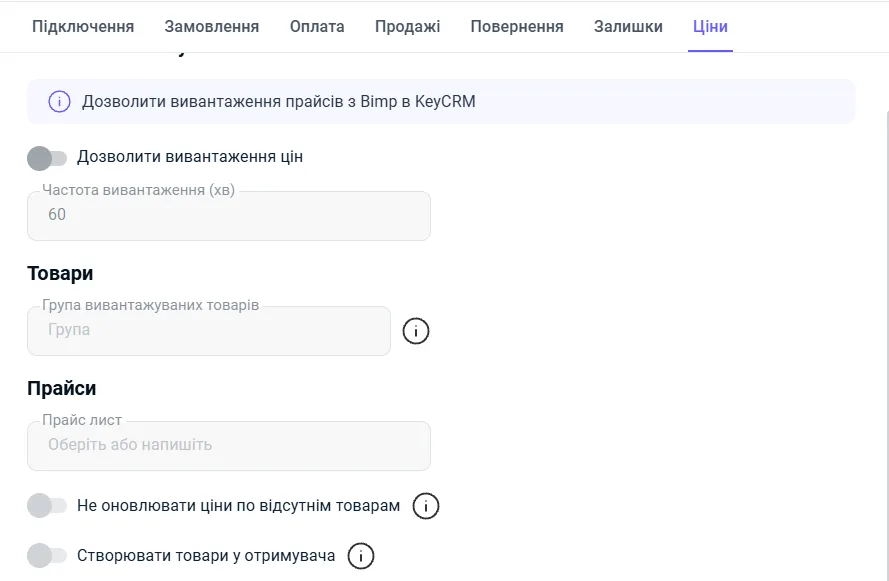
| Parameter | What it means |
|---|---|
| “Allow price export” | the main price transfer switch |
| “Export frequency (min)” | how often Bimp checks for price changes and sends them to KeyCRM; 60 by default |
| “Exported product group” | the Bimp product group whose prices are updated; if empty, prices of all products are exported |
| “Price list” | the price type from the Bimp directory (“Retail”, “Wholesale”, “Promotional”) that goes into the product card in KeyCRM |
| “Do not update prices for missing products” | if on and the free stock equals 0, the price in KeyCRM is not updated even if it was changed in Bimp |
| “Create products at the recipient” | automatically creates product cards in KeyCRM if no match is found by SKU |
For price lists: Price lists.
Why prices are not passed to KeyCRM or arrive as zero
Prices are not passed when the prices for the chosen price list or group are not filled in for the products. Bimp takes the price only from the source specified on the “Prices” tab. If it is set to take the price from price list A, but the product has only price list B filled in, Bimp considers that there is no price and passes nothing.
How to fix.
- Open the “Prices” tab and see which “Price list” and which “Exported product group” are chosen.
- Make sure the products have prices filled in exactly in this price list. To view prices in the product card: Viewing and changing prices in the product card.
- Fill in the required prices or choose the price list in which you actually keep your prices.
FAQ
Which stock is passed to KeyCRM: free or total?
It depends on the "By free stock" switch on the "Stock" tab. If it is on, free stock is passed (total quantity minus reserve). If it is off, total stock is passed, including the reserved quantity.
Are product photos passed from KeyCRM to Bimp?
No. The integration synchronizes only text and numeric data: names, SKUs, prices, stock. Add photos directly in Bimp.
Is the delivery city passed from KeyCRM to Bimp?
Yes. When an order is created or updated, the city is filled into the corresponding field on the "Delivery" tab of the customer order.
Why are prices zero or missing in KeyCRM?
The "Prices" tab is set to a price list or product group whose product cards have no prices filled in. Fill in the prices in this price list or choose another one.