
Supplier payment: how to record it, allocate it and account for an advance
On this page
The "Supplier payment" document records the transfer of money for purchases, reduces the debt to the supplier and the money in the bank account or cash desk. Create it from a supplier order or from "Finance → Settlements with counterparties", select the settlement type, allocate the amount across orders and save; the payment amount must match the payment.
What the “Supplier payment” document records
The “Supplier payment” document confirms that the company transferred money for previously recorded purchases. It reduces the debt to the supplier and the money in the bank account or cash desk, so it matters for reporting and budget planning. The mirror document in sales is Customer payment. The full purchasing process from order to payment is covered in one article.
How to create a supplier payment
There are four ways. The most convenient is based on a supplier order: most fields are filled in automatically.
- From an order. Open the supplier order, click Create based on in the top left part and select Supplier payment.
- From the order journal. Open Purchases → Supplier orders, hover over the order and select the Supplier payment icon.
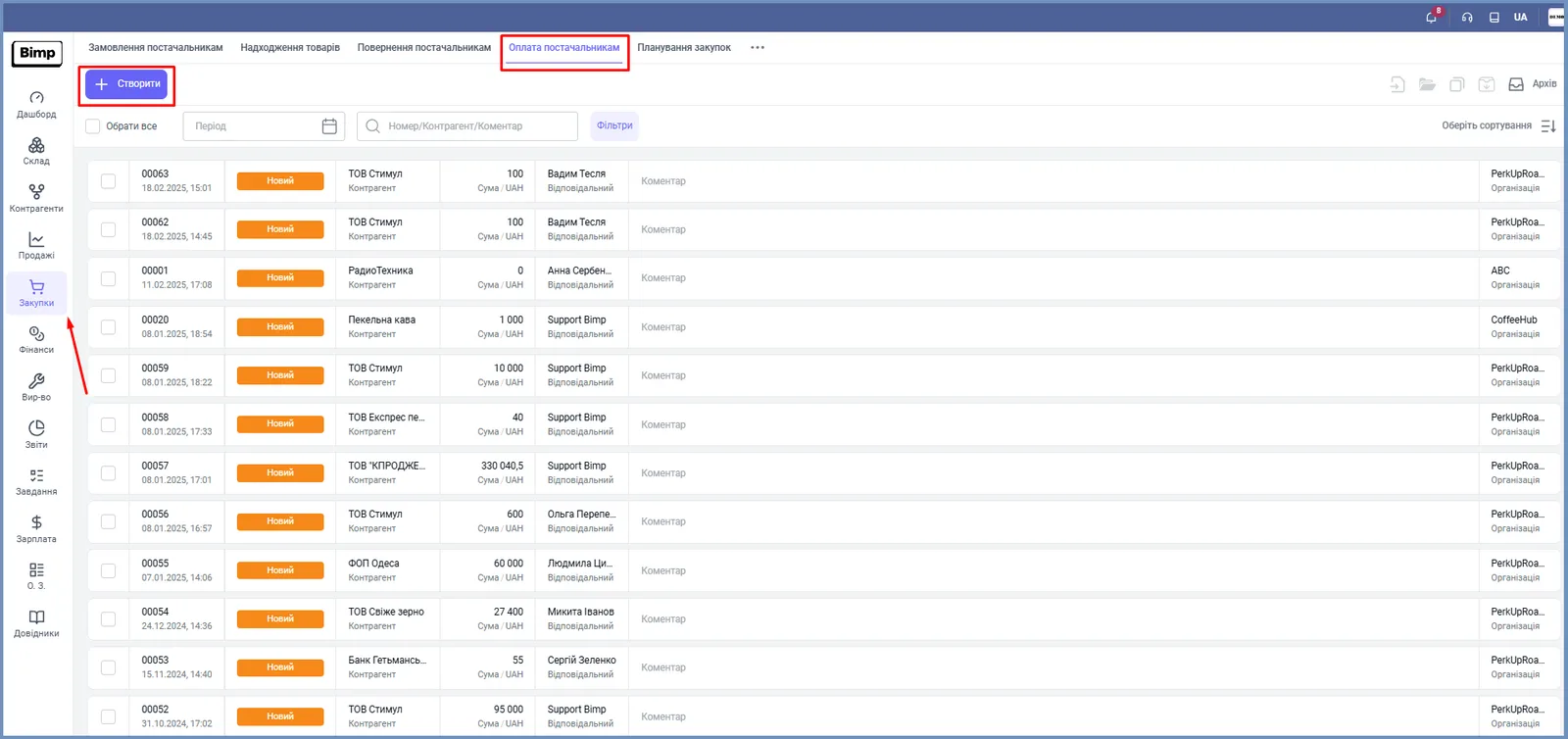
- From the payments journal. Open Purchases → Supplier payments and click Create.
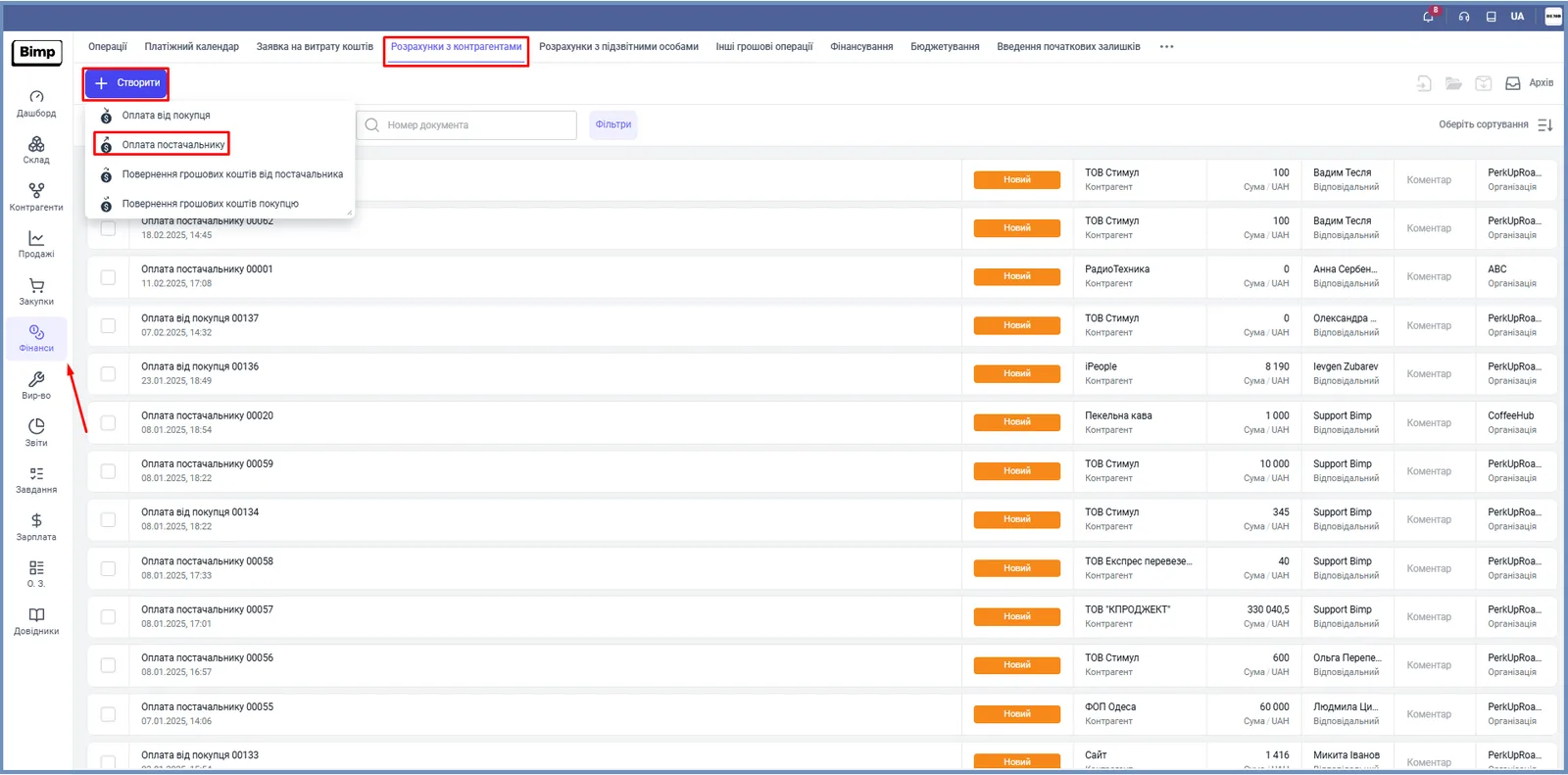
- From the “Finance” section. Open Finance → Settlements with counterparties, click Create and select Supplier payment.
How to fill in the document
Fill in the left “Main” panel.
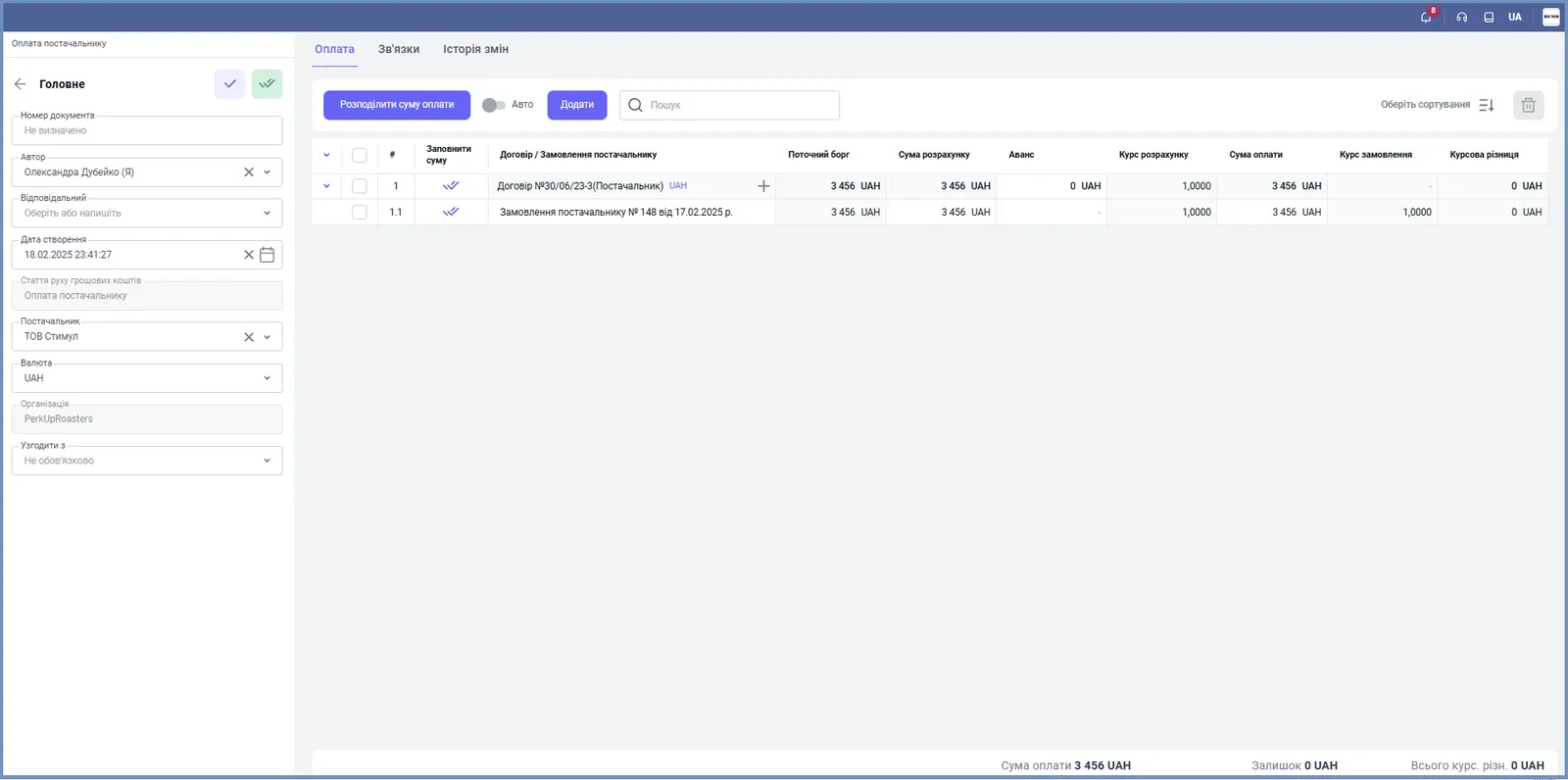
- “Document number”: the system assigns it after saving, or enter your own.
- “Author” and “Responsible”: the employees who carry out the operation.
- “Creation date”: the current date, which you can change.
- “Supplier”: the counterparty you are paying (see Adding a supplier).
- “Currency” and “Organization”: the payment currency and your organization whose bank account or cash desk the payment is made from.
- “Agree with”: the employee who will receive a notification about the payment.
- If needed, add a “Comment”.
If the payment was created from an order, the supplier, organization and other fields are filled in automatically.
How to specify the settlement type
- Select the “Settlement type”: cashless or cash. By default, the value from the supplier order is used, and you can change it.
- For cash, the “Cash type” field appears. Select Cash desk or Card.
- In the “Payment” field, specify the account or cash desk the operation is made from.
How to allocate the amount across orders
You allocate the payment amount in the table on the “Payment” tab.
- In the “Contract / Supplier order” column, you see the order-invoices to be paid. Add the ones you need with the Add button.
- Click Allocate payment amount or enter the “Payment amount” manually; the “Current debt” shows how much is left to pay.
- The “Settlement amount” is filled in from the payment automatically; change it manually if needed.
- In the “Advance” column, specify the advance amount if one is being made.
- Fill in the “Settlement rate” if the order is in a different currency than the accounting currency; for hryvnia settlements, enter 1.
A payment does not have to be linked to one order: split the funds between several priority payments or apply the whole amount to one.
What happens after saving
Click the save button. The document automatically gets the “New” status. To change the status, click the right arrow or click the status itself on the left and select an option from the list.
The debt to the supplier decreases, which you can see in the Settlements with suppliers report. If the supplier returns the money, record a supplier refund; if goods, a return to supplier.
FAQ
Why is the supplier payment not saved?
The payment amount must equal the actual payment amount. If the amount allocated across orders plus the advance does not match the payment amount, Bimp shows an error.
Can I split one payment between several orders?
Yes. A payment does not have to be linked to one order: split the amount between several orders or apply the whole amount to one.
What should I enter in the "Settlement rate" field?
The rate is needed if the order is in a different currency than the accounting currency. If the settlement is in hryvnia only, enter 1.
How do I pay a supplier in cash?
In "Settlement type" select "Cash", then in "Cash type" select "Cash desk" or "Card" and specify the cash desk or account in the "Payment" field.
More about this in Bimp: Procurement in Bimp