
Supplier refund: how to record the document
On this page
The "Supplier refund" document records the receipt of money into your bank account or cash desk and reduces the supplier's debt to you. Create it based on a "Return to supplier" or manually in "Finance → Settlements with counterparties", and specify the settlement type, the account and the refund amount.
When you need a supplier refund
You need a “Supplier refund” document when the supplier has paid money back to you: for unsold goods, an unperformed service or an accidental overpayment. It does two things: it records the receipt of money into the bank account or cash desk (Cash Flow) and it reduces the supplier’s debt to you. The mirror document in sales is Customer refund.
Example. A company bought a batch of chairs, and 5 turned out to be defective. The manager recorded a return to supplier: the goods left the warehouse and the supplier’s debt arose. When the supplier transferred the money, the accountant created a “Supplier refund”, and the debt was closed.
How to create the document
There are three ways, depending on where you are in the interface.
- Based on a “Return to supplier”. The most convenient way. Open Purchases → Returns to suppliers, hover over the return you need and select the payment icon. All the information is filled in automatically.
- Based on a “Supplier payment”. Open the payment in Finance → Settlements with counterparties and create a refund based on it.
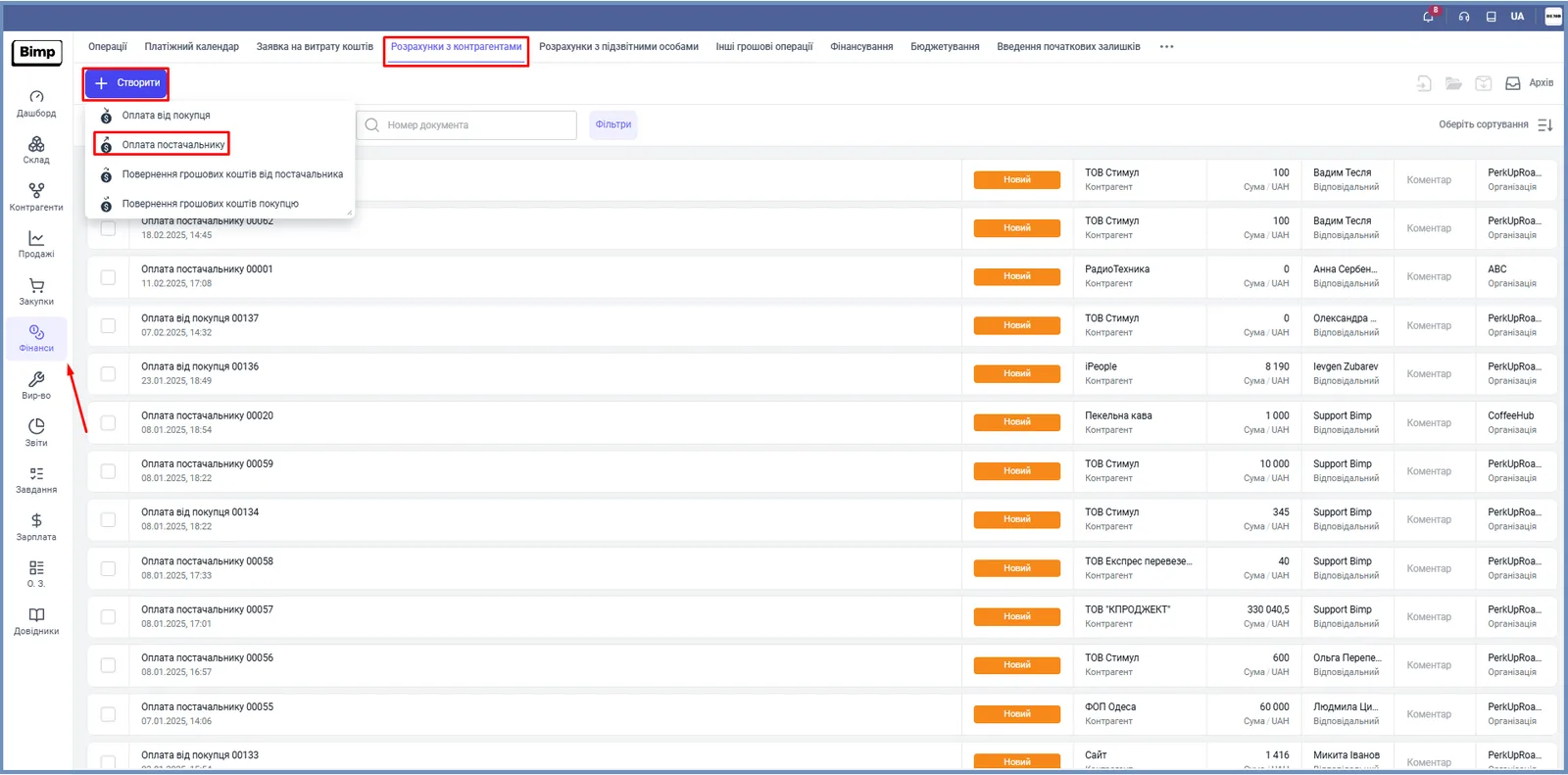
- Manually. Open Finance → Settlements with counterparties, click Create and select Cash refund from supplier.
How to fill in the document
Fill in the left panel with the details, then the right part with the breakdown of debts.
- “Supplier”: the counterparty returning the money.
- “Organization”: your legal entity whose bank account or cash desk receives the money; by default it is taken from the source document.
- “Creation date”: filled in automatically; change it if the money actually arrived earlier.
- “Settlement type”: Cashless if the money came to the bank account, or Cash if to the cash desk.
- “Payment”: the specific bank account or cash desk the amount is credited to.
In the right part of the document, fill in the breakdown. If the document was created based on another document, it is filled in automatically; if manually, check the columns:
| Column | What it means |
|---|---|
| “Document” | The invoices or contracts the money is returned for; select the right one to close that exact debt |
| “Refund amount” | The amount actually returned to you (important for partial amounts) |
| “Current debt” | A reference column: how much the supplier owes you in total |

What happens after saving
Click Save. The supplier’s debt in the Settlements with suppliers report decreases by the payment amount, and a receipt appears in the cash flow report.
FAQ
Why create a "Supplier refund"?
The document records the real receipt of money (Cash Flow) and reduces the supplier's debt to you. Without it, reports still show the supplier owing you money, even if it has already paid it back.
How do I record a refund in cash?
In the "Settlement type" field, select "Cash" and specify the cash desk the money went into. For a transfer to an account, select "Cashless" and the bank account.
What is the fastest way to create a refund?
From the "Return to supplier" document in the "Purchases" section: create a payment based on it, and the data is filled in automatically.
More about this in Bimp: Procurement in Bimp