
Purchasing in foreign currency: an order from an importer
On this page
The purchase currency in Bimp is defined by the contract with the supplier. To buy goods in foreign currency, create a contract in the currency you need (USD, EUR), select it in the supplier order and check that the prices in the table and the "Total" are shown in the contract currency. The debt to the supplier is recorded in that currency.
When you need a purchase in foreign currency
You record a purchase in foreign currency when the price in the supplier’s price list and the payment are specified, for example, in dollars or euros. The main thing is to fix the currency in the order: then Bimp keeps the currency balance with the supplier and calculates the cost price of goods at the rate. The whole sequence, from order to payment, is described in the purchasing process overview.
Example. The company “TechnoSvit” orders 15 IP phones from the Chinese supplier Gadget factory LTD at 150 USD each. The order must show the price in USD and the amount of 2,250 USD, and the goods in the warehouse are valued at the rate.
How to create an order with a foreign-currency contract
The document currency depends on the contract, so first check or create a foreign-currency contract.
-
Open Purchases → Supplier orders and click Create. Fill in the other fields as in a supplier order.
-
In the “Supplier” field, select the foreign partner.
-
In the “Contract” field, check the currency. Bimp fills in the counterparty’s main contract, and if it is in hryvnia while you buy in dollars, this is an error.
-
If there is no foreign-currency contract, click Create in the “Contract” field (or “Show all” → Create), change the “Currency” field in the contract card from UAH to USD or EUR, save, and select the contract in the order. For contract setup, see Contract with a supplier.

-
Check the rates in the header. For a foreign-currency contract, the “Price list rate” equals the “Accounting rate”, and the “Accounting rate” is the rate of the document currency to the management accounting currency; the cost price is calculated from it.
-
On the “Products, services” tab, add the items.
How to check that the currency is selected correctly
After you select a foreign-currency contract, the table part switches to that currency. The signs are:
- a foreign-currency contract is selected in the “Contract” field, for example “Contract USD_(Supplier)”;
- in the “Price” column, the currency code is next to the number, for example 150 USD;
- the “Total” amount in the bottom right corner is shown in the contract currency: 2,250 USD.
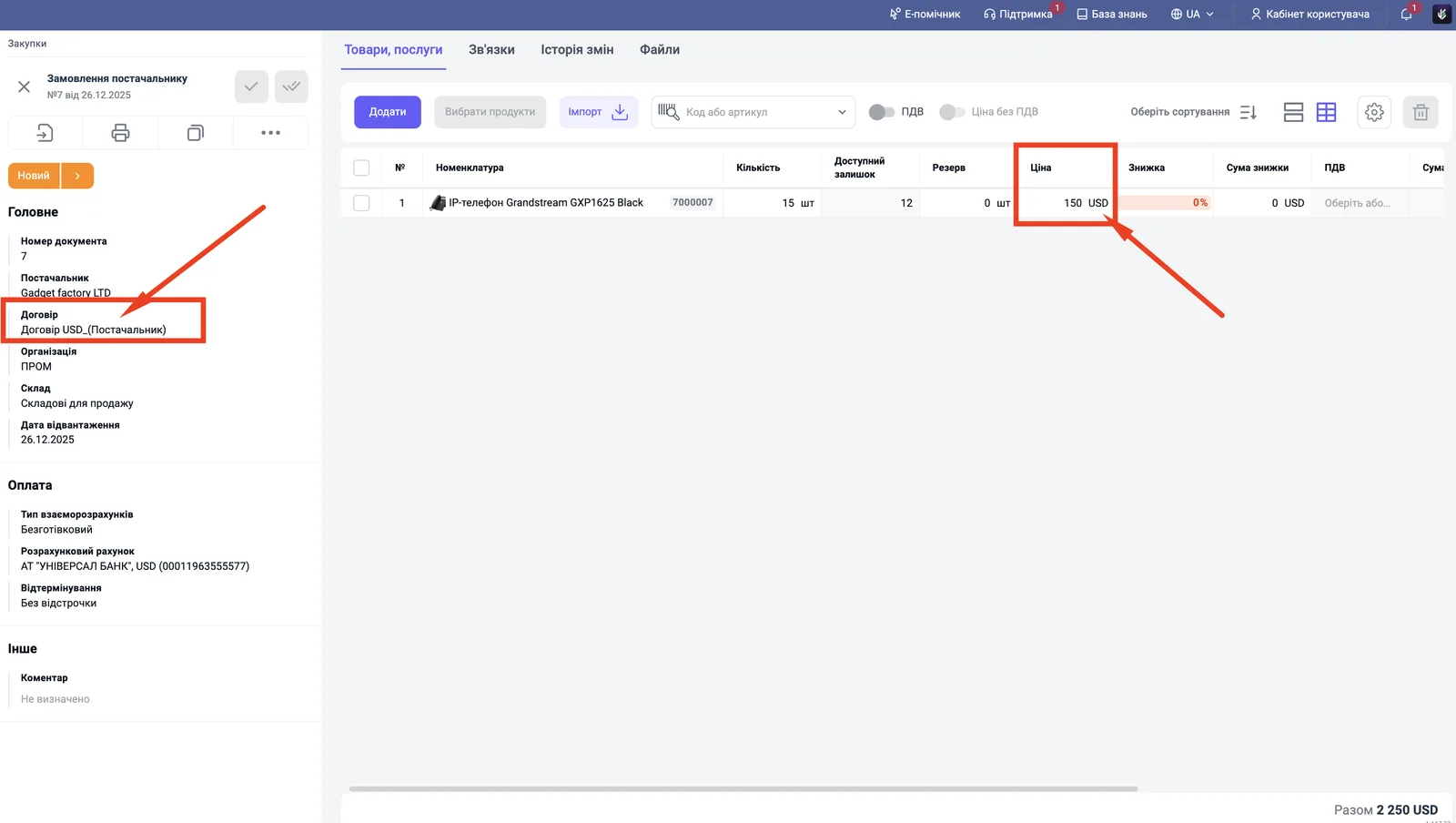
This means the debt to the supplier is recorded in dollars, and the goods arrive in the warehouse converted to the management accounting currency at the specified rate.
What to do next
After payment and physical receipt of the goods, create a Goods receipt document based on the order. It posts the goods to the warehouse. You record payment in foreign currency with a supplier payment document. Duty, import VAT and transport are added separately: Additional costs on a goods receipt and Import and customs declaration.
FAQ
How do I specify prices in dollars in a supplier order?
Select a contract with the supplier in USD. After that the table part switches to this currency, and the "Price" column shows the USD mark.
What should I do if the contract with the foreign supplier is in hryvnia?
Create a new contract in the currency you need or select an existing foreign-currency contract. The main contract is filled in automatically, so check its currency.
What is the "Accounting rate" for?
Bimp uses it to convert the document currency into the management accounting currency to calculate the cost price of goods. Check it against the actual rate on the date of the operation.
How do I account for customs duty and transport?
The order records only the cost of the goods in currency. Duty, VAT and delivery are recorded separately. See the articles on additional costs and import with a customs declaration.
More about this in Bimp: Procurement in Bimp