
Return to supplier: how to record the document
On this page
The "Return to supplier" document is recorded when previously received goods are returned to the supplier (defects, wrong quantity, non-compliance with the contract). It writes the goods off the warehouse and adjusts the debt to the supplier. The easiest way is to create it from a goods receipt with the "Create based on" button; money from the supplier is recorded with a separate document, the "Supplier refund".
When you need a return to supplier
You record a “Return to supplier” document when previously received goods are returned to the supplier: they are defective, arrived in the wrong quantity or do not meet the contract terms. The document records the fact of the return, adjusts warehouse balances and recalculates the debt to the supplier. The mirror document in sales is Customer return. To see where this step fits, read the overview of purchasing from order to payment.
How to create a return
There are three ways to create the document.
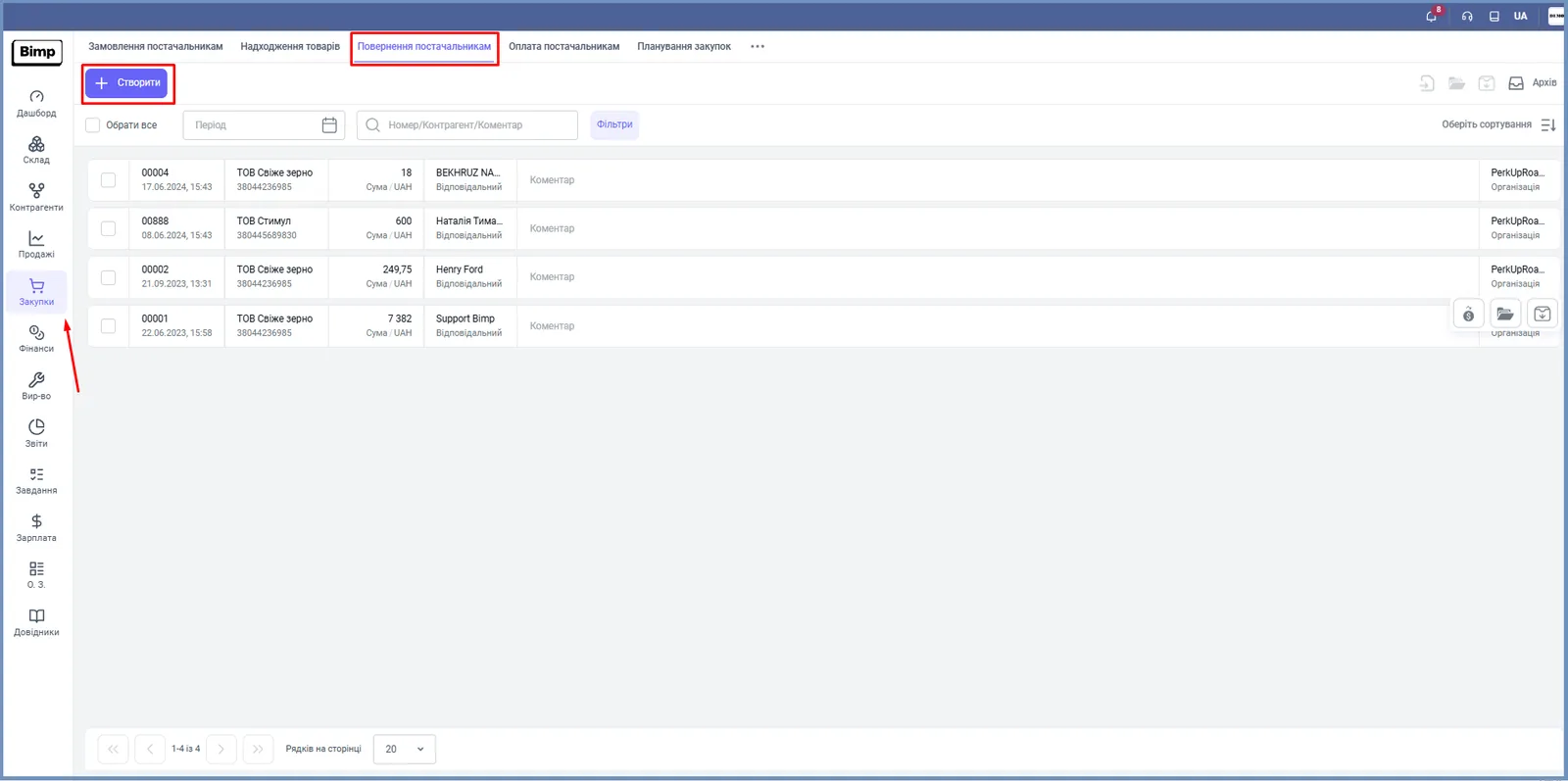
- From the returns journal. Open Purchases → Returns to suppliers and click Create.
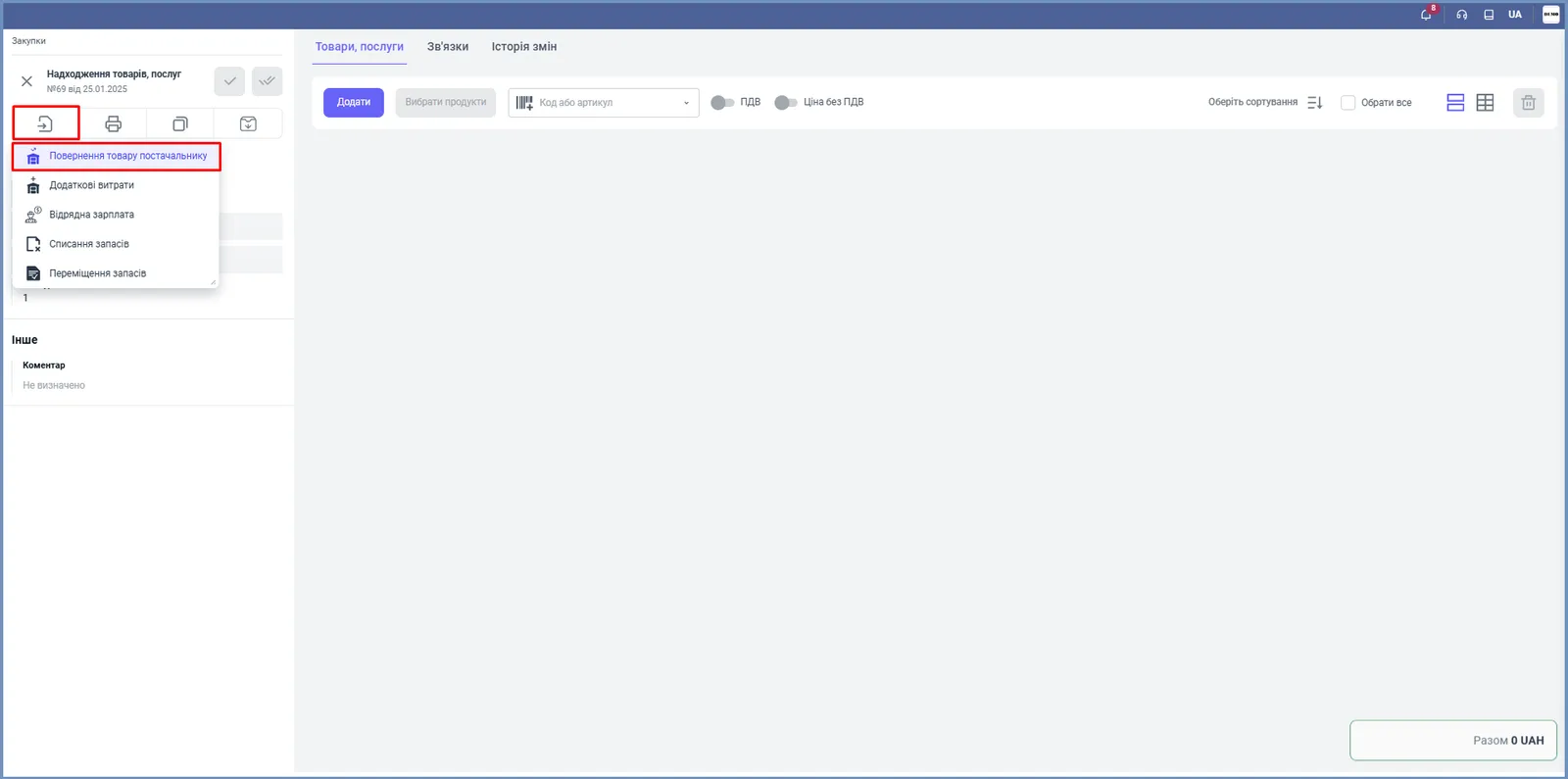
- From a goods receipt. Open the “Goods receipt” document, click Create based on in the left panel and select Return to supplier. The items are pulled in automatically.
- From the journal. Open the journal, hover over the source document and select the Return to supplier icon.
How to fill in the document
Fill in the left “Main” panel, then the products table.
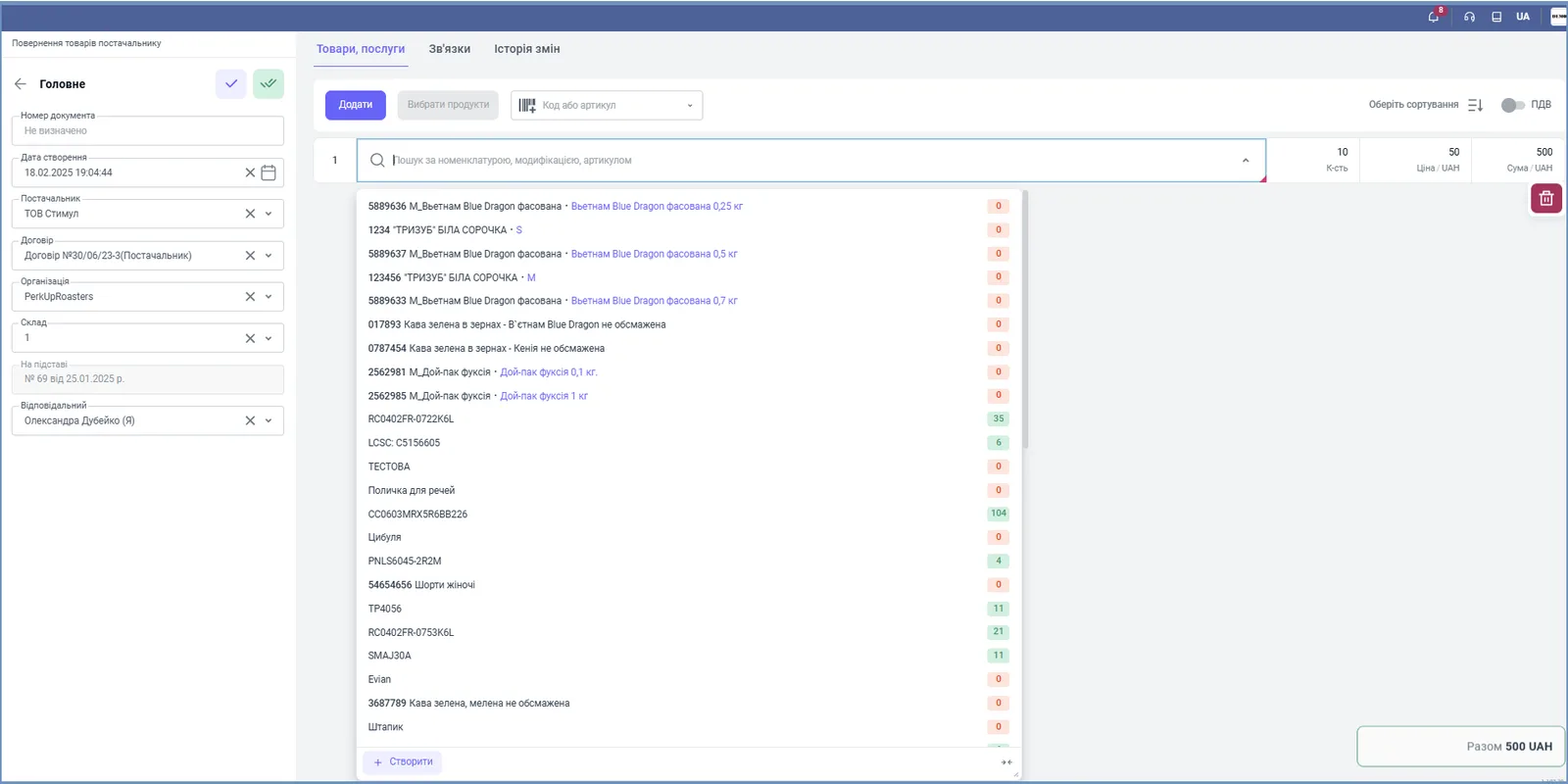
- “Document number”: the system assigns it automatically after saving, or enter your own.
- “Creation date”: the current date; you can change it.
- “Supplier”: select from the list. If there is no contract with the supplier yet, first add one in the counterparty card.
- “Contract”: if there are several contracts, select the one you need; if there is one, it is filled in automatically. When you create the return from a goods receipt or an order, the contract is taken from the source document.
- “Warehouse”: the warehouse you are returning the goods from.
- “Responsible”: the employee who carries out the operation.
How to specify the products
If the return was created from a goods receipt, the items are already in the “Products, services” table; change “Quantity” and “Price” if you are returning part of the goods or at a different price.
To add an item manually, enter the code or SKU, or scan the barcode, in the “Code or SKU” field. If the product does not exist yet, click Create at the bottom of the list.
What happens after saving
Click the save button in the left panel. The goods are written off the warehouse, and the debt to the supplier decreases by the return amount. The chain of documents is visible on the “Links” tab. See Links tab.
If the supplier returns the money, create a Supplier refund document based on the return.
FAQ
Does the "Return to supplier" document return the money?
No, it only writes the goods off the warehouse and adjusts the debt. The receipt of money from the supplier is recorded with a separate document, the "Supplier refund".
Why can't I select the supplier's contract in the document?
If there is no contract with the supplier yet (for example, it was previously in the system as a customer), add a contract in the counterparty card, and it will then appear in the selection.
How do I return only part of the goods from a goods receipt?
Create the return based on the goods receipt and change the "Quantity" in the rows you need, or delete the items you are not returning.
More about this in Bimp: Procurement in Bimp