
Supplier products: supplier names and barcodes in purchasing
On this page
Supplier products link your product to the name and barcode under which a specific supplier sells it. You add records in the product card on the "Supplier products" tab or directly in a supplier order line. The name carries over to the goods receipt, then to the batch, and is visible in the "Stock movement" report.
Why you need supplier products
Supplier products match your product name to the one in the supplier’s price list or invoice. For example, your product is “USB Type-C cable 1m”, and the supplier calls it “Cable TK-1”. This matching lets you:
- avoid mixing up items when the storekeeper checks an invoice against the catalog;
- fill in the supplier’s name and barcode automatically in the order and the goods receipt;
- keep the supplier’s name in each product batch;
- print orders with names the supplier understands.
Example. For the product “Type-C cable”, the supplier Postach LLC has two names: “Cable TK-1” (created first) and “Cable TK-2”. In an order for this supplier, Bimp fills in “Cable TK-1”, and the manager can select “Cable TK-2” from the list if needed.
How to add a supplier product in the product card
You add a record on a tab of the product card. To access the tab, the user must have rights to the “Products” directory.
-
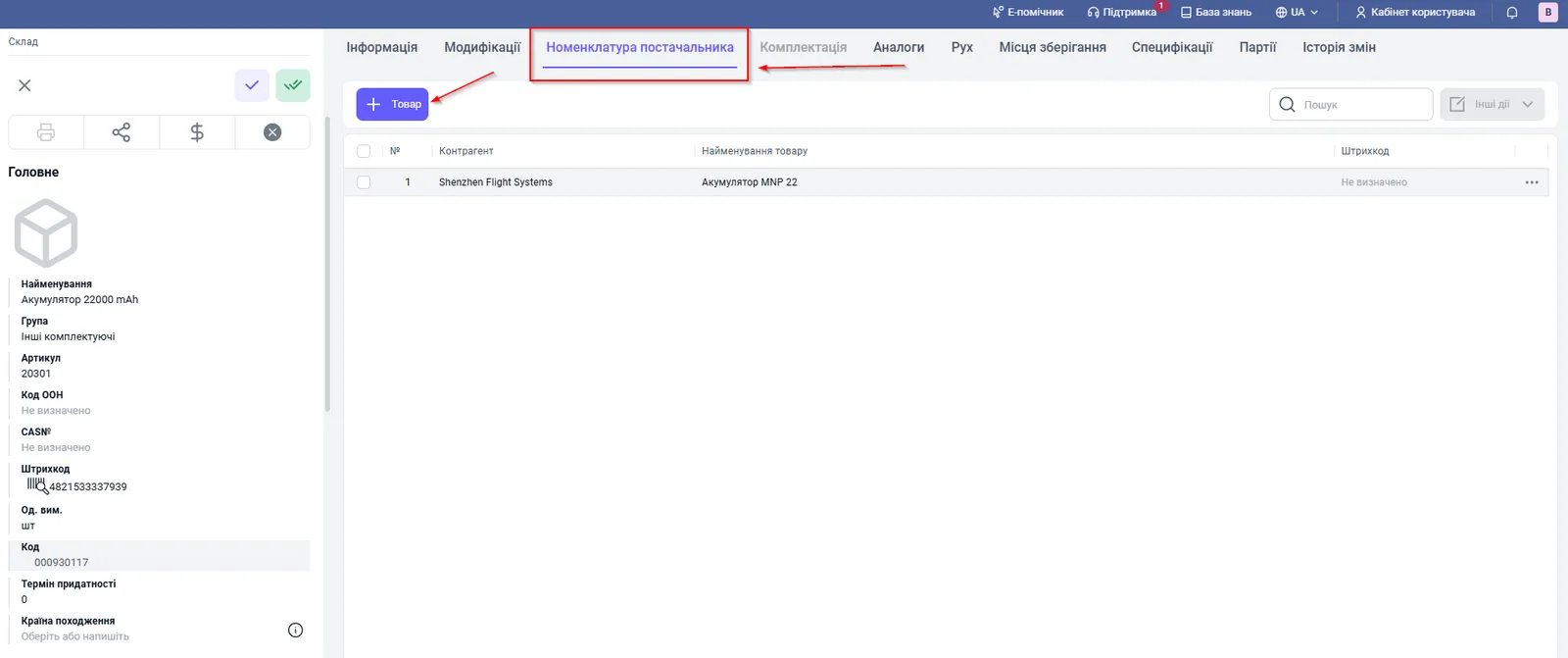
Open Warehouse → Products and services and the card of the product you need.
-
Go to the “Supplier products” tab.
-
Click Product to add a row.
-
Fill in the fields: “Counterparty” (suppliers only), “Product name” (exactly as in the supplier’s price list or invoice) and “Barcode” (if any).
-
If needed, specify the “UN code” in the general data of the card, under the “SKU” field.
-
Click Save.
The “Search” field on the tab filters records by counterparty, name and barcode. The row action menu has “Copy” and “Archive”.
How to show the column in documents
The “Supplier product name” column in a supplier order and a goods receipt is hidden by default.
-
Open a “Supplier order” or a “Goods receipt” document.
-
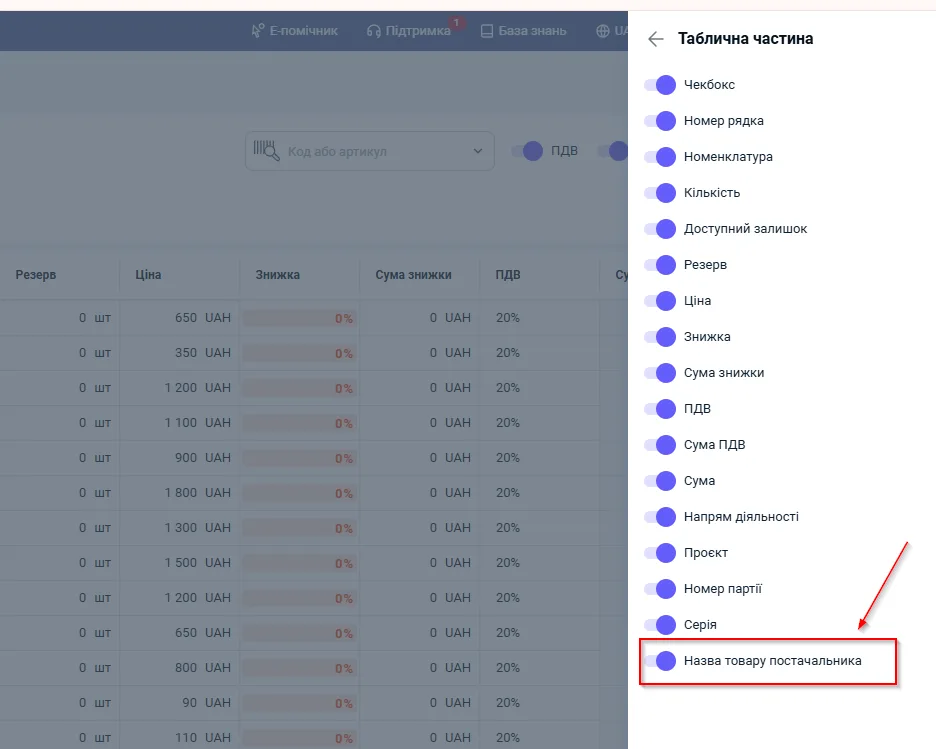
Click the gear icon in the right corner of the table header.
-
Select “Table part” and turn on the “Supplier product name” switch.
-
Save the view settings.
How to create a supplier name directly from an order
You can create a new name without leaving the supplier order.
-
In the document header, select the supplier.
-
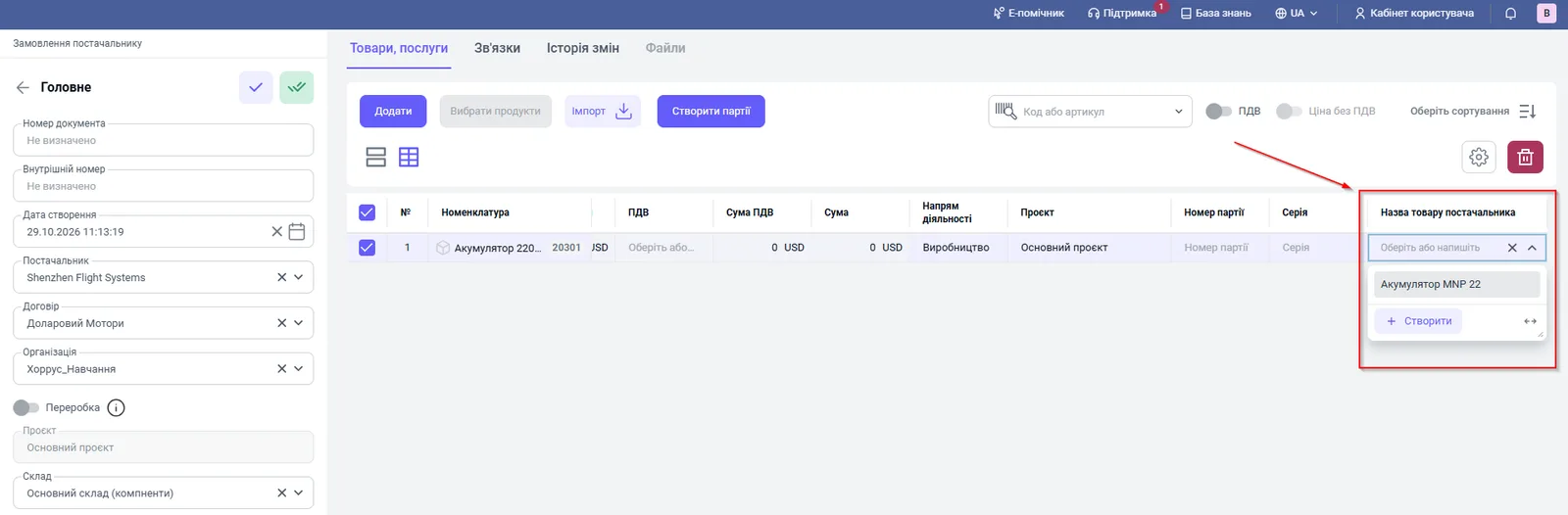
Add a product to the table. Bimp filters the names by product and supplier. If records exist, the one created first is filled in.
-
If there is no name, click Create in the list of the “Supplier product name” column.
-
In the window, enter the name (required) and the barcode. The supplier and the product are filled in automatically.
-
Save. The new name is added to the product card and fixed in the current row.
What happens after the goods receipt
The supplier’s name goes through the whole purchasing chain. When you create a goods receipt based on a supplier order, the column value is carried over to the receipt rows. If batch tracking is enabled for the product, the name is written to the card of the created batch when the document is posted.
To see the names in the Stock movement report:
-
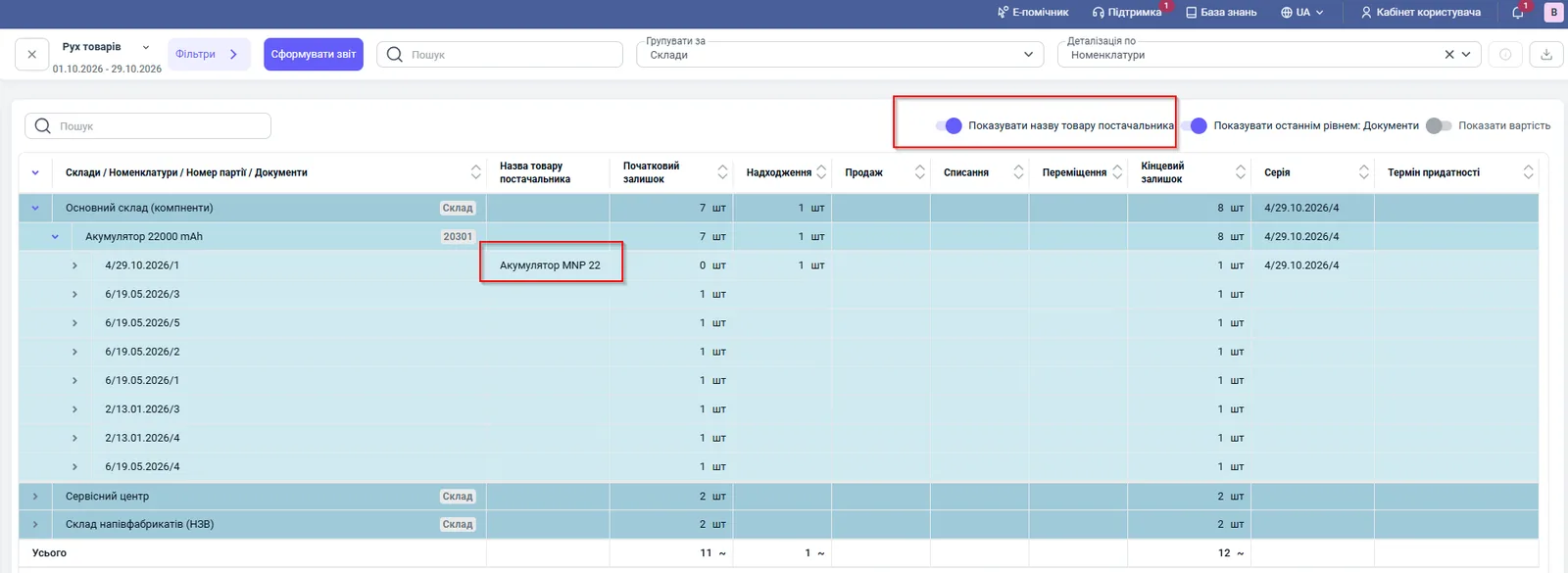
Open Reports → Warehouse → Stock movement and generate the report.
-
Turn on the “Show supplier product name” switch.
-
The “Supplier product name” column appears next to the batch number.
FAQ
Can one product have several names for the same supplier?
Yes. You can create several records for the same product and the same supplier. The document fills in the name created first, and you can select the others from the list.
Why is the supplier missing from the list on the "Supplier products" tab?
The list shows only counterparties with the "Supplier" type. Add this type in the counterparty card.
Can I restore a record after the "Archive" action?
No. For a supplier product row, "Archive" deletes the record permanently and it cannot be restored.
Why is there no supplier name column in the supplier order?
The column is hidden by default. Enable it in the table part settings: the gear icon, "Table part", "Supplier product name".
More about this in Bimp: Procurement in Bimp