
Import and customs declaration: VAT, duty and settlements with customs
On this page
An import in Bimp is recorded in three steps: pay an advance to customs or a broker through a supplier order, create a goods receipt from the foreign supplier, and based on it, an "Additional costs" document with duty and VAT. The duty is allocated to the cost price of the goods, and the advance to customs is closed.
How an import with a customs declaration is shown in Bimp
The full import cycle in Bimp consists of three documents: an advance to customs or a broker, a goods receipt from the foreign supplier and “Additional costs” with duty and VAT. This way the duty becomes part of the cost price of the equipment or goods, and settlements with customs (the state) or a broker (an intermediary) are visible separately from the debt to the foreign supplier.
Example. A company bought equipment in Poland. Besides the cost of the goods, it pays customs duty, which must increase the value of the equipment in the warehouse. The “Additional costs” document lets you see profit with all related costs taken into account.
Step 1. Advance to customs or a broker
Before the goods cross the border, transfer money to customs or a broker.
- Open Purchases → Supplier orders and create a supplier order where the supplier is customs or a broker.
- Based on the order, create a supplier payment. This is the advance payment.
Step 2. Goods receipt from the foreign supplier
When the goods have arrived and you have the invoice, create a goods receipt from the foreign supplier for the received goods and save it. If the purchase is in foreign currency, see Purchasing in foreign currency.
Step 3. “Additional costs” document with duty and VAT
Based on the goods receipt, create an “Additional costs” document, which accrues the customs payments.
- In the goods receipt, click the Create based on icon and select Additional costs.
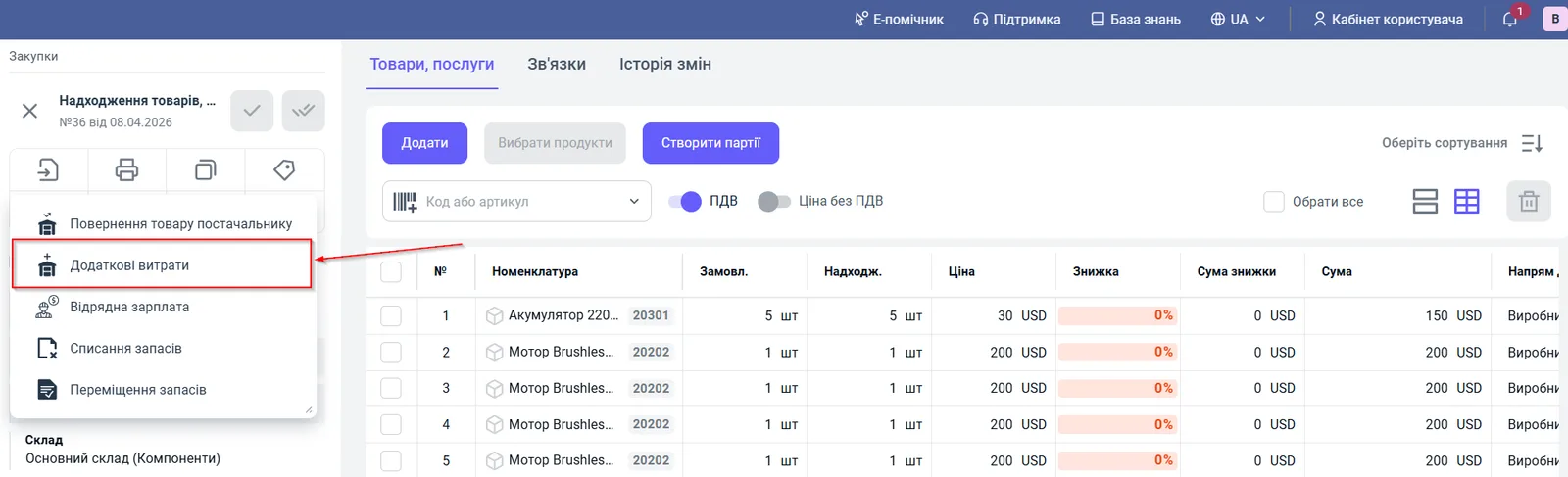
- In the “Supplier” field, select customs or the broker.
- In the “Supplier order” field, select the order from step 1.
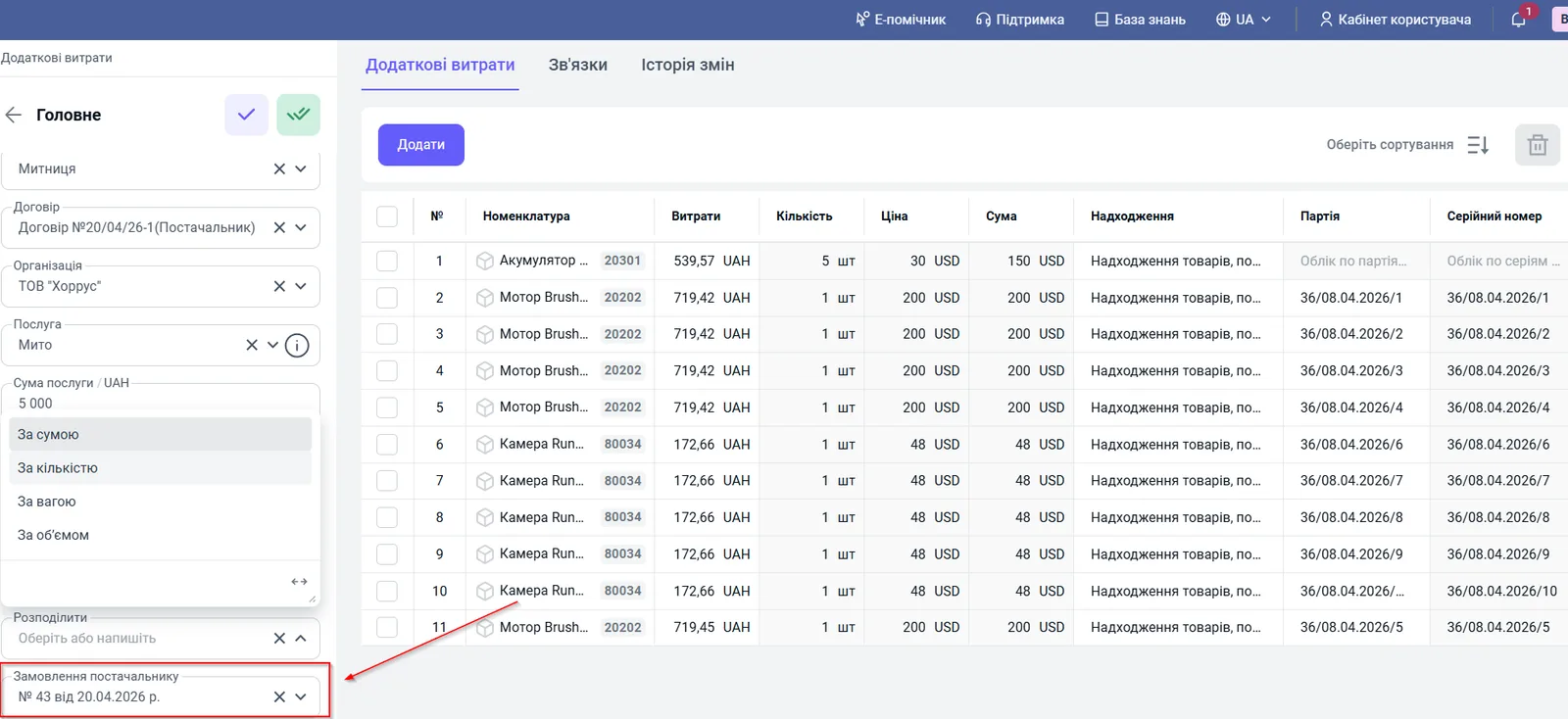
- In the “Allocate” field, select how to split the amount over the cost price of the goods: By amount, By quantity, By weight or By volume.
- Specify the service amount, that is, the duty: it is allocated proportionally to the cost of the goods.
- Specify the VAT amount. Whether VAT goes into the cost price depends on the company’s accounting settings. See Cost price without VAT.
- Save the document.
Step 4. Checking the result
After the documents are posted, check:
- Product card: the unit cost price increased by the amount of the duty;
- Settlements with suppliers report: the advance made in step 1 is closed;
- Trial balance: there are no “hanging” debts to customs.
The general logic of the document is described in Additional costs on a goods receipt.
FAQ
How do I include duty in the cost price of imported goods?
Create an "Additional costs" document based on the goods receipt, select customs or a broker as the supplier, and specify the duty amount and the allocation method. The amount is allocated to the cost of the goods.
Do I need to create a goods receipt for customs or a broker?
No. For customs or a broker you create only a supplier order and a payment (the advance). You do not record a "Goods receipt" document for them.
Can I write off the customs advance in parts or across several receipts?
Yes. You can create one "Additional costs" document for several goods receipts at once and write off not the whole advance but parts of it.
More about this in Bimp: Procurement in Bimp