
Additional costs on a goods receipt: delivery, customs duty
On this page
The "Additional costs" document increases the cost price of goods already received in the warehouse by the amount of delivery, unloading, customs duty or other services, and creates a debt to the provider of these services. Create it based on a "Goods receipt", specify the service, the amount and the allocation method, then pay with "Create based on → Supplier payment".
When you need the “Additional costs” document
You need the “Additional costs” document when a goods receipt comes with costs that must increase the cost price: transportation, loading and unloading, customs duty, import VAT. Without it, the cost price is formed only from the “Price” column of the “Goods receipt” document. To see where this step fits, read the overview of purchasing from order to payment.
The document does two things:
- adds the cost of services to the cost price of goods received in the warehouse;
- automatically creates a debt to the provider of these services.
For import with customs clearance, see Import and customs declaration. Selling costs (delivery to a customer) follow different logic. See Additional costs.
How to create an “Additional costs” document
Create the document based on the goods receipt the costs relate to. There are three ways.
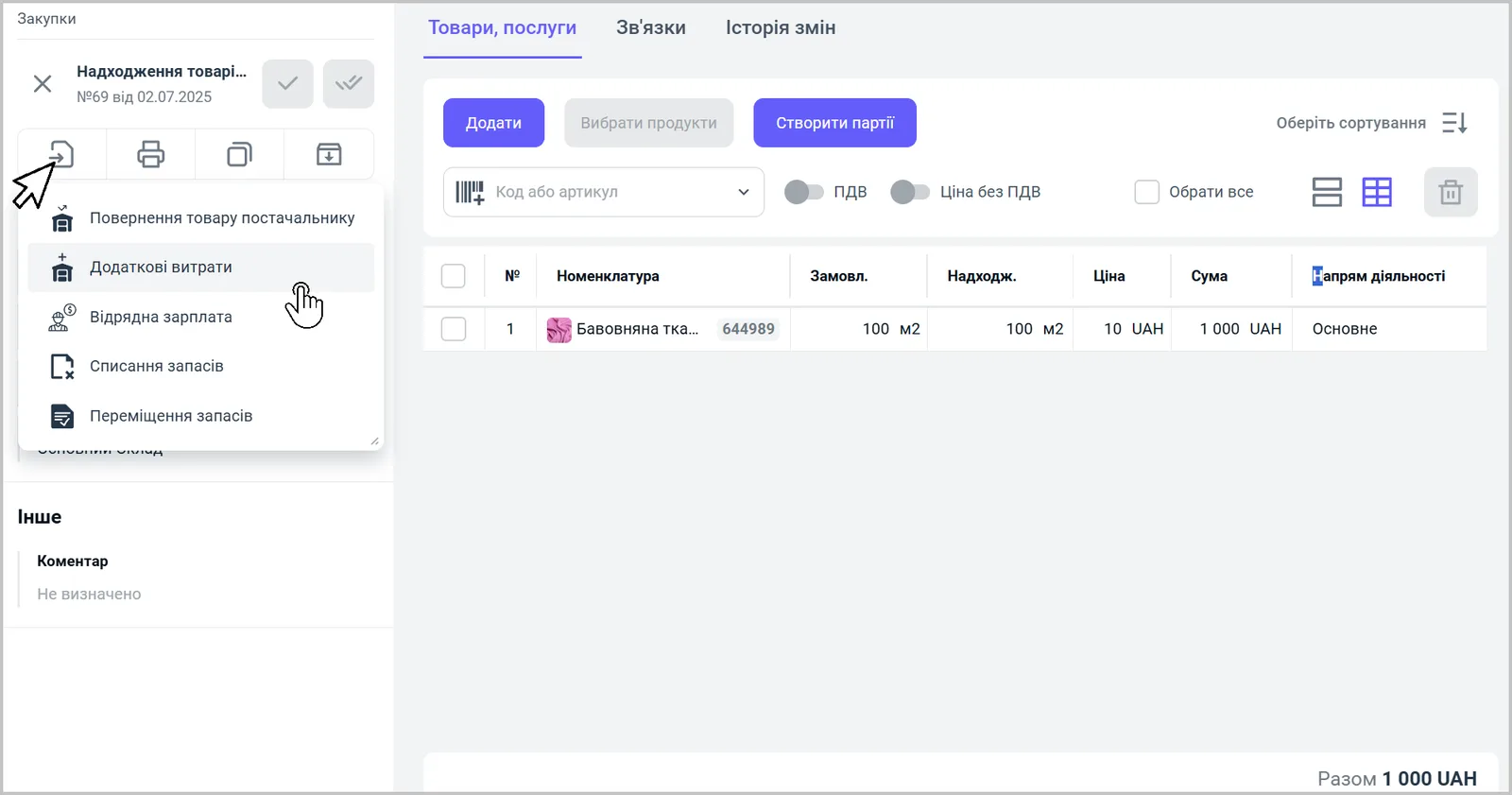
- From the goods receipt. Open the “Goods receipt”, click the Create based on icon in the left panel and select Additional costs.
- From the goods receipts journal. Open Purchases → Goods receipts, hover over the document you need and select the Additional costs icon.
- From the “Warehouse” section. Open Warehouse → Other documents, click Create and select Additional costs.
The full chain for project work: contract → “Supplier order” → “Goods receipt” → “Additional costs”.
How to fill in the document
Fill in the left panel and the table.
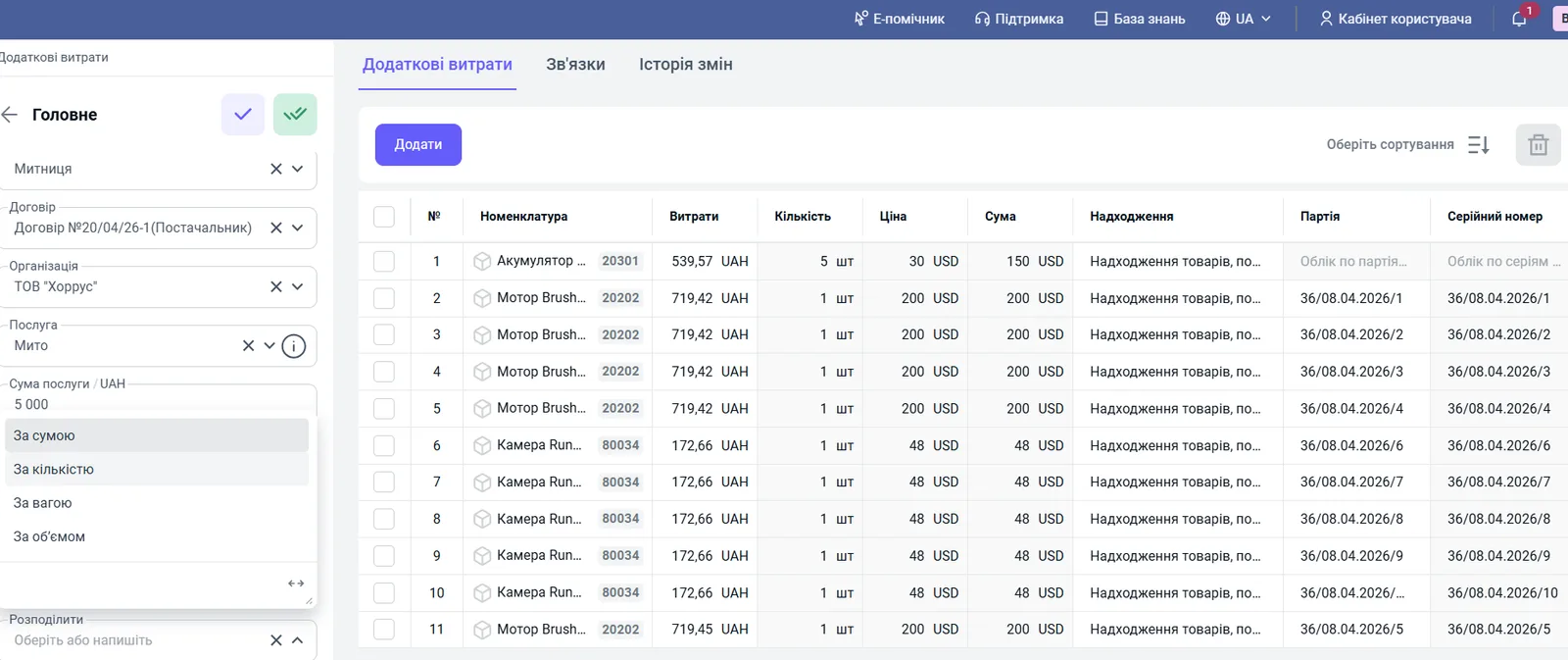
- “Supplier”: the one who provided the service, such as a carrier, customs or a broker. The contract is filled in automatically.
- “Organization”: your company.
- “Service”: the type of cost, for example “Customs duty” or “Delivery”.
- “Service amount”: the cost of the service.
- “Number of services” and “Operation”: the number of services (for example, 1) and the operation type (“Purchase”).
- “Allocate”: how to split the amount between the receipt items: By amount, By quantity, By weight or By volume.
- “Supplier order”: if needed, select the order an advance was paid for (for example, for customs or a broker).
- Save the document.
In the table, Bimp shows the receipt items and the “Costs” column, which is the share that falls on each of them. You can create one document for several goods receipts at once: tick them in the journal and create the document based on them.
How to pay for additional costs
You record the payment for the service as a separate document. In the “Additional costs” document, click Create based on and select Supplier payment.
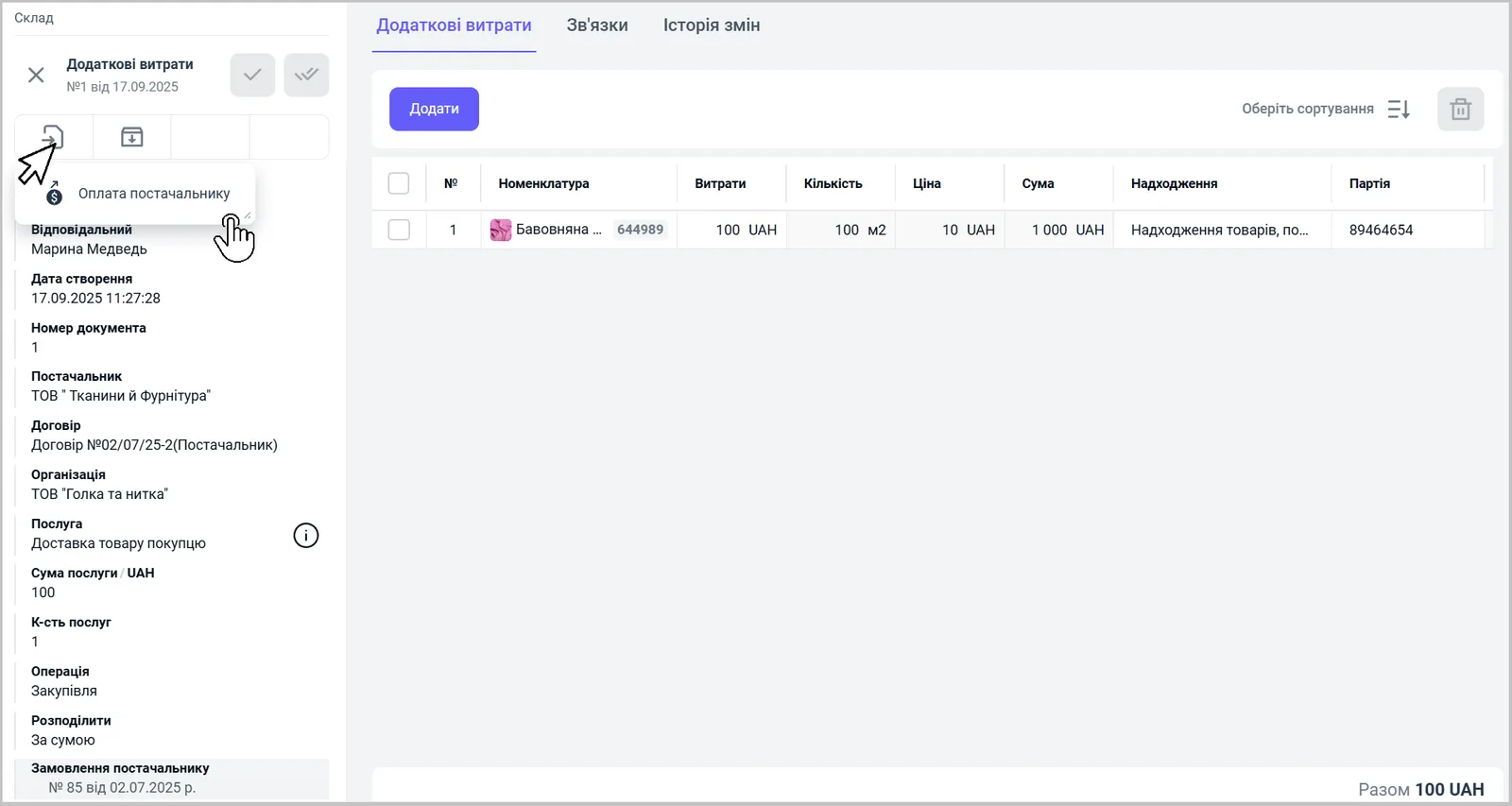
For details on filling in the payment, see Supplier payment.
Where to see the result
After the document is saved, the data goes into the reports:
- Settlements with suppliers: which counterparty the cost arose for and for what amount;
- Stock movement: which warehouse the goods went to, the product name and which receipt the cost is assigned to;
- Goods receipt with additional costs: the full cost price including costs.
If the costs are recorded after the goods were sold, recalculate the cost price. See Cost price recalculation.
FAQ
What does the "Additional costs" document change on a goods receipt?
It increases the cost price of the goods already received and creates a debt to the provider of the service (carrier, customs, broker).
How are costs allocated between the items of a goods receipt?
In the "Allocate" field, select how to split the amount: by amount, by quantity, by weight or by volume.
Where can I see which product and what amount the additional costs went to?
In the reports "Settlements with suppliers" (counterparty and amount), "Stock movement" (warehouse, product and receipt) and "Goods receipt with additional costs".
More about this in Bimp: Procurement in Bimp