
Allocating bank statement transactions
On this page
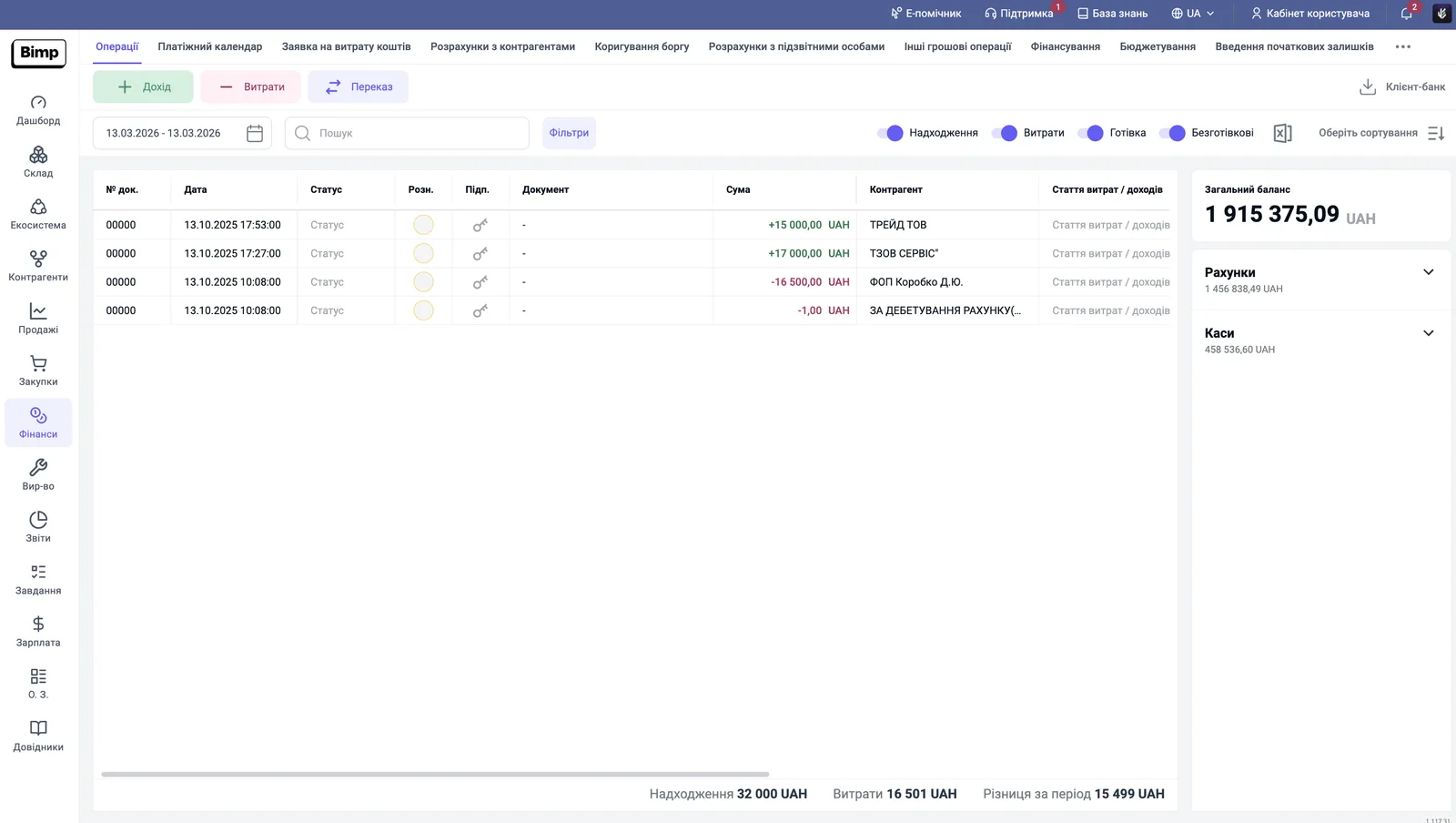
Allocation turns imported statement rows into documents: expenses, payments, transfers. In the "Finance → Transactions" list, click the circle in the "Alloc." column, select an item or transaction type and save. A yellow circle means allocated to a contract, a green one means allocated to an order.
What is statement allocation
Allocation means assigning an item, counterparty, contract and order to each imported statement row, after which Bimp creates a document (a payment, an expense, a transfer) and includes it in reports. The list of transactions where the statement lands after import opens in Finance → Transactions. You can also create transactions manually with the buttons above the list:
| Button | What it creates |
|---|---|
| “Income” | customer payment, receipt of an investment or loan, other receipts |
| “Expenses” | supplier payment, issue of accountable funds, dividends, salary, prepaid expenses, other expenses |
| “Transfer” | movement between accounts and cash desks, currency exchange |
What the circles in the “Alloc.” column mean
The color of the circle shows how deeply the transaction is allocated.
| Circle | Status |
|---|---|
| Empty | new transaction, not processed |
| Yellow | allocated to a contract: the amount is on the counterparty balance but not linked to an order |
| Green | fully allocated to an order (supplier payment, customer payment, refund) |
In the list, receipt amounts are highlighted in green and expenses in red.
How to allocate an expense to an item (fee, rent)
Direct expenses that are not related to goods documents are allocated to an expense item.
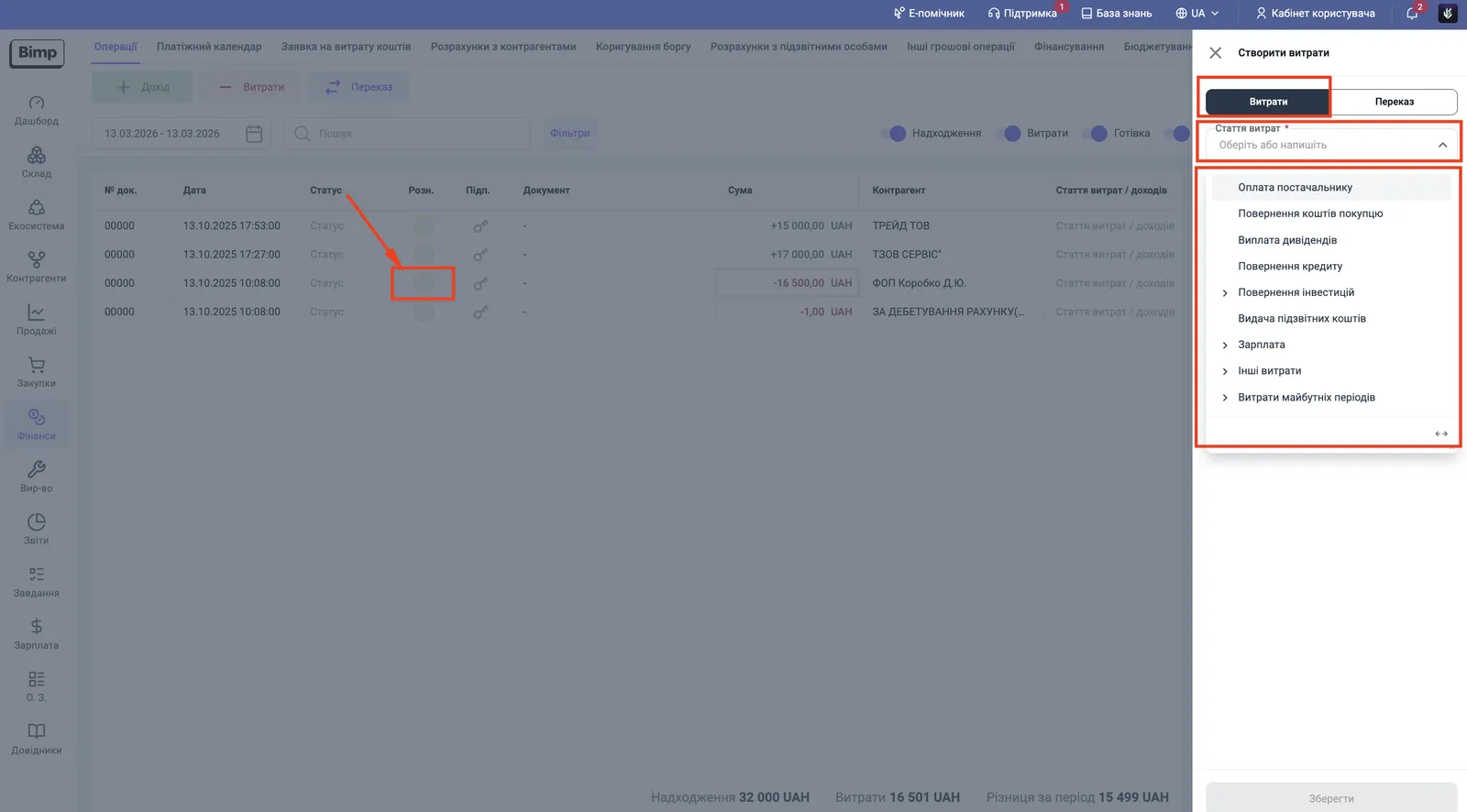
- Click the empty circle in the transaction row.
- In the right-hand “Create expenses” panel, make sure the Expenses tab is active.
- In the “Expense item” field, select an item, for example “Bank services” or “Rent”. The list also includes “Supplier payment”, “Customer refund”, “Dividend payment”, “Loan repayment”, “Investment return”, “Issue of accountable funds”, “Salary”, “Other expenses”, “Prepaid expenses”.
- Save. Bimp creates an “Other expenses” document, and the transaction gets the status “Completed”.
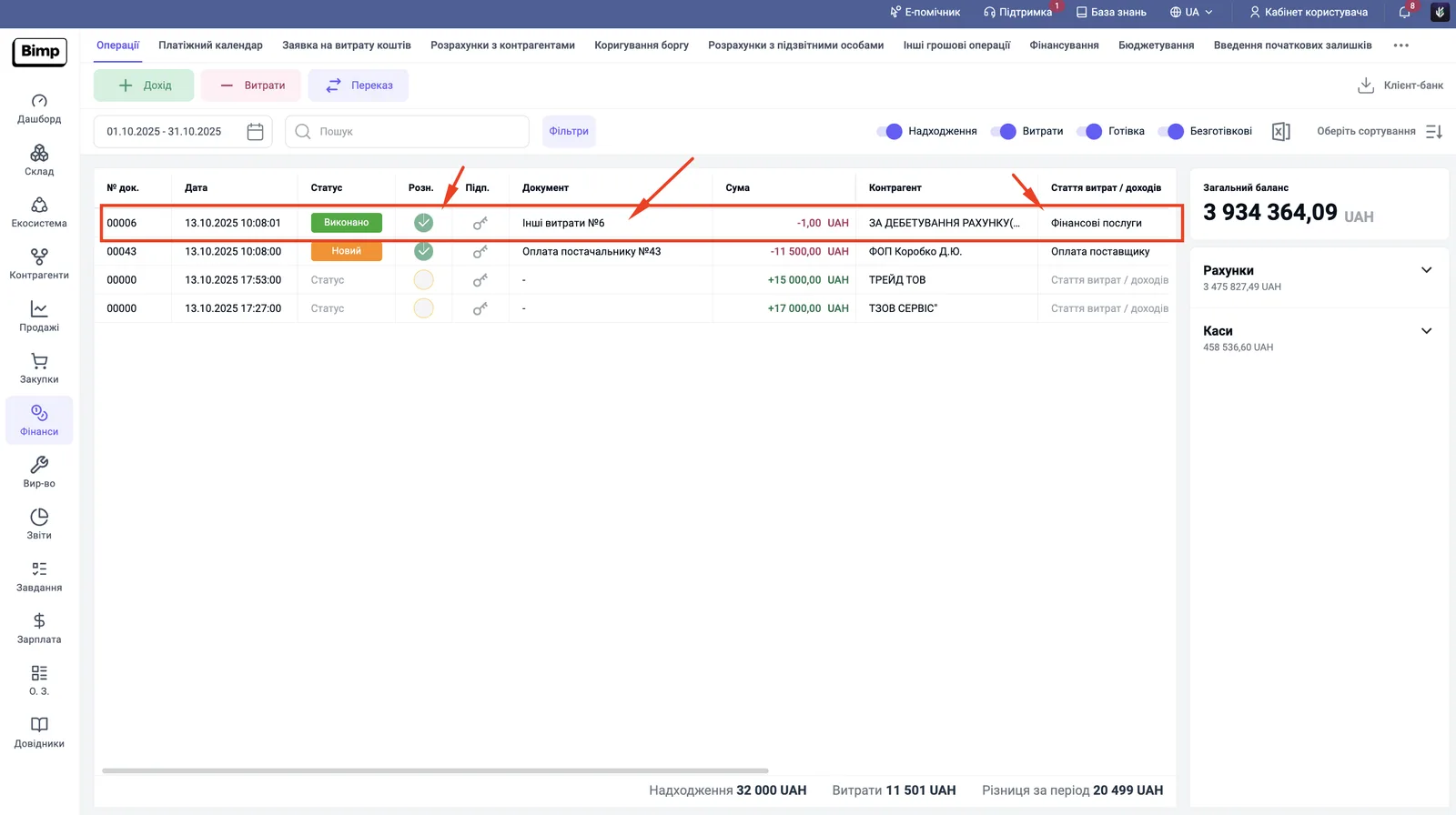
For how the “Other expenses” document works and how to distribute it by lines of business and projects, see Period expenses.
How to allocate a supplier payment
You allocate a supplier payment in two stages: create the payment document, then distribute it to orders.
- Click the circle in the row and select the item Supplier payment. Bimp creates a payment document and the circle turns yellow: the payment has landed on the general contract, but the system does not yet know which order was paid.
- In the “Document” column, open the link to the created payment (for example, “Supplier payment No. 43”).
- In the table part, distribute the amount: click ”+” in the row of the needed order, or the general ”+” above the list, and Bimp automatically closes the counterparty’s oldest unpaid orders.
- Click Post. If the whole amount is distributed to orders, the circle in the list turns green.
If the payment amount is larger than the debt on orders, the difference remains as an advance under the contract. For example, a payment of 16,500 UAH for an order of 11,500 UAH gives an advance of 5,000 UAH.
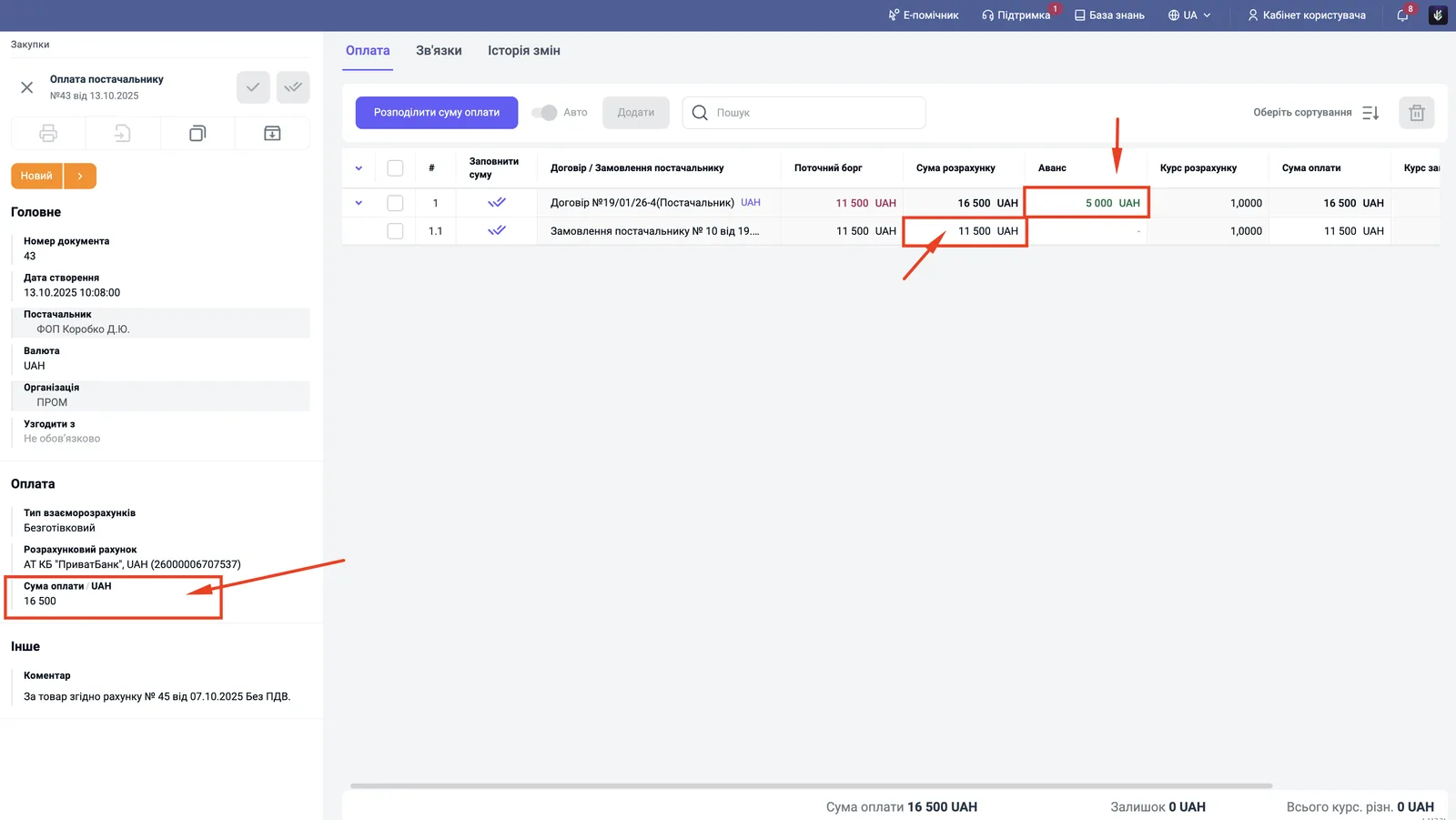
For more on payments, see Supplier payment. Customer payments are allocated in the same way, by distributing the amount to orders: see Customer payment.
Common problems
The customer refund window is inactive and a document cannot be selected. Cause: the counterparty in the transaction does not match the counterparty in the order. After the import, Bimp may have created a new (duplicate) counterparty instead of the existing one. Solution:
- Compare the counterparty in the refund transaction with the counterparty in the customer order.
- Specify the counterparty from the order in the transaction.
- Cancel the duplicate card that was created by mistake.
- Fill in the company registration code (EDRPOU) and IBAN in the main counterparty’s card so that future statements are recognized automatically: see Counterparty card.
FAQ
What do the circles in the "Alloc." column mean?
Empty: the transaction is new and not processed. Yellow: allocated to a contract; the amount is credited to the counterparty balance but not linked to an order. Green: allocated to an order.
How do I allocate a payment to several orders at once?
Open the payment document using the link in the "Document" column and click the general "+" above the list of orders. Bimp closes the counterparty's oldest unpaid orders by itself.
Why is the customer refund window in the statement inactive?
The counterparty in the transaction does not match the counterparty in the order: Bimp may have created a duplicate after the import. Specify the counterparty from the order in the transaction and cancel the duplicate.
Why is the status not green after I allocate a payment?
The payment must be distributed to specific orders. If part of the amount remains undistributed, it becomes an advance under the contract.
More about this in Bimp: Finance in Bimp