
Customer refund: how to issue the document
On this page
The Customer refund document records a payout of money to a customer after a return of goods or a cancelled service. Create it in "Sales → Returns" from the icon next to the return you need, or in "Finance → Settlements with counterparties", enter the amount, the refund method (non-cash or cash) and save. Bimp updates settlements with the customer.
When you need a customer refund
The Customer refund document is needed when you have given money back to a customer: they returned goods or cancelled a service after paying. Without it, the cash desk shows money that is no longer there, and the customer’s balance is wrong. The full sales process from order to payment is covered in one article.
Example. A customer bought a dress for UAH 2,000 and paid by card. The next day she returned the dress. The manager issued a customer return, and the dress went back to the warehouse. Now the manager creates a Customer refund for UAH 2,000 based on it: the debt to the customer is closed, and an expense appears in the cash flow.
How to create a customer refund
You can create the document in two ways:
- From the “Sales” section. Open Sales → Returns, hover over the return you need and choose Customer refund in the icon menu.
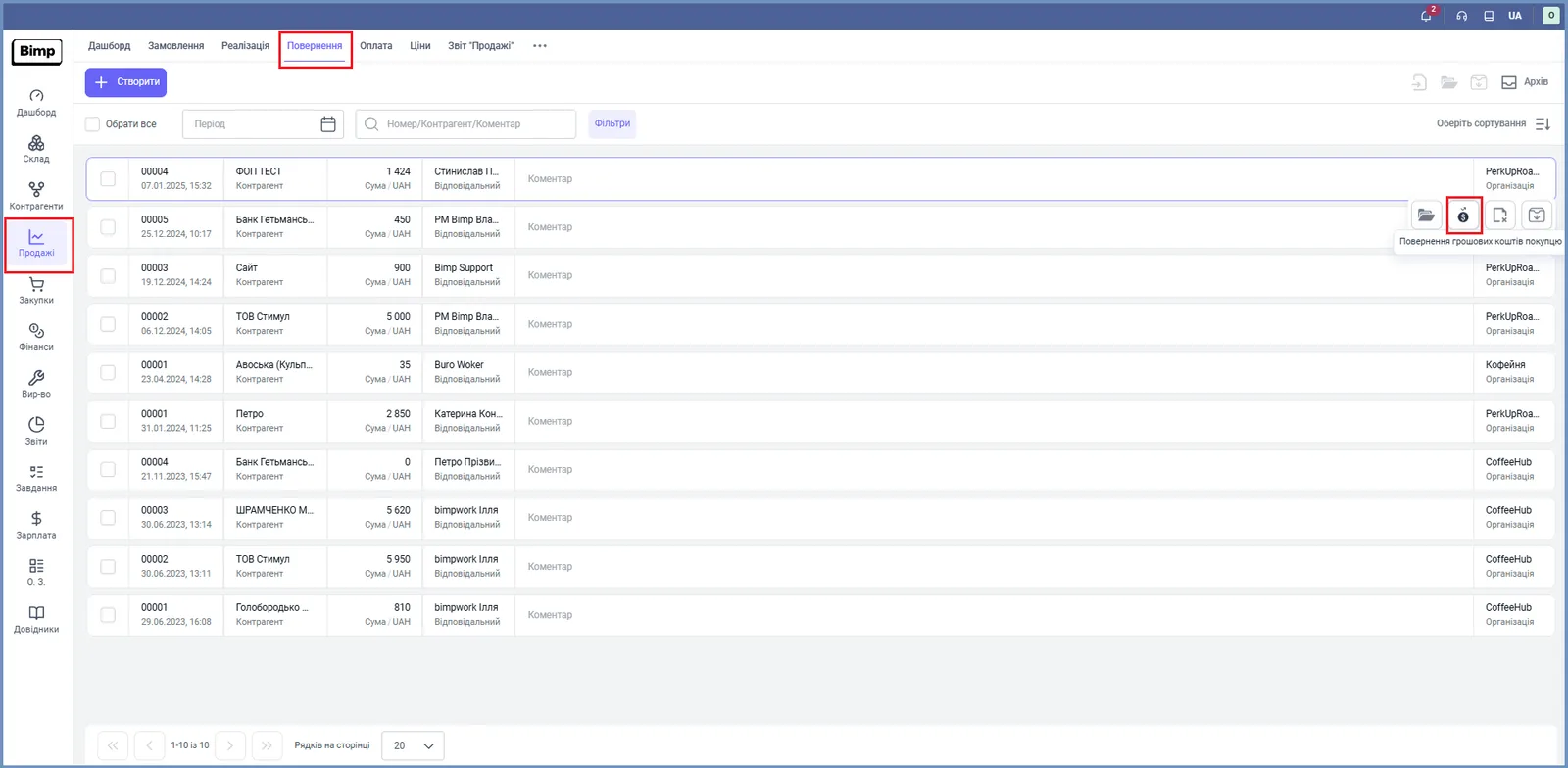
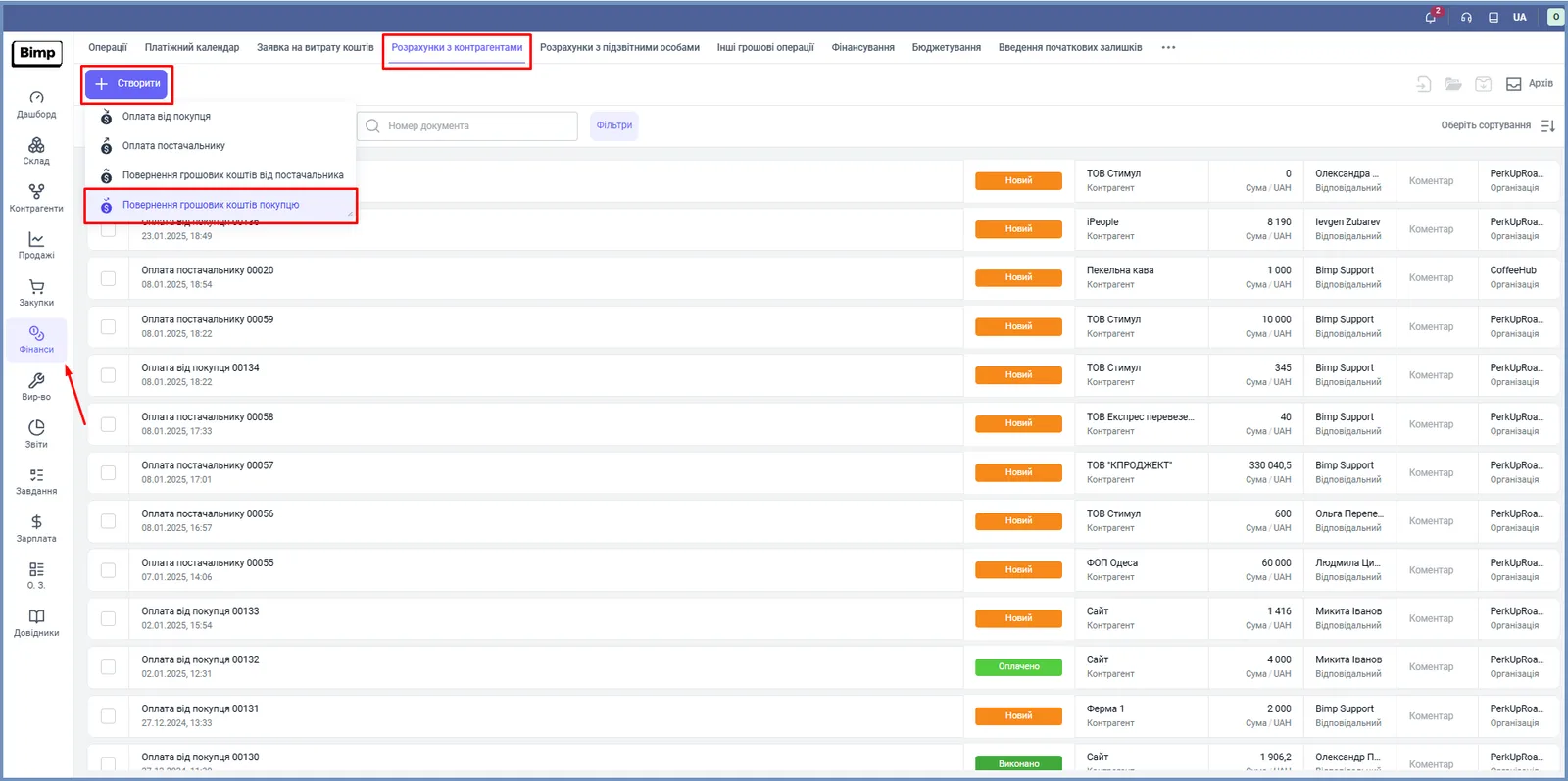
- From the “Finance” section. Open Finance → Settlements with counterparties, click Create and choose Customer refund.
How to fill in the document
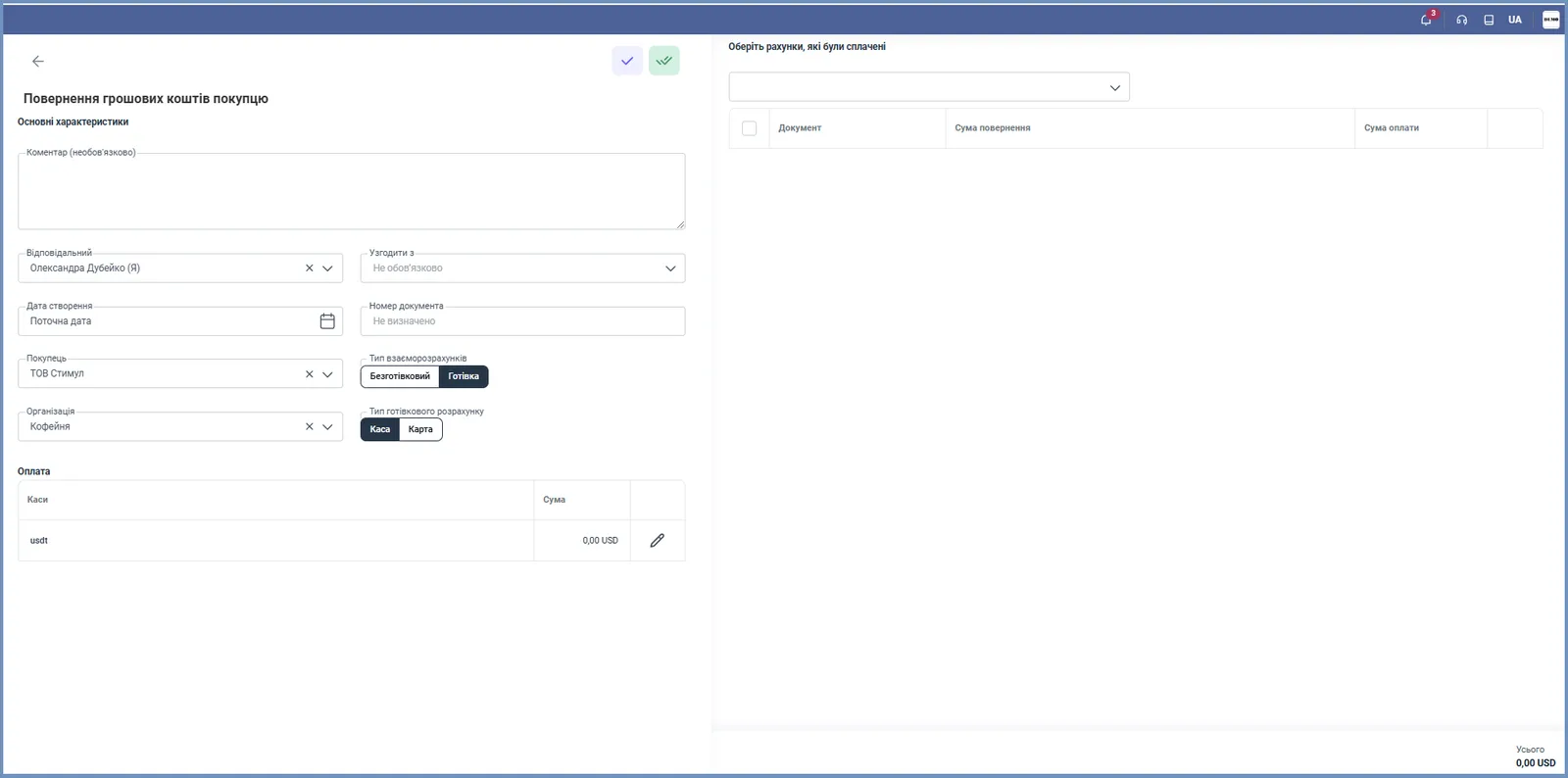
- “Document number”: enter it manually or leave it empty, and the system assigns the next number.
- “Creation date”: the current date; you can change it.
- “Customer”: pulled from the order or from the counterparty card.
- “Organization”: the company that refunds the money.
- “Settlement type”: choose Non-cash or Cash. For cash, in the “Cash settlement type” field choose Cash desk or Card and specify the particular cash desk in the “Payment” table.
- In the block “Select the invoices that were paid”, choose the paid documents and, in the “Refund amount” column, enter the amount you are refunding.
- “Responsible”: the employee responsible for the refund.
- If needed, fill in “Comment” and the “Agree with” field.
The refund amount must match the amount of the paid invoice.
What happens after saving
Click the save button. Bimp registers the refund and automatically updates settlements with the customer. The document goes into the section’s operations archive, where you can view it for reporting.
Common problems
The “Customer” and “Organization” fields are inactive. The document was created from the “Sales” section, so the data was taken from the return. To specify them manually, create the document in Finance → Settlements with counterparties.
FAQ
How do I refund a customer who returned goods?
First issue a Customer return, then create a Customer refund based on it (the icon in the "Returns" journal) and specify the amount and the payout method.
Why can I not change the customer and organization in a refund?
If the document was created from the "Sales" section, these fields are pulled from the return and locked. To fill them in manually, create the document in "Finance → Settlements with counterparties".
Can I refund the money in cash?
Yes. In the "Settlement type" field, choose "Cash" and specify whether you pay from a cash desk or from a card.
More about this in Bimp: Sales in Bimp