
Opening balances: inventory, how to load your warehouse into Bimp
On this page
The "Inventory" tab of the "Opening balances" document records the quantity and cost price of goods, raw materials and products in warehouses on the start date. For each line specify the product, warehouse, quantity and price (cost price), and if needed a batch and serial number. The amount is calculated automatically.
What the “Inventory” tab is for
The “Inventory” tab of the “Opening balances” document enters into Bimp the goods, raw materials and finished products that physically sit in warehouses. It sets both the quantity and the cost price, and the profit and margin of every sale depend on the cost price.
Example. The “Eco-Office” warehouse holds 500 packs of paper: some were bought a month ago at 120 UAH, some yesterday at 140 UAH. On the “Inventory” tab you enter two lines with different batches and prices. Then, on a sale, Bimp writes off the cost price using the FIFO method, and the owner sees the real earnings.
Before you start
- Create the Opening balances document: Opening balances.
- Add to the “Products and services” directory all the items you will enter: Products and services.
- Add warehouses: Warehouses.
- Run a stock count and prepare the quantity and cost price for the balance date.
How to fill in the “Inventory” tab
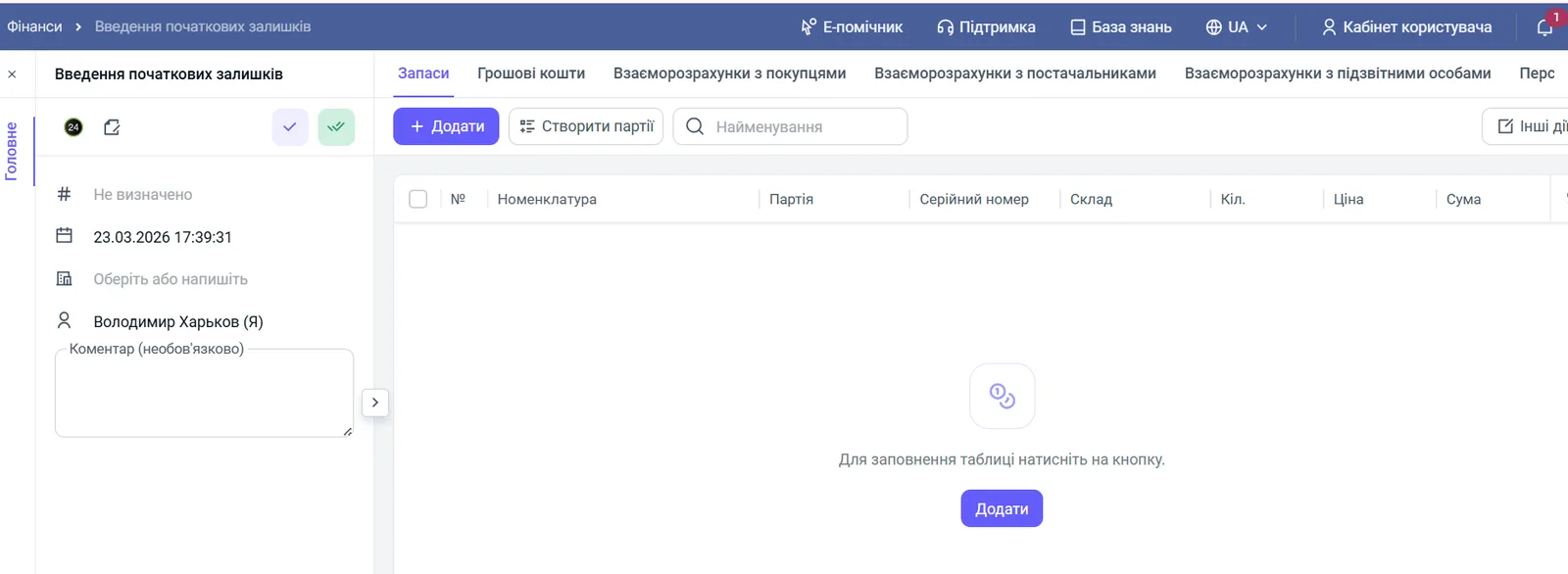
Open the Opening balances document, go to the “Inventory” tab, click Add and fill in the columns for each line.
- “Product”: choose the goods or raw material. If the item does not exist, create it in Warehouse → Products and services.
- “Batch”: specify the receipt batch if you keep batch accounting. Otherwise skip it.
- “Serial number”: fill it in for goods with unique identification (equipment, electronics). For non-serial goods leave it empty.
- “Warehouse”: choose the warehouse where the goods physically are.
- “Qty”: the quantity from the stock count on the balance date.
- “Price”: the cost price of one unit.
- “Amount”: calculated automatically, quantity multiplied by price.
- Save the document.
How to load balances from Excel
For large product ranges it is more convenient to load balances from a file. In Warehouse → Data import turn on the “Stock and cost price” switch, specify the warehouse and posting date, and map the columns. The import creates an Opening balances document, and new balances are added to the existing ones rather than replacing them. Details are in the article Importing products and stock from Excel and in the import overview.
How to check the result
Open the Stock movement report and compare the quantity and amount with the stock count list. A negative balance where there should not be one means a missed or duplicated line on the “Inventory” tab.
FAQ
What should I enter in the Price field: cost price or selling price?
The cost price of a unit: the price at which you bought or produced the item, including delivery if your accounting policy includes it. If you enter the selling price, Bimp cannot calculate the margin.
How do I load thousands of products at once?
Use the Excel import in "Warehouse → Data import" with the "Stock and cost price" switch on: one file can contain up to 9000 items.
When should I fill in the Batch field?
Only if you keep batch accounting, for example by expiry dates or receipt date. Without batch accounting, leave the field empty.