
"Data is filled in incorrectly" error after changing a discount
The error "Data is filled in incorrectly" after you change a discount in a customer order means the logic that fills the financial fields has been broken. Open the "Products, services (accounting)" tab, check the price column, enter the price manually if it was not filled in, and save the document.
The order does not save: “Data is filled in incorrectly” appears
After you change the discount amount, the customer order does not save, and a red message “Data is filled in incorrectly” appears in the left panel.
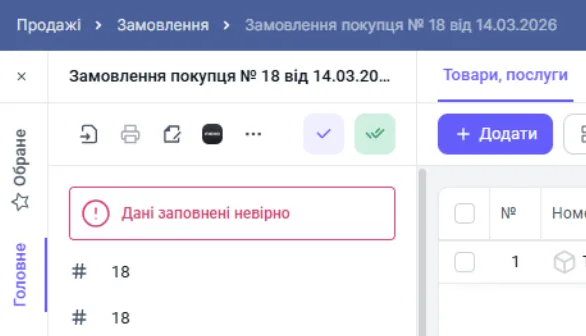
Cause. The logic that fills the required fields in the financial part of the document has been broken. Most often the line price was not pulled in on the accounting tab.
How to fix it.
-
Open the “Products, services (accounting)” tab in the same order.
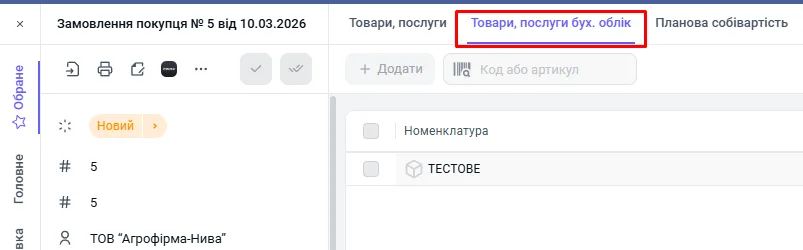
-
Check the price column. If the price was not pulled in automatically, enter the current price manually.
-
Save the document.
For the general logic of creating the document, see Customer order.
FAQ
Why does the order not save after I change a discount?
Editing a discount breaks the logic that fills the financial fields. Most often the line price was not pulled in on the "Products, services (accounting)" tab.
Where do I fix the price if the "Data is filled in incorrectly" error appears?
On the "Products, services (accounting)" tab of the customer order: check the price column, enter the current price manually if needed, then save the document.
More about this in Bimp: Sales in Bimp