
Proforma invoice and packing list for export
On this page
Bimp generates a proforma invoice and a packing list from a Customer order. Fill in the organization's international details, English names, weight and UKTZED codes of the goods and the foreign customer's details once; then save the order, click the printer icon and choose the form you need.
What you need for a proforma and a packing list
A proforma invoice is a preliminary invoice for a foreign customer; a packing list is a list of packages with net and gross weight for customs and the carrier. Bimp generates both documents from a Customer order. The data is pulled from the organization, product and counterparty cards, so you fill in these directories once.
Example. The company “WoodCraft UA” exports wooden decor to Germany. After filling in the cards once, the manager creates an order and prints the set of documents with one click instead of a manual Excel file.
How to set up the directories
Your company’s details
The seller’s details are taken from the organization card.
- Open Directories → Organizations and the card of your company.
- Go to the “International details” tab.
- Fill in, in English: “Legal Name”, “Legal Address”, “Director’s Full Name” (the director’s full name in Latin letters), “Bank Accounts” (SWIFT, IBAN, bank name).
Product cards
For each product for export, fill in:
- The “Main” tab: “Country of origin” (for example, Ukraine).
- The “Dimensions” tab: “Net weight, kg” (the product without packaging) and “Gross weight, kg” (with packaging).
- The “Print” tab: “International product name” (in English, as in the invoice) and the “UKTZED” code.
For the general rules for creating cards, see Products and services.
The foreign customer’s card
Open Directories → Counterparties and the customer’s card. Fill in the international details (name, address, bank details) in English: see Counterparty card.
How to fill in an order for export
Create a Customer order, choose the foreign counterparty and additionally fill in:
- Delivery. “Consignee” (if different from the customer), “Delivery address”, “Delivery terms” per Incoterms, “Place of unloading” (port, city or country).
- Payment. “Payment terms” as free text, for example “100% prepayment” or “50% before shipment, 50% after”.
- Goods table. The “Net weight” and “Gross weight” columns are calculated automatically (unit weight × quantity), and you can change them manually.
Changing the weight manually in the order does not change the weight in the product card, which is convenient when the shipment goes with extra packaging.
How to print a proforma invoice and a packing list
- Save the Customer order. If you do not save it, the form will show old data.
- Click the printer icon on the top toolbar.
- Choose a form: Proforma invoice, Proforma invoice (extended) or Packing list.
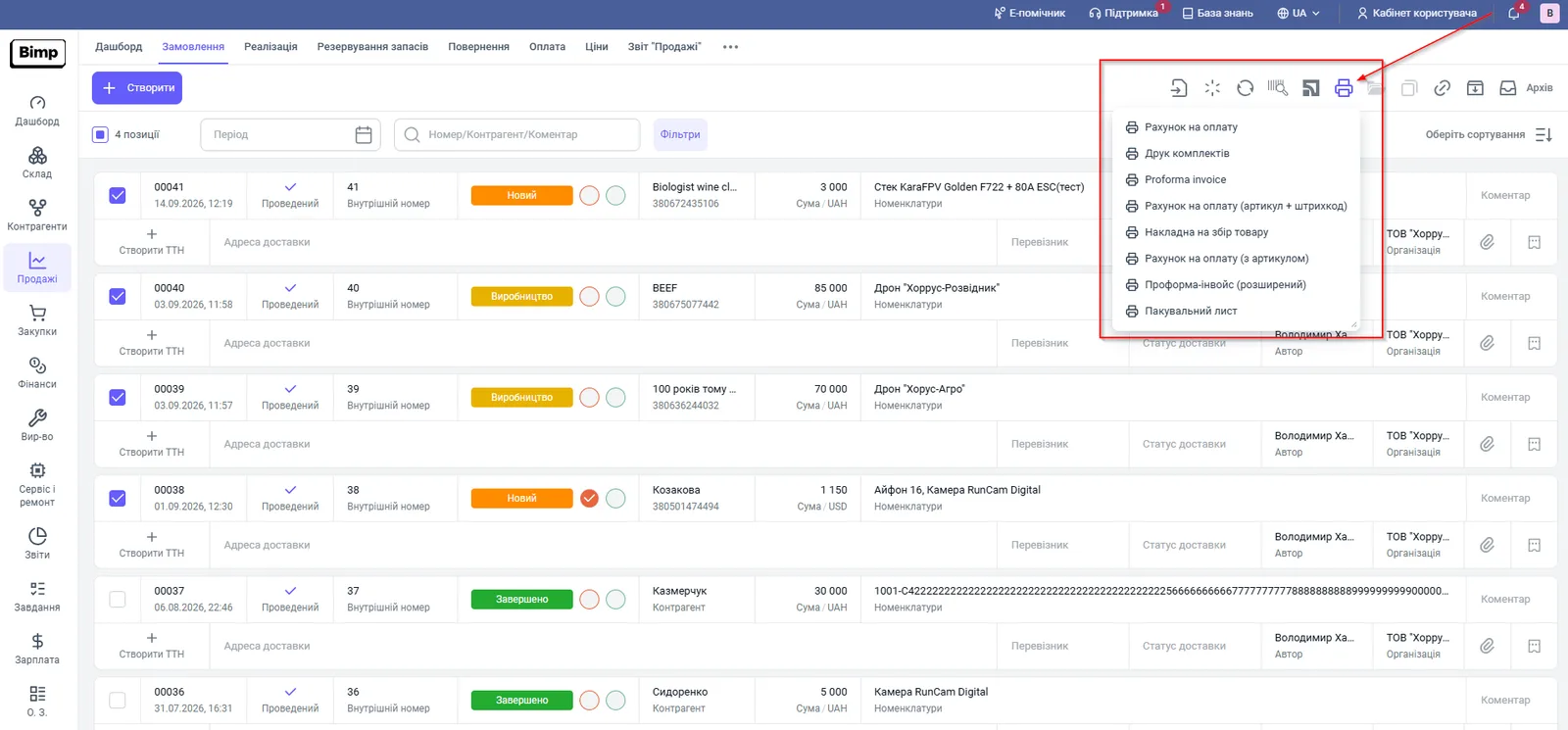
Bimp creates a PDF ready to send to the customer or the broker. The same forms can be printed for several orders at once: see Bulk printing documents. The remaining forms are described in the article Printing an invoice and a delivery note, and exporting to Excel.
FAQ
Which export documents can I print from an order?
The print menu of a Customer order has "Proforma invoice", "Proforma invoice (extended)" and "Packing list".
Why does the proforma show old data after I changed the order?
Printing uses the data from the last save. Save the order before printing.
Will a manual weight adjustment in the order change the weight in the product card?
No. The weight in the order is edited separately from the product card, which is convenient if the shipment has extra packaging (pallets, crating).
More about this in Bimp: Sales in Bimp