
Sales plan: how to create and fill it in
A "Sales plan" in Bimp is a budgeting document in which you set target sales amounts for a period by product subgroups, products, managers, or counterparties. To create one, open "Finance → Budgeting", click "Create", choose the plan type and frequency, set the period, and enter the planned amounts.
What a sales plan is
A sales plan is a document in which a company sets goals for selling goods or services for a period: planned amounts by product subgroups, products, managers, or counterparties. Actual sales created through customer orders and shipments can be compared with these goals.
How to create a sales plan
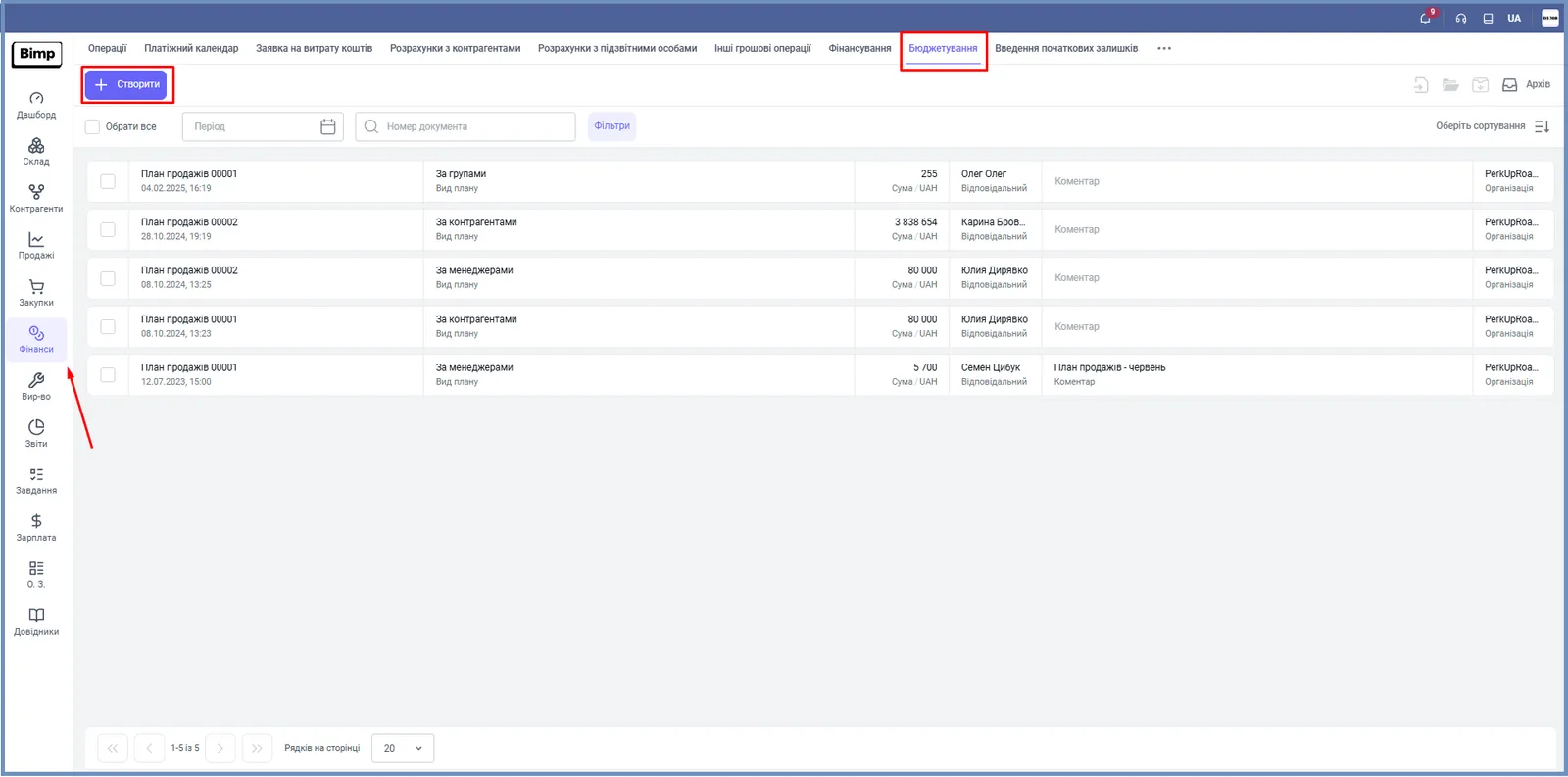
A sales plan is created in the “Finance” module on the “Budgeting” tab.
-
Open Finance → Budgeting and click Create.
-
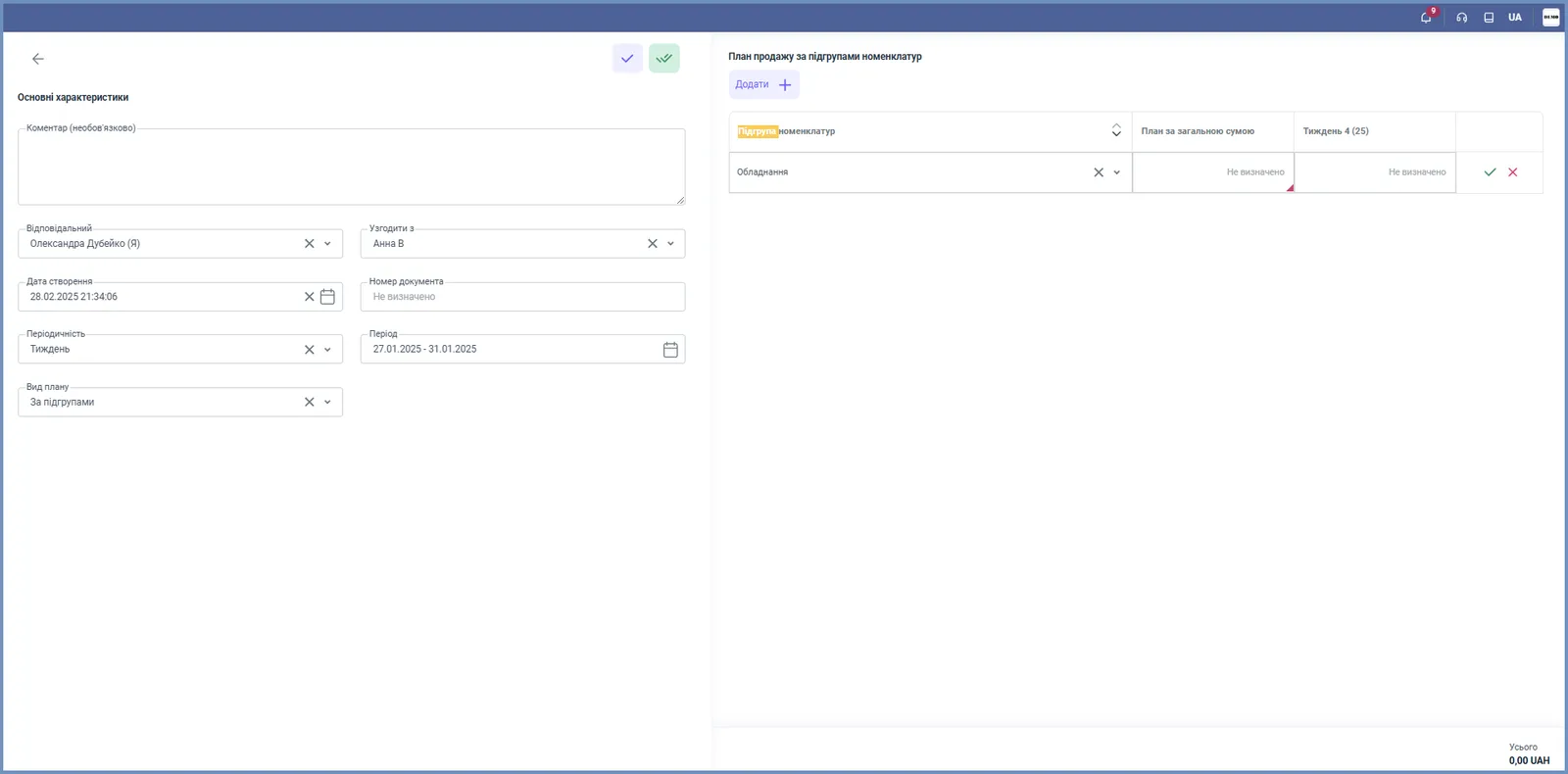
In the “Plan type” field, choose what you plan by: subgroups, products, managers, or counterparties.
-
In the “Frequency” field, choose day, week, month, quarter, or year.
-
In the “Period” field, set the time interval of the plan.
- If needed, change the “Creation date” (the current date by default), choose the “Responsible” person and, if approval is needed, “Approve with”. The “Comment” field is optional.
- On the right side of the form, click Add and choose a plan row: a product subgroup, a manager, and so on. Enter “Total plan amount”; the other columns are distributed by the chosen frequency, for example by weeks.
- Save the document with the check mark button at the top of the form.
Example
A manager plans sales for the week of 27.01-31.01.2025 by product subgroups. They choose the plan type “By subgroups” and the frequency “Week”, set the period, add the row “Equipment”, and enter the planned amount. At the bottom of the form, “Total” is calculated across all rows.
Expected receipts from customers are visible in the payment calendar; for an overview of the whole sales chain, see Sales from order to payment.
FAQ
Where do I create a sales plan in Bimp?
In the "Finance" module, on the "Budgeting" tab, click "Create".
Why can I not choose a period in the sales plan?
Until the plan type is chosen, the period cannot be selected. First choose the plan type, then the frequency and the period.
What can I plan sales by?
The plan type can be by product subgroups, by products, by managers, or by counterparties.
More about this in Bimp: Sales in Bimp