
Extended item descriptions in sales documents
On this page
The "Product content, additional details" column lets you add an extended item description to a Customer order row (a contract number, a tariff period, a service volume) without creating new products in the reference list. The base text comes from the "Print name" field of the product card, and when you create a sale based on the order, it is carried over together with manual edits.
What the “Product content, additional details” column is for
The “Product content, additional details” column is a text field in a row of a Customer order or a sale where you enter a breakdown of the item: a contract number, a tariff validity period, the number of users, a list of works. You need it when the item name from the reference list is not enough, and creating a separate product for each deal makes no sense.
Benefits:
- the products and services reference list is not cluttered with one-off items;
- the clarification is added right in the document and addressed to a specific customer;
- the text automatically passes from the Customer order to the Sales of goods and services document.
Example 1. In the card of the service “Consulting”, the “Print name” field contains “Consulting services under the Contract”. After the service is added to the order, this text is filled in the column, and the manager adds “No. 14/05 of 12.05.2026”.
Example 2. An IT company sells a subscription. The manager adds the item “Service subscription” and enters in the column “Package “Start”, access for 12 months for 5 users”. The accountant creates a sale based on the order, and this text is already in its rows.
How to prepare the base text in the product card
The base text of the column is taken from the “Print name” field of the product or service card.
- Open Warehouse → Products and services and open the card of the product or service you need.
- In the “Print name” field, enter an extended description: a technical specification or a reference to a contract.
- If the item has modifications, open the modification you need and fill in its own “Print name” field.
- Save the card.
For an item with a modification, the text in the document consists of two parts: the product’s “Print name” plus the modification’s “Print name”.
How to turn on the column in a document
The column may be hidden by default; you turn it on separately for each document type through the table settings.
-
Open Sales and the document you need: a Customer order or a Sales of goods and services document.
-
Go to the “Goods, services” tab.
-
On the right of the table header, click the settings icon (the gear).
-
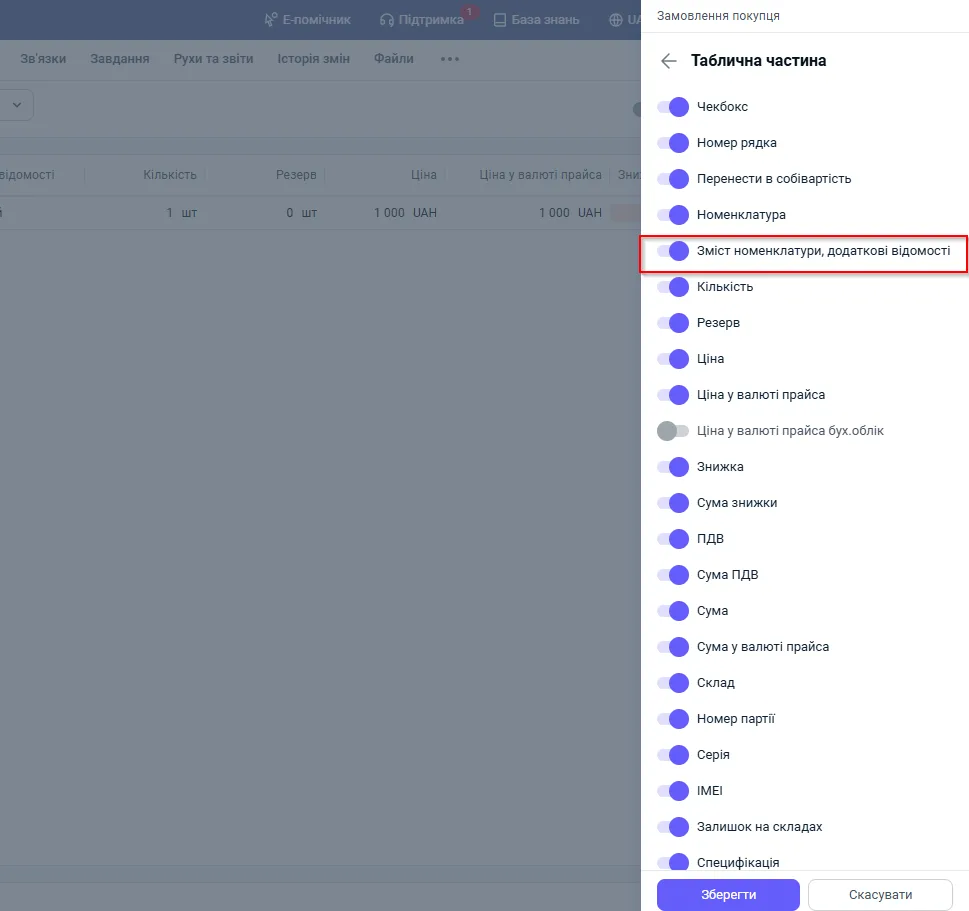
In the “Table part” panel, turn on the “Product content, additional details” switch.
-
Click Save.
How to add and edit a description in a row
After you choose an item, the column is filled in with text from the reference list, and the manager can change it right in the cell.
- On the “Goods, services” tab, add a row with the item you need.
- The text from the product card appears in the “Product content, additional details” column.
- Click in the cell and add details: a contract, deadlines, a specification.
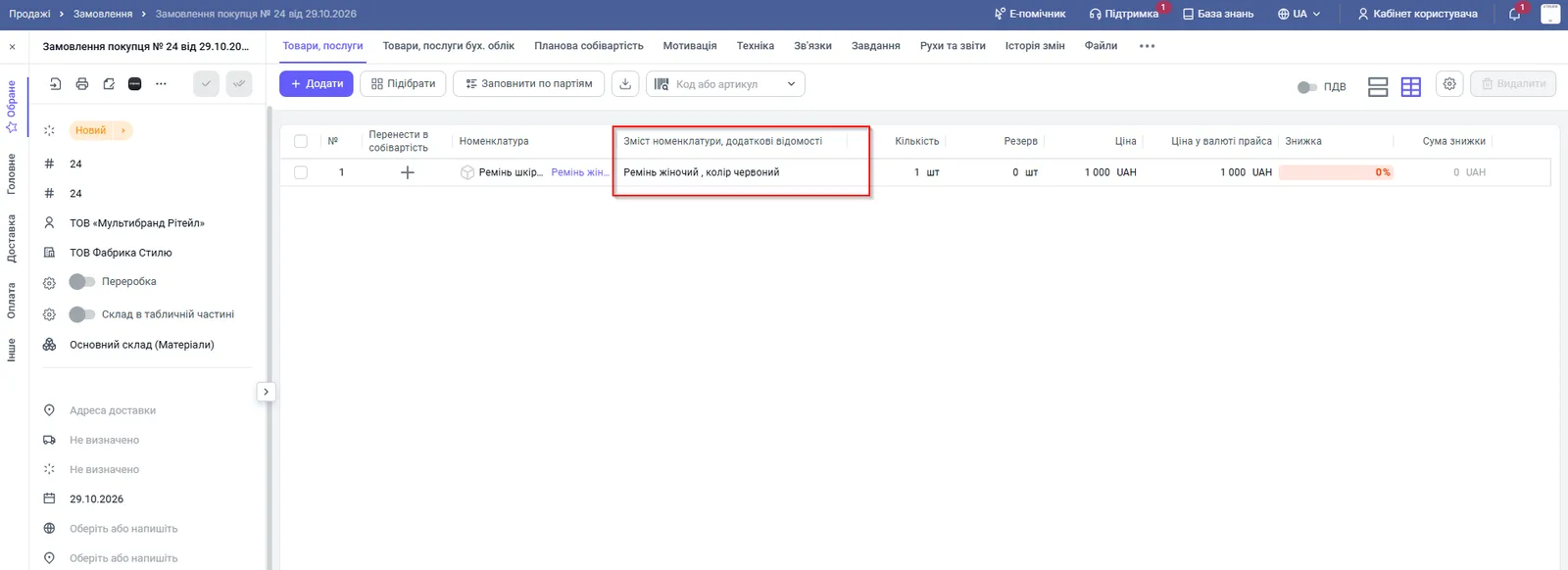
A change of text in a row applies only to this document: in the product and modification cards it stays unchanged.
How the text is carried over from an order to a sale
The column text passes into the sale if you create it based on a Customer order.
- In the Customer order, click Create based on and choose Sales of goods and services.
- On the “Goods, services” tab of the new document, check the column: all the values, together with manual edits, are already in it.
For more on the mechanism, see the article Creating a document based on another.
Whether the column is shown in print forms
According to the documentation, showing the “Product content, additional details” column in print forms is not provided. If you need the description to get into an invoice or a certificate, contact technical support. For the standard forms, see the article Printing an invoice and a delivery note, and exporting to Excel.
FAQ
Does the text from the "Product content, additional details" column get into the printed invoice?
According to the documentation, no: showing the column in print forms is not provided. If you need the text in a print form, contact Bimp technical support.
Will the product card change if I edit the text in an order row?
No. Manual editing applies only to the current document; the text in the product card and the modification does not change.
Where does the text in the column come from when I add an item?
From the "Print name" field of the product card. If a modification is chosen, the modification's "Print name" is added to it.
Why is the column in the sale filled in with different text than in the order?
A sale created separately, not based on the order, takes the text only from the "Print name" of the product card. Edits from the order are carried over only when you create the sale based on it.
More about this in Bimp: Sales in Bimp