
Selling goods that are out of stock: invoice and booking
On this page
Goods that are out of stock can be sold in two ways. The simple way: issue a customer order with reserve 0, accept payment, and ship the goods after they arrive. The automatic way: turn on "Goods booking" and create a supplier order based on the customer order, and the goods are reserved for the customer the moment they arrive.
When you need this scenario
You need this scenario when a customer is ready to buy goods that are not in the warehouse now: they are in transit, or it is a pre-order. There are two ways, depending on whether you need automation.
| Method | When to choose it | What happens on receipt |
|---|---|---|
| Invoice without reservation | rare pre-orders, no need to link purchasing to the customer | nothing automatically; you create the sale manually |
| Booking | made-to-order trade, purchasing “for the customer” | the goods are reserved for the customer order by themselves |
Why you cannot just create an order with a reservation. By default Bimp tries to reserve all the goods you add. If the balance is 0, a conflict arises: a “virtual minus” appears in reports or the order is not posted, and a purchaser may think the goods are available because they are “reserved”. For more on the causes, see Goods are not reserved.
How to issue an invoice without a reservation
To issue an invoice for goods you do not have, create a customer order with a zero reserve. The order records the customer’s debt (money) and your debt (goods) but does not touch stock balances.
Example. A company expects a batch of helmets, and there are 0 pcs in the warehouse. A customer asks for a prepayment invoice. The manager creates an order with reserve 0, the customer pays, and after the helmets arrive the manager records the shipment.
- If you often work with pre-orders, turn off auto-reservation for the whole company: Company settings → Accounting settings, the switch “Goods reservation (Customer order)” set to off. Now the “Reserve” column in new orders will be 0.
- Open Sales → Orders and create a customer order. Choose the “Customer” and the “Contract”.
- On the “Products, services” tab, add the product and enter “Quantity”. If auto-reservation is on, Bimp duplicates the quantity into the “Reserve” column: change it to 0.
- Save the order.
After saving, you can print an invoice from the order (Printing an invoice) and create a “Customer payment” (Customer payment).
What to do when the goods arrive
- Post the goods with a receipt document.
- Open the old order and create a Sales of goods and services document based on it; see Shipment.
- The goods are written off the warehouse according to what is actually available.
If you first need to hold the goods without selling them right away, reserve them with a Stock reservation document based on the order; see Reserving goods.
How to set up booking
Booking links a customer order to purchasing: the goods are reserved for the customer automatically as soon as they arrive in the warehouse. This is convenient if you work to order and buy only what is already sold.
Example. A customer ordered an exclusive coffee machine that the company does not keep in stock. The manager creates a customer order and, based on it, a supplier order. When the coffee machine arrives in the warehouse, Bimp assigns it to this customer itself, and another manager cannot sell it.
Step 1. Turn on booking
- Open Company settings → Accounting settings.
- Turn on the switch “Goods booking (Customer order)”.
- Click Save changes in the top right corner.
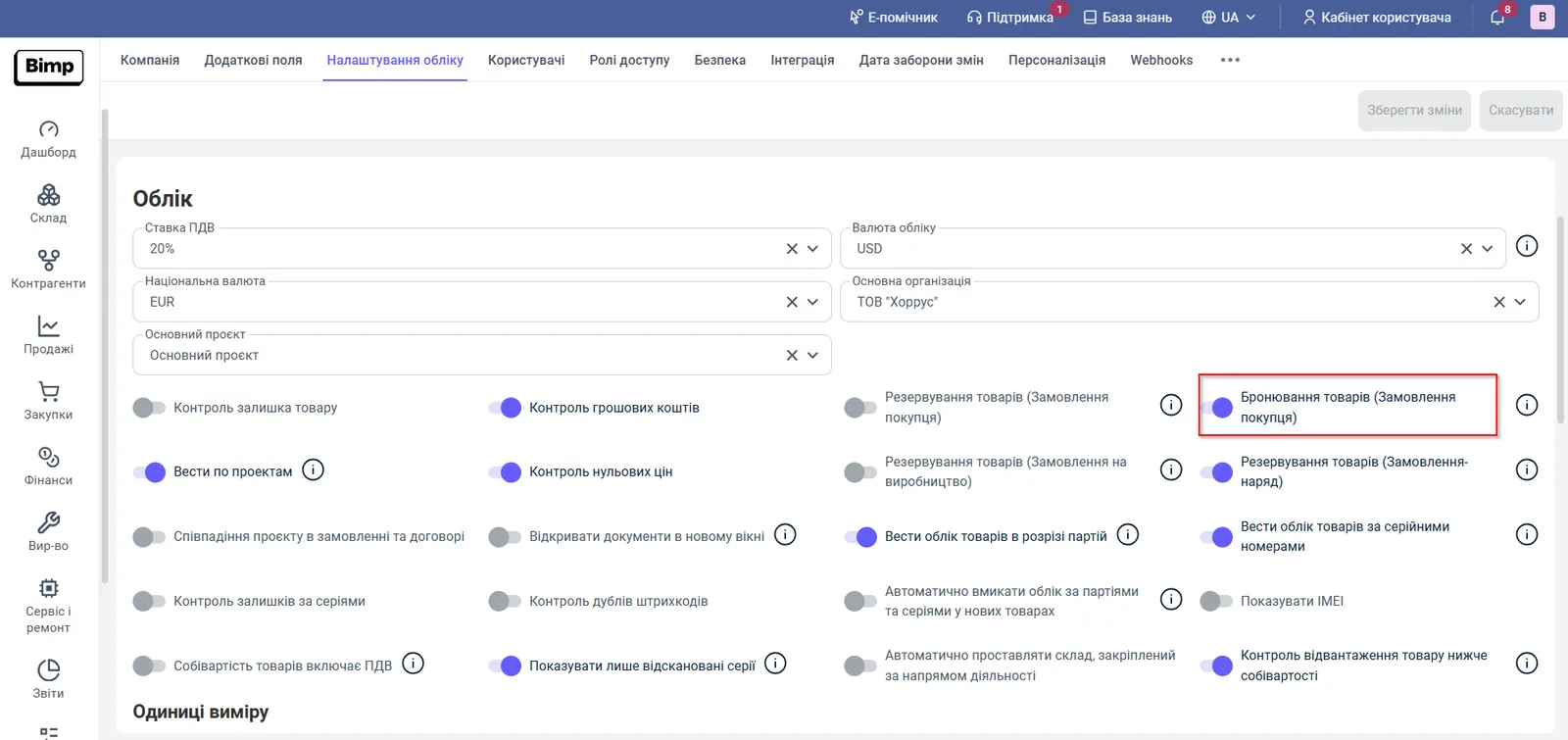
Without this switch, Bimp does not link purchasing documents with customer orders, and there will be no automatic reservation.
Step 2. Accept the customer order
- In Sales, create a customer order: the customer, the warehouse, and goods that are currently not available (available balance 0).
- Post the document. The order records the need for the goods.
Step 3. Create a supplier order based on it
- In the customer order, use creating a document based on another (Creating a document based on another) and choose “Supplier order”.
- The items, quantities, and the link to the customer order are transferred automatically.
- Send the order to the supplier and wait for delivery. For the document, see Supplier order.
Step 4. Record the receipt based on the supplier order
- When the goods arrive, create a Goods receipt document based on the supplier order (Goods receipt).
- Post it. Bimp recognizes the link to the customer order and immediately reserves the goods for this order.
- For shipment, create a Sales of goods and services document based on the customer order.
The sequence of documents: customer order, supplier order (based on), receipt (based on), sale.
FAQ
How do I issue an invoice for goods that are not in stock?
Create a customer order and set the value 0 in the "Reserve" column (or turn off auto-reservation in the accounting settings). The order does not reserve goods, but you can print an invoice from it and create a Customer payment.
How does booking differ from reservation?
Reservation assigns goods that are already in stock. Booking works in advance: the customer order is linked to a supplier order, and the goods are reserved for the customer automatically as soon as they are posted.
Why were the goods not reserved for the customer after they arrived?
Probably the receipt was created as a separate document, not based on the supplier order linked to the customer order. The goods then go into the free balance, and you must reserve them manually.
What should I do when the goods have arrived but the order had no reservation?
Open that order and create a Sales of goods and services document based on it. The goods are written off the warehouse according to what is actually available.
More about this in Bimp: Sales in Bimp