
Customer settlements and overdue debt: two reports
On this page
- What the reports are for
- How to generate the Customer settlements report
- Customer settlements report figures
- Customer settlements report filters and grouping
- Example: settlements with a customer
- How to set up and generate the Overdue customer debt report
- Overdue customer debt report figures
- Example: overdue debt in the report
- Why the figures do not match
- FAQ
"Customer settlements" shows how much was shipped, how much was paid, and what debt remains for each customer and contract. "Overdue customer debt" breaks the debt down by days of delay. The reports are opened in the "Reports" section; for overdue debt, the contract must have "Deferral days" specified.
What the reports are for
The two reports distinguish how much customers owe in total and how much of that is already overdue. The first, “Customer settlements”, is the history of shipments and payments by customers, contracts, and documents. The second, “Overdue customer debt”, classifies the debt by the length of the delay, so you can see who needs a reminder and who should be stopped from receiving shipments.
Both reports are built on accounts receivable; for how it is tracked, see Receivables and payables. For a company that is both a customer and a supplier, there is a consolidated report by counterparties. General report mechanics are described in the article Reports in Bimp.
How to generate the Customer settlements report
To get the report, set the period and generate it.
- Open Reports → Customer settlements.
- Open the left Filters panel and set “Period”, for example from the beginning of the year to today.
- If needed, select “Customer”, “Contract”, “Currency”, or other filters.
- Set “Group by” and “Detail by”.
- Click Generate report.
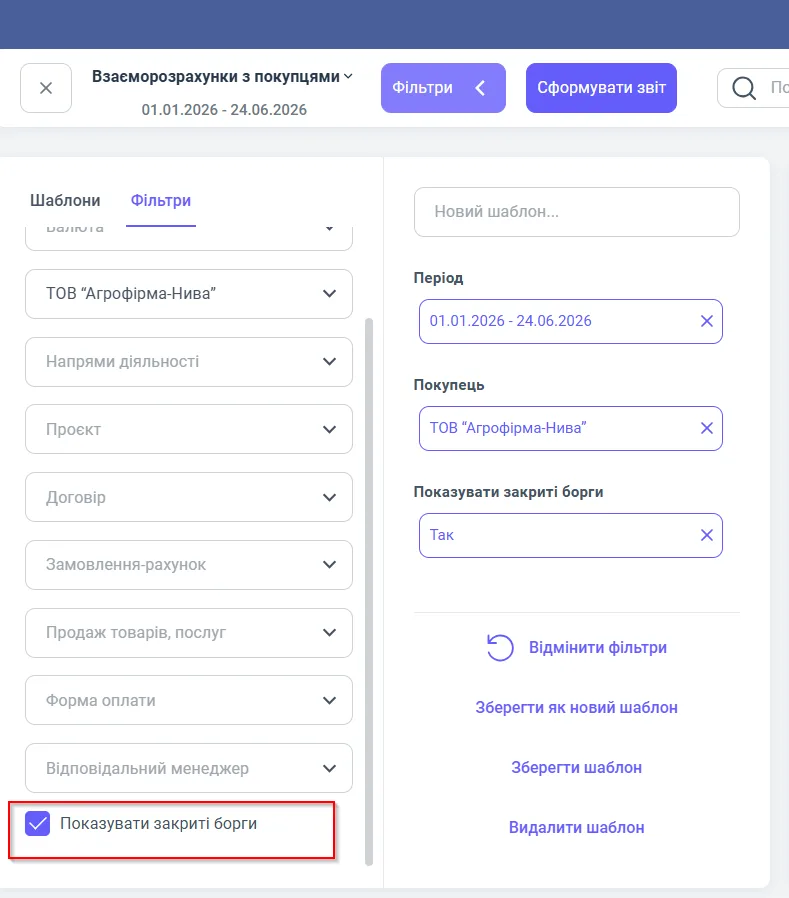
By default, the report shows only current, that is, unclosed debts. To see movements for all documents, turn on the “Show closed debts” checkbox at the bottom of the “Filters” section.
Customer settlements report figures
The table is hierarchical: customer, contract, documents.
| Column | What it means |
|---|---|
| “Customers / Contracts / Documents” | The customer, their contracts, and the underlying documents |
| “Opening balance” | The debt at the start of the period |
| “Shipped” | The value of goods and services delivered to the customer during the period |
| “Paid” | The amount the customer actually transferred; refunds to the customer are shown with a minus |
| “Closing balance” | The settlement total: positive is the customer’s debt, negative is your debt to the customer |
The “Total” row sums the receivables and payables for the selected customers.
Customer settlements report filters and grouping
Filters limit the selection, and grouping changes the levels of the table.
| Element | Value |
|---|---|
| “Period” | The dates for which shipments and payments are shown |
| “Customer”, “Contract”, “Currency” | One customer, one agreement, one currency for an audit |
| Additional analytics | “Lines of business”, “Project”, “Invoice order”, “Sales of goods and services”, “Payment form”, “Responsible manager” |
| “Group by” | “Customers”, “Parent counterparty”, “Currencies”, “Responsible managers”, “Payment form” |
| “Detail by” | “Contracts”, “Documents”, “Currencies”, “Responsible managers”, “Payment form”, “Invoice orders” |
| “Show third level: Documents” | Expands to the documents “Sales of goods and services”, “Customer payment”, “Customer refund” with dates and amounts |
| “Management accounting currency” | Shows amounts in the base currency, even if the contract is in a foreign currency |
Example: settlements with a customer
The company “Agrofirma-Nyva” LLC buys both with prepayment and on deferred terms. The report for 01.01.2026 – 24.06.2026 shows:
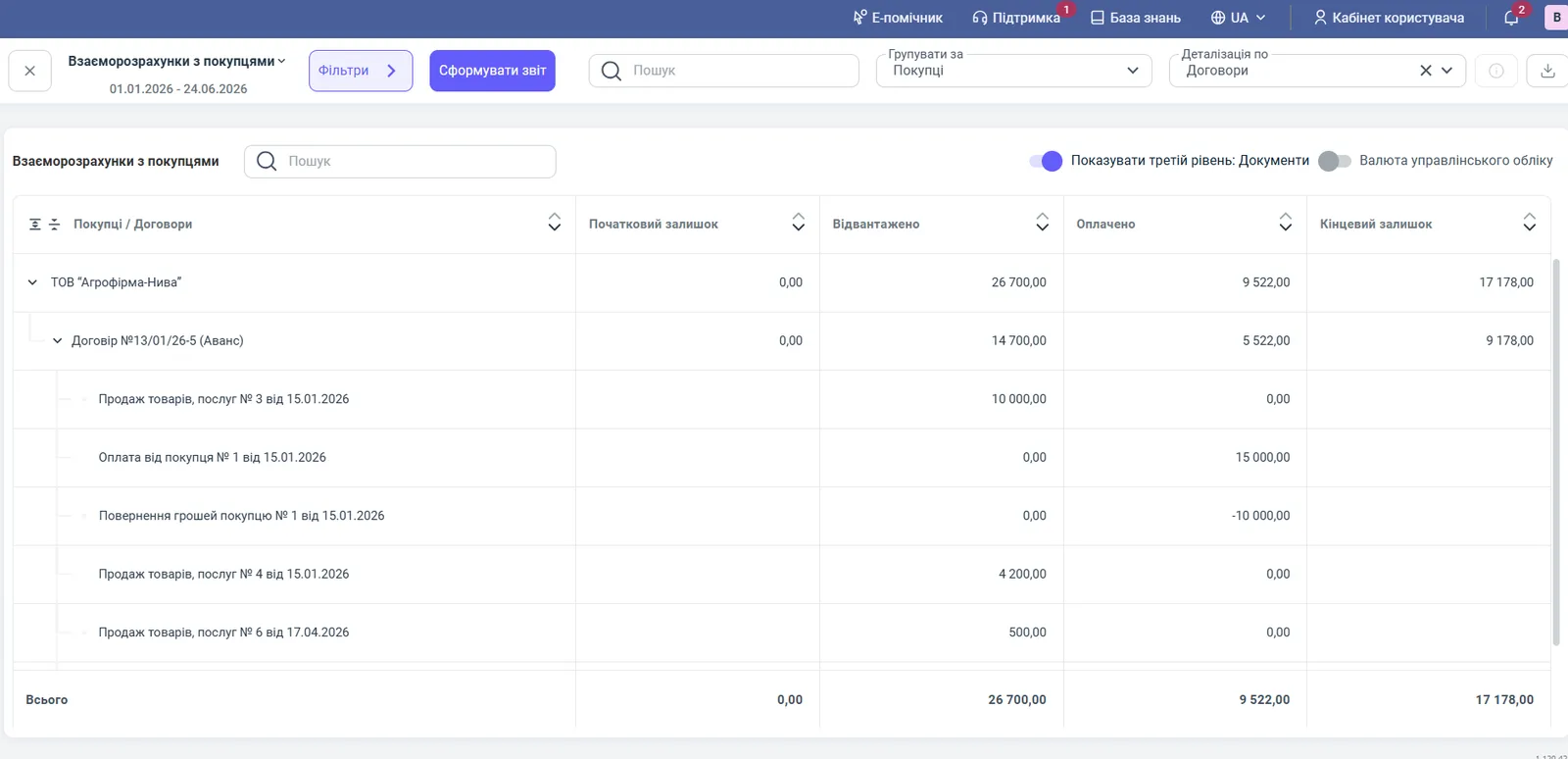
- opening balance 0.00;
- “Shipped” 26,700.00;
- “Paid” 9,522.00;
- “Closing balance” 17,178.00: the customer owes you 17,178.00, because 26,700 - 9,522 = 17,178.
Under contract No. 13/01/26-5 (Advance) you can see the chronology: sale No. 3 for 10,000, customer payment No. 1 for 15,000, customer refund No. 1 (-10,000), sales No. 4 for 4,200 and No. 6 for 500. The refund reduces the amount in the “Paid” column.
How to set up and generate the Overdue customer debt report
The report calculates overdue debt from the date of the shipment document plus the number of deferral days from the contract. So first fill in the field in the contract.
- Open Counterparties and the customer’s card.
- Go to the “Contracts” tab and open the contract.
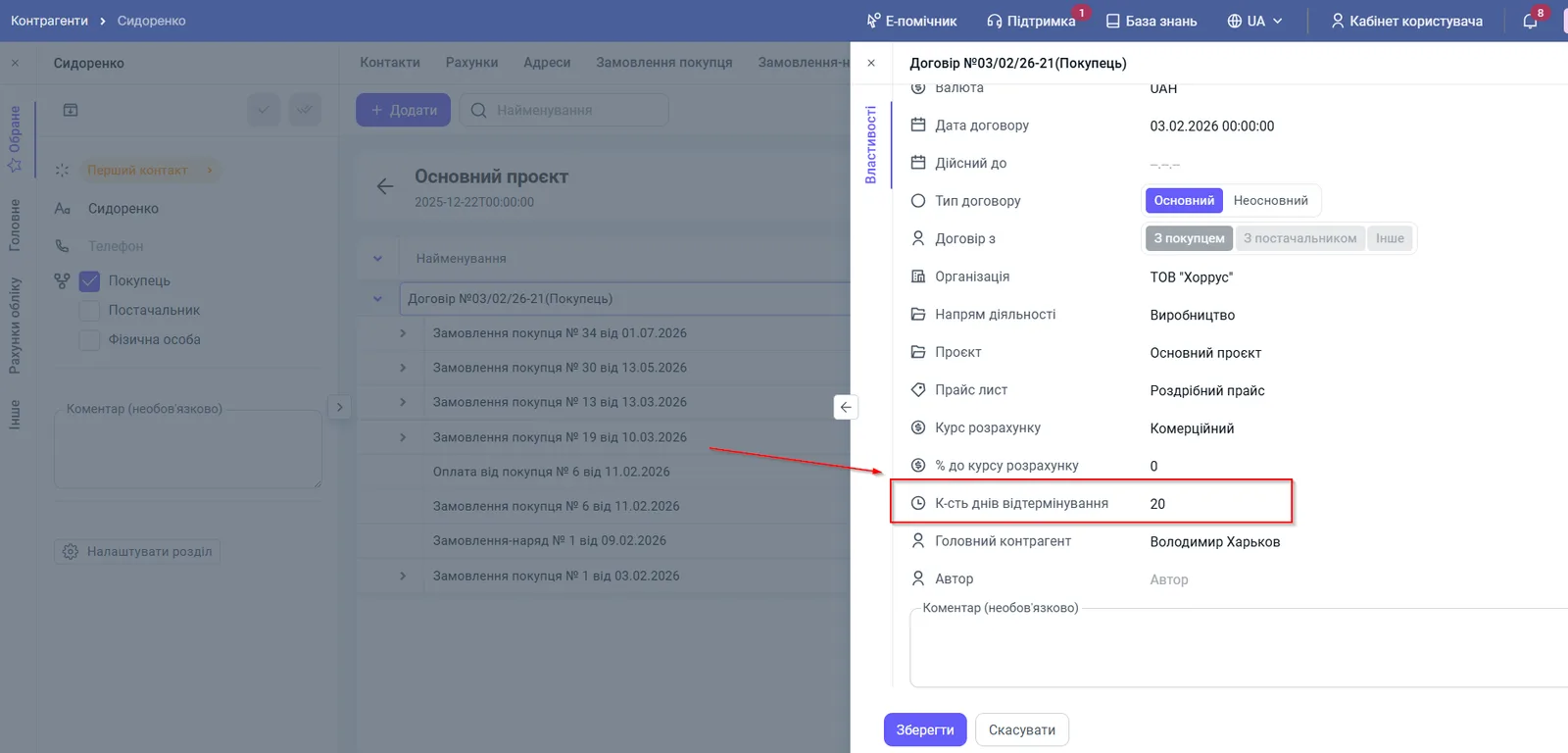
- In the contract properties panel, enter the number of days in the “Deferral days” field.
- Click Save.
By default, the “Deferral days” field is 0: the customer must pay on the day of shipment, and the next day an unpaid debt is considered overdue. More about the contract: Customer contract.
Then open Reports → Overdue customer debt, in the “Period” filter select the date for which you need the debt, and click Generate report.
Overdue customer debt report figures
The table shows the total debt, the overdue part, and the distribution by days of delay.
| Column | What it means |
|---|---|
| “Counterparties / Invoice orders” | The customer and the underlying documents (Customer order, Work order) |
| “Total debt” | Everything the customer has not yet paid under the document |
| “Overdue debt” | The amount whose payment term has passed |
| “Overdue period (days)” | The number of days of actual delay |
| “Up to 7”, “8-14”, “15-30”, “31-60”, “Over 61” | The overdue amount in each delay interval |
Report filters: “Period” (the date on which you look at the debt), “Counterparty”, “Invoice order”, “Currency”, “Lines of business”, “Projects”, “Contract”. By default, the grouping is by counterparties and the detail is by invoice orders. The “Show third level: Documents” switch shows the documents in the order, and “Management accounting currency” converts everything to the base currency.
Example: overdue debt in the report
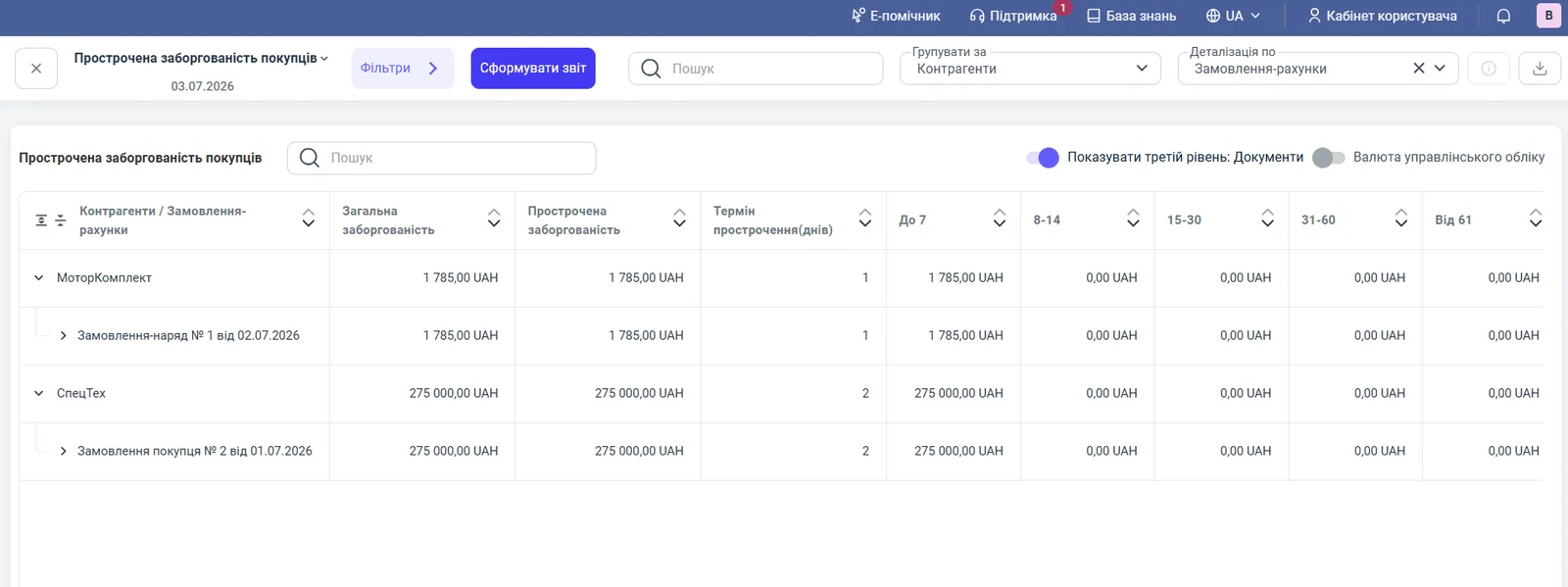
As of 03.07.2026, the report shows two debtors:
- “SpecTech”, Customer order No. 2 dated 01.07.2026: total and overdue debt 275,000.00 UAH, 2 days overdue, the amount is in the “Up to 7” interval. The manager sends a gentle reminder.
- “MotorKomplekt”, Work order No. 1 dated 02.07.2026: 1,785.00 UAH, 1 day overdue.
If an amount moves into the “31-60” or “Over 61” intervals, this is a signal of serious risk: it is worth suspending shipments to such a customer until the debt is paid.
Why the figures do not match
The customer is missing from the settlements report although they bought. The report shows only unclosed debts. Turn on “Show closed debts”.
There is no debt in the overdue report, although it is in settlements. The debt is not overdue yet: the deferral days from the contract are added to the shipment date. Check the “Deferral days” field. Also, the overdue report is built by invoice orders, so shipments without an order may not appear in it.
Everything is overdue the next day. The contract has 0 deferral days. Specify the real deferral.
The paid amount is less than the customer’s payments. In the “Paid” column, refunds to the customer are subtracted. Expand the report to documents and check “Customer refund”.
FAQ
How do I tell a customer's debt from their advance in the Customer settlements report?
Look at the sign of the closing balance. A positive value is the customer's debt to you, a negative one is your debt to the customer, for example goods not yet delivered against a prepayment.
Why is a customer who has already paid missing from the report?
By default, the report shows only current (unclosed) debts. To see all movements, turn on the "Show closed debts" checkbox at the bottom of the filters panel.
How is overdue debt calculated in Bimp?
The "Deferral days" value from the contract is added to the date of the shipment document. Everything unpaid after that date is considered overdue and is distributed by delay intervals.
What does "Deferral days" = 0 mean?
Zero means the customer must pay on the day of shipment. The next day, an unpaid debt is already considered overdue.