
Currencies, rates, and multi-currency accounting in Bimp
On this page
The "Currencies/Rates" directory stores the company's currencies and their rates: UAH, USD, and EUR exist by default. The internal rate is needed for single-currency reports and exchange differences, the commercial one for conversion in customer invoices. A rate is updated automatically (NBU, interbank) or manually on the "Exchange rates" tab. To fix a rate, choose "No updates" and set the rate for the period you need.
What currencies and rates are in Bimp
The “Currencies/Rates” directory contains the list of currencies the company works with and their rates on different dates. By default it already has cards for UAH, USD, and EUR. The national currency and the accounting currency are set in the accounting settings.
Rates are needed so that Bimp itself converts amounts from a currency into hryvnia, shows profit in a single currency (even if the purchase was in euros and the sale in dollars), and calculates exchange differences.
Which rates there are
Bimp has two rates that you can set yourself and two external sources for auto-load.
| Rate | What it is for |
|---|---|
| Internal | The basis of management reporting. The company sets it at its own discretion, usually for a year for the budget. Used to convert all multi-currency operations into a single currency and to calculate exchange differences |
| Commercial | The rate at which you plan to receive payment. Used in customer invoices to convert a foreign currency into the national one or into the document currency by cross rate |
| NBU | An external source; loaded automatically once a day, not edited manually |
| Interbank | An external source; loaded automatically every 15 minutes, not edited manually |
Only the internal and commercial rates can be changed manually. The NBU and interbank sources are chosen in the auto-load fields of the currency card.
How to add a currency
- Open Directories → Currencies/Rates and click Create.
- In the “Currency” field, choose a currency from the list.
- In the fields “Auto-load of commercial rate” and “Auto-load of internal rate”, choose the source (for example, “Interbank” and “NBU”) or “No updates”.
- The fields “Numeric code” and “Symbolic code” are filled in automatically and cannot be edited.
- In the rates table, specify “Date” (from which the rate applies), “Internal rate”, and “Commercial rate”.
- Click Create.
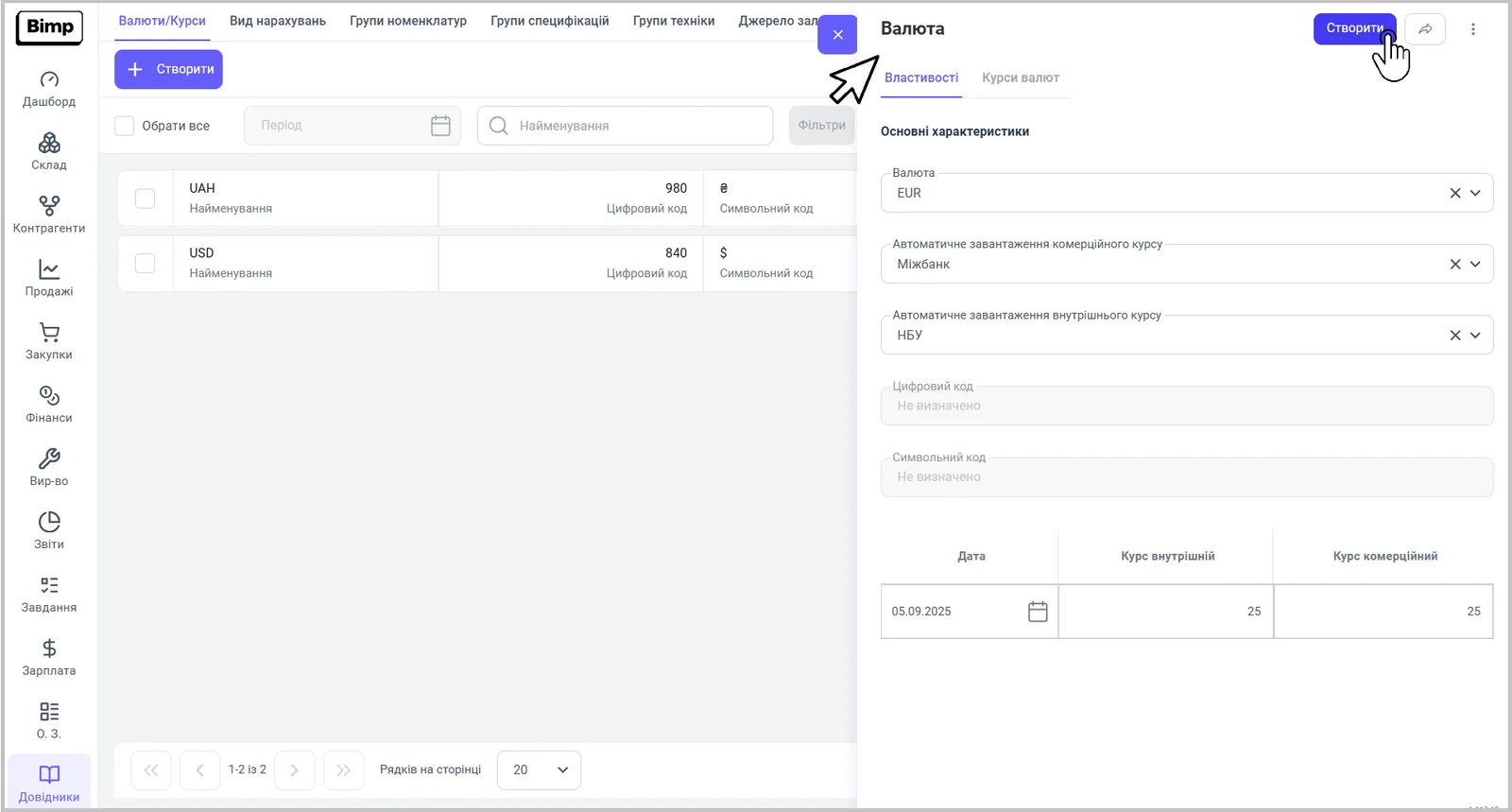
Rates can also be edited for the currencies created by default (USD, EUR).
How to update a rate manually
A rate is updated manually on the “Exchange rates” tab of the currency card.
- Open the currency card in Directories → Currencies/Rates and go to the “Exchange rates” tab.
- Click Create.
- Specify the date, the internal rate, and the commercial rate.
- Save the card.
The new rate applies to future operations. Documents already posted for past periods do not change, so as not to break the financial balance.
How to fix a rate and remove the exchange difference
An exchange difference appears in documents when the document currency differs from the accounting currency (for example, accounting in UAH and an order in USD) and the rate on the order date and on the payment date is different: Bimp shows the value from the directory that is current at that moment. To keep the rate from changing, fix it.
-
Open Directories → Currencies/Rates and choose the currency, for example USD.
-
On the “Properties” tab, in both auto-load fields (commercial and internal rate), choose “No updates”.
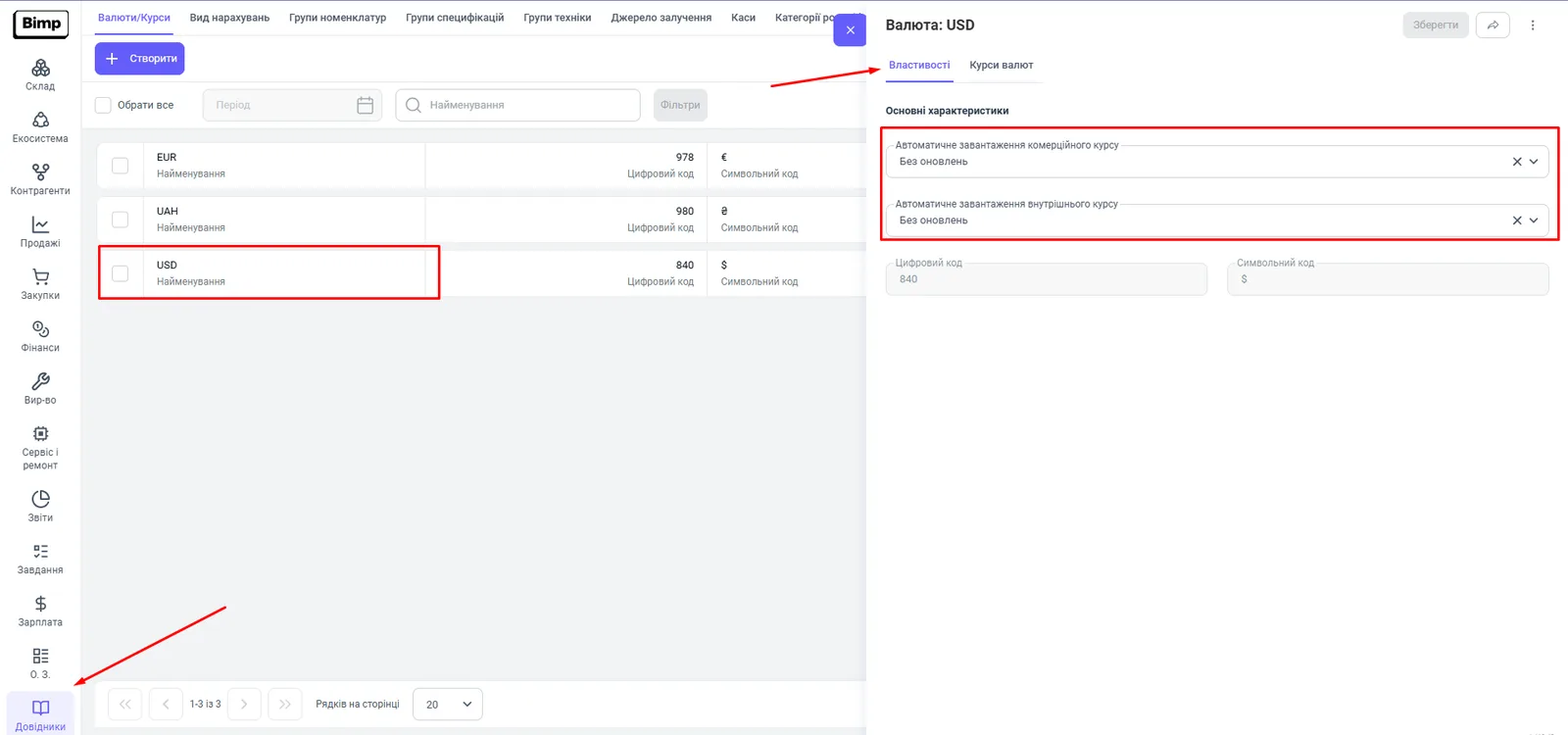
-
Go to the “Exchange rates” tab and click Create.
-
Specify “Internal rate” and “Commercial rate” relative to the accounting currency (UAH).
-
Set the date or period of validity of the rate; companies usually set it for a long term, for example a year.
-
Click Save.
If the exchange difference still appears, check the accounting currency in Company settings → Accounting settings and the rates in the directory.
Common questions
Prices in a price list in a foreign currency. In a customer order, the “Price list rate” field is needed only if the price list currency differs from the accounting currency. See Price lists and Customer order.
A separate rate is needed for a specific customer. Set it in the contract; see Individual exchange rate in a contract.
FAQ
Can I set up automatic rate updates?
Yes. In the currency card, choose the auto-load source: NBU or interbank. The interbank rate is updated every 15 minutes, the NBU rate once a day.
What happens if I do not set an internal rate?
Reports will not show correct analytics in a single currency, and Bimp will not be able to calculate exchange differences, the profit or loss from rate fluctuations.
How do I change a rate manually?
Open the currency card, go to the "Exchange rates" tab, and click "Create". Only the internal and commercial rates are changed manually; NBU and interbank rates cannot be edited.
Will the rate change in documents that are already posted?
No. New rates apply to future operations; amounts in posted documents for past periods are not recalculated automatically.
How do I remove the exchange difference in documents?
Set the auto-load for the currency to "No updates" and on the "Exchange rates" tab set fixed internal and commercial rates for the period you need (for example, for a year).