
Password recovery in Bimp
On this page
To recover your password in Bimp, click "Forgot password" on the sign-in page, enter your e-mail, follow the link in the message, and set a new password. After the password is changed, Bimp ends all previous sessions. If the message does not arrive within 10 minutes, contact support.
How to recover your password
You can recover your password yourself through the e-mail of your account. You need access to that mailbox.
-
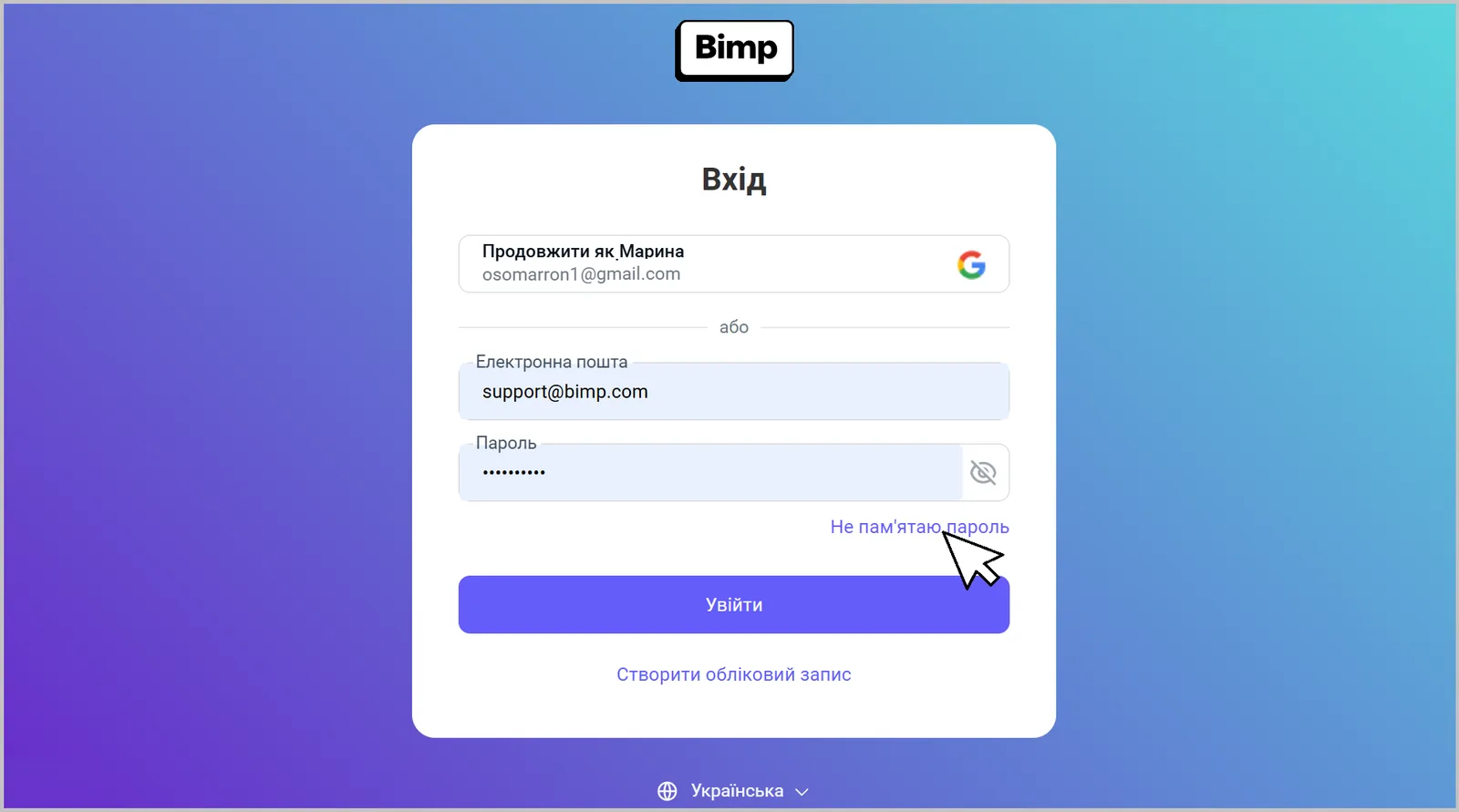
On the sign-in page app.bimpsoft.com/_/login, click Forgot password.
-
Confirm the e-mail address to which the password change link should be sent.
-
Open the message and follow the link.
-
On the “Password recovery” page, enter the new password in the fields “Password” and “Confirm password”.
-
Click Change password. After that you can return to sign-in with the Back to sign-in button.
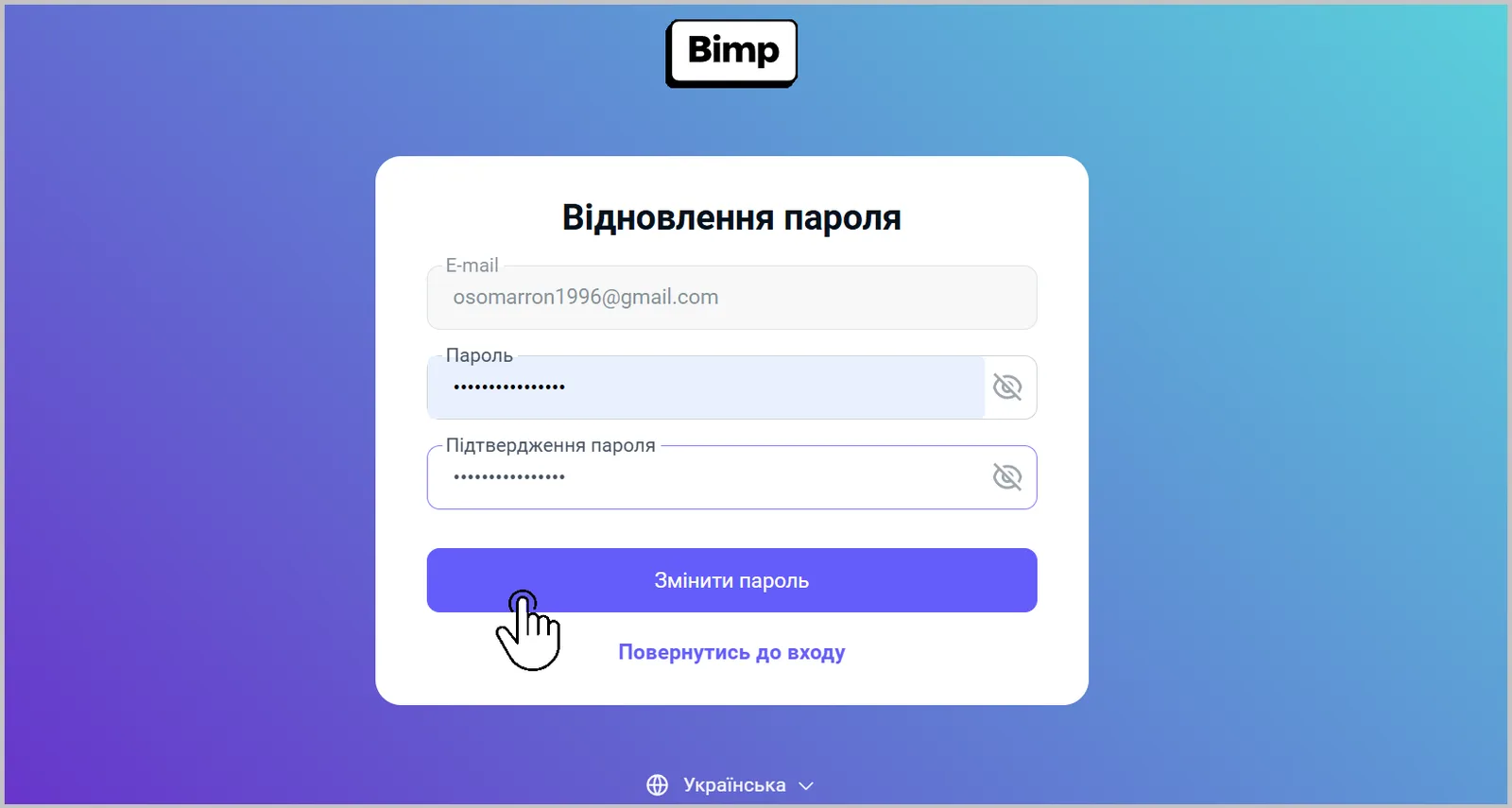
Before entering the password, check that Caps Lock is off, the right input language is selected, and the password meets the security requirements.
The recovery e-mail does not arrive
If the message is missing, check the following in turn:
- The “Spam” folder: messages with the link sometimes end up there.
- Delivery time: wait 2-3 minutes.
- The e-mail address: even one extra letter will prevent the message from arriving.
- If the message has not arrived in 10 minutes, write to Bimp support; access can be restored manually.
If the password does not help and the cause may be different (a deactivated account, the session limit), see Cannot sign in: causes and solutions.
What happens after the password is changed
After the password is changed, Bimp automatically ends all previous sessions, so access remains only for the person who knows the new password. Passwords in Bimp are not stored in plain text.
FAQ
The password recovery e-mail does not arrive. What should I do?
Check the "Spam" folder, wait 2-3 minutes, and make sure the e-mail was entered without mistakes. If the message does not arrive within 10 minutes, contact Bimp support and access will be restored manually.
What happens on other devices after the password is changed?
Bimp automatically ends all previous sessions, so on other devices you will need to sign in with the new password.
Does Bimp store passwords in plain text?
No. Passwords are not stored in plain text; Bimp uses encryption algorithms.