
Opening balances: how to move your accounting to Bimp
On this page
The "Opening balances" document records the company's state on the start date: inventory, cash, debts, assets and taxes. To create it, open "Finance → Opening balances", click "Create", fill in the tabs you need with a single date, save the document and check the balances against reports.
What “Opening balances” is
“Opening balances” is a snapshot document of the company’s state on the day you start working in Bimp. You transfer into it data from Excel or your previous program: what is in the warehouse, how much money is in the cash desk and on accounts, who owes whom.
Without this document Bimp sees neither warehouse stock, nor debts, nor the real cash balance. Cost price, profit and the balance sheet depend on the accuracy of the balances.
Example. A company moves to Bimp from the 1st of the month. The warehouse holds 100 laptops, customers owe 50,000 UAH, and the bank account has 200,000 UAH. If you do not enter balances and start shipping, Bimp shows a negative stock balance, and the customers’ debt does not appear in reports.
Before you start
Fill in the directories: the tabs of the document let you choose only values that already exist in Bimp.
- counterparties, products and services, warehouses: Directories;
- bank accounts and cash desks: Bank accounts and cash desks;
- employees, accrual types, expense items, taxes: in the relevant directories;
- run a stock count of the warehouse and reconcile with your main counterparties.
To load directories in bulk from Excel, see the import overview.
How to create the document
- Open Finance → Opening balances and click Create.
- Set the document date. Enter all balances with a single date, for example the last day of the previous month, so that reporting starts from a clean slate.
- Fill in the tabs you need (table below). Each tab has an Add button.
- Save the document.
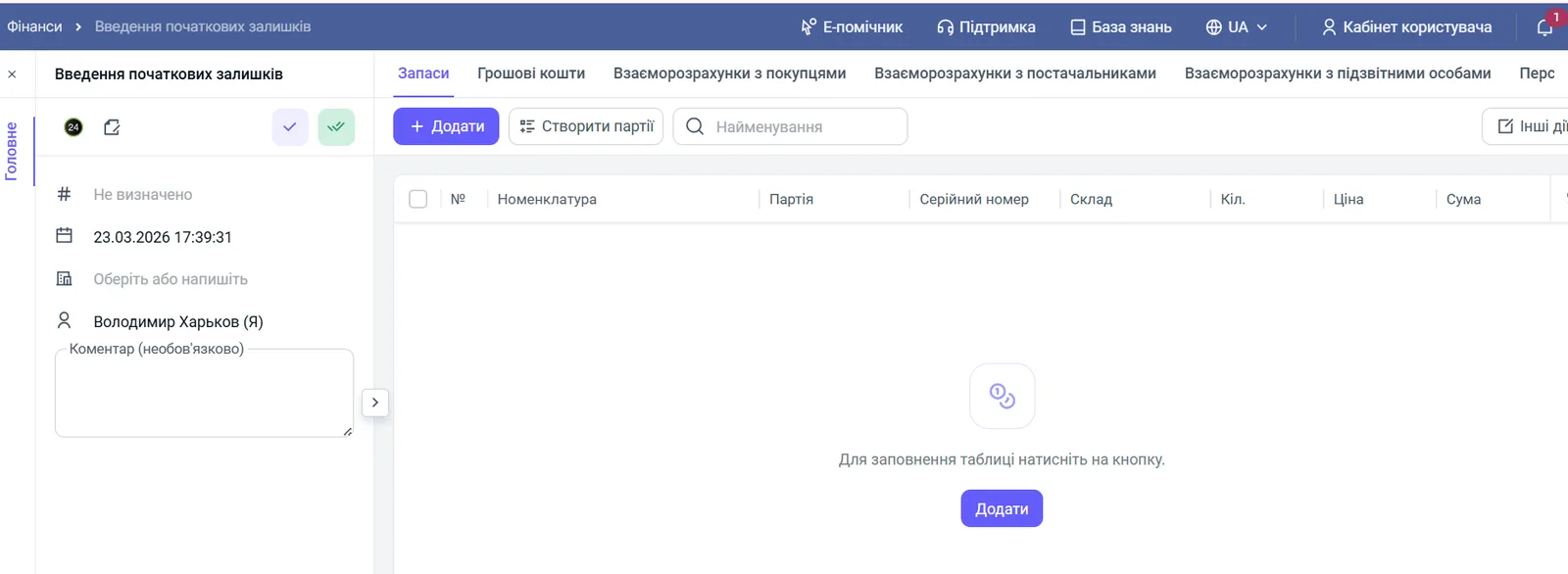
Fill in only the tabs for which the company has balances.
| Tab | What you enter | Article |
|---|---|---|
| “Inventory” | goods, raw materials, finished products with quantity and cost price | Inventory |
| “Cash” | balances in cash desks and on bank accounts | Cash |
| “Settlements with customers” | customer debts and their prepayments | Settlements with customers and suppliers |
| “Settlements with suppliers” | your debts to suppliers and prepayments to them | Settlements with customers and suppliers |
| “Settlements with accountable persons” | money issued to employees that has no report yet | Accountable persons |
| “Staff” | salary debt or advances | Salary debt |
| “Taxes” | debts or overpayments to the budget | Taxes |
| “Assets” | fixed assets with value and depreciation | Assets and non-current assets |
| “Direct costs” | incurred costs not yet included in cost price | Direct costs |
| “Other expenses” | balances on accounts that have no separate tab | Other accounts |
| “Change history” | a service tab: who changed what in the document and when | none |
How to check the balances after entering them
After saving, compare the data with reports: Bimp should show the same figures as your stock count, cash and reconciliations with counterparties.
- Warehouse. Open the Stock movement report and compare the quantity and amount with the stock count list.
- Money. Open the Cash flow report and reconcile the balances on all accounts and in cash desks.
- Settlements. Open the reports Settlements with customers and Settlements with suppliers: the debts should match your reconciliation statements.
If a report shows a negative value where it should not be (for example, a negative stock balance), go back to the document and check the relevant tab.
FAQ
Can I start selling without entering opening balances?
Technically yes, but Bimp will show a negative stock balance, and customer and supplier debts will not appear in reports. Without balances you cannot correctly calculate cost price, profit and the balance sheet.
Which date should I use for opening balances?
Enter all balances with a single date, usually the last day of the previous month. The document date must be earlier than the first current operations in Bimp.
What should I do if reports show negative values after entering balances?
Go back to the Opening balances document and check the relevant tab: a typical cause is a missed line, a double entry or a wrongly set "Advance" or "Overspending" checkbox.